API Access
This guide covers everything you need to integrate with the Salus Suite API. Whether you’re connecting diagrams to Power BI, retrieving information about your diagrams or users or upgrading your diagrams, it will help you get started quickly.
Base URL
Make all API requests to: https://publicapi.salus-suite.com/api
Access our Swagger documentation here: https://publicapi.salus-suite.com/index.html
Authentication
Authenticate using an API key. Include your key in an HTTP header with every request:
X-API-KEY: YOUR_API_KEY
Manage your API keys
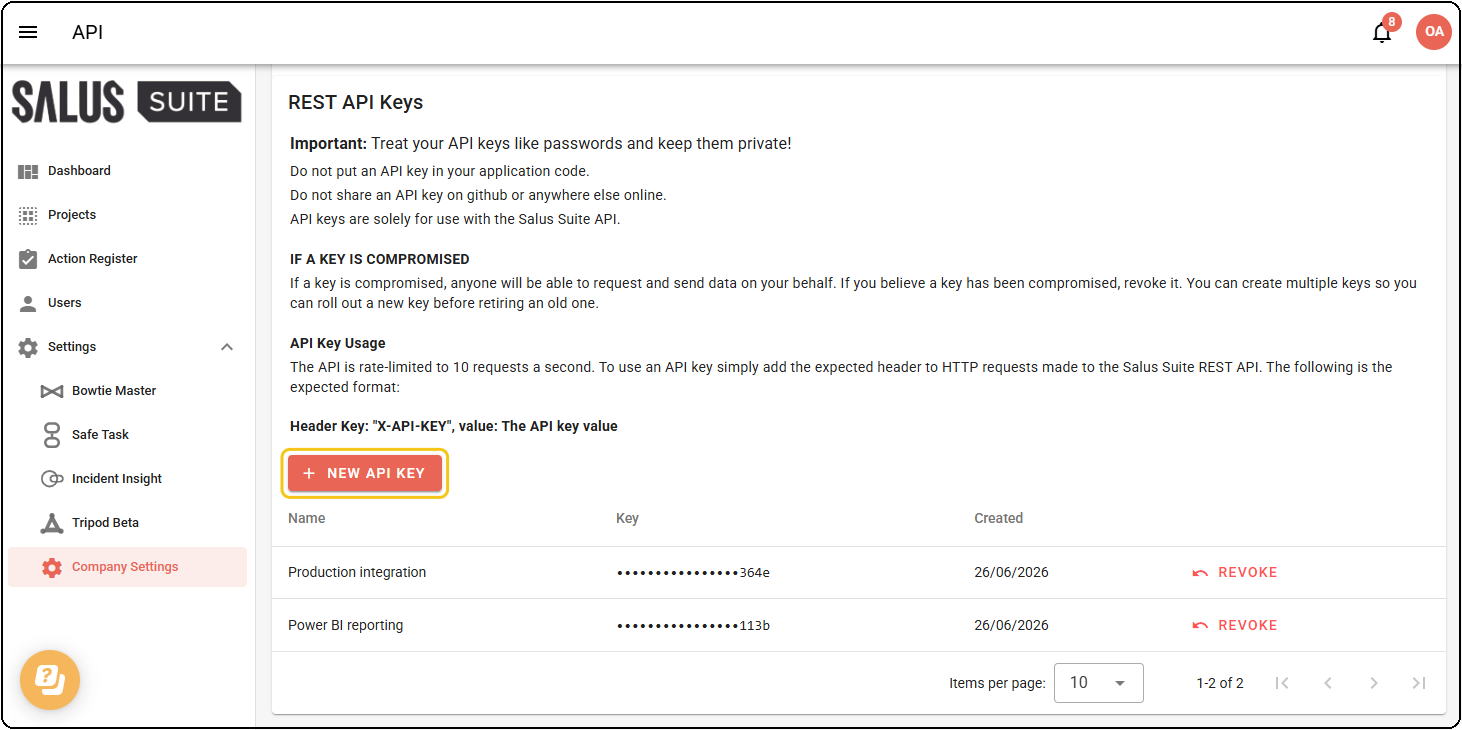
The API page lists every key for your organisation. Each key shows its name, a masked value (only the last four characters are visible) and the date it was created. You can create more than one key, which lets you roll a new key out before retiring an old one.
Open the page from Settings > Company Settings > API. The API tab only appears when API access is enabled for your organisation.
Create an API key
Step 1: Click NEW API KEY.
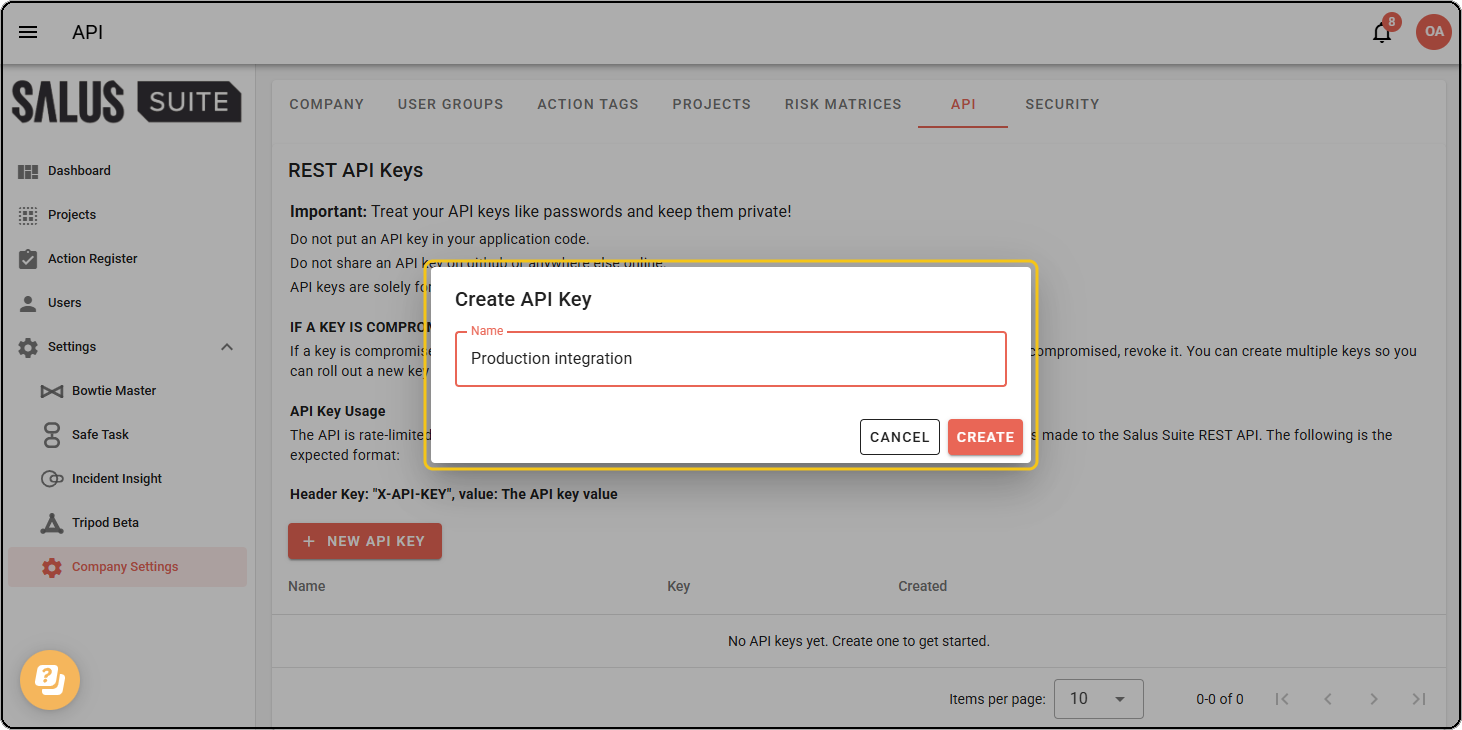
Step 2: Enter a name that identifies where the key is used, for example “Production integration”, then click CREATE.
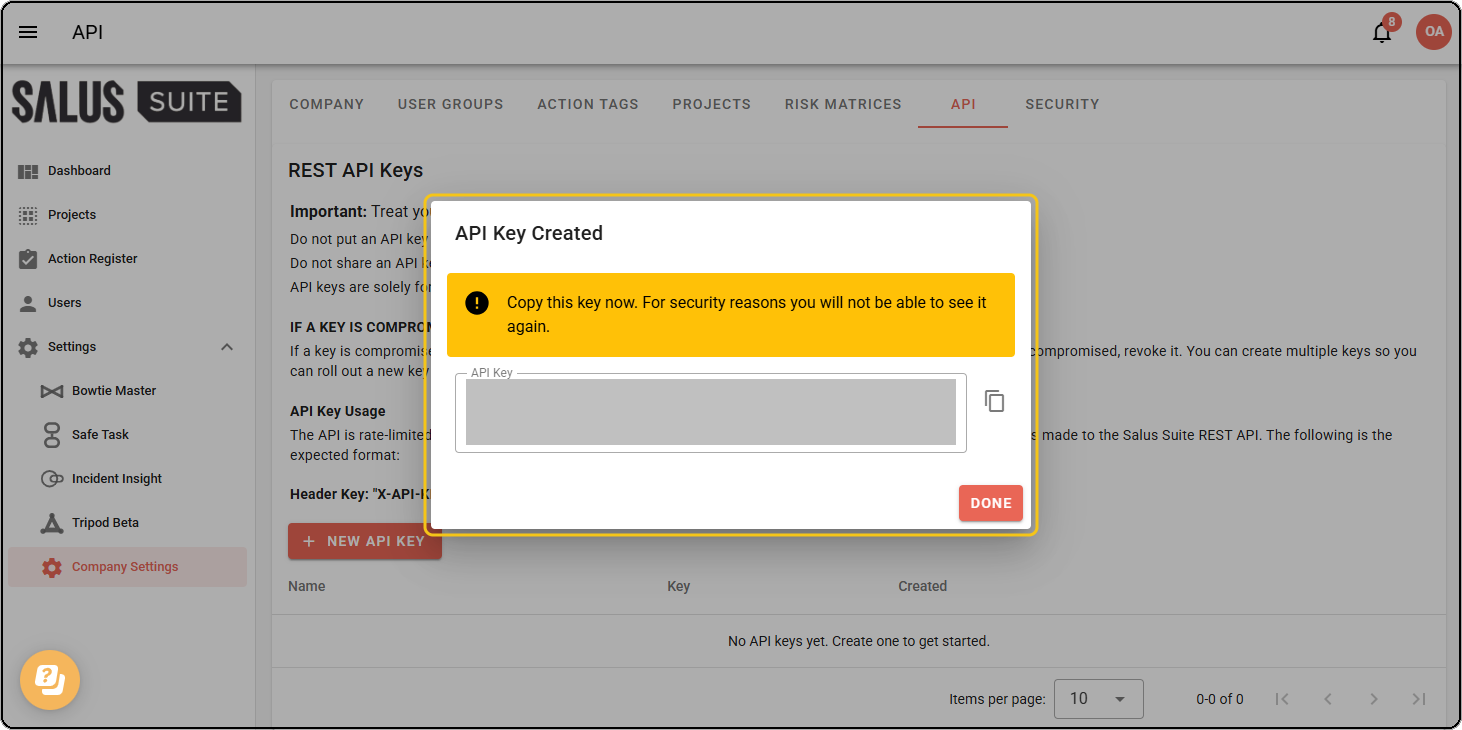
Step 3: Copy the key and store it somewhere safe, then click DONE. For security the full key is shown only once - you cannot view it again after closing this dialog.
Revoke an API key
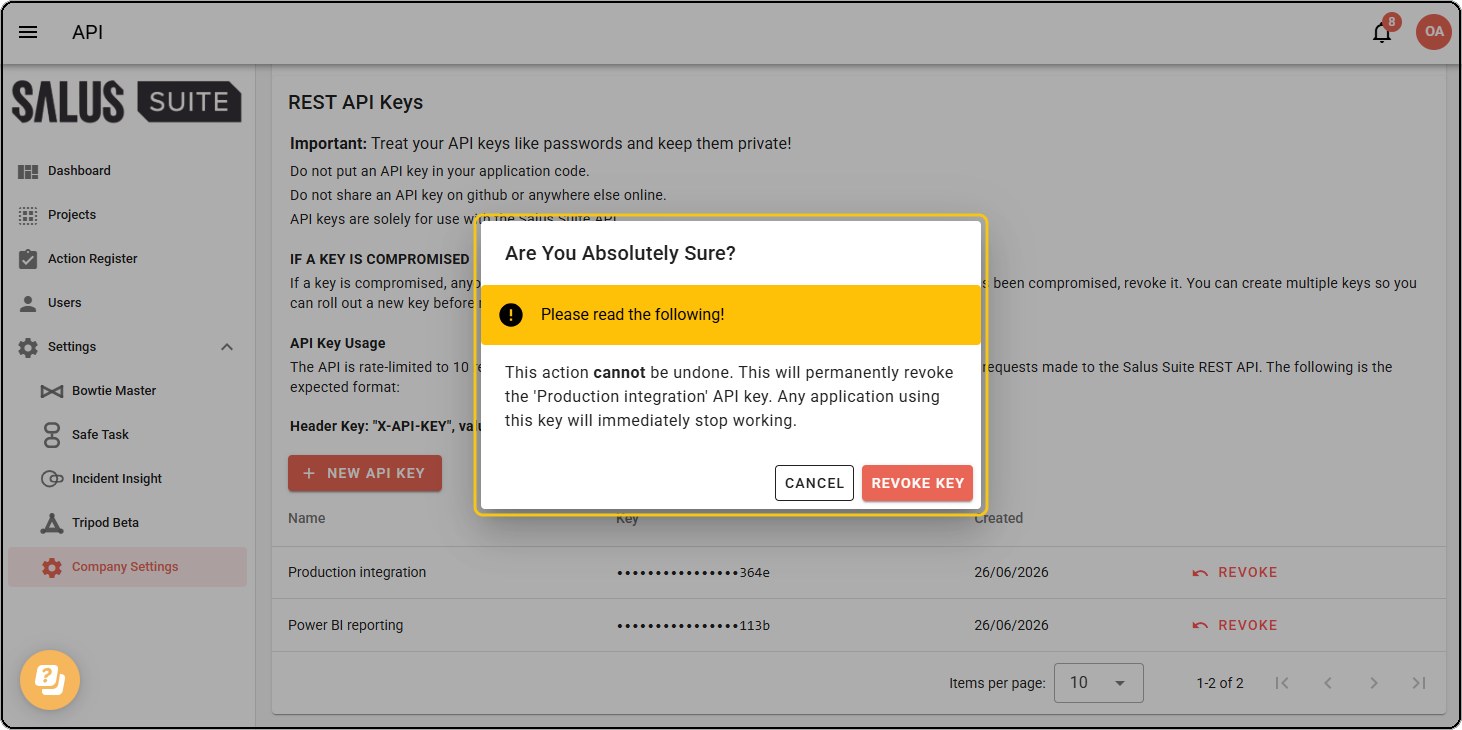
Revoke a key when it is no longer needed or you believe it has been compromised. Any application using the key stops working immediately.
Step 1: Find the key in the list and click REVOKE.
Step 2: Then click REVOKE KEY to confirm.
Rotate a key
To replace a key without downtime, create a new key first and update your applications to use it. Once everything works with the new key, revoke the old one.
Rate limits
The API is rate-limited to 10 requests per second to protect the quality of our services. If you exceed this, you receive a 429 Too Many Requests response.
Errors
The API uses conventional HTTP response codes to indicate the success or failure of a request:
- 200 OK - the request was successful.
- 400 Bad Request - there was an issue with the request (missing parameters or invalid data).
- 401 Unauthorized - your API key was missing or incorrect.
- 404 Not Found - the requested resource does not exist.
- 429 Too Many Requests - you have hit the rate limit. Try again later.
- 500 Internal Server Error - a problem occurred on our server. Try again later.