Version control
Create and manage multiple versions of your Tripod Beta diagram with version control.
In this tutorial, we’ll show you how to create drafts, publish a diagram and manage version history.
Diagrams can only be published if your organisation has Version Control enabled.
Publish a diagram
When you create a diagram, it starts as a draft.
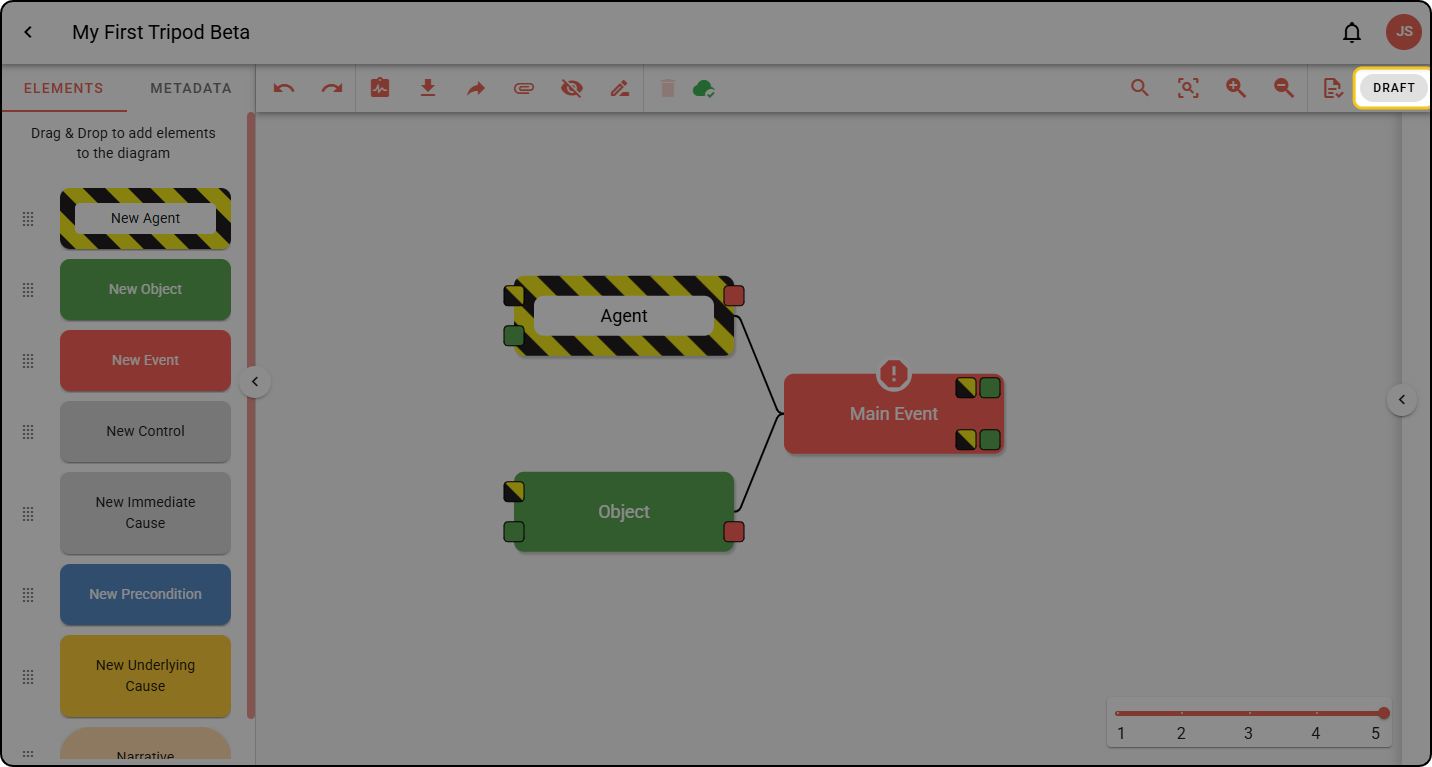
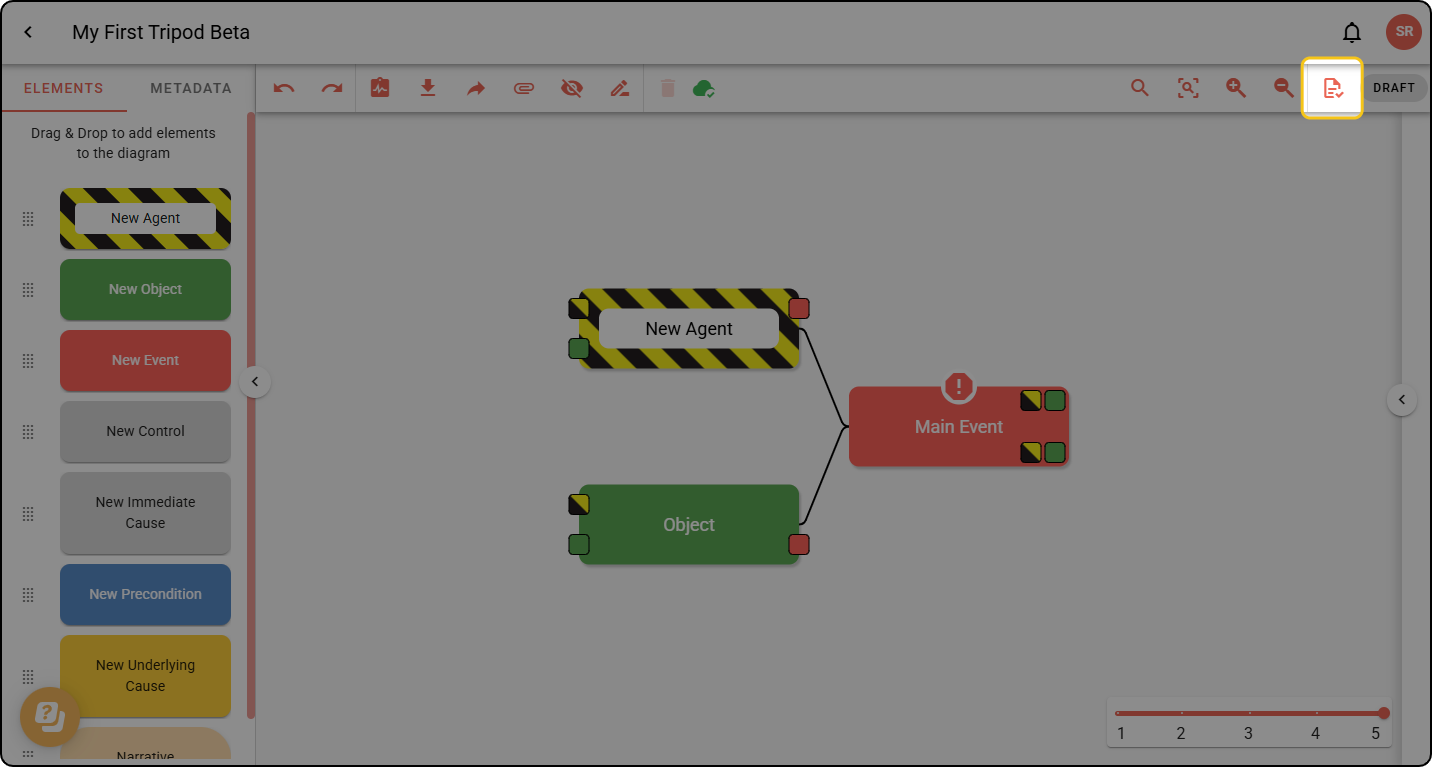
Step 1: In the diagram toolbar, click the paper icon.
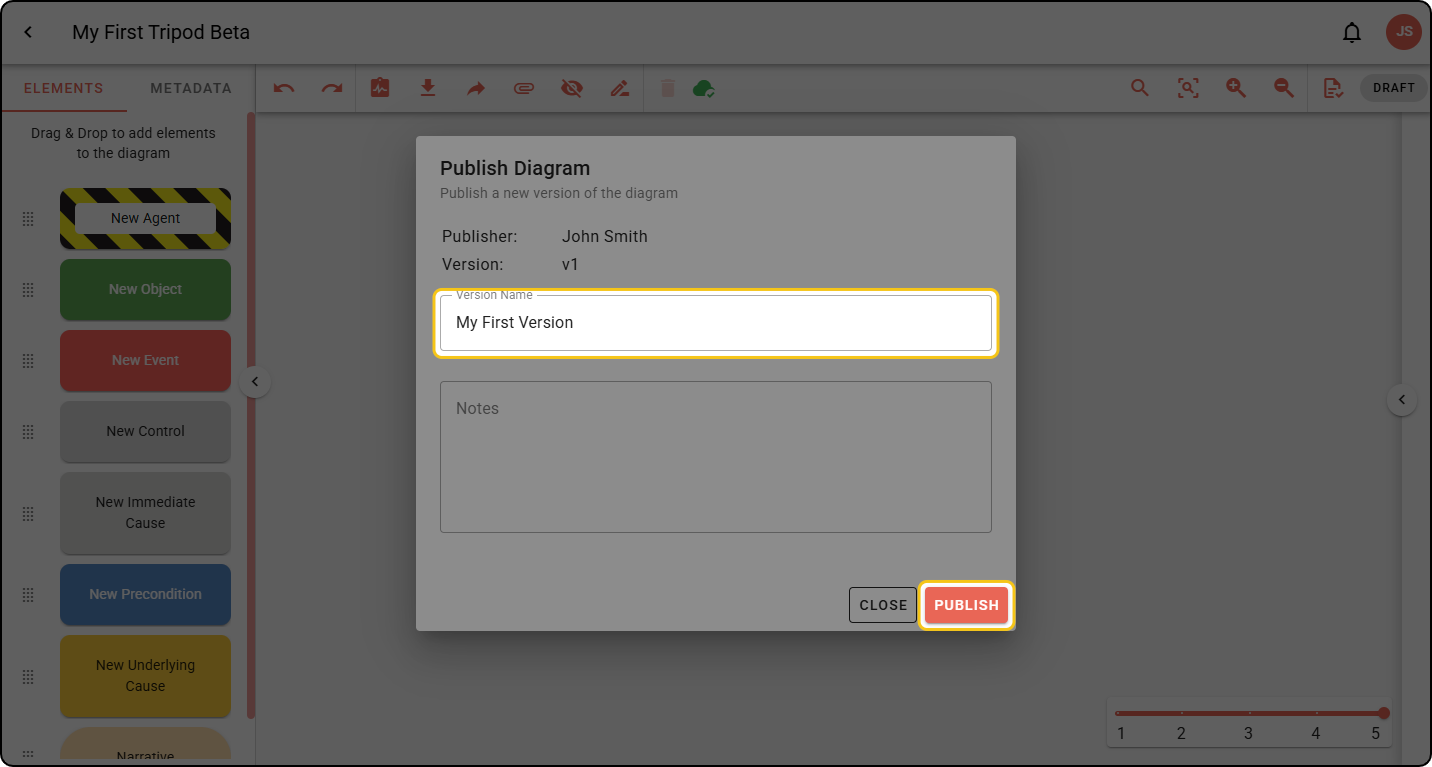
Step 2: Enter a Version Name, add notes if you wish, then click PUBLISH.
Once published, the version enters Read-Only mode.
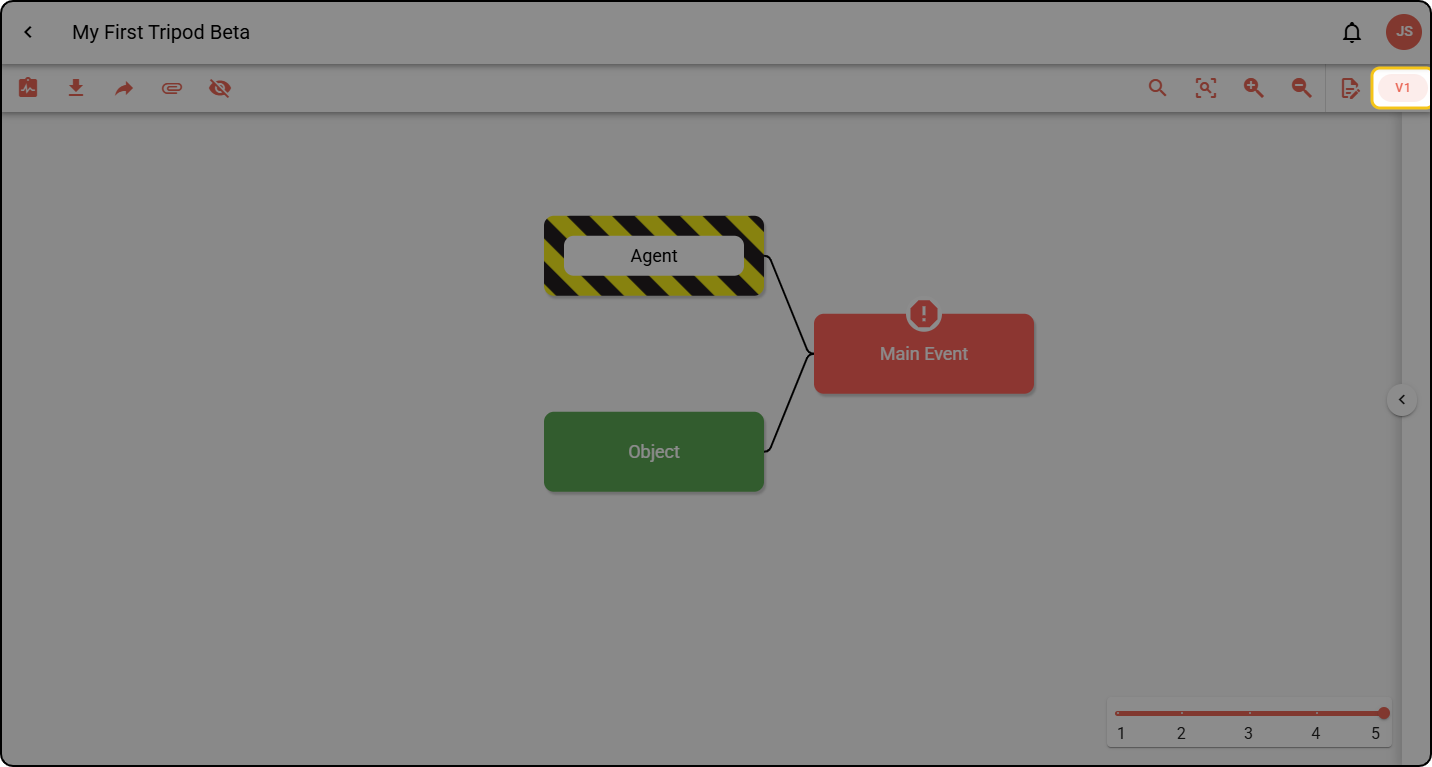
Editing a published diagram
Once a version of a diagram has been published, it is immutable. Subsequent changes can only be published as a new version.
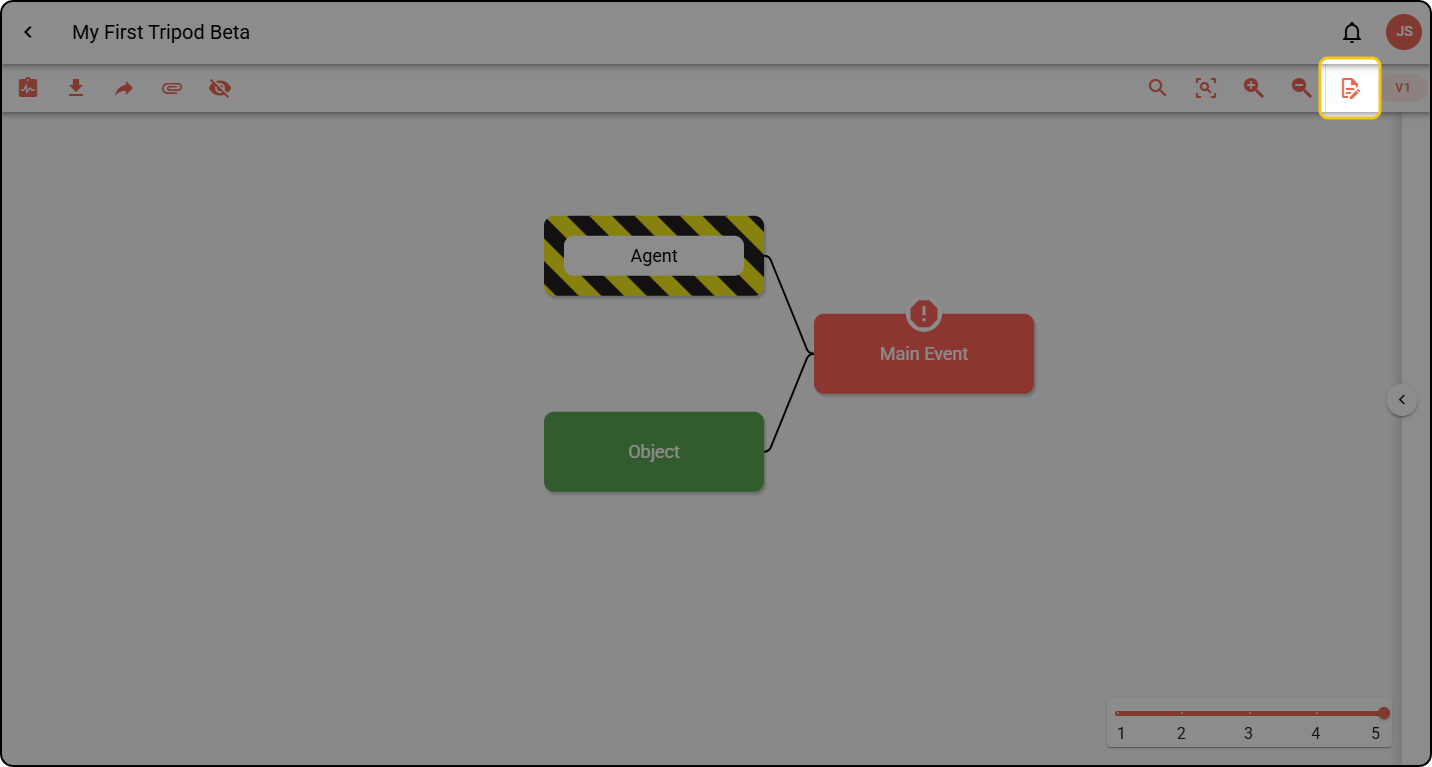
Step 1: To change a published diagram, click the paper icon in the toolbar. You enter Draft mode and can edit the diagram.
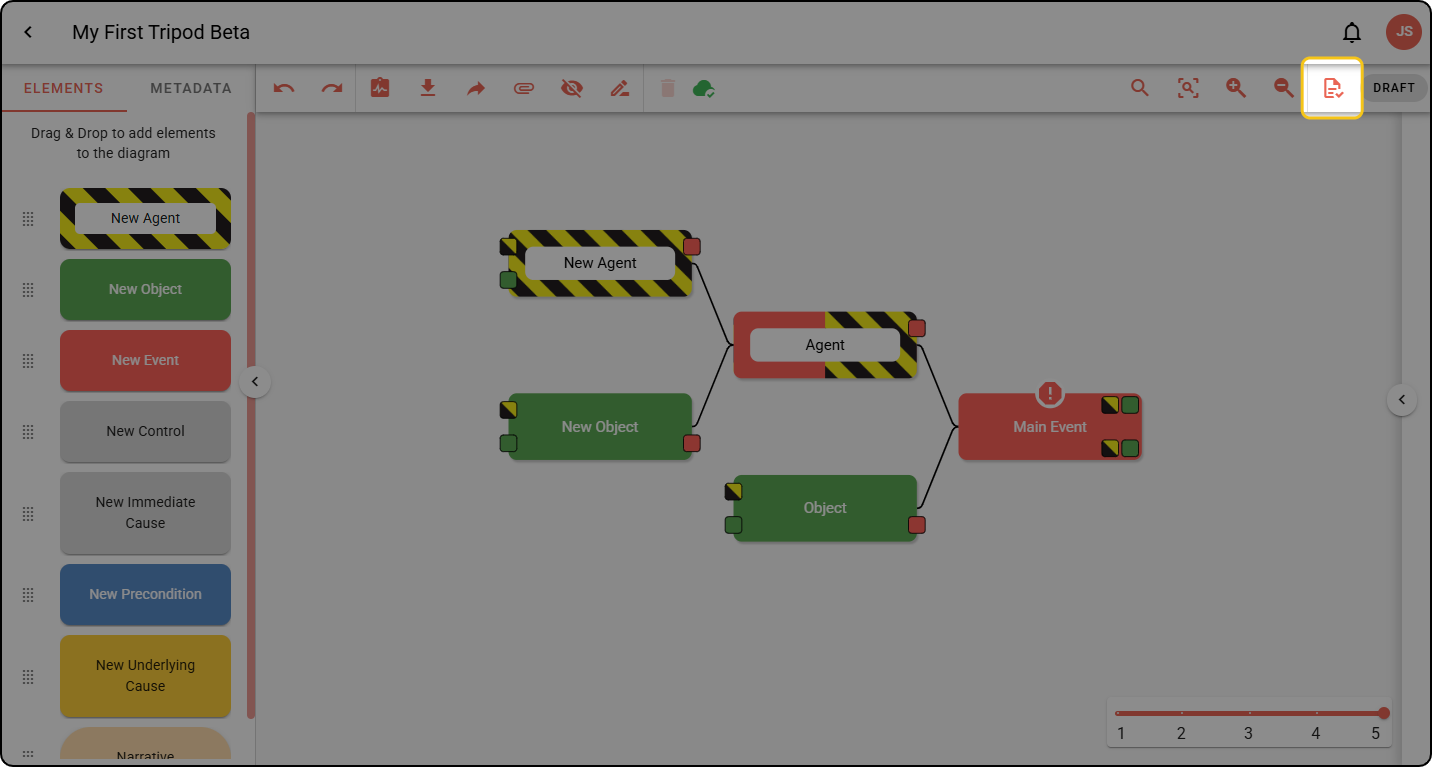
Step 2: To publish your changes, click the toolbar paper icon again and enter a version number and notes.
Delete a version
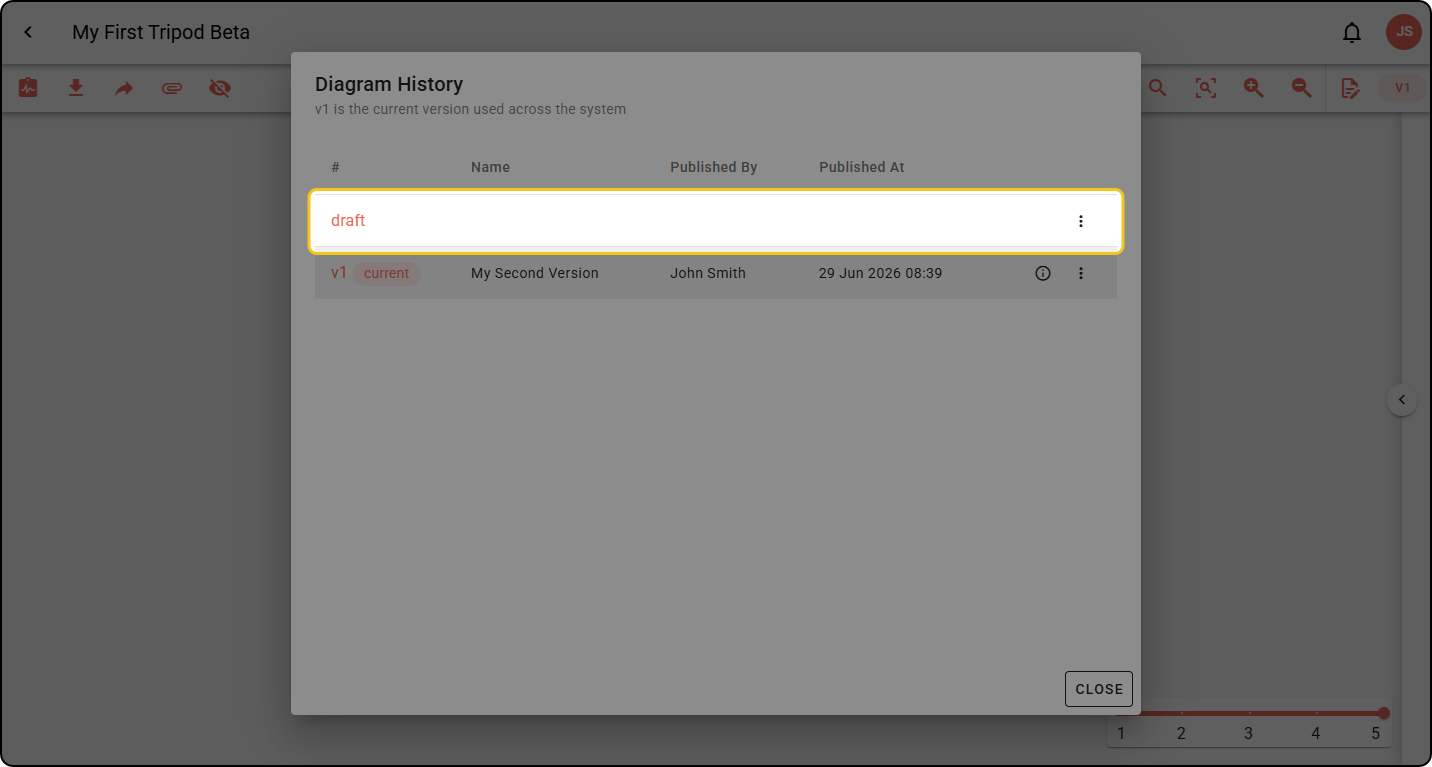
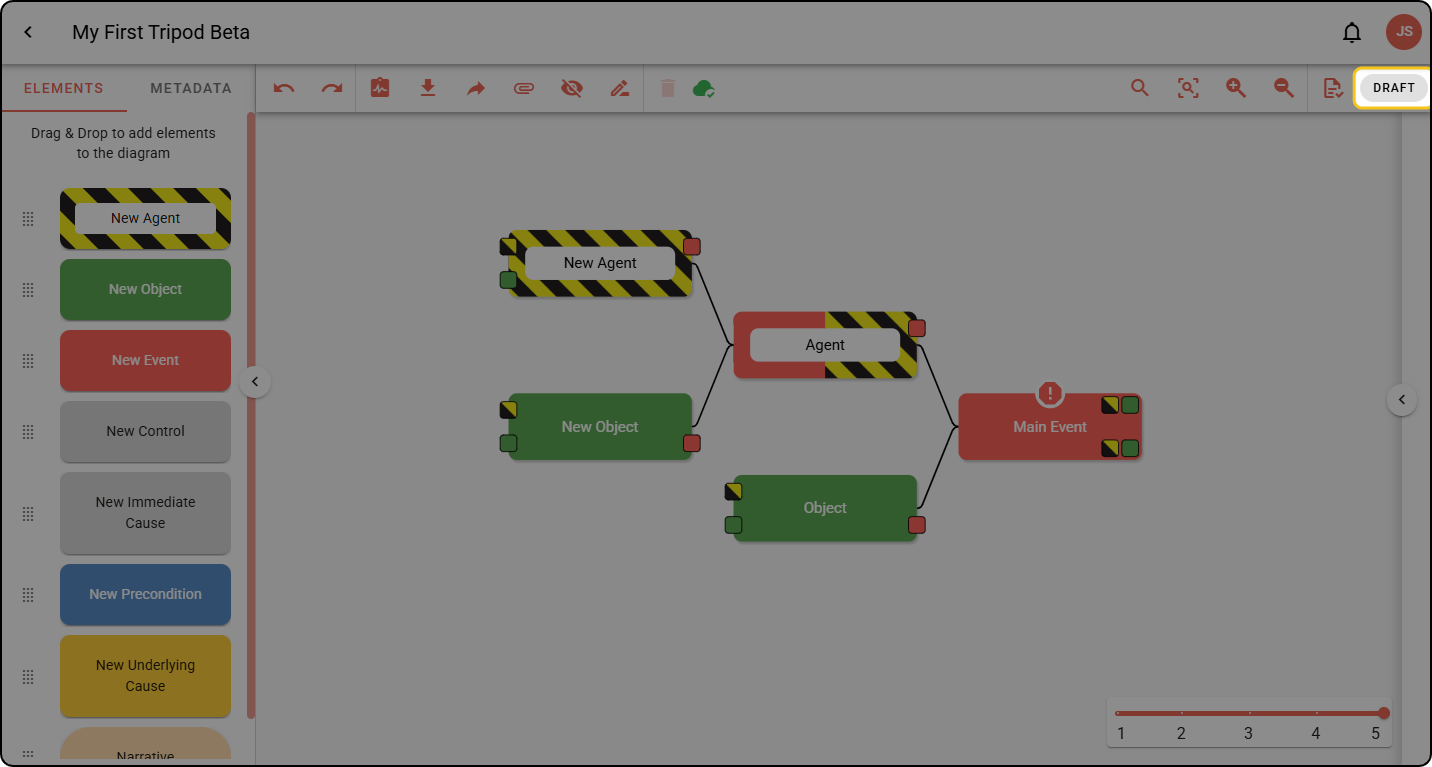
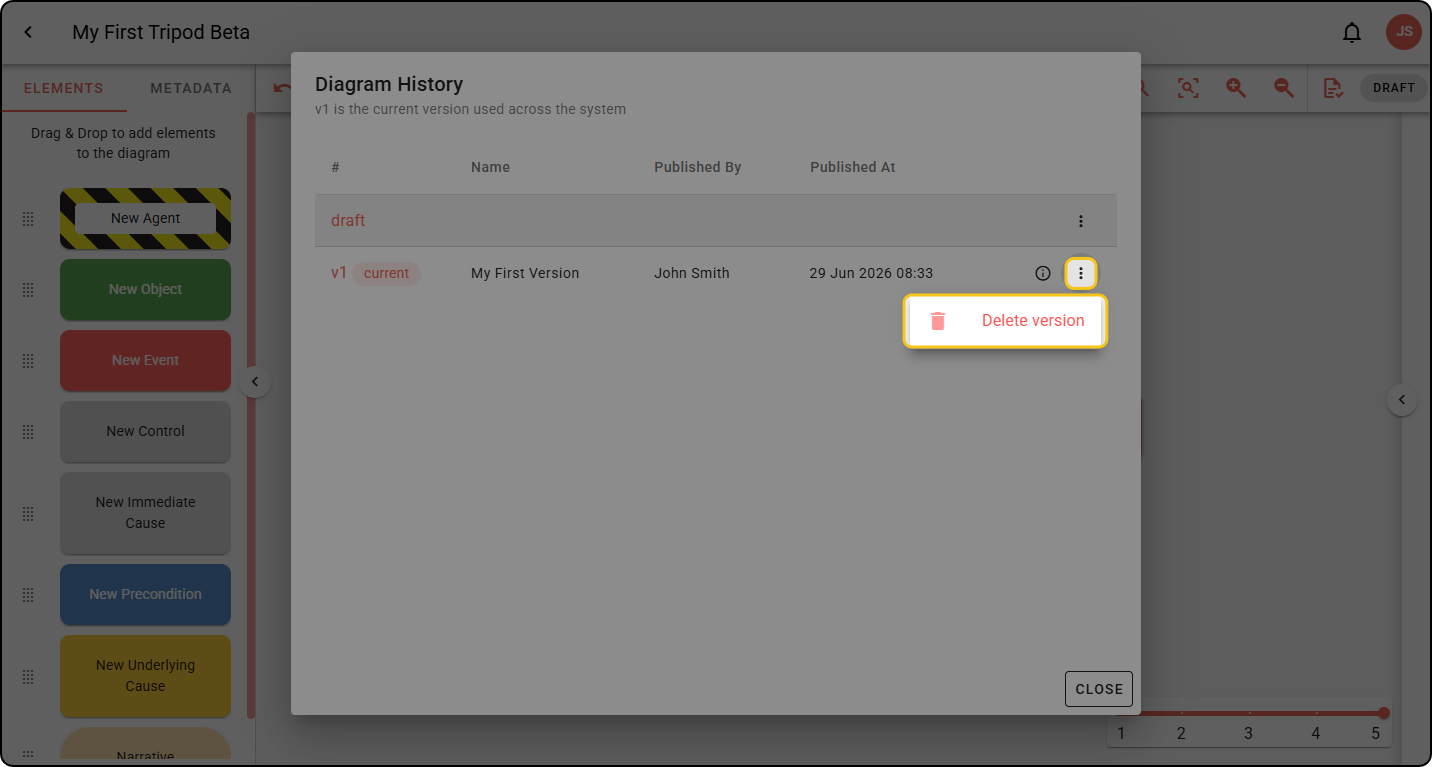
Step 1: In the toolbar, click the Draft or Version button.
Step 2: In the Version History window, find the version, click its ellipsis menu and select DELETE VERSION. If you’re viewing the version you delete, you switch automatically to another available version.
Create a draft from a version
A diagram can only have a single draft at a time. This option is unavailable if the diagram already has a draft version.
Step 1: Click the Draft or Version button.
Step 2: In the Version History window, open a version’s ellipsis menu and click Create draft from …
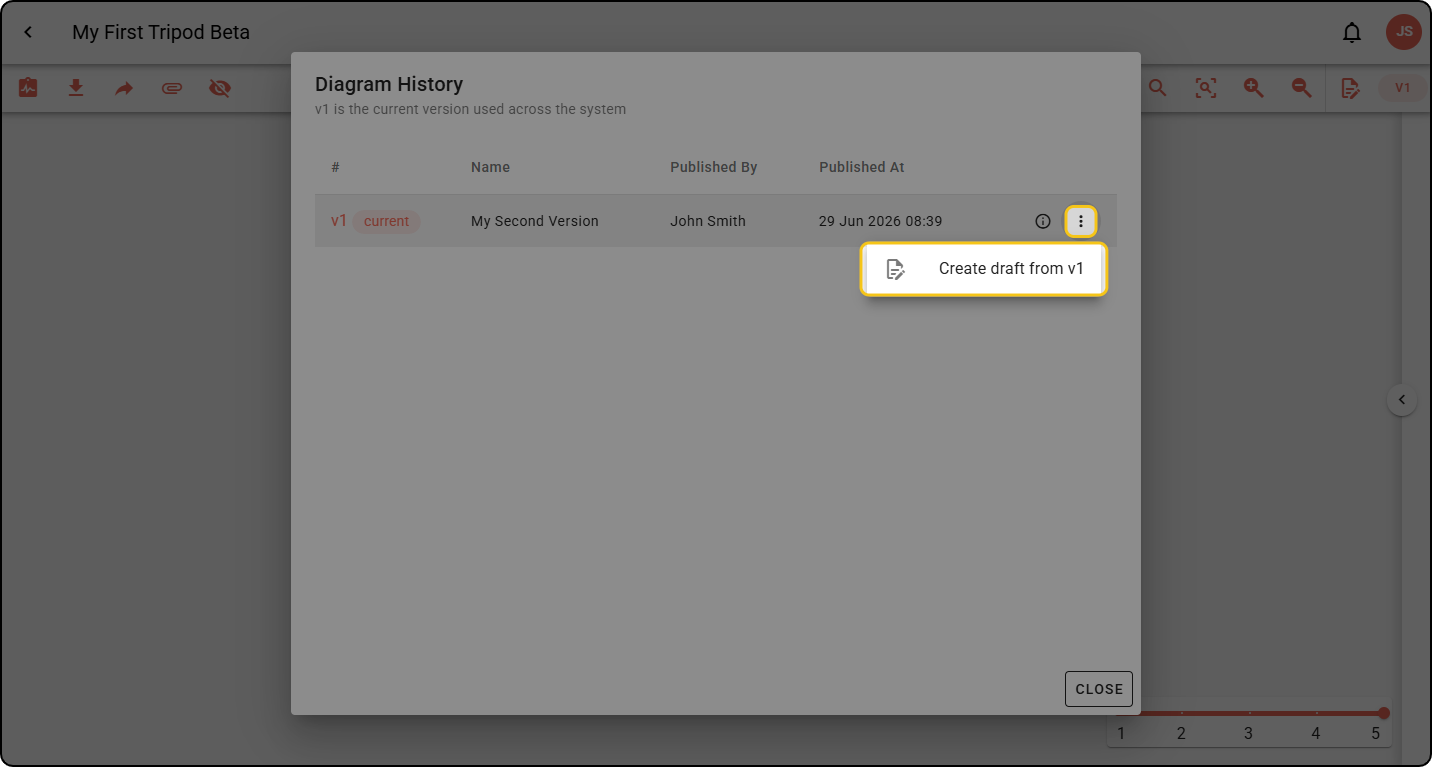
Step 3: A new draft appears in the Version History window. Click it to start editing.