Add actions to diagram elements
The actions feature helps you prioritise your risk management efforts by adding a sticky note to the elements that need improving.
In this tutorial, we’ll show you how to add an action to an element and link an existing action.
Add an action to an element
Step 1: In your diagram, double-click the element you want to add an action to.
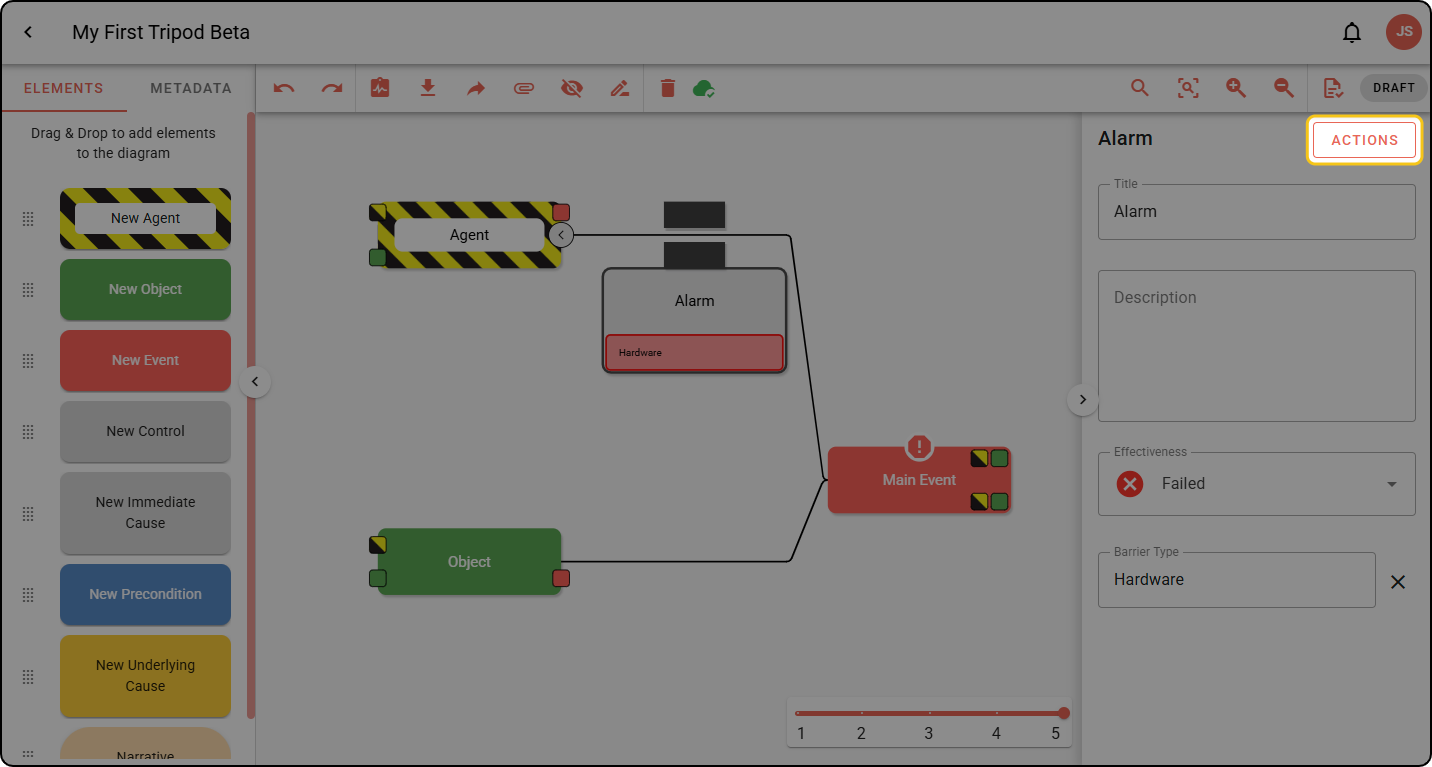
Step 2: In the right-hand sidebar, click ACTIONS.
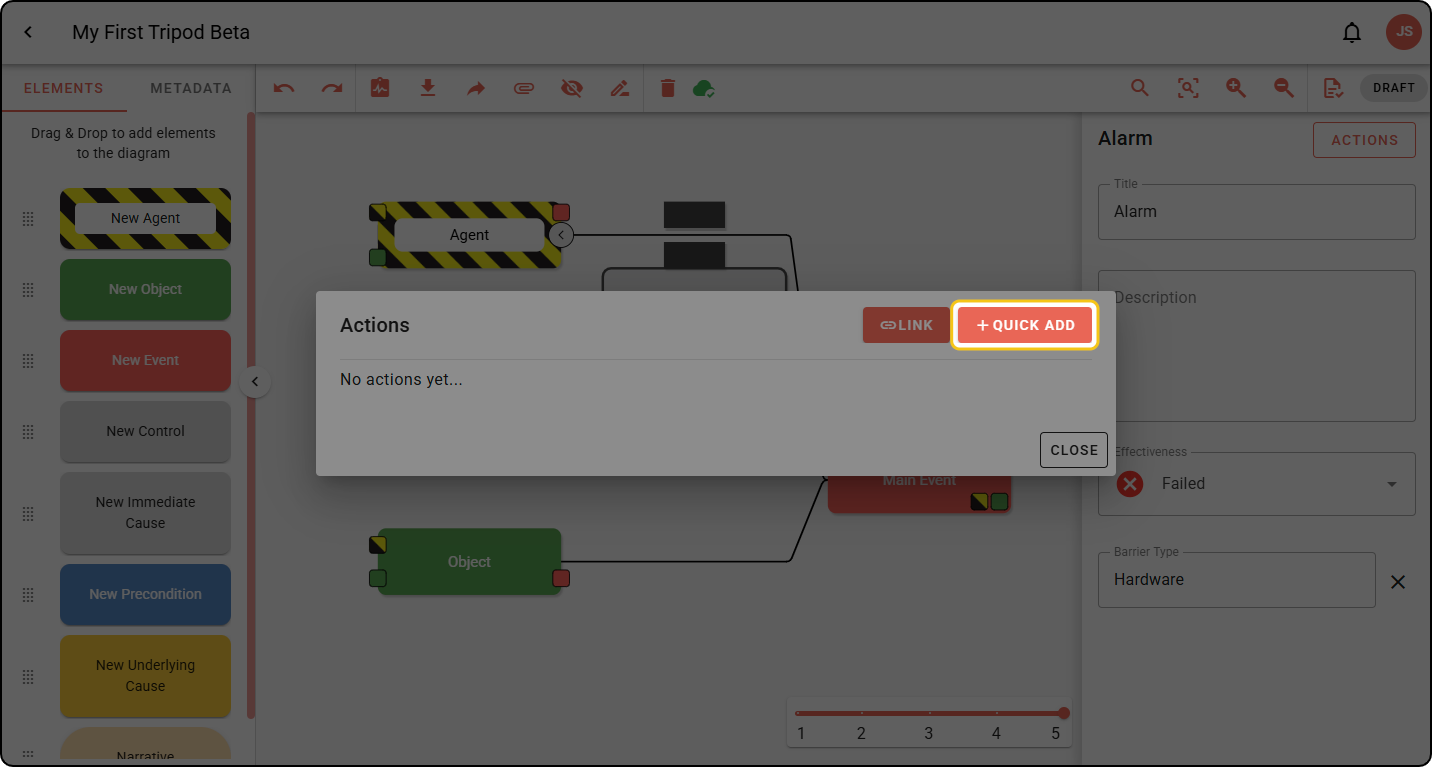
Step 3: Click + QUICK ADD to start creating a new action.
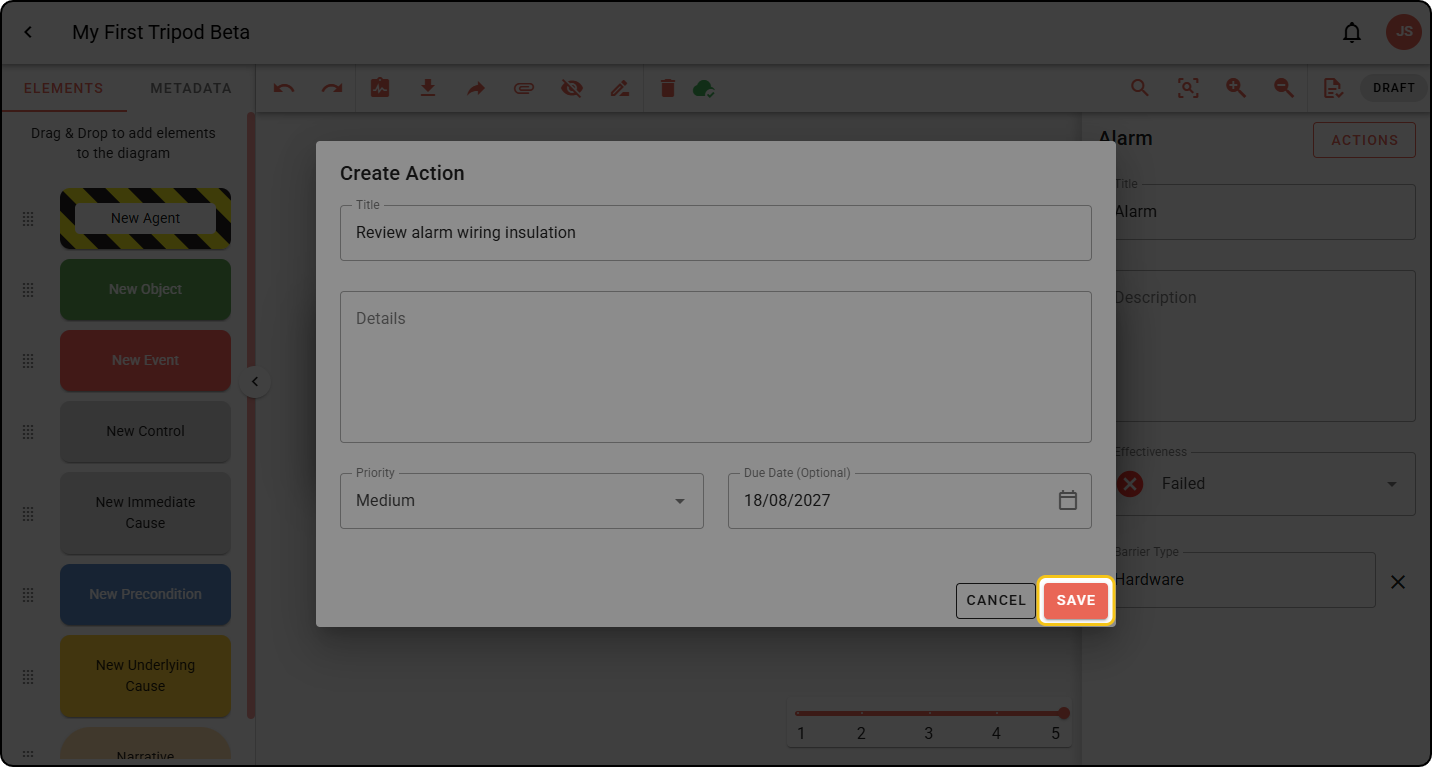
Step 4: Fill in the action details, including the description and date, then click SAVE.
A diagram element with actions shows a yellow sticky note:
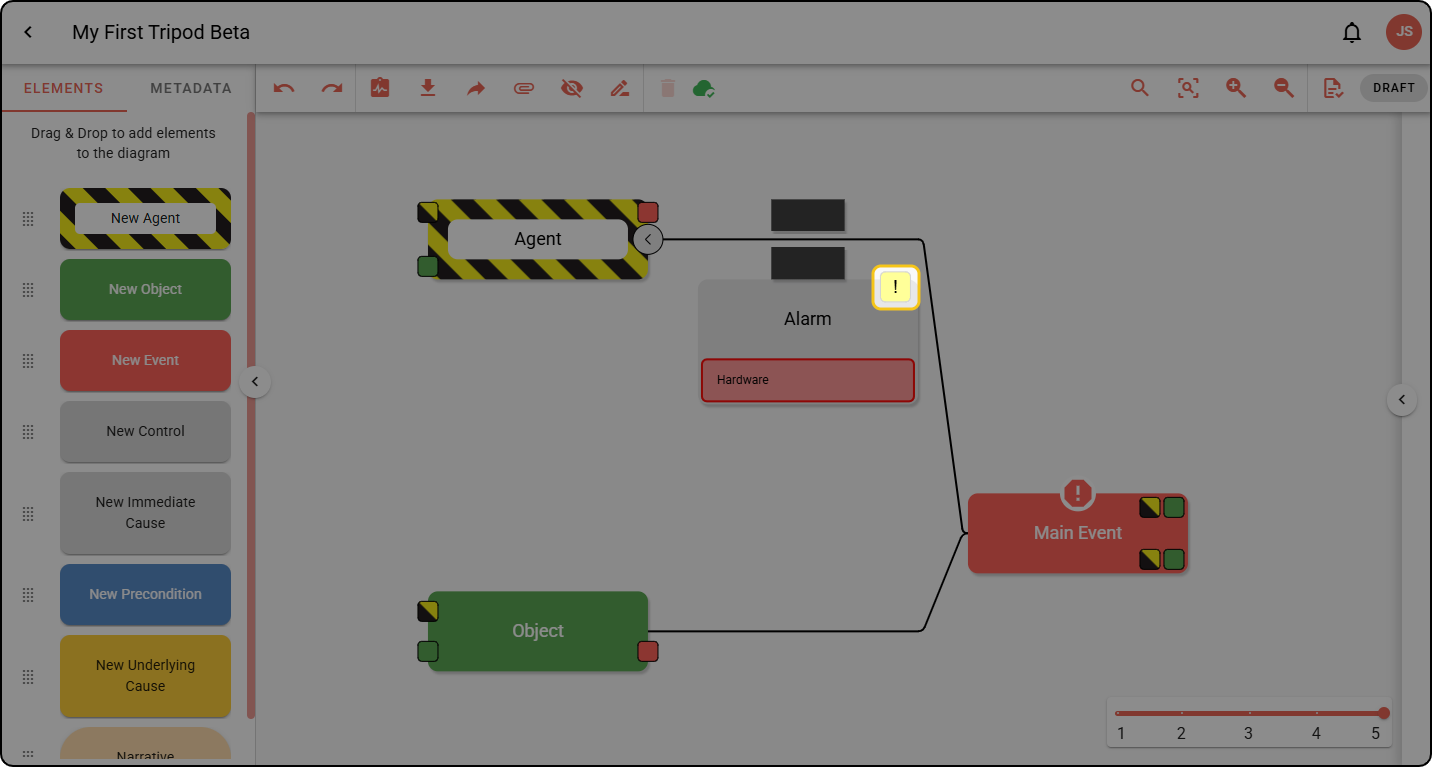
To edit an action, repeat Step 2, then click the action’s name. You’re redirected to a new tab in the Action Register, where you can edit the action. To learn more, see the Action Register guide.
Link the element to an existing action
Step 1: Select the element and open its ACTIONS menu as shown above. Click LINK.
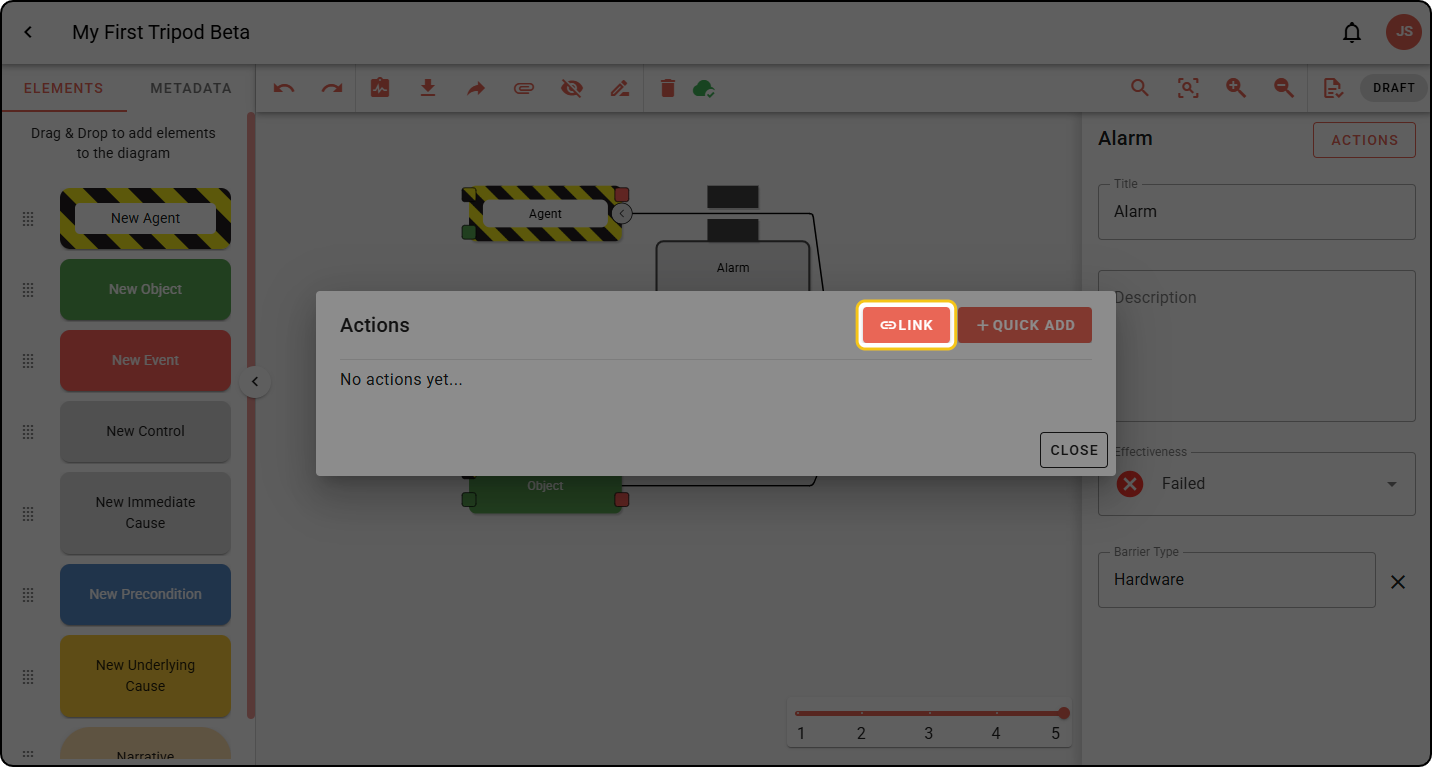
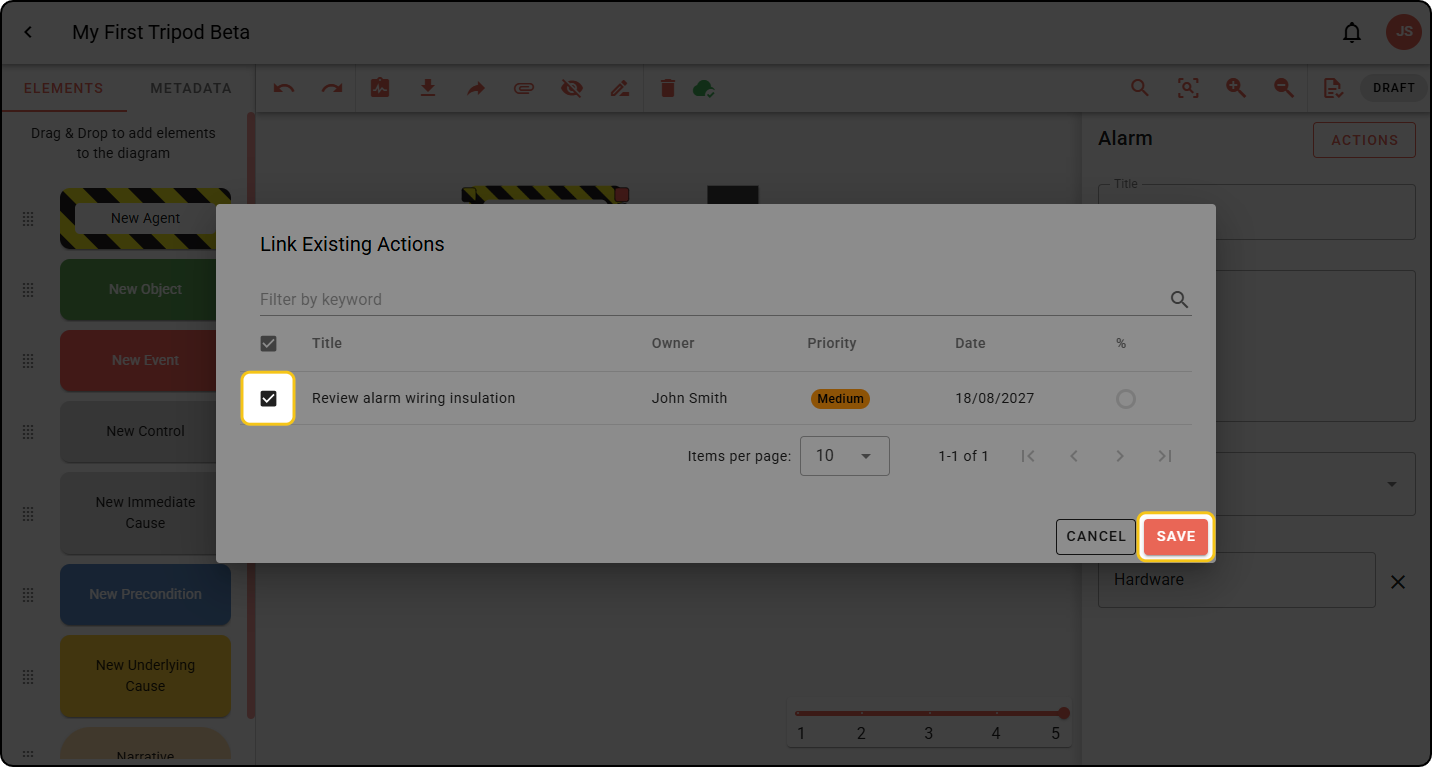
Step 2: In the Link Existing Actions window, select the actions you want to link, then click SAVE.