Action visibility
Action visibility controls who can see and access an action. Only the owner of an action can change its visibility.
Visibility levels
| Level | Who can see it |
|---|---|
| Private (default) | Only you |
| Assigned | You and assignees |
| Shared | You, assignees and specific users and groups you select |
| Project | You, assignees, selected users and groups, all users with access to linked diagrams and admins |
| Public | Everyone in the organisation |
If an action is linked to a diagram element, only Project and Public visibility are available.
Setting visibility to Private disables the ability to add assignees to an action.
Set visibility when creating an action
When you create an action from the Action Register, visibility defaults to Private. To change it, click the visibility chip in the top-right of the Create Action page and select your preferred level.
Change visibility on an existing action
Step 1: Open an action you own.
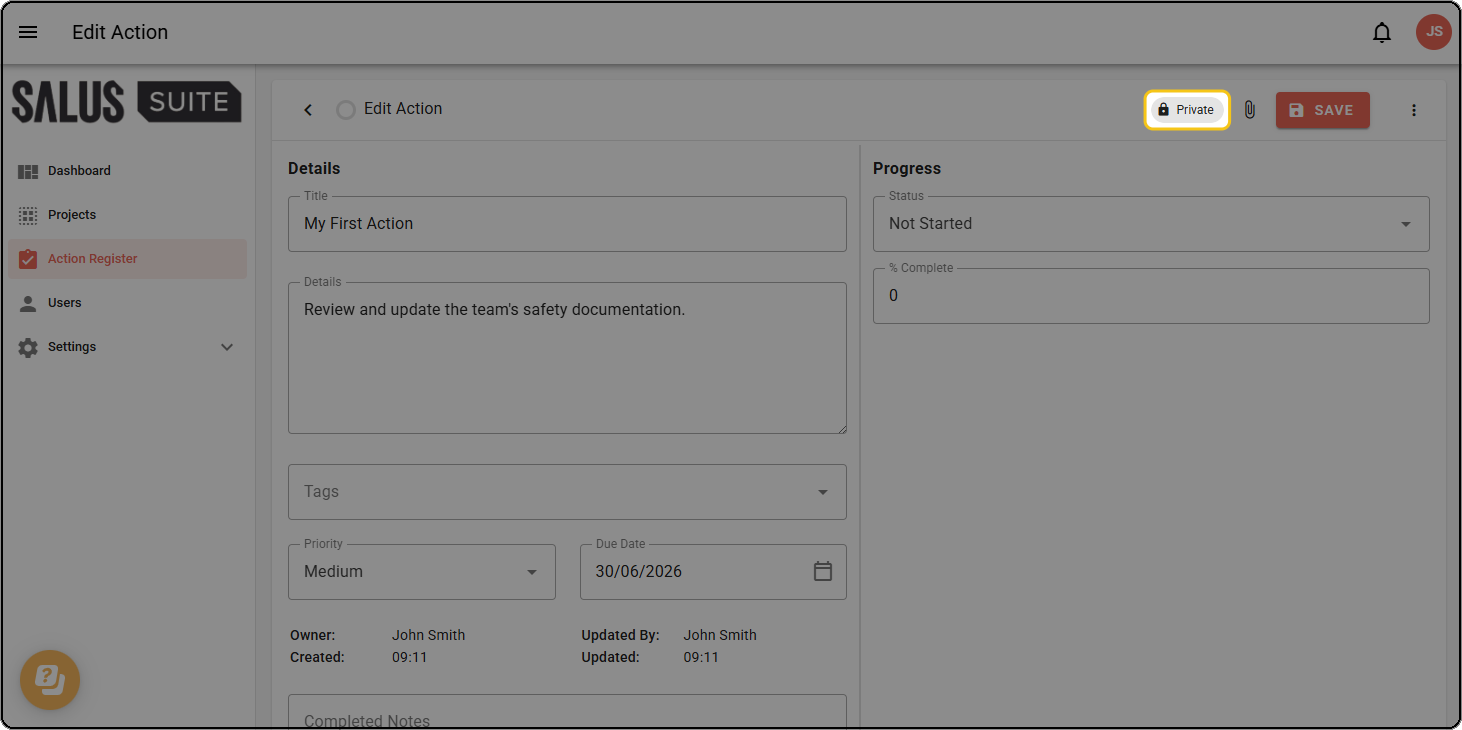
Step 2: Click the visibility chip in the top-right corner of the action (for example, Private with a lock icon).
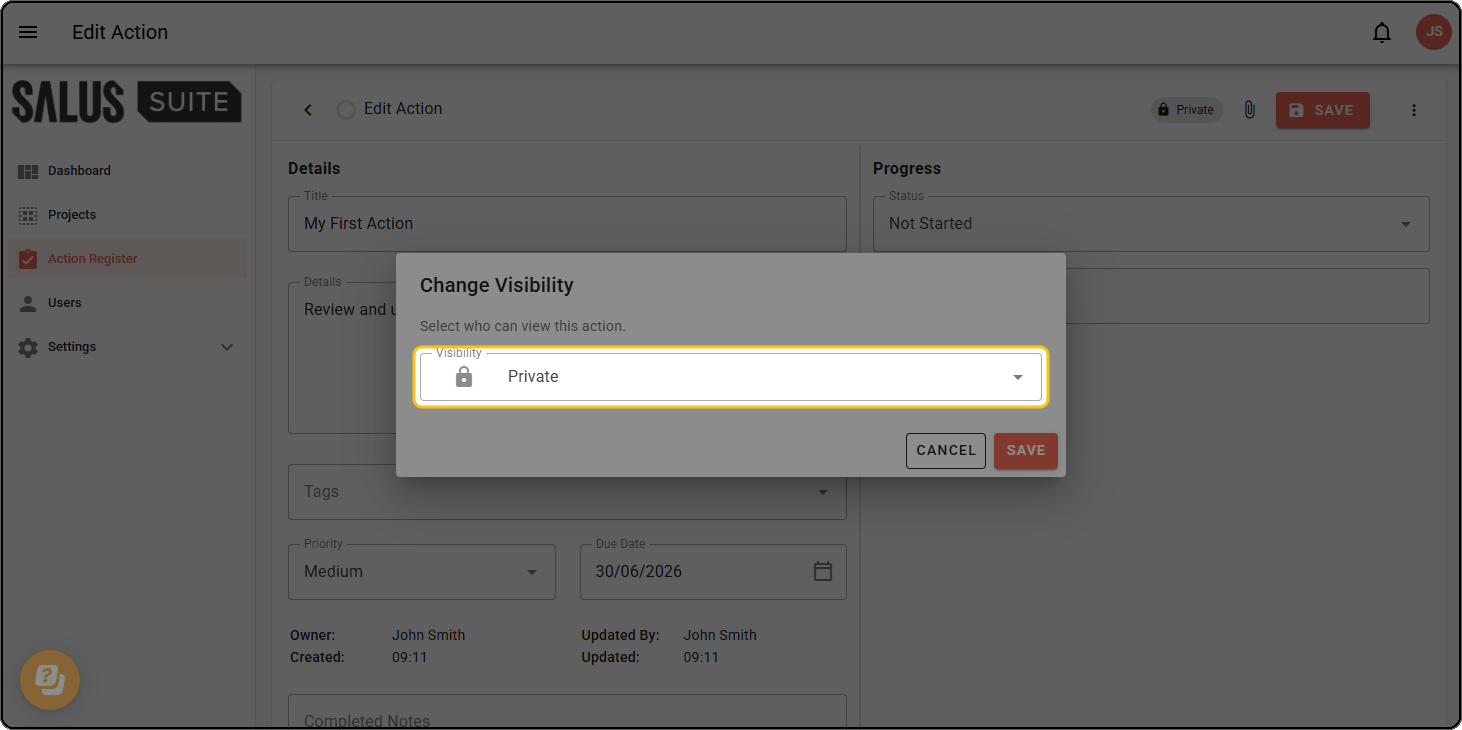
Step 3: In the Change Visibility dialog, select your desired visibility level.
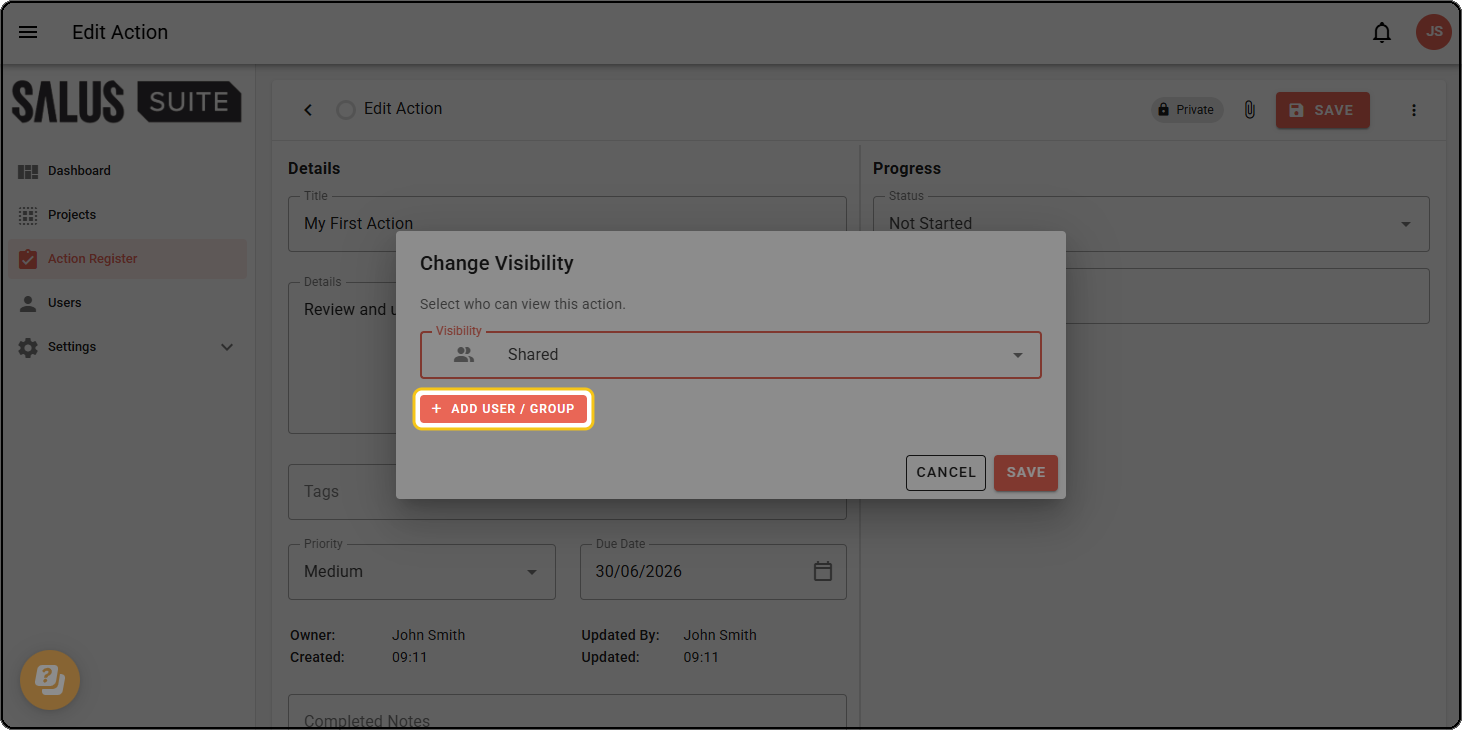
Step 4: For Shared or Project visibility, click + ADD USER / GROUP to add specific users or groups who can access the action.
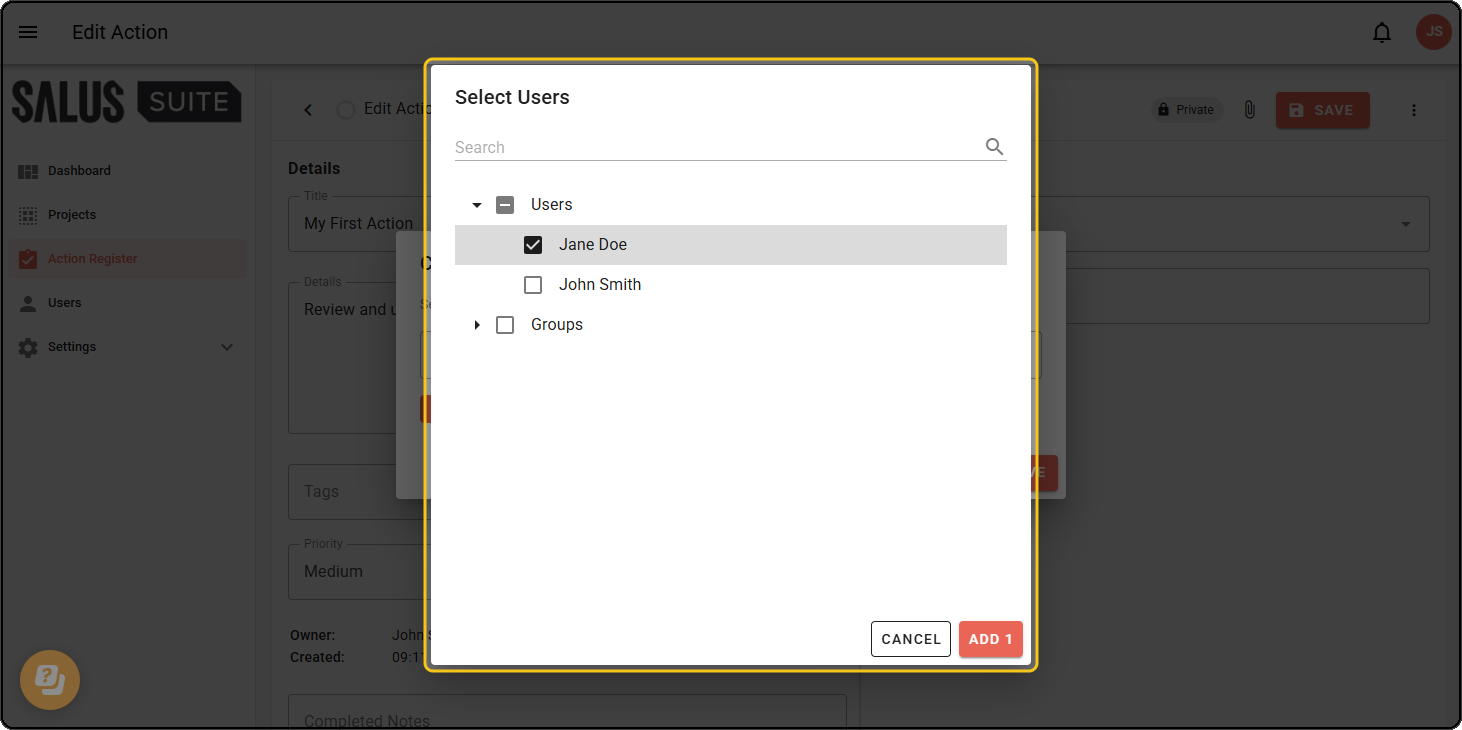
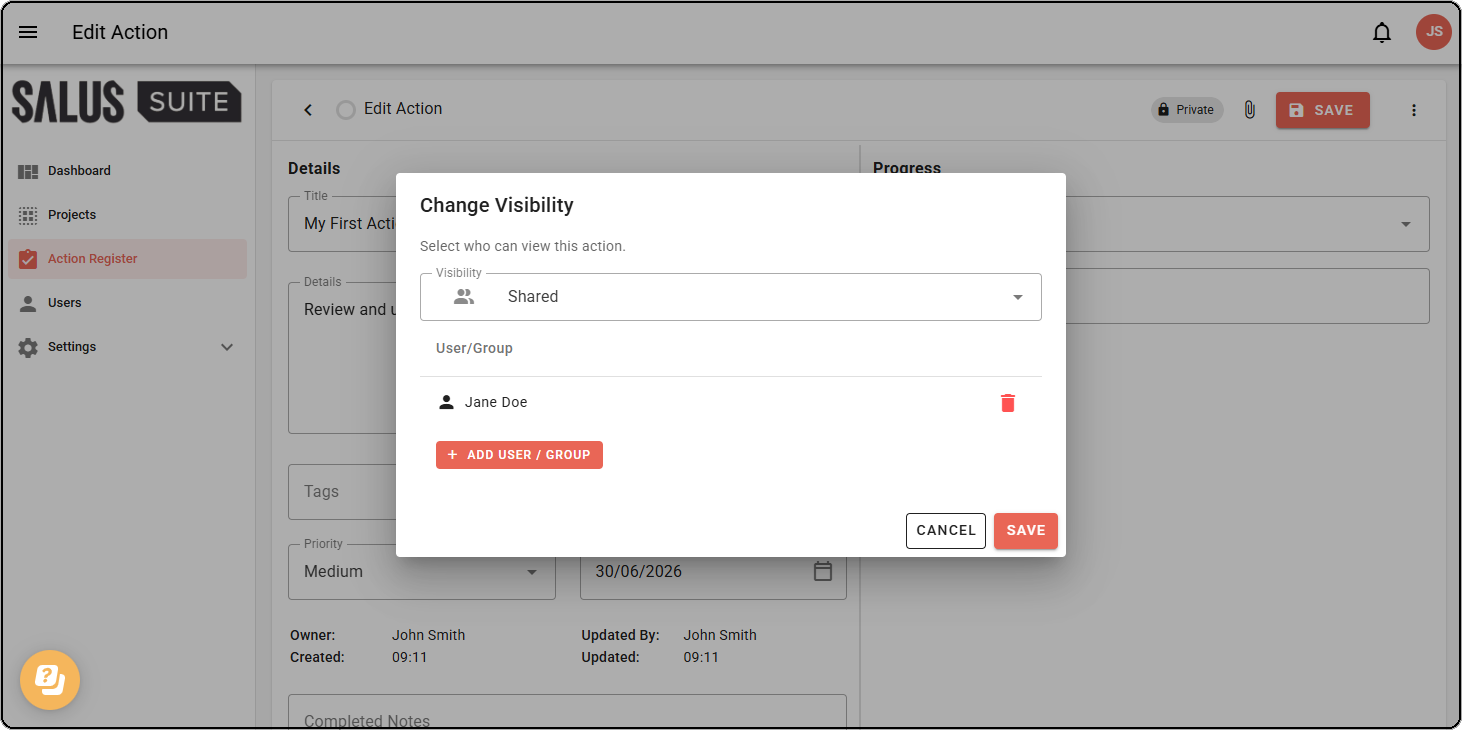
Step 5: Click SAVE.