Share a diagram
Bowtie Master makes it quick to share your diagrams across your organisation. You can share a bowtie in three ways:
- As a high-quality image, downloaded as a PNG or PDF
- As a live link that opens in any web browser
- By inviting users into Bowtie Master to view and edit the diagram
Share as an image or PDF
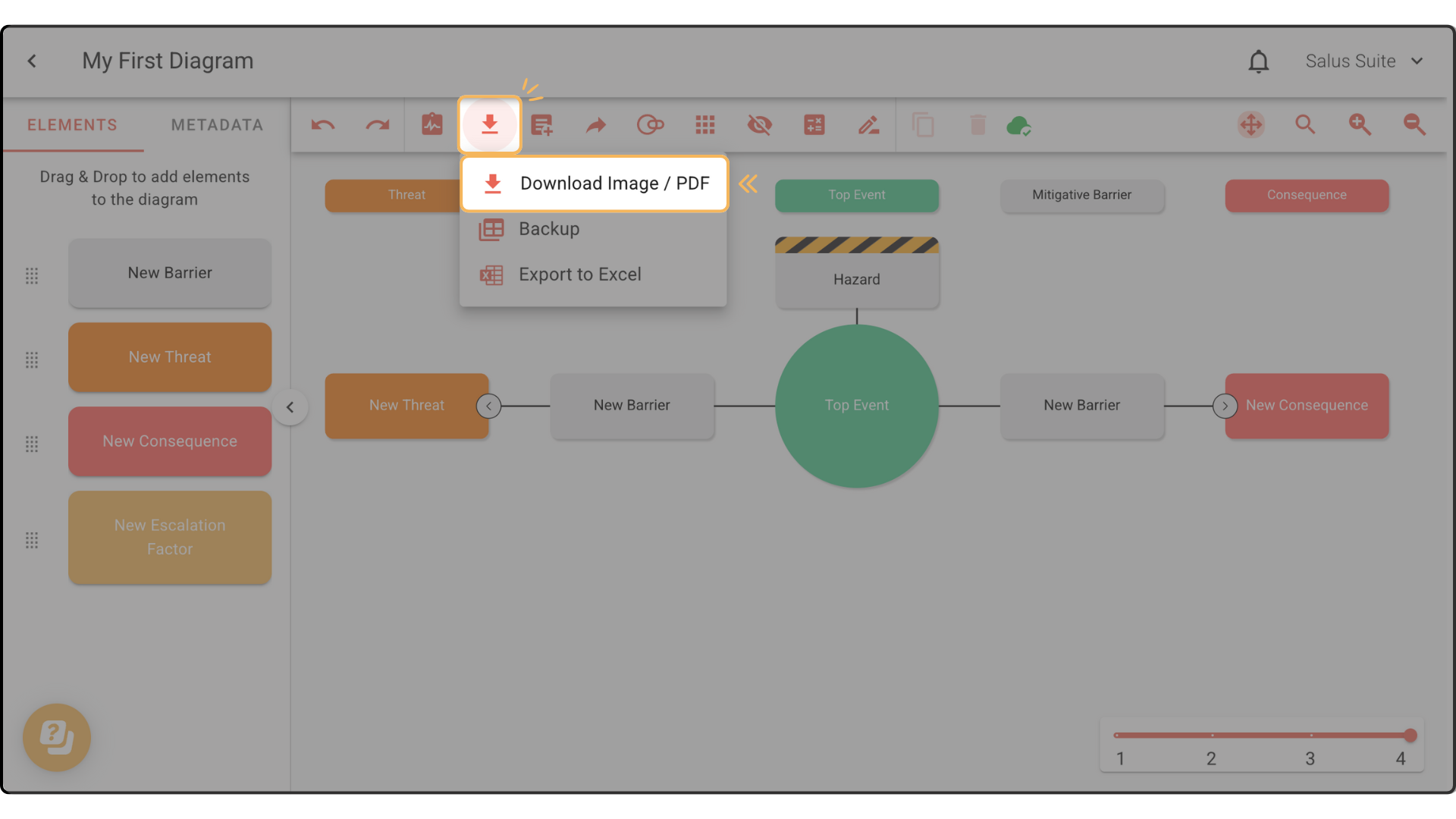
Step 1: In the toolbar, click the download button in the toolbar, then DOWNLOAD IMAGE / PDF.
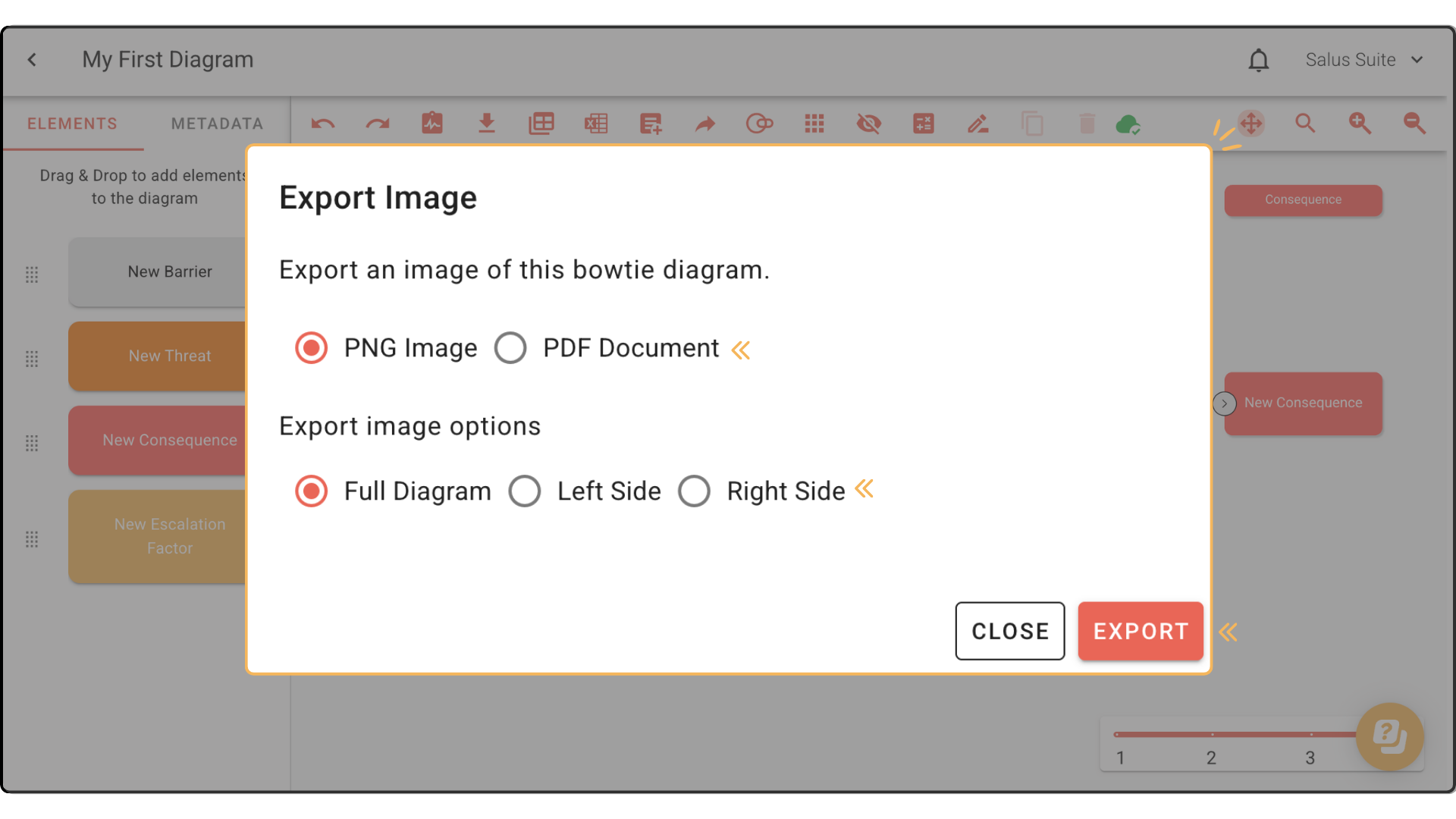
Step 2: Choose your format: PNG Image or PDF Format.
Step 3: Choose whether to export the full diagram, the left side or the right side only, then click EXPORT.
Invite users to view and edit
Add people to the project so they can open and edit the diagram in Bowtie Master - see Project access controls and Collaboration.
Share as a live link
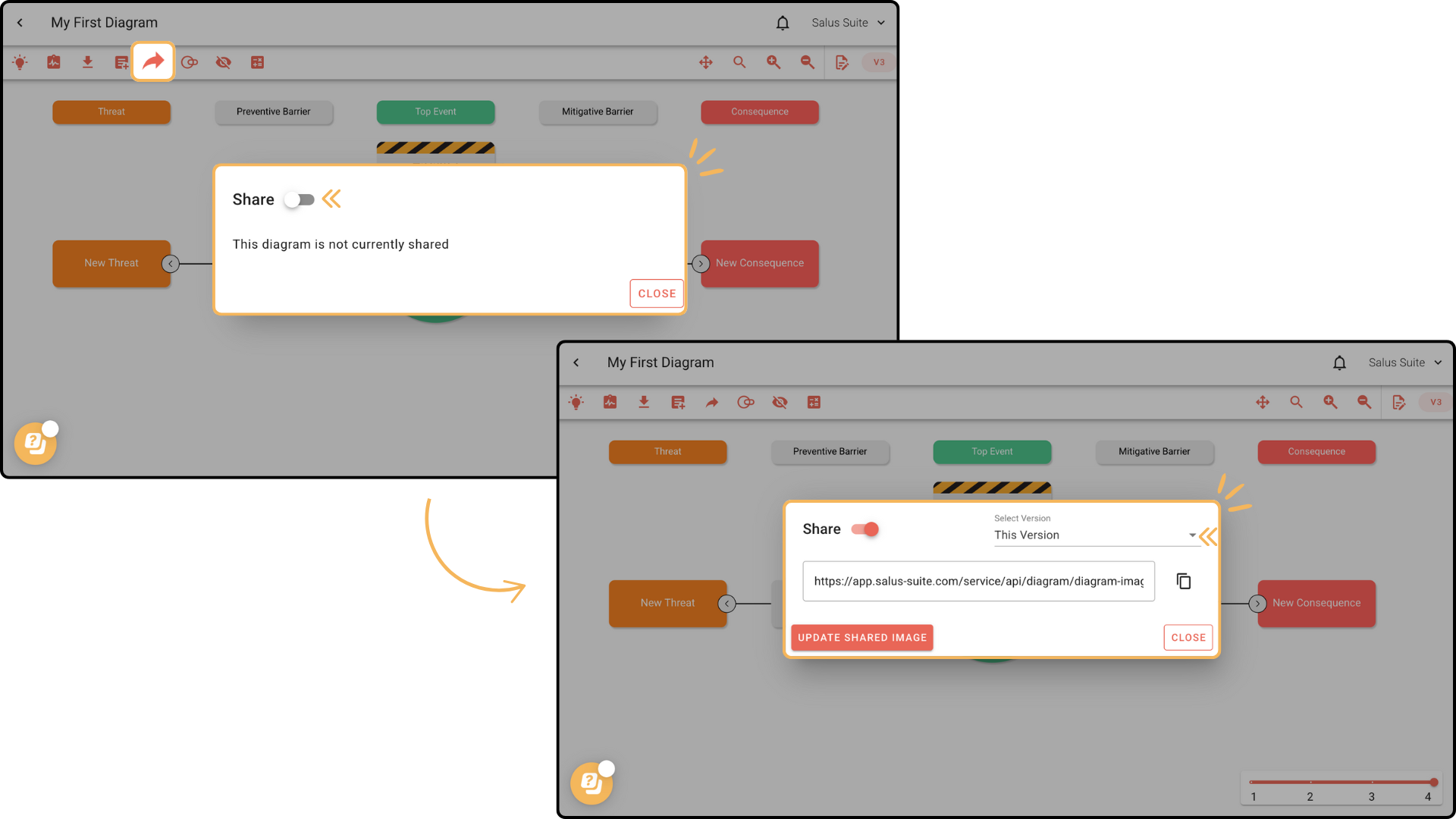
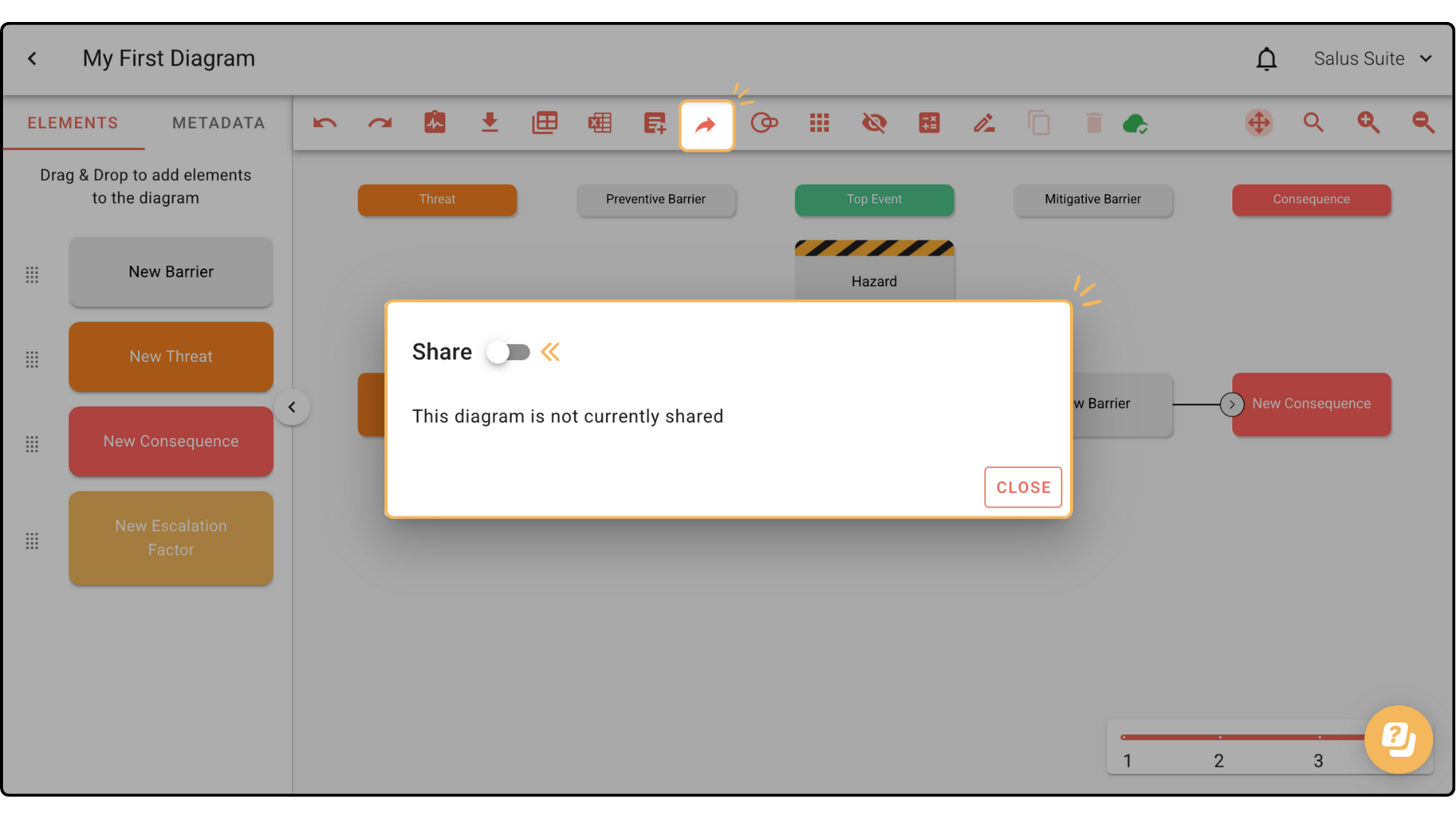
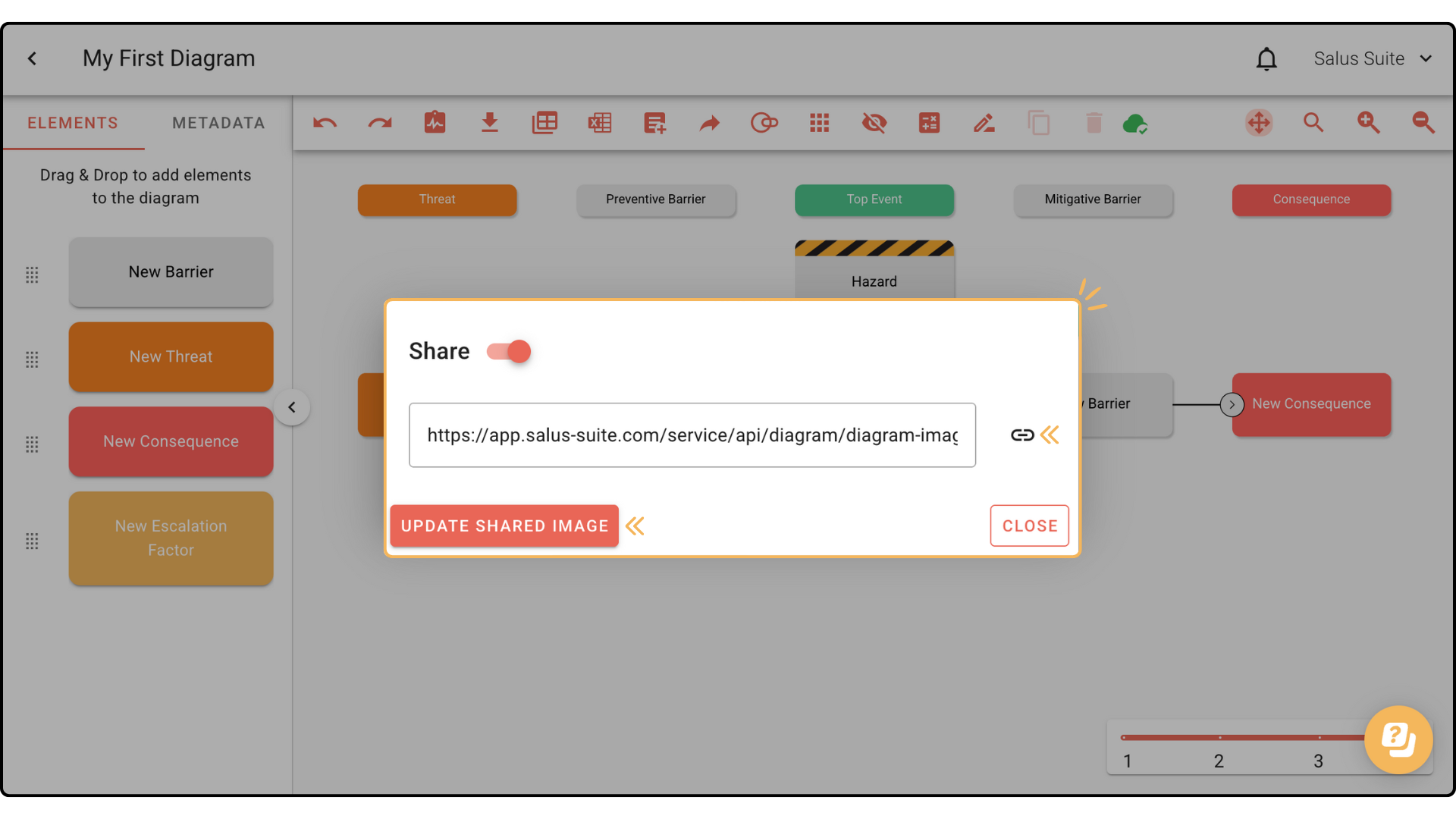
Step 1: Click the Share arrow in the Diagram Editor toolbar.
Step 2: Toggle Share on.
Step 3: Click UPDATE SHARED IMAGE, then click the copy link icon.
Step 4: Paste the link wherever you want to share it. Anyone with the link can view the bowtie in read-only format.
Recipients don’t need a licence to view a live link. If the diagram is in a restricted project, only users from that project can share the link initially. After making changes, click UPDATE SHARED IMAGE to refresh the link so others see the latest version.
If your diagram has multiple versions, use the Select Version dropdown to choose This Version, Latest Published Version or a specific version, then click the copy icon.