Download and export your diagram
In this tutorial, we’ll show you how to download your diagram as an image or PDF, export it to Excel or Word and back up your data.
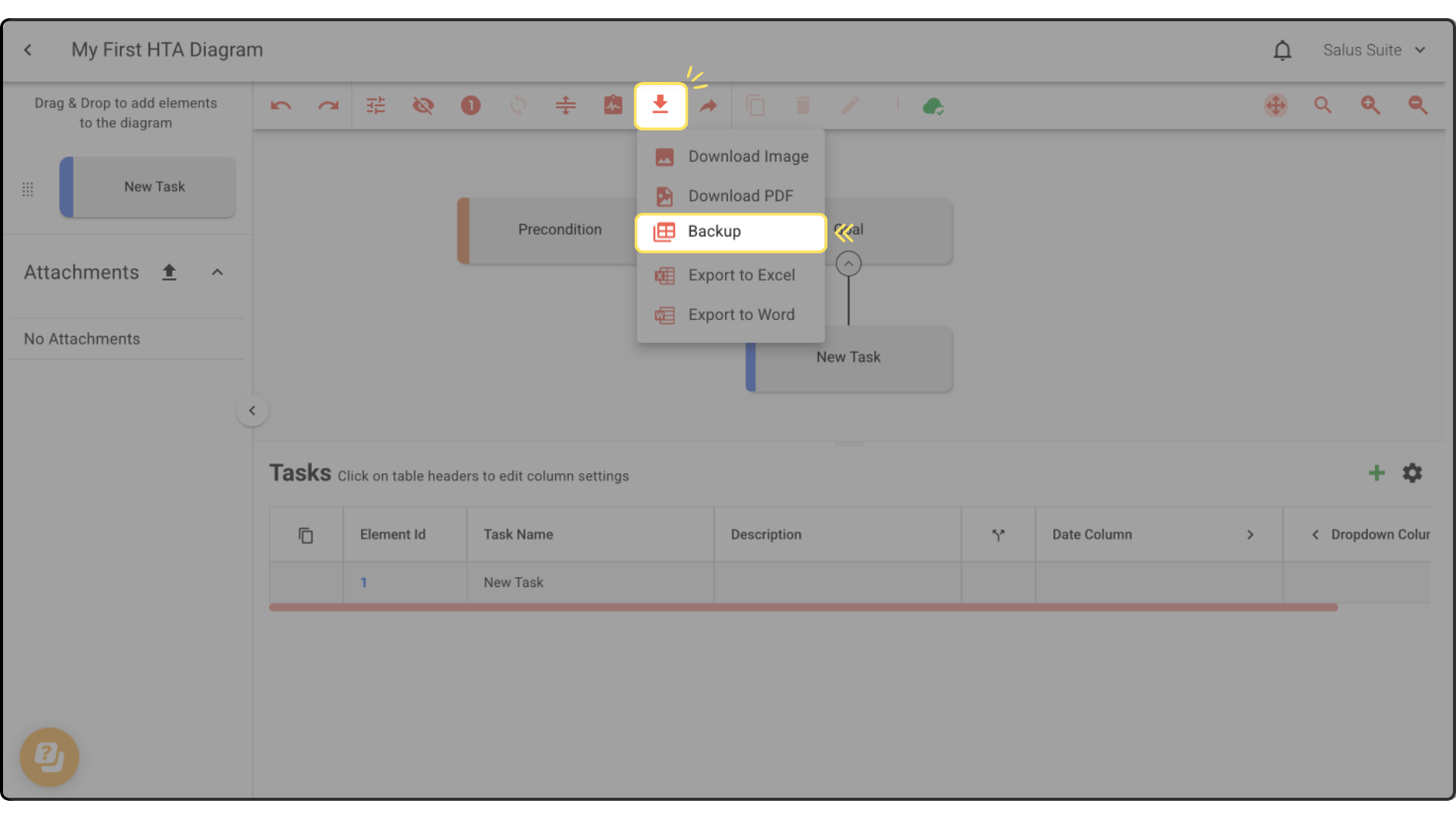
All download and export options live under the download button in the Diagram Editor toolbar.
Download an image or PDF
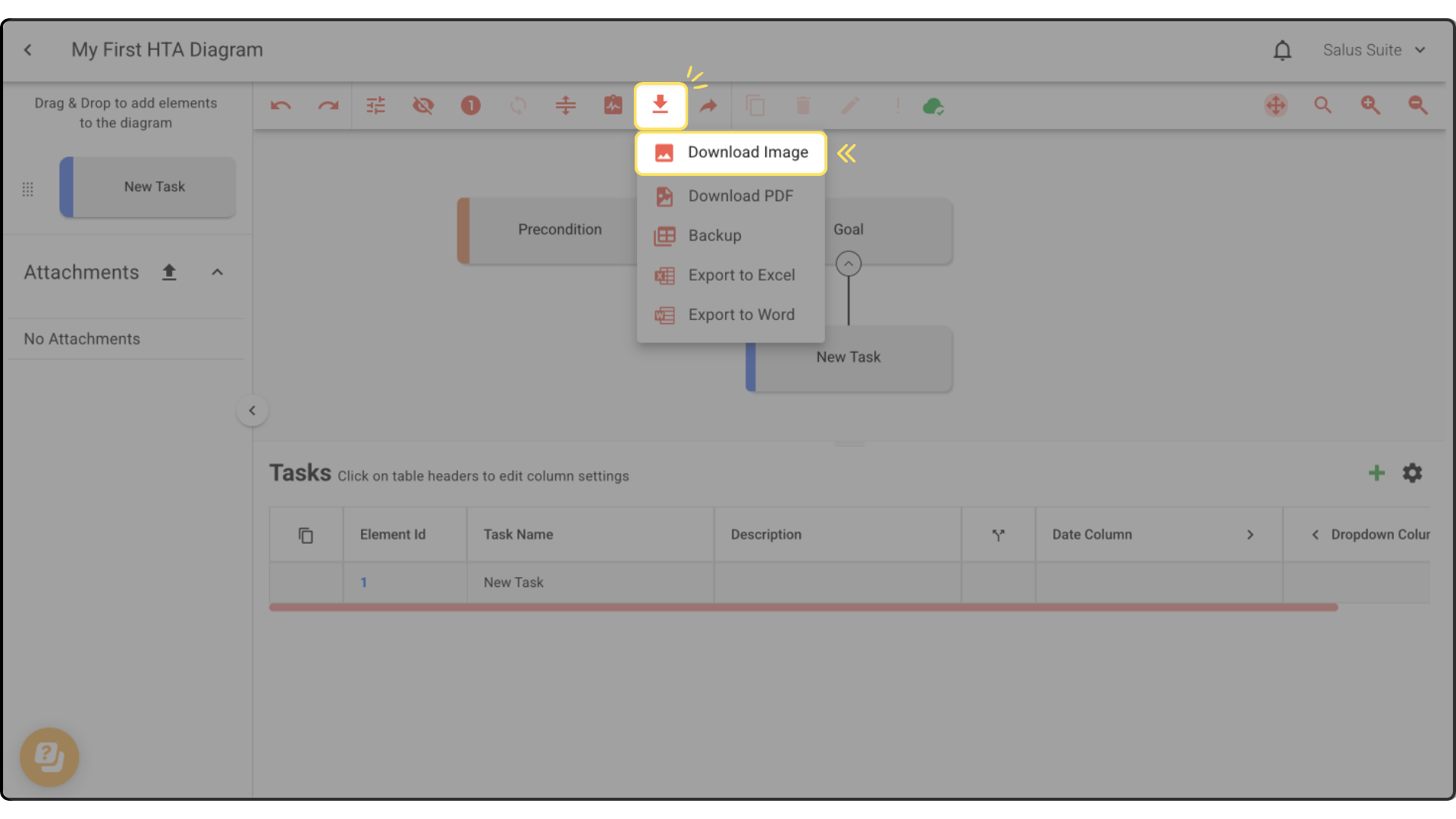
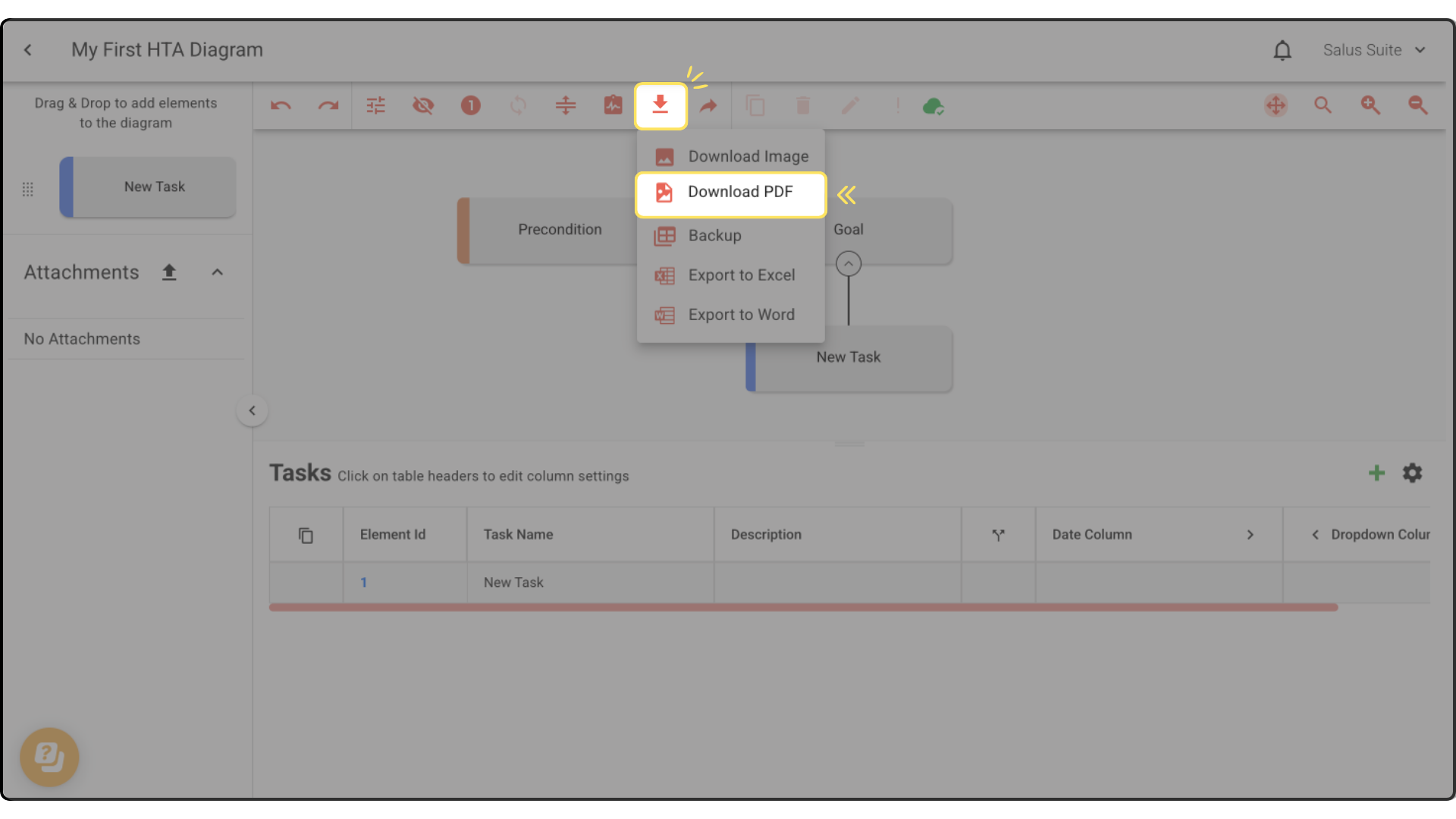
Download your HTA diagram as a PNG or PDF.
Click the download button in the toolbar, then DOWNLOAD IMAGE / PDF. Choose PNG or PDF to download.
Export to Excel
Step 1: Click the download button in the toolbar, then EXPORT TO EXCEL.
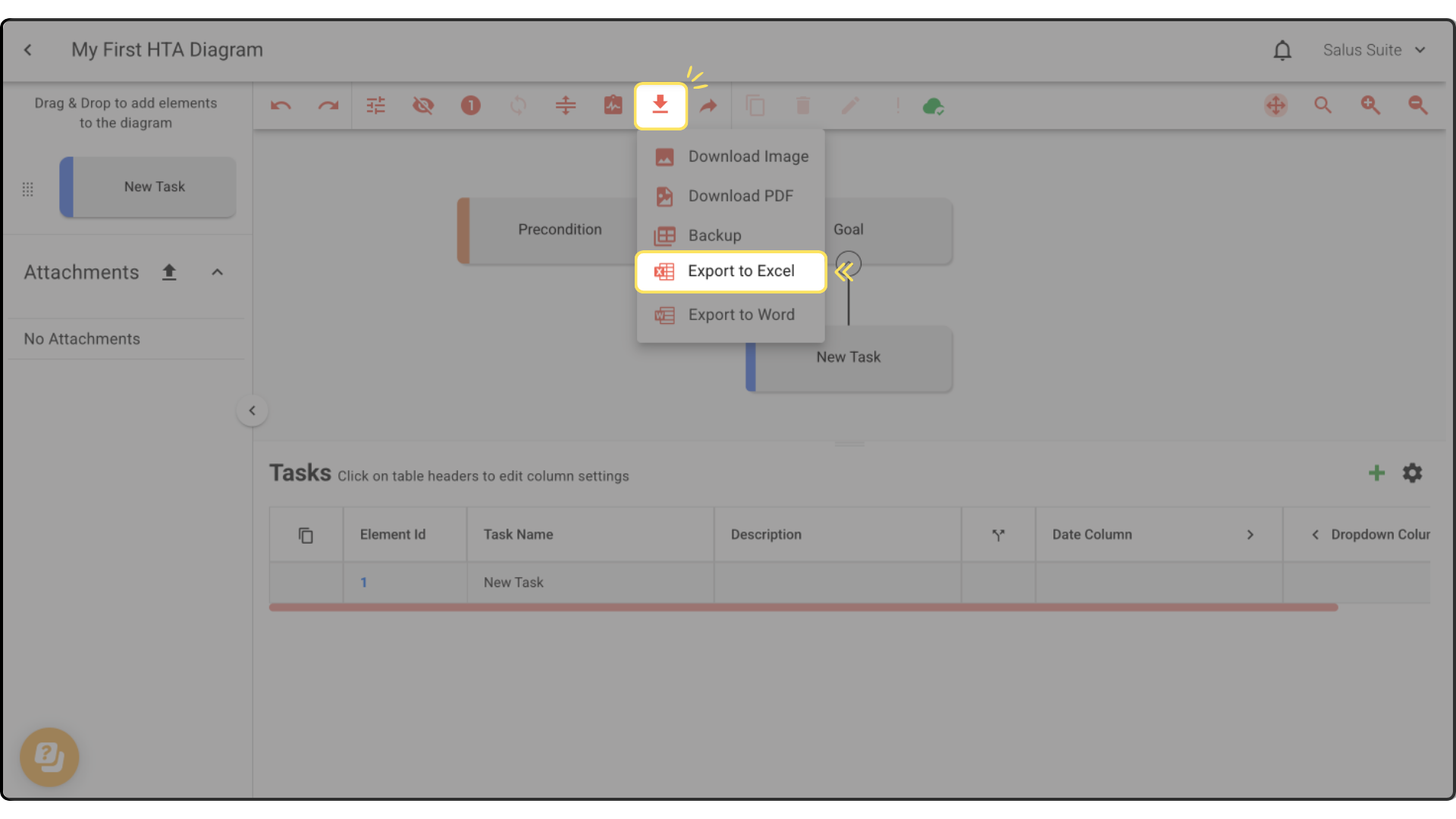
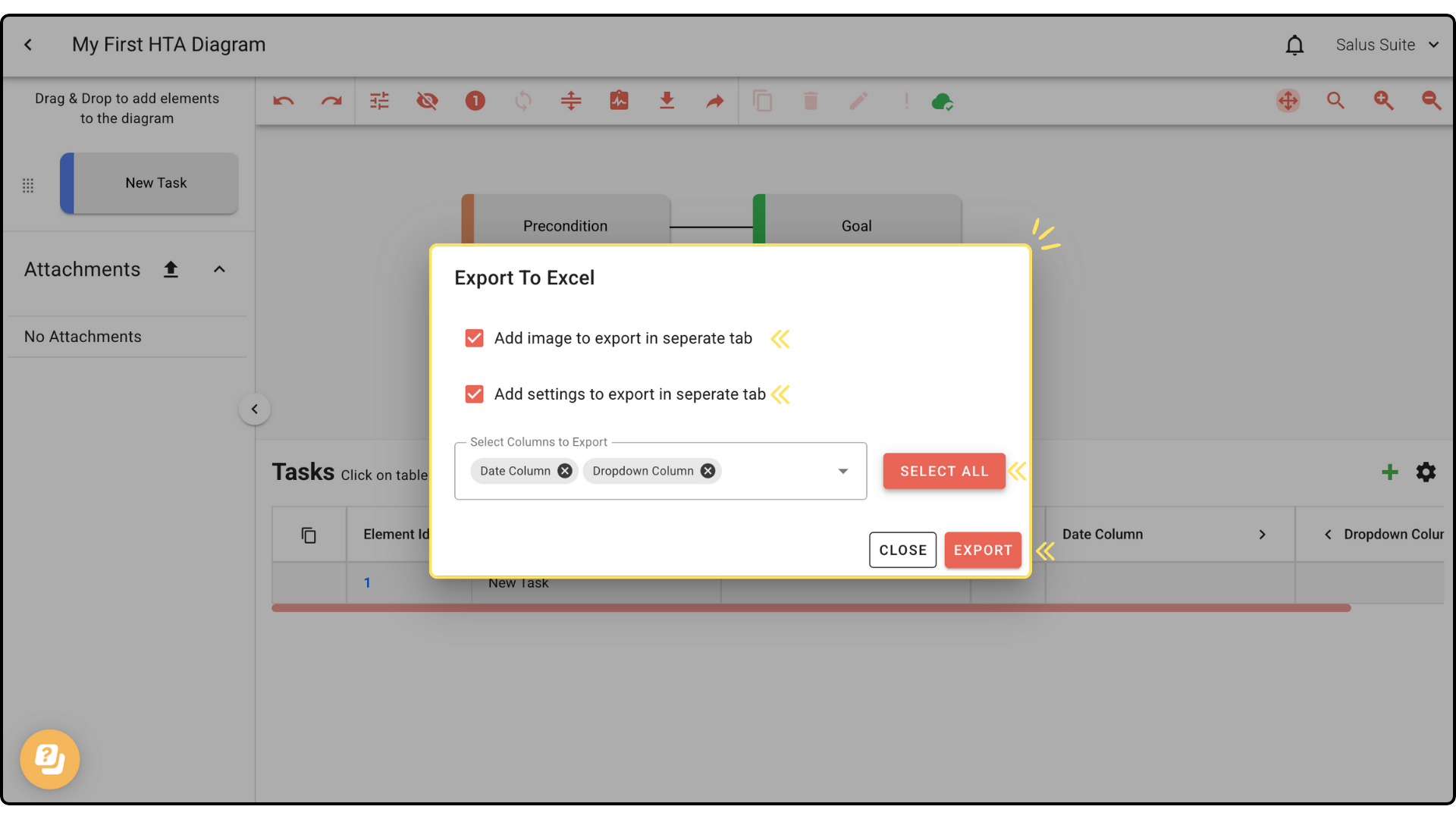
Step 2: Tick the boxes to add a diagram image or settings as separate tabs.
Step 3: Select the columns to export, or click SELECT ALL.
Step 4: Click EXPORT. The tasks and columns download in a table, with separate tabs for Actions, Settings and Diagram Image.
Export to Word
Step 1: Click the download button in the toolbar, then EXPORT TO WORD.
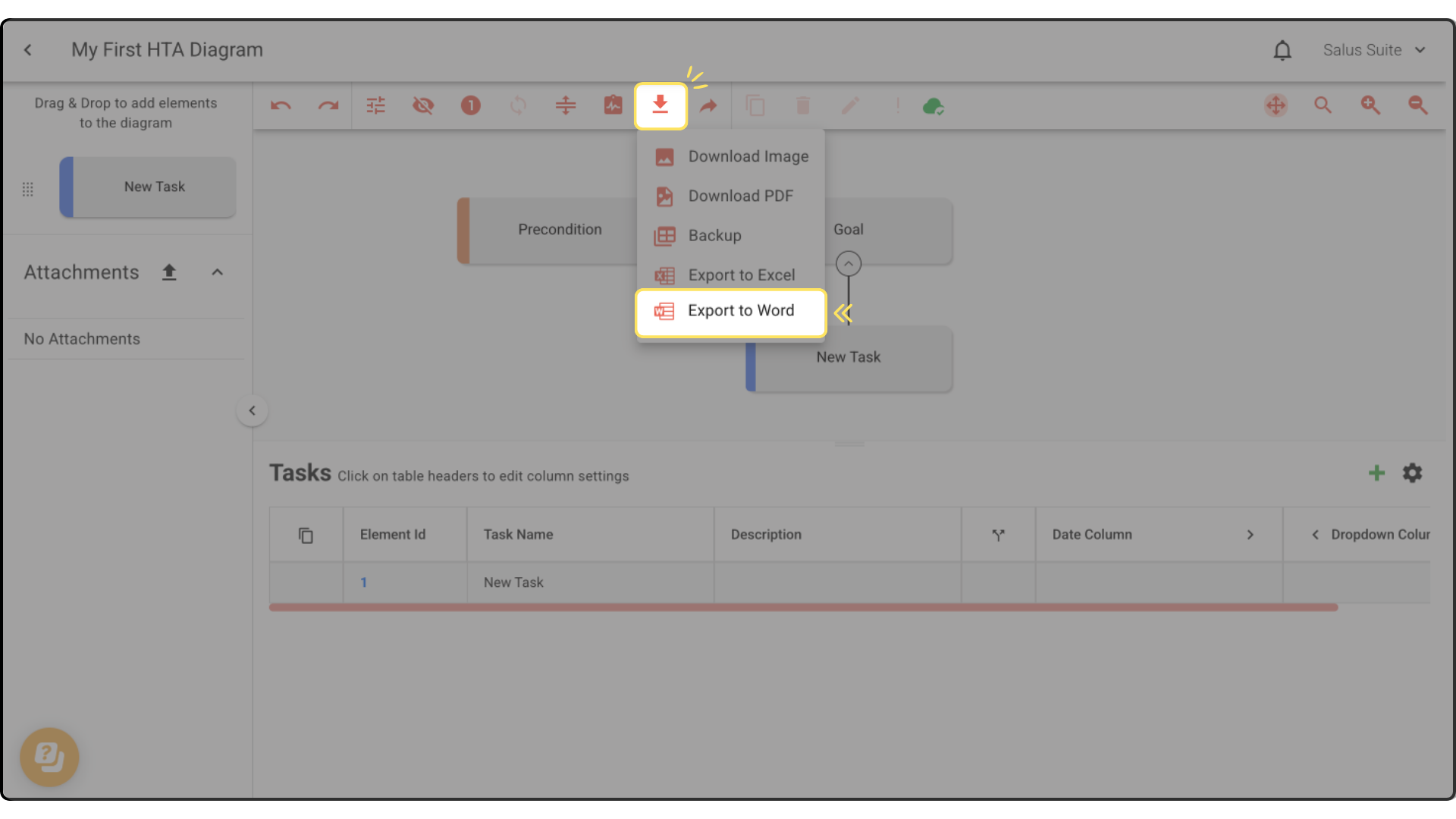
Step 2: Tick the boxes to add the company logo, the diagram image or settings.
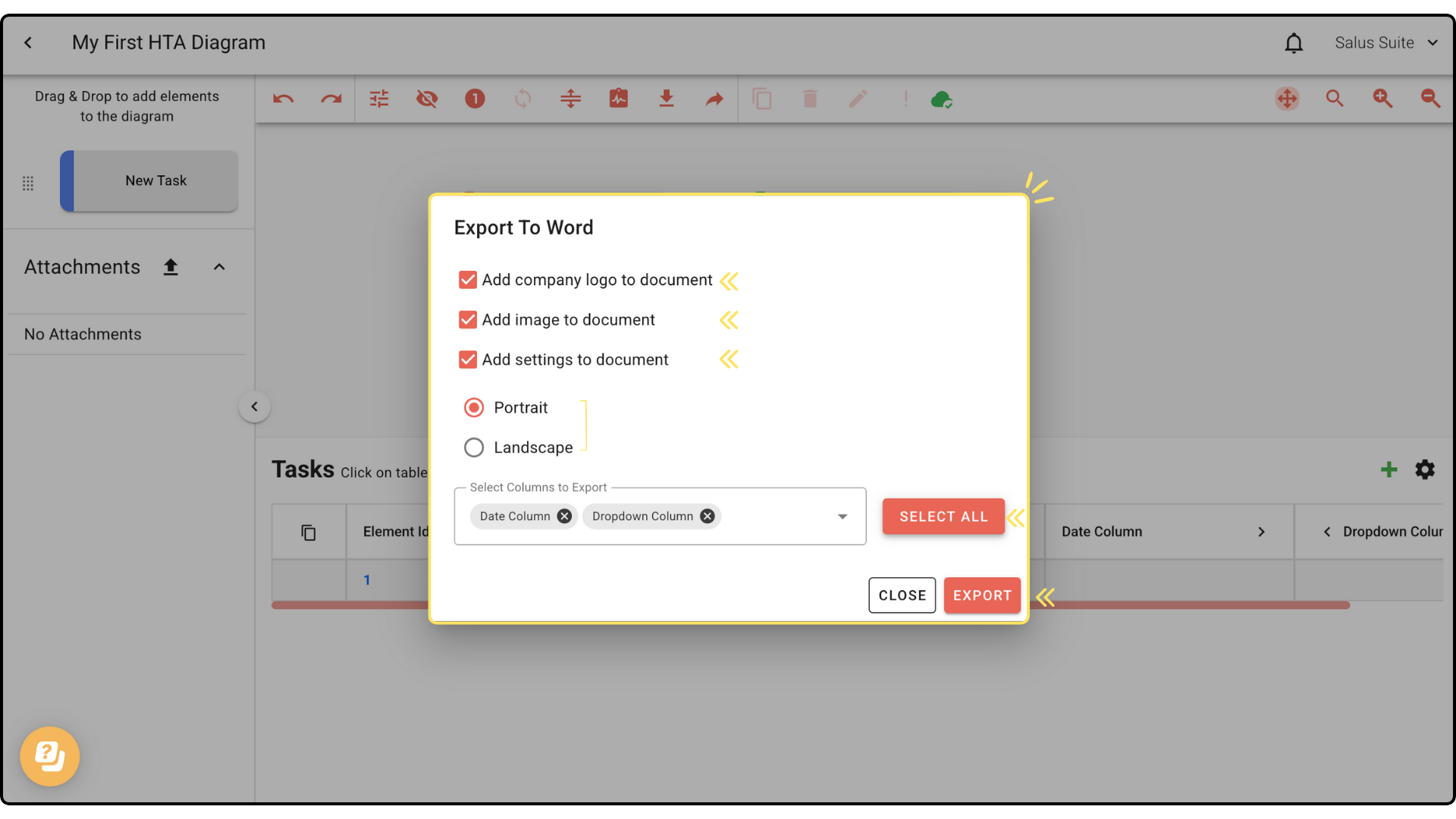
Step 3: Choose the document format (portrait or landscape).
Step 4: Select the columns to export, or click SELECT ALL.
Step 5: Click EXPORT. The diagram downloads as a Word file.
Back up your diagram
A backup contains only your raw data. It won’t look like much, but it lets you store your data outside Safe Task. You can re-upload the file using IMPORT in your project folder.
Step 1: Click the download button in the toolbar, then BACKUP. The details that make up your HTA diagram download as an Excel file.