Use analyse mode
Analyse mode helps you identify potential weak spots in your operation by visualising your diagram through a selected metadata type. For example, you can colour-code Underlying Causes by their Basic Risk Factor to quickly spot reoccurring organisational weaknesses in a large, complex diagram, then take action to improve them.
Before using analyse mode, add metadata to your elements. Not sure where to start? See Diagram metadata.
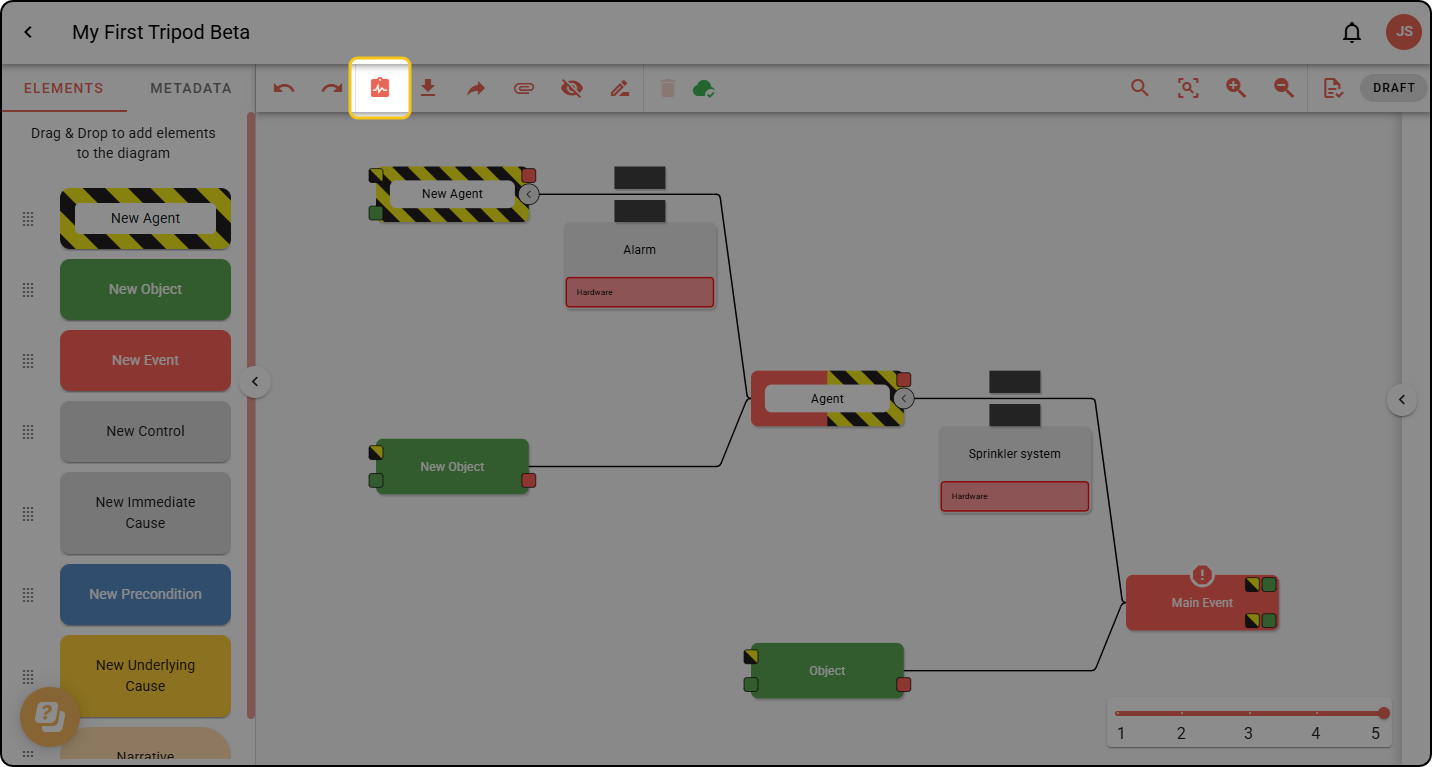
Step 1: In the toolbar, click the clipboard icon.
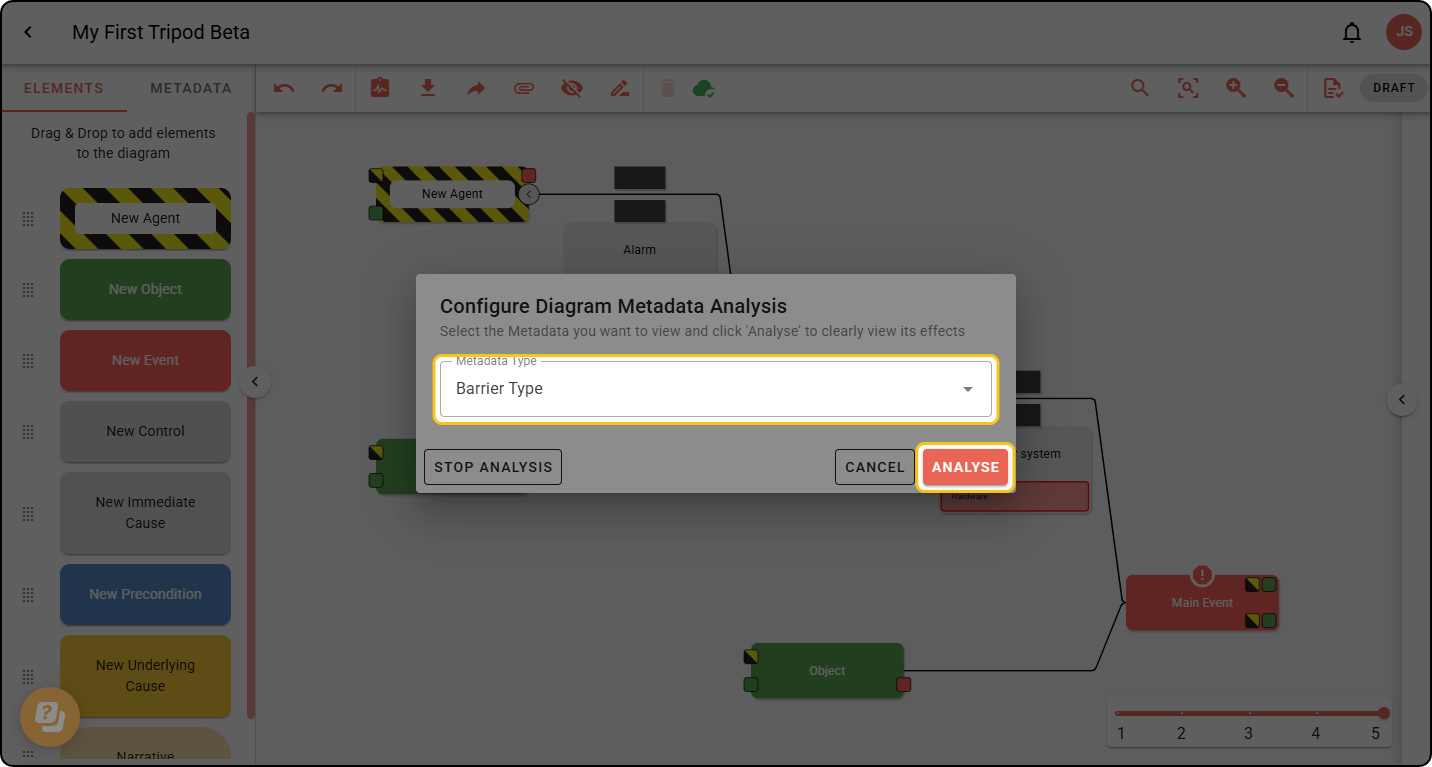
Step 2: Select the Metadata Type you want to analyse from the dropdown, then click ANALYSE.
Your diagram now looks like this:
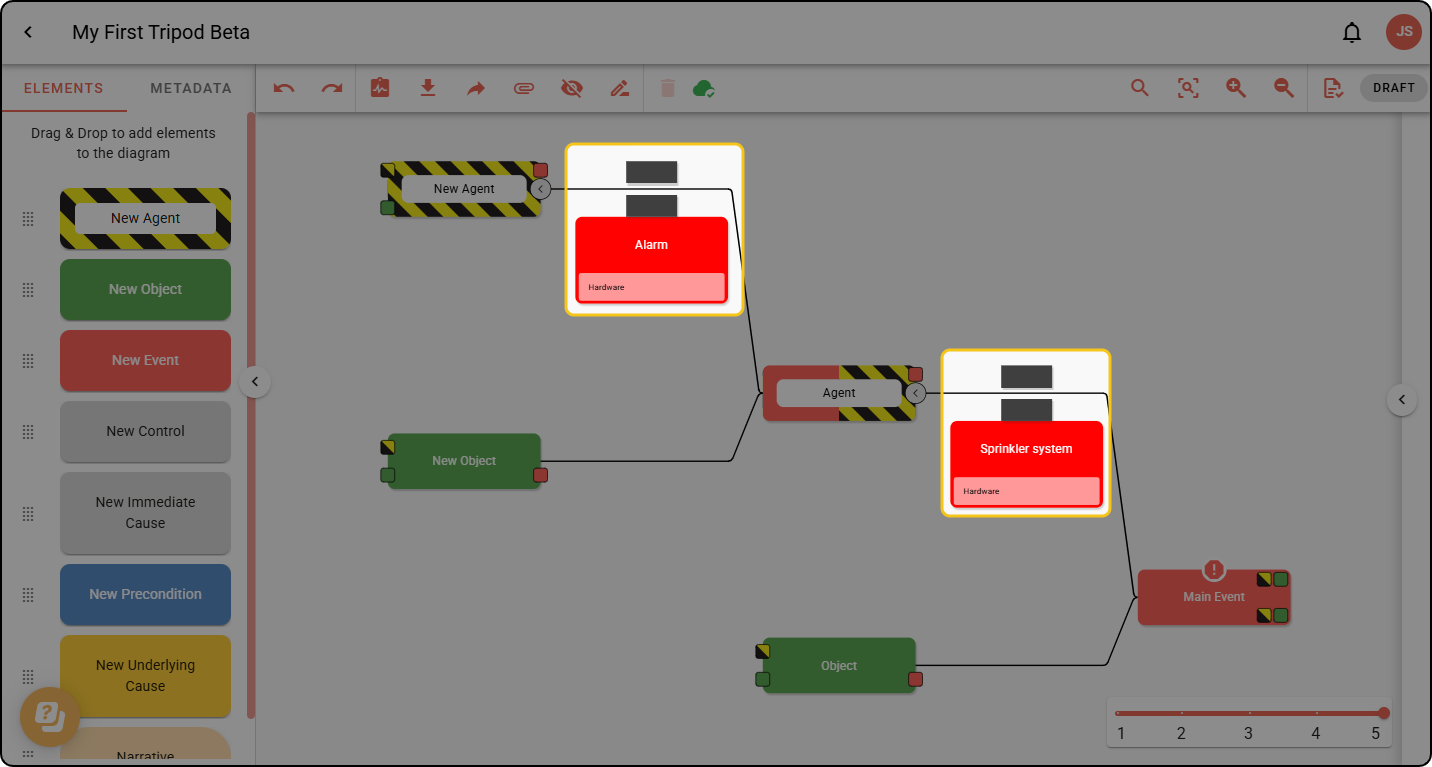
The colours used by Analyse Mode are the ones the metadata was created with. For dropdown (category-based) metadata, the option’s colour will be used.
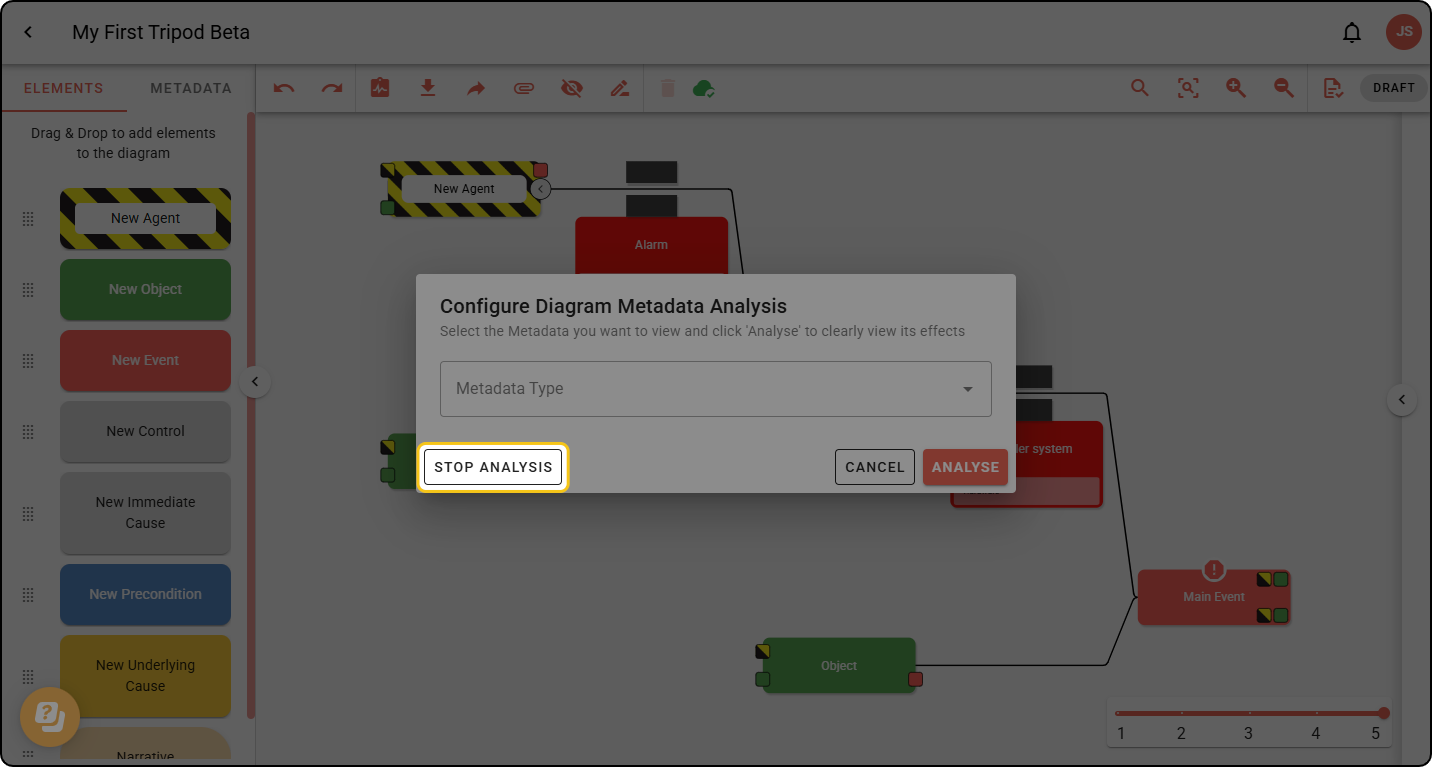
Step 3: To stop, click the toolbar clipboard icon again, then click STOP ANALYSIS.