Creating actions
In this tutorial, we’ll show you how to create an action from the Action Register and from within a diagram.
Create an action from the Action Register
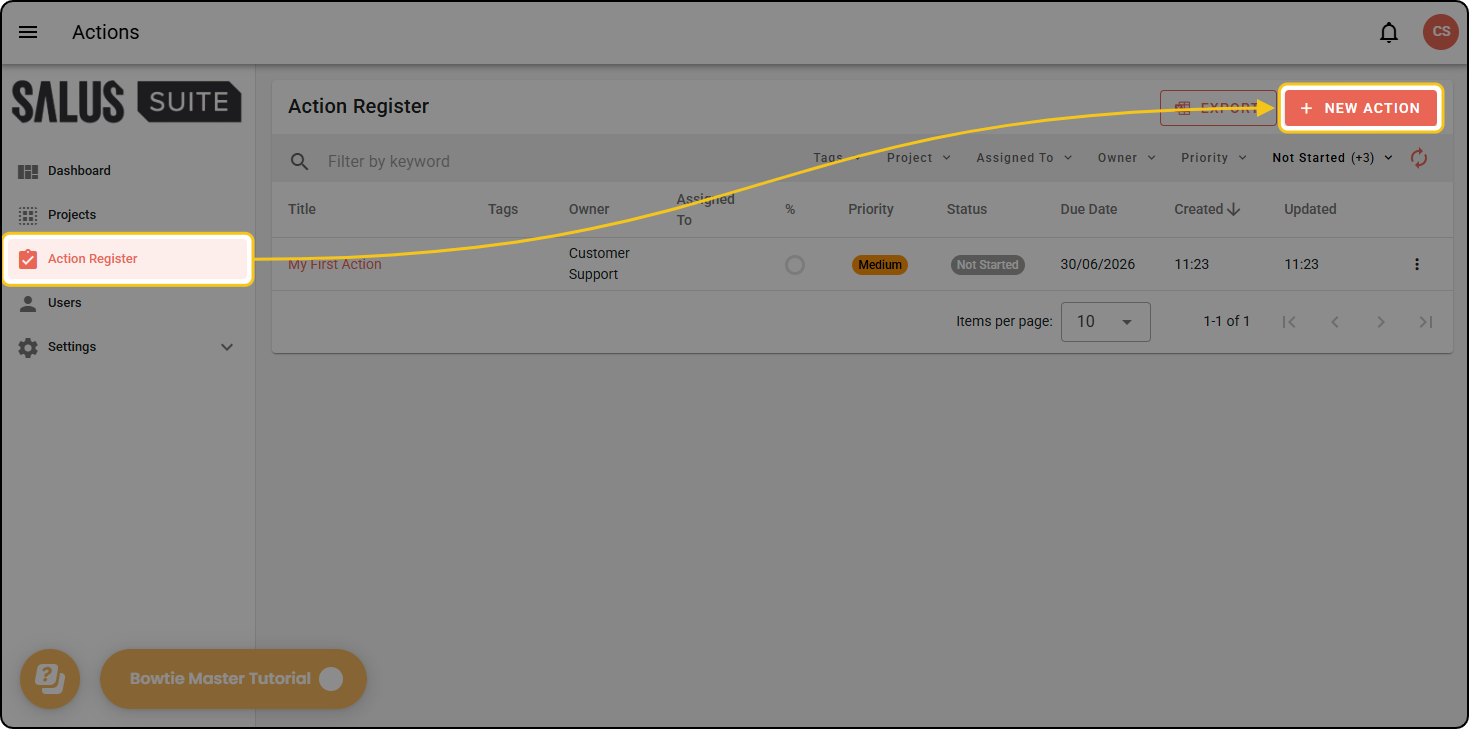
Step 1: Head to the Action Register in the left-hand menu and click + NEW ACTION. The Create Action page will open.
Step 2: Enter the Title, Details, Tags, Priority and Due Date. Click SAVE.
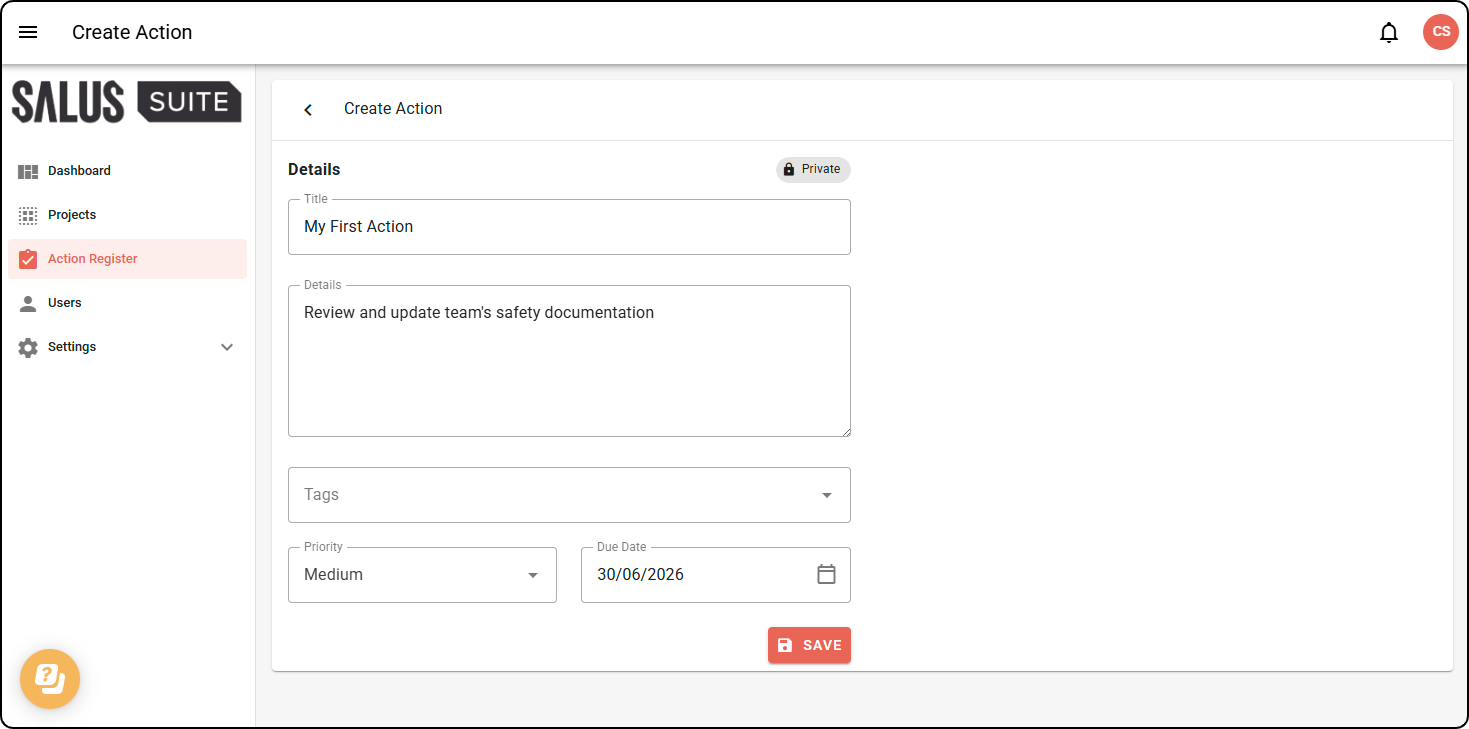
You can also set the action’s visibility before saving. See Action visibility for details.
Create an action within a diagram
Step 1: Create a new project and diagram, or open an existing one.
Step 2: In your diagram, double-click a node or task.
Step 3: Click the Actions icon in the toolbar.
Step 4: In the pop-up, click + QUICK ADD.
Step 5: Enter the Title, Details, Priority and Due Date (optional), then click SAVE.