Customise your view
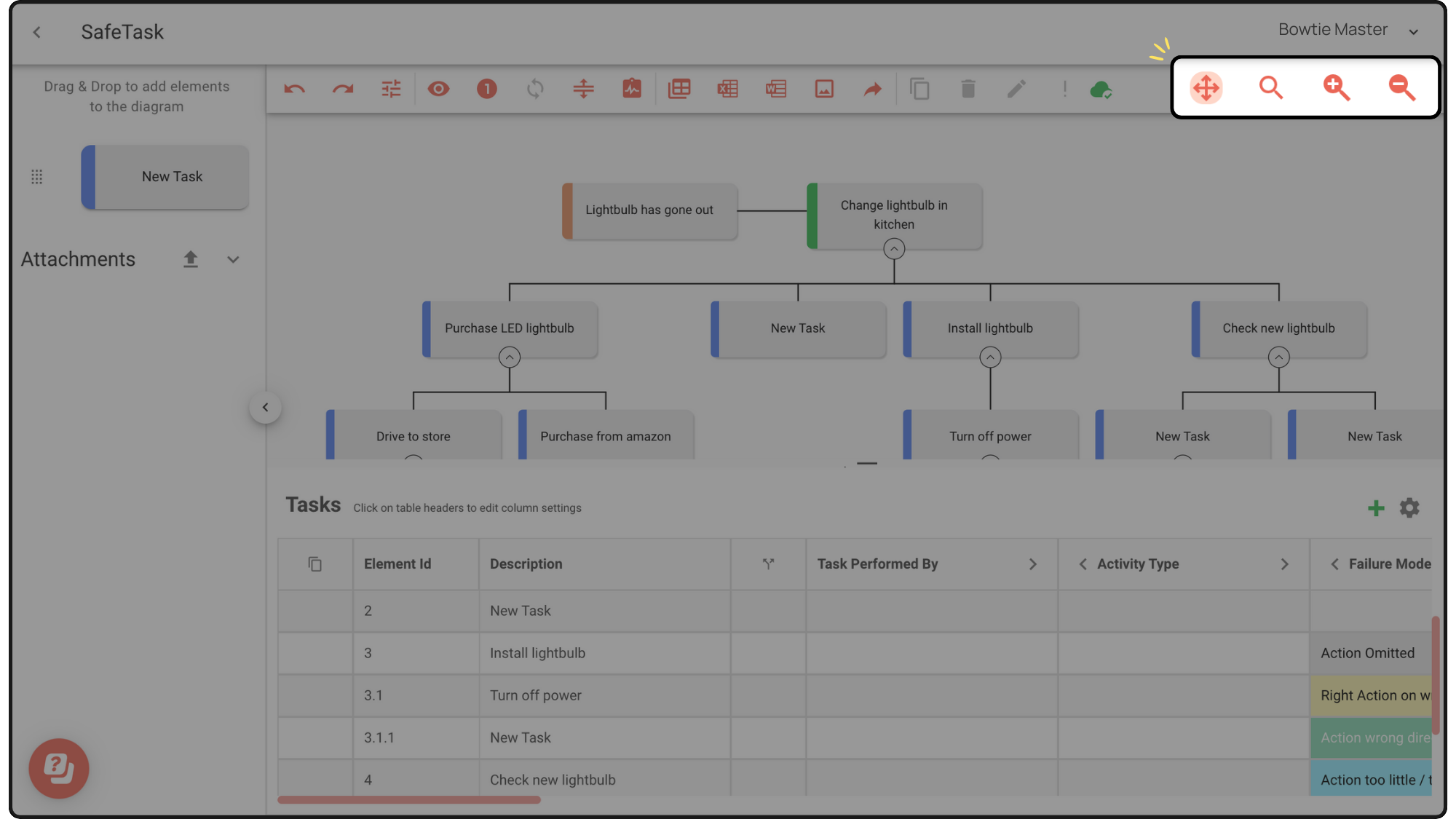
The zoom buttons (+ and -) in the toolbar increase or decrease the size of the diagram.
Edit the diagram and table
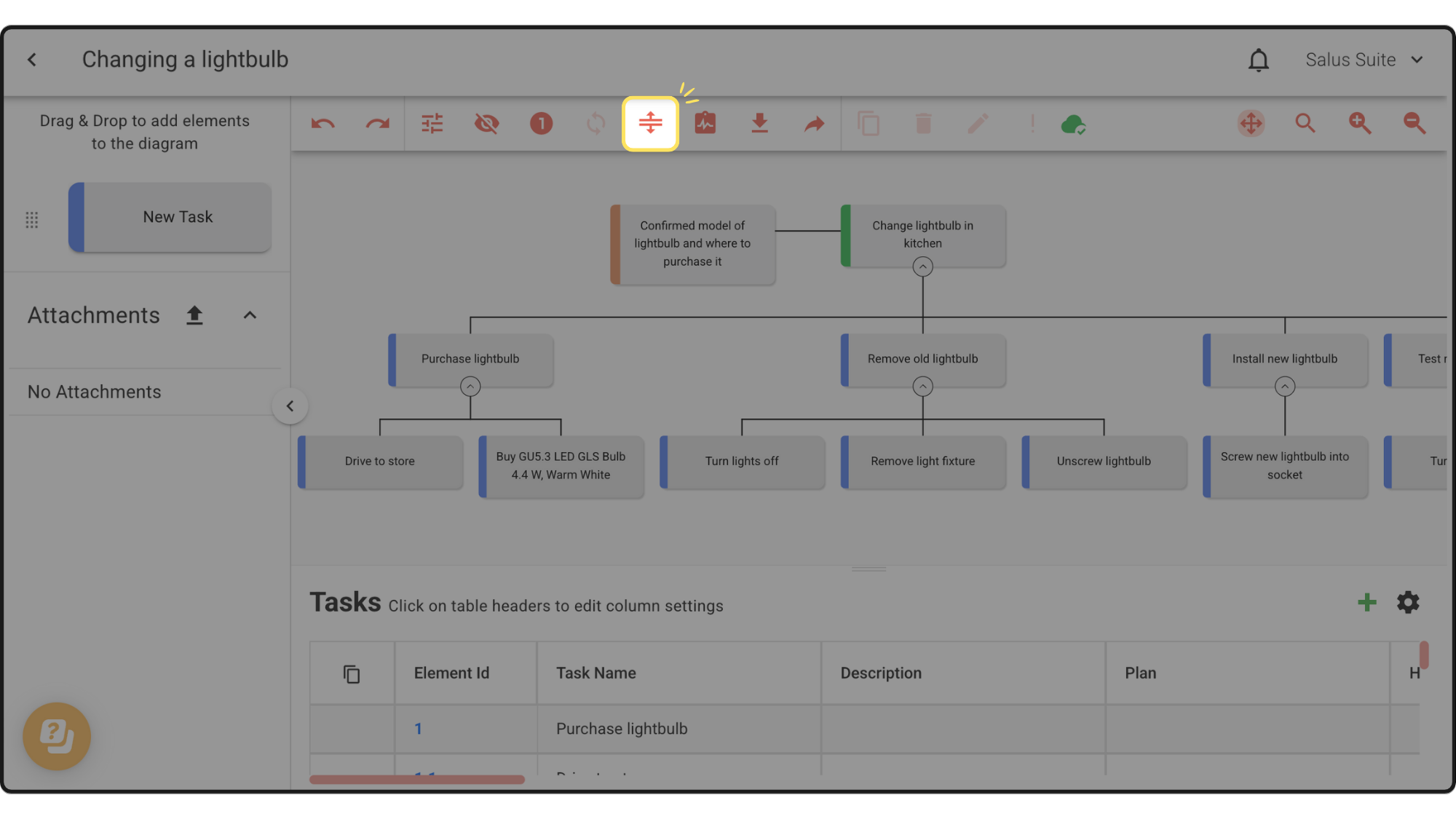
On the Diagram Editor toolbar, click the splitter icon to return to a half-diagram, half-table view.
Click the separator at the bottom of the Diagram Editor to minimise or maximise the table.
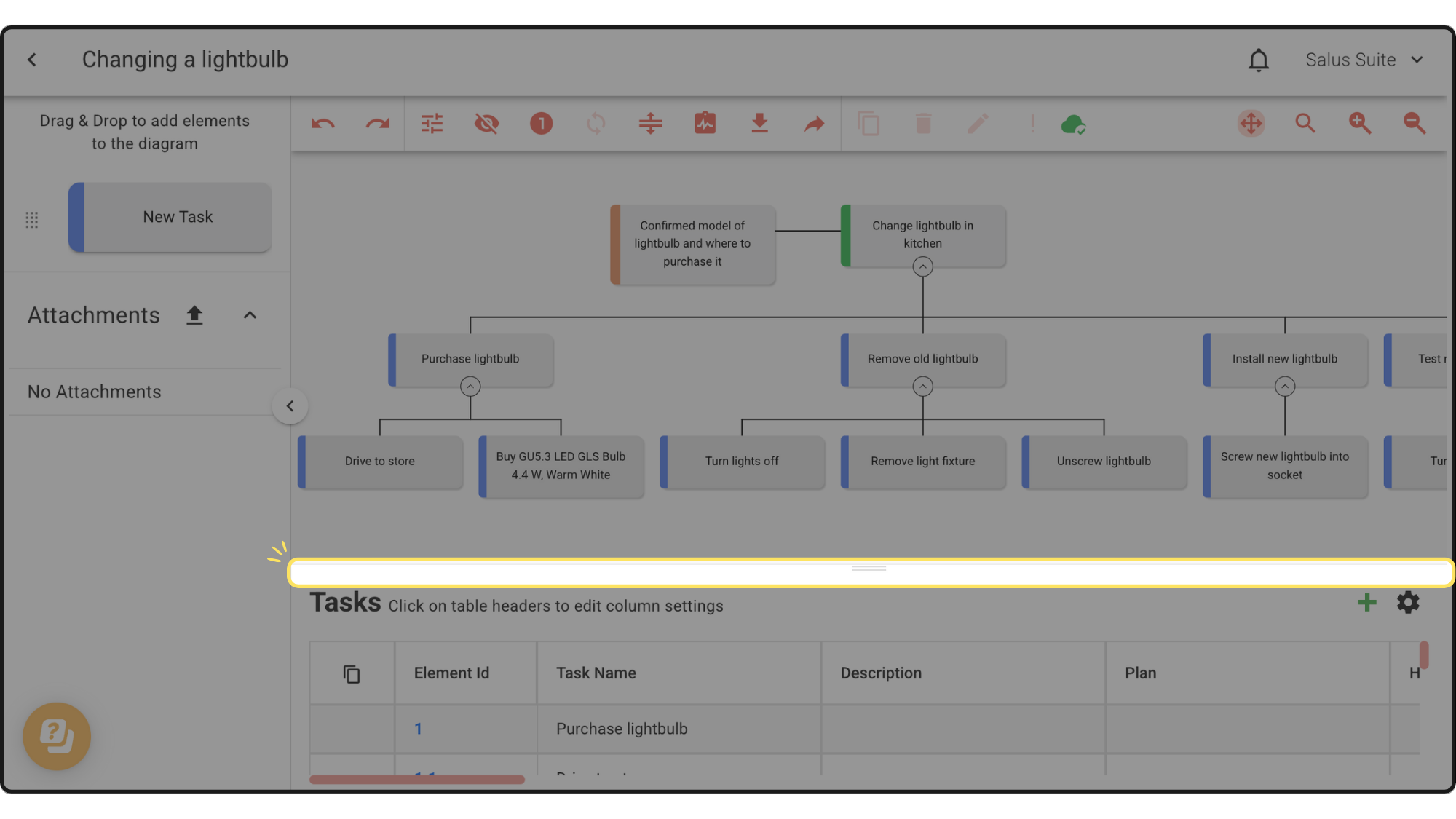
Drag the splitter to the top of the screen to work in the table, or to the bottom to work in the diagram.
Task per row slider
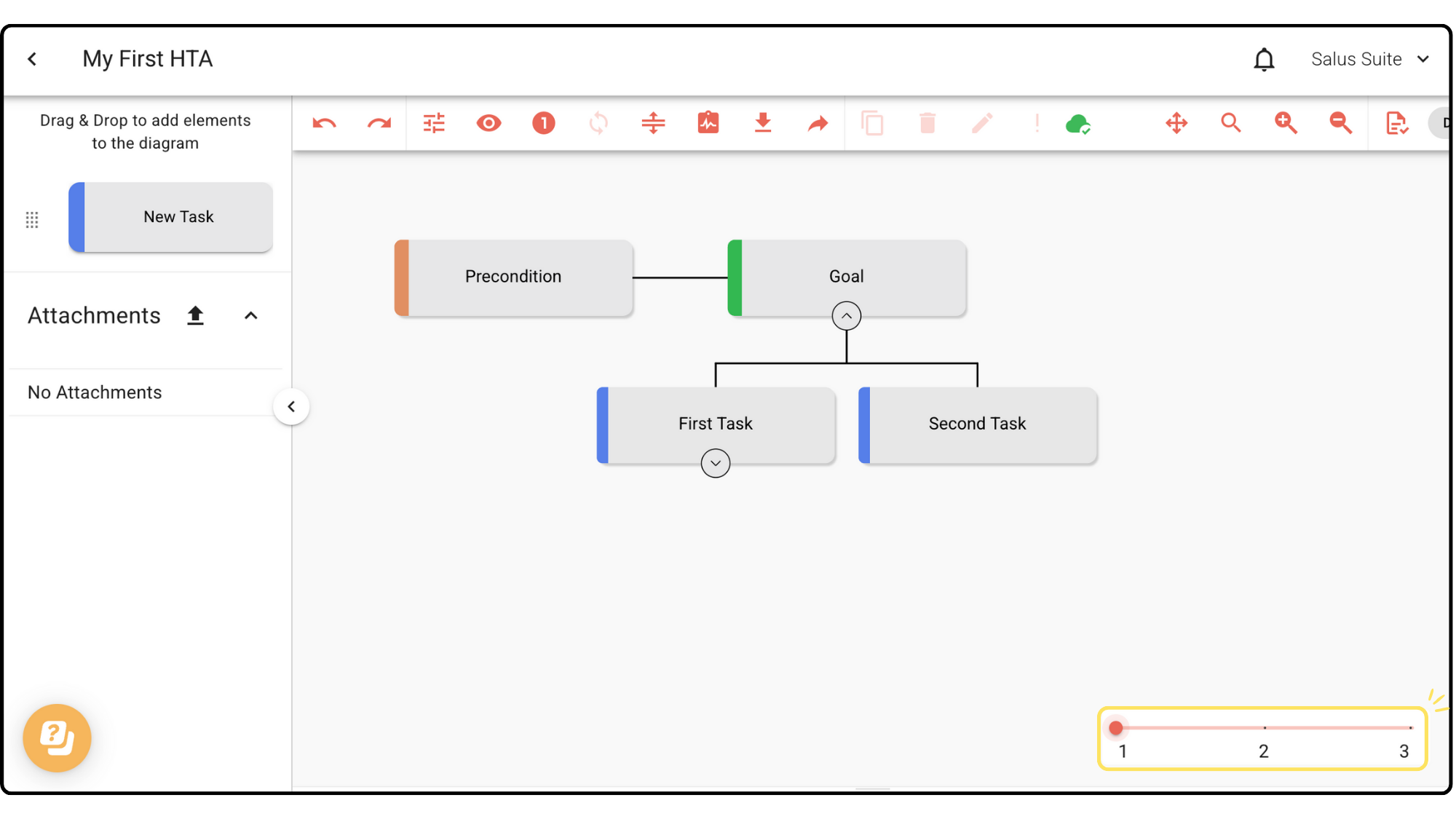
The task per row slider adjusts how much of your HTA diagram is visible at once, making it easier to focus on different levels of detail.
Step 1: Adjust the slider at the bottom right of the diagram. In this example it has three levels, since there are three rows of tasks.
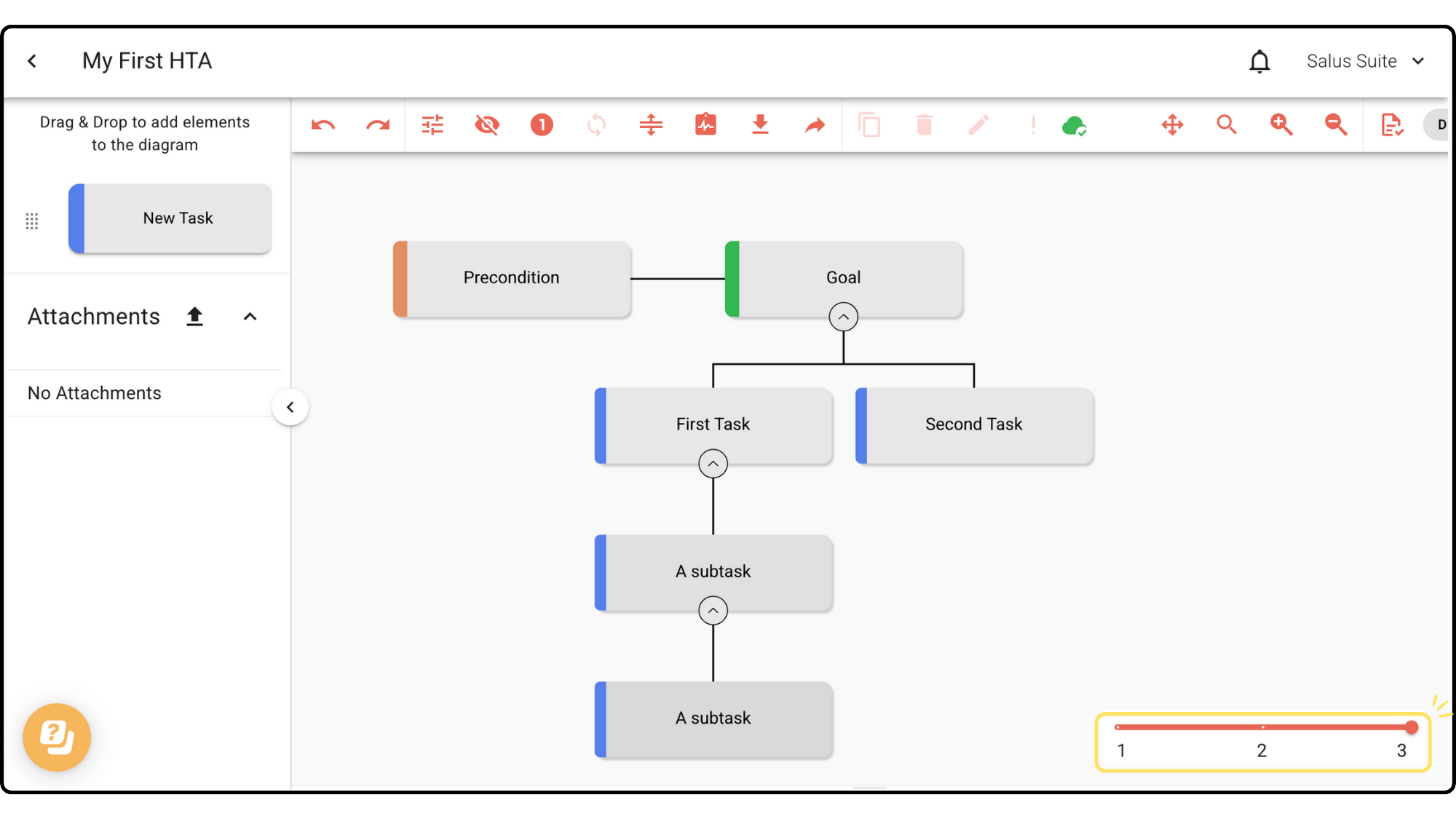
Step 2: Slider level 2 shows only the first two rows: First Task > Subtask and Second Task.
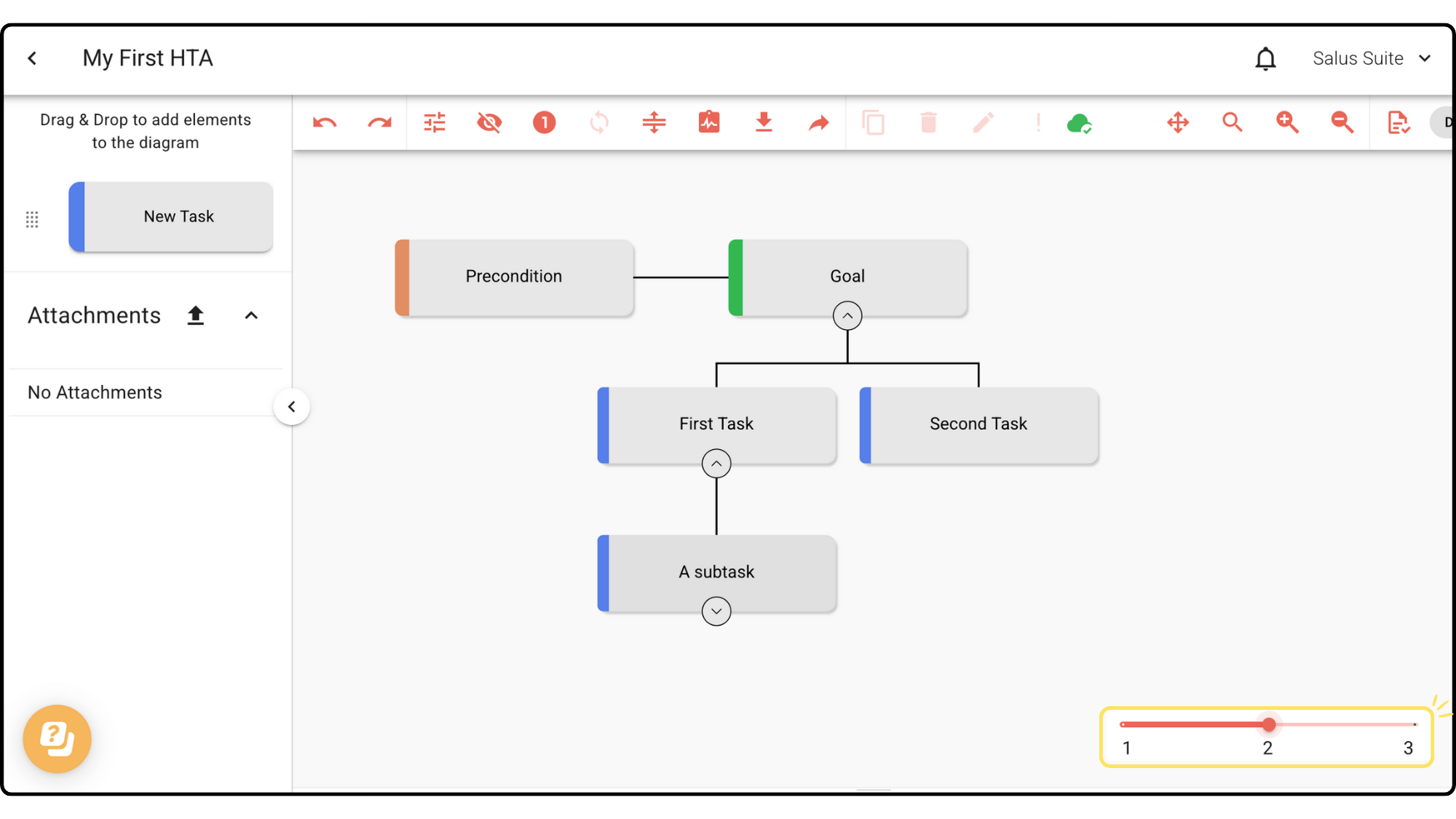
Step 3: Slider level 1 shows only the first row: First Task and Second Task.