Build your first diagram
In this tutorial, we’ll show you how to create a Tripod Beta diagram and add, edit and delete elements.
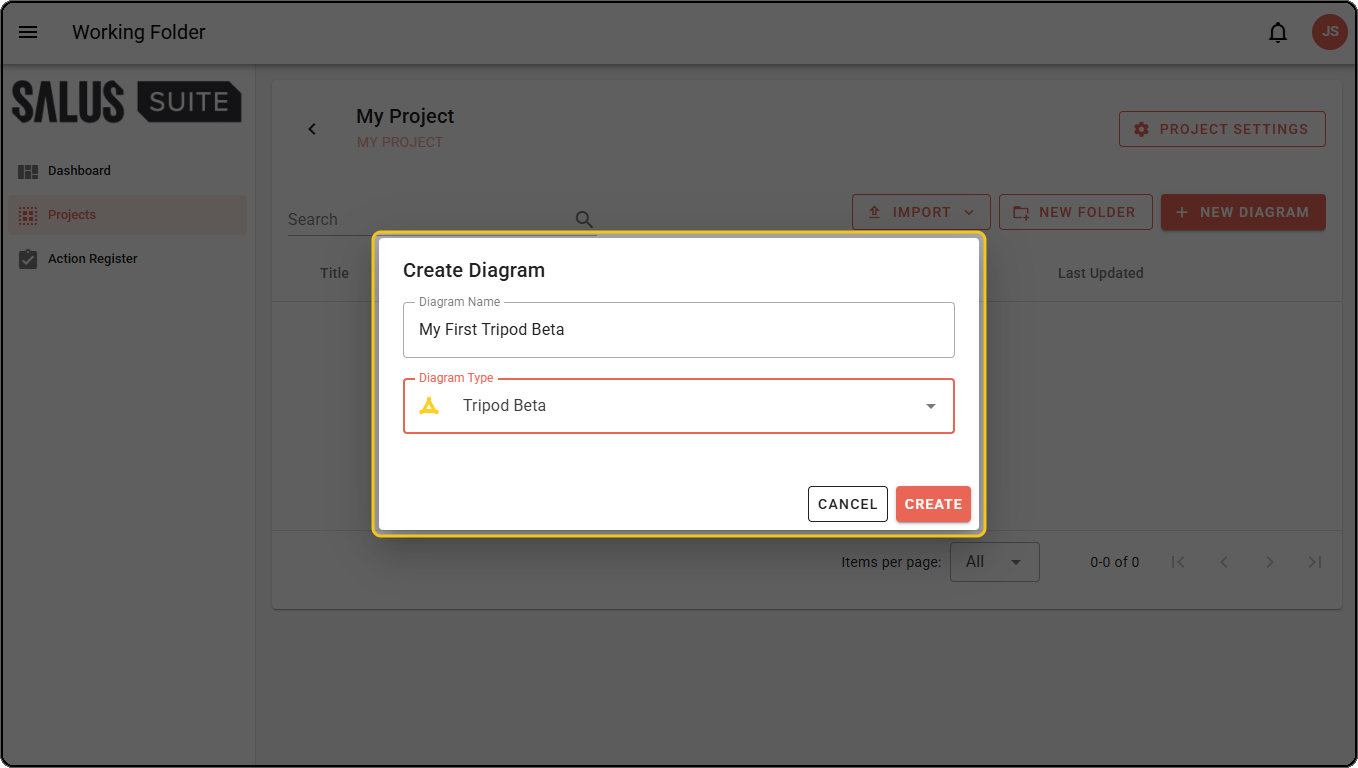
Step 1: In your project, click + NEW DIAGRAM. Enter a Diagram Name, select Tripod Beta in Diagram Type, then click CREATE.
Step 2: The newly-created diagram contains a starter Trio - an Event with an Agent and an Object. To add more elements to the diagram, drag-and-drop them from the left-hand sidebar.
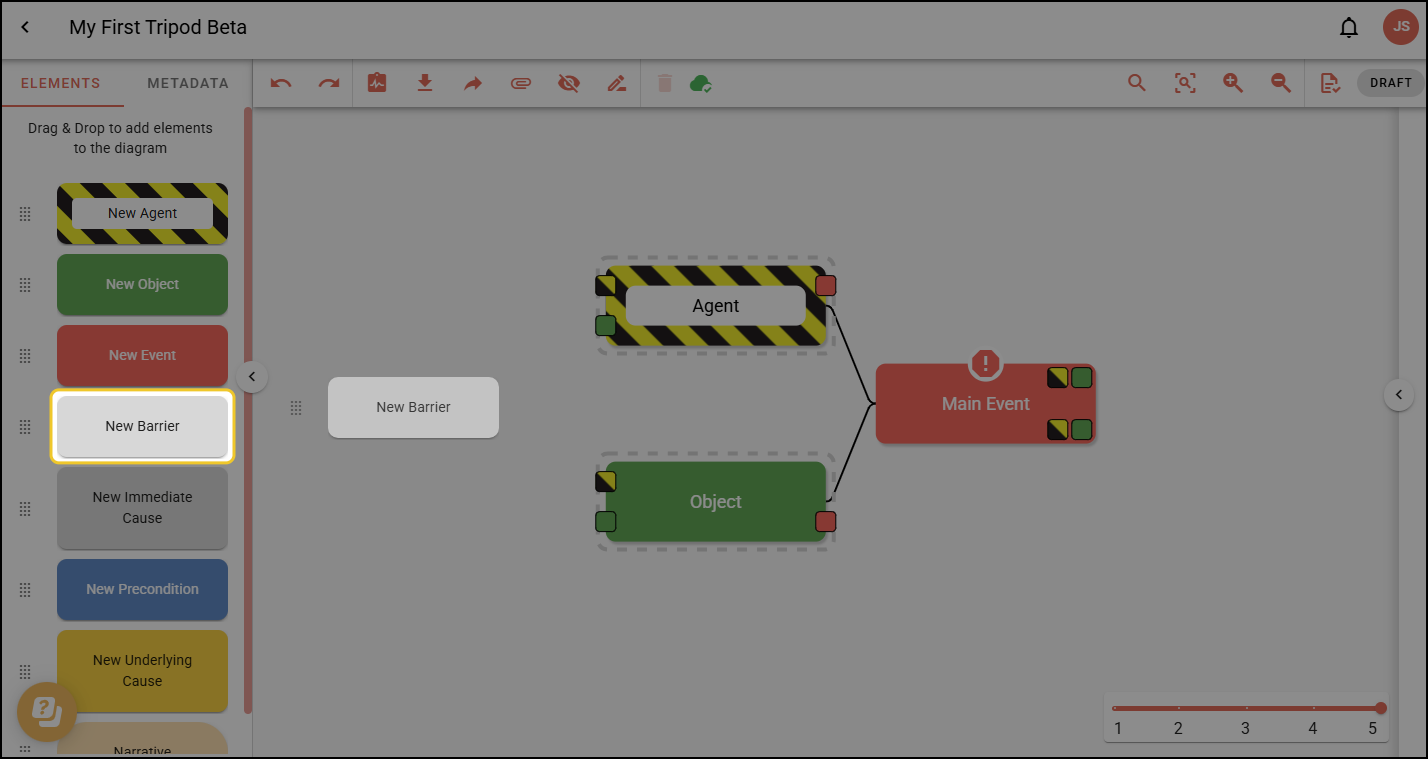
Look for the dashed grey outline when dragging and dropping. This shows where an element can be placed.
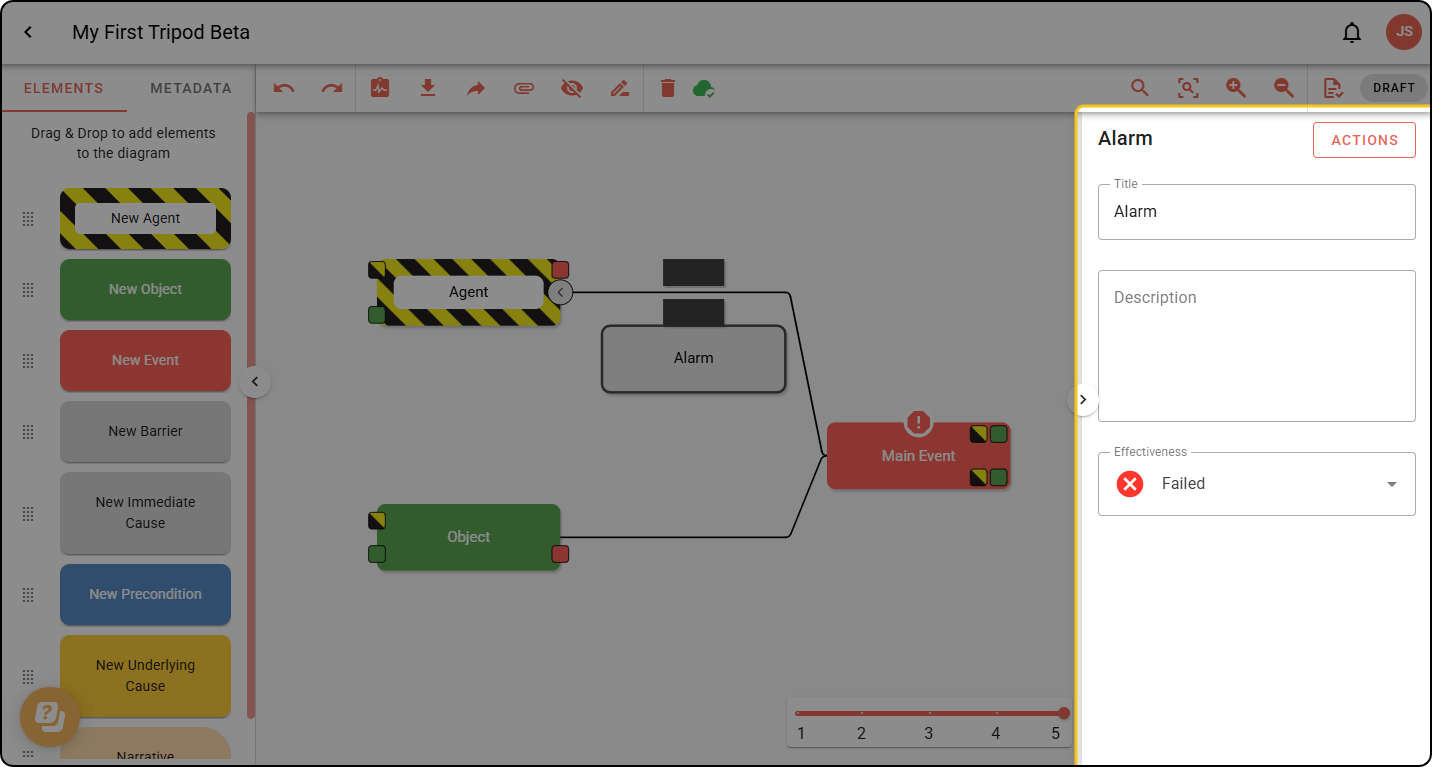
Step 3: To change an element’s title, select it by double clicking and rename it. You can also edit it in the right-hand sidebar, where you can rename it, add a description, add actions and more.
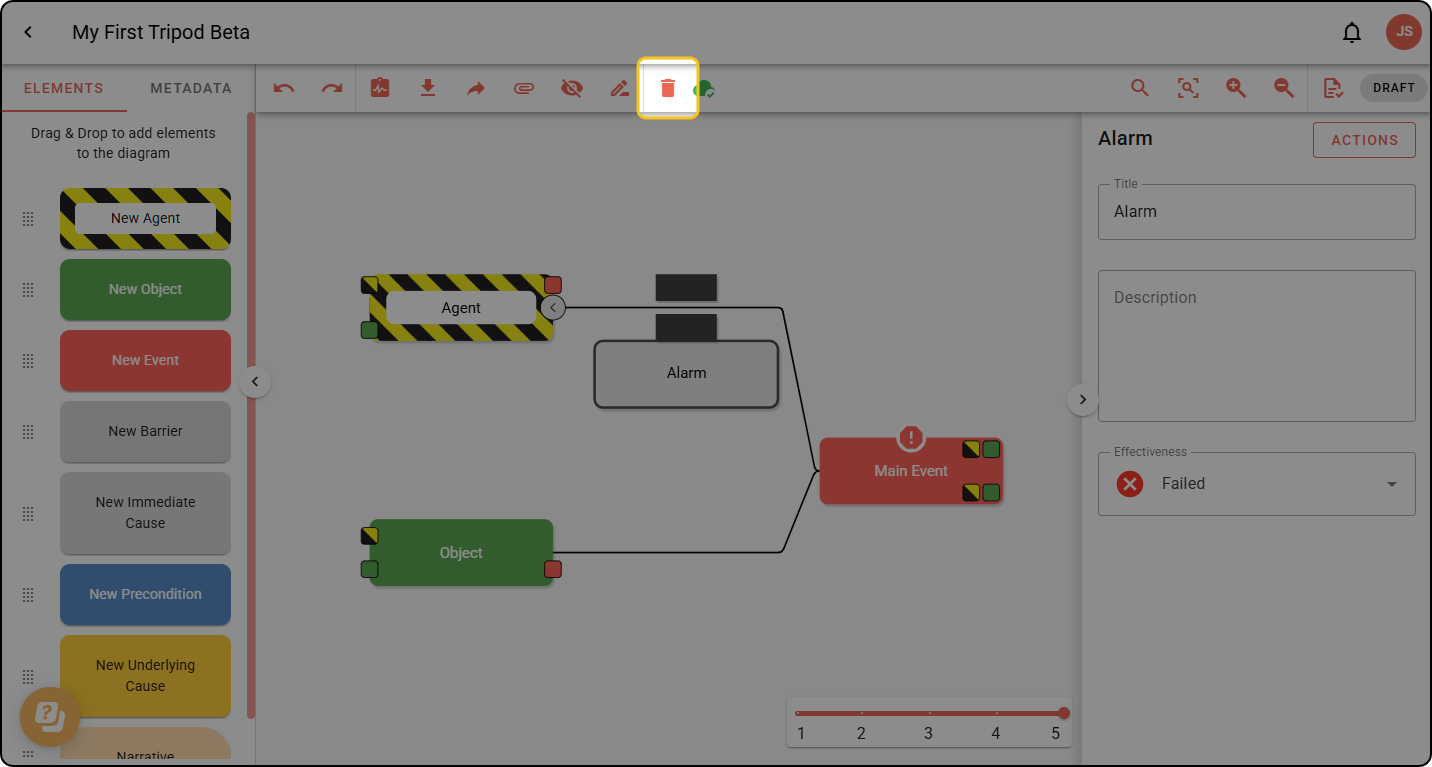
Step 4: To delete an element, select it, then click the trash can icon in the toolbar. If the element has any children (such as an Immediate Cause), these will be deleted too. Click the Undo button in the toolbar if you want to bring the element back.
Use the Detail Level slider in the bottom-right of the canvas to reveal more of the diagram as you go. The lowest level shows only the Trio, and each step up adds the next layer - Barriers, Immediate Causes, Preconditions and Underlying Causes.