Version control
Create and manage multiple versions of your bowtie diagram with version control.
In this tutorial, we’ll show you how to create drafts, publish a diagram and manage version history.
Publish a diagram
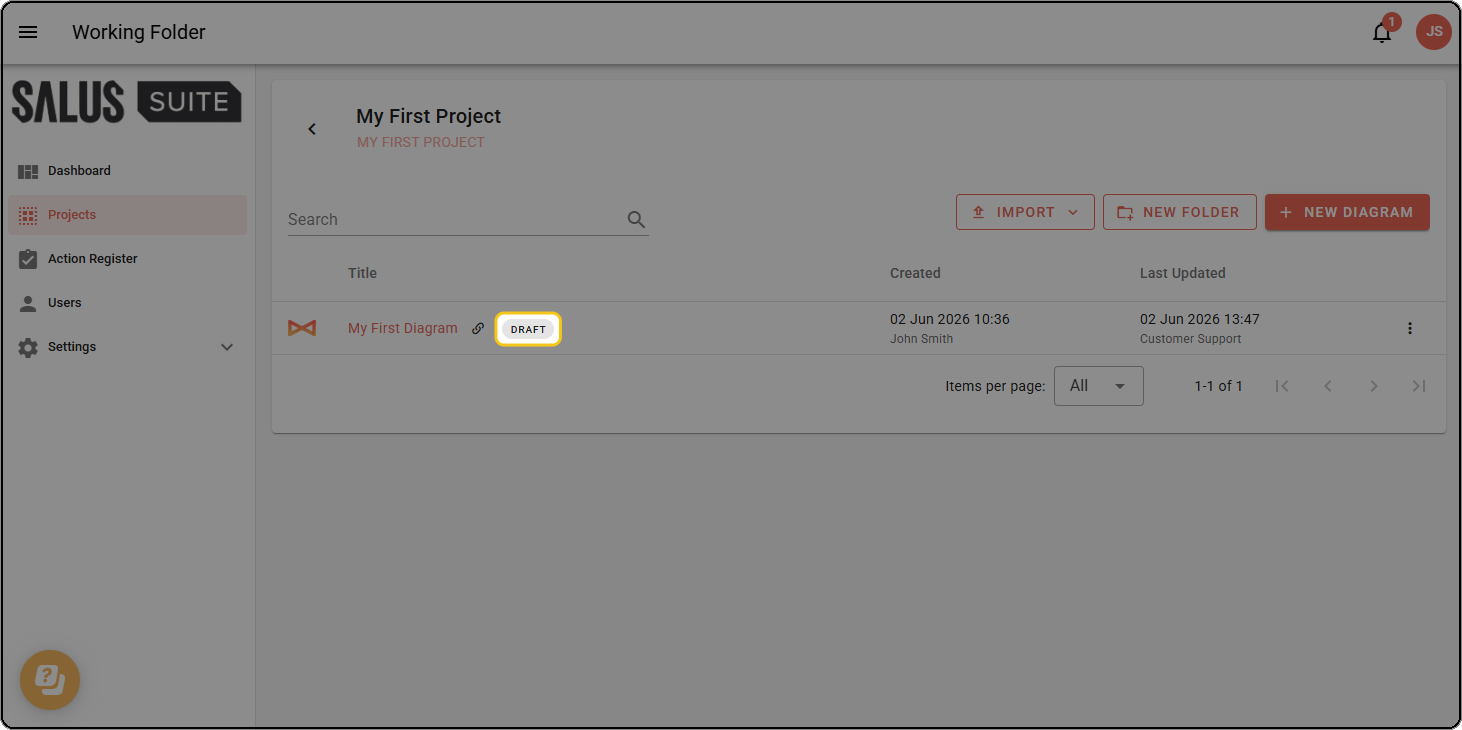
When you create a diagram, it starts as a draft.
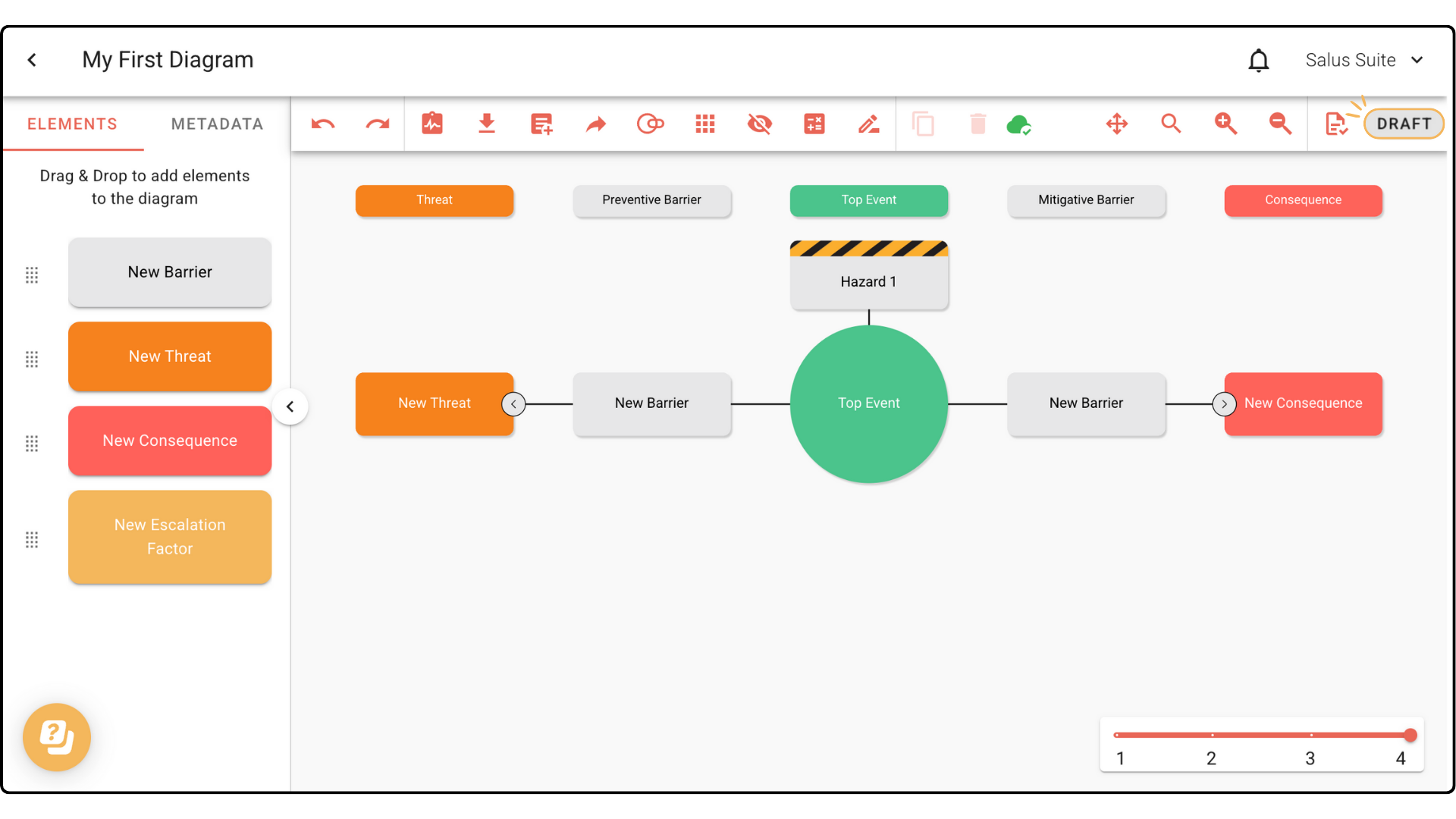
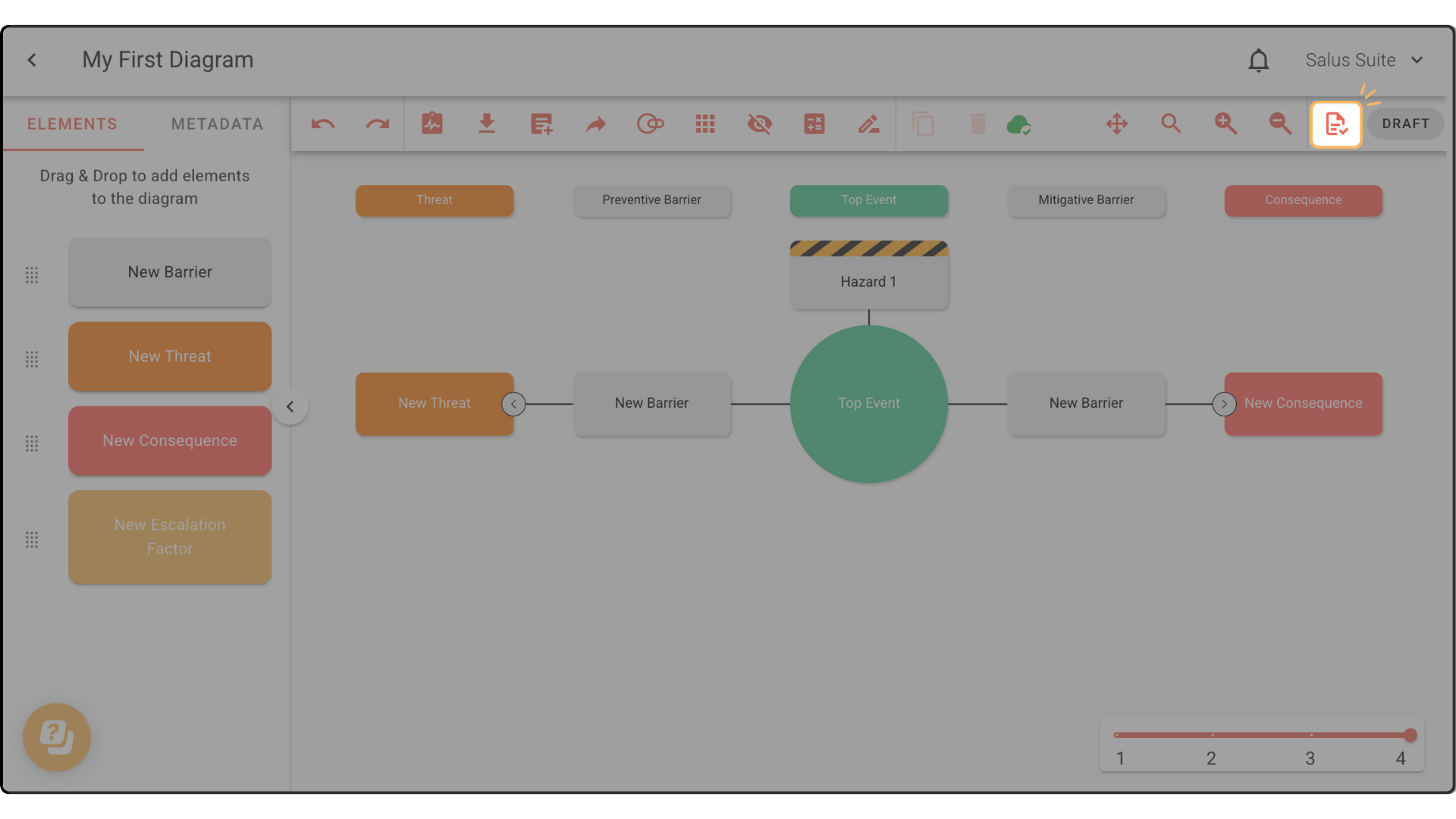
Step 1: In the Diagram Editor toolbar, click the paper icon.
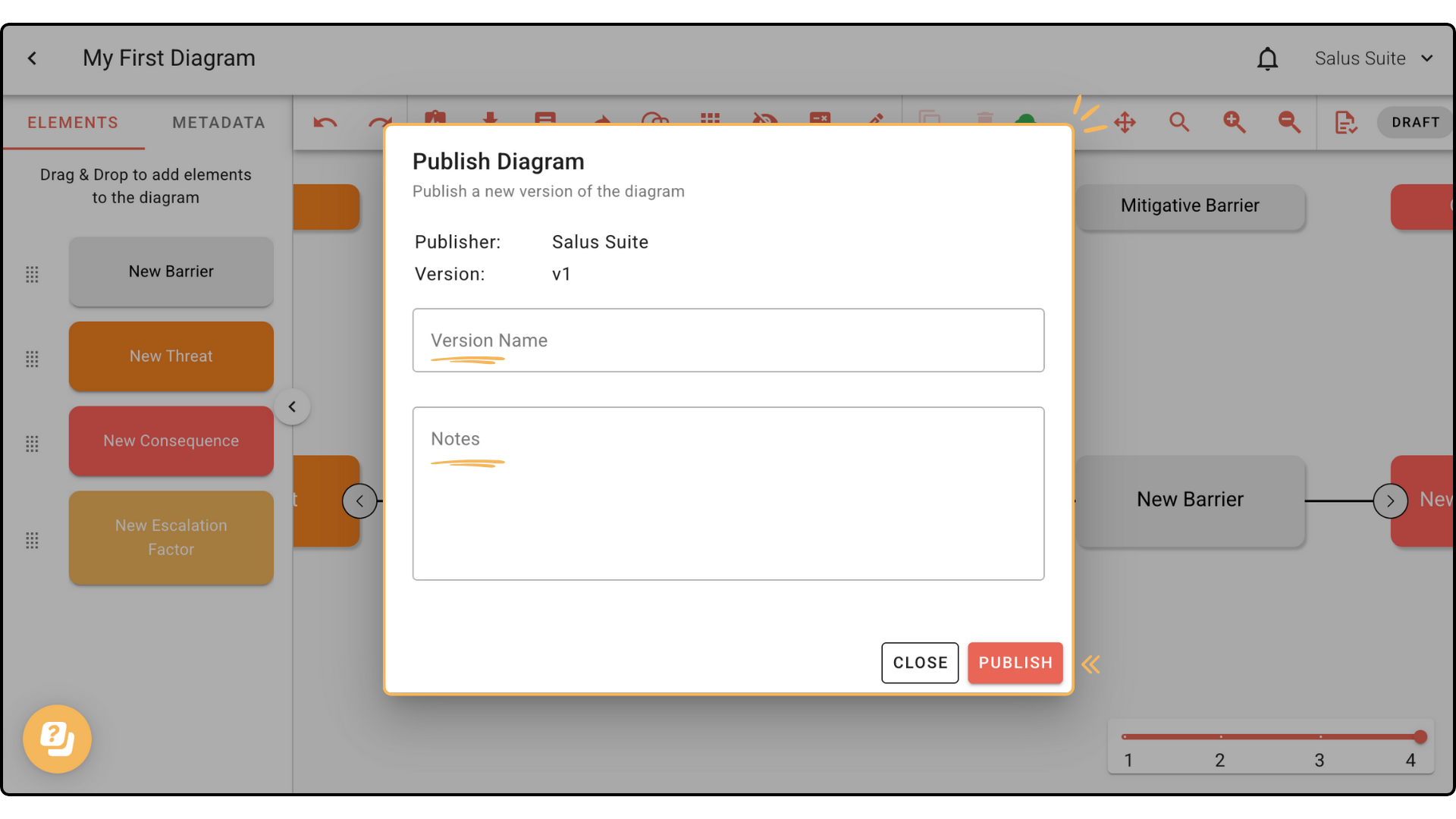
Step 2: Enter a Version Name, add notes if you wish, then click PUBLISH.
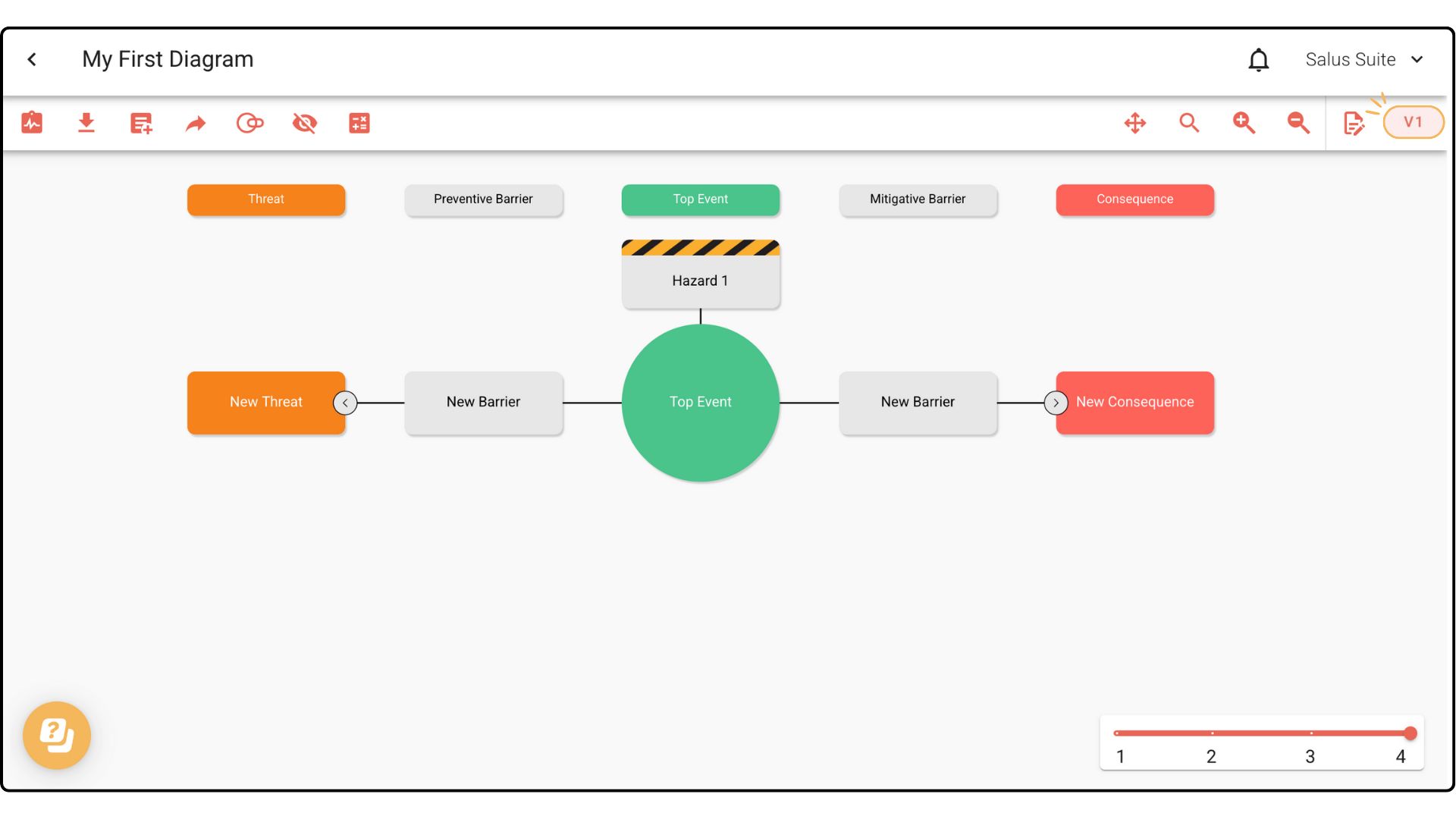
Once published, the version enters View Only mode and cannot be edited. The version number appears in the top-right corner.
Edit a published diagram
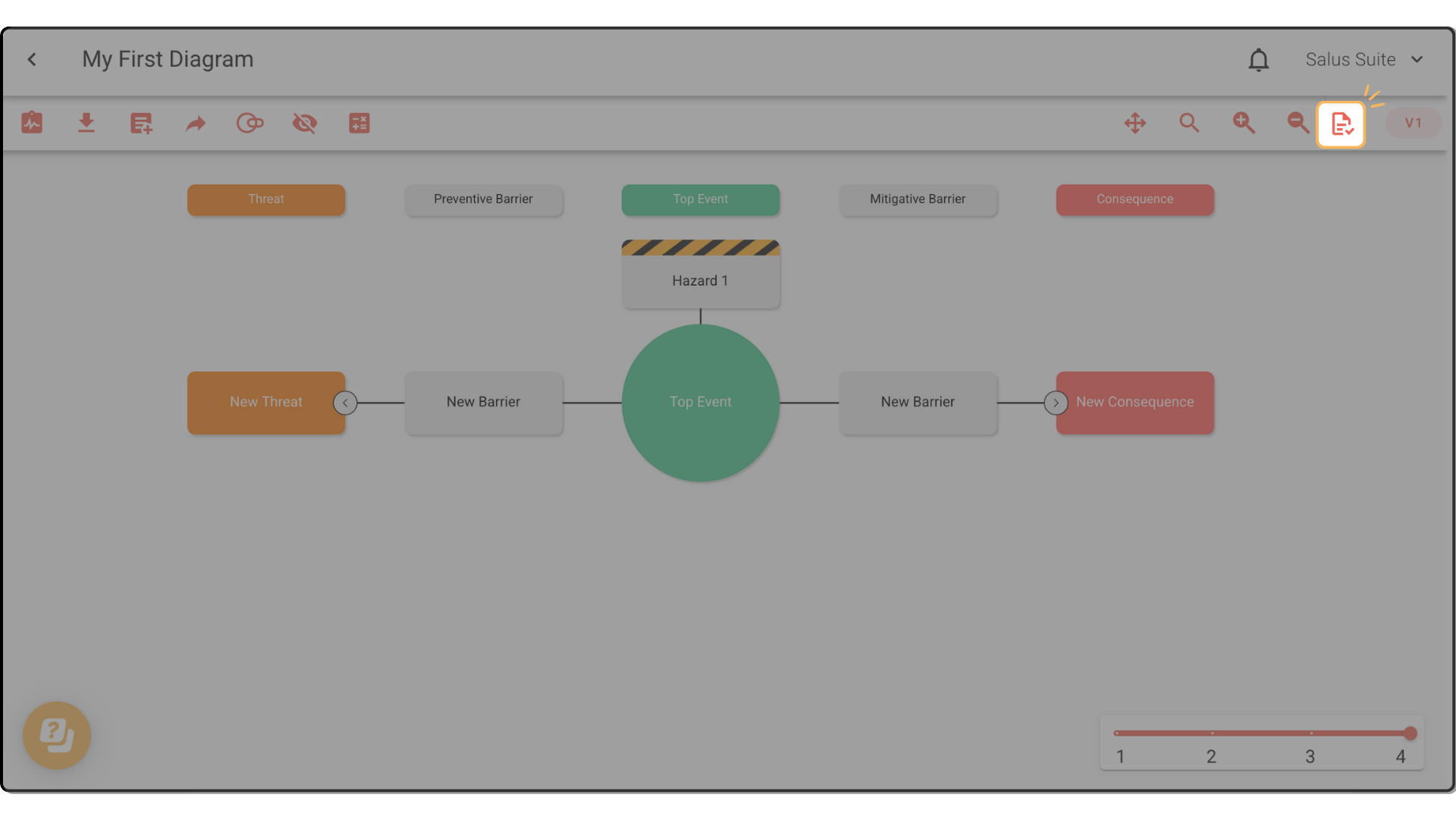
Step 1: To change a published diagram, click the paper icon in the toolbar. You enter Draft mode and can edit the diagram.
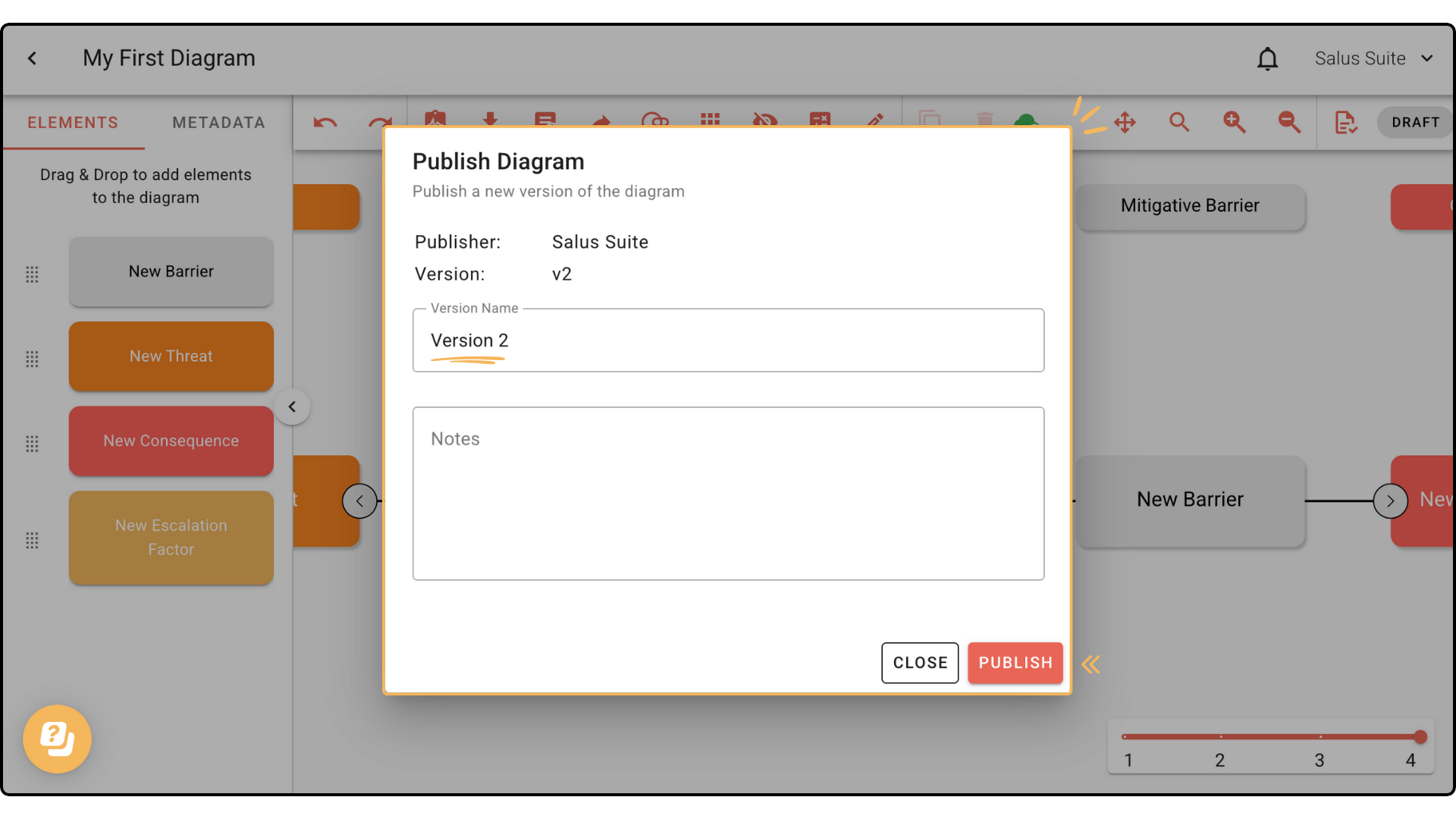
Step 2: To publish your changes as a new version, click the toolbar paper icon again and enter a new name.
Delete a version
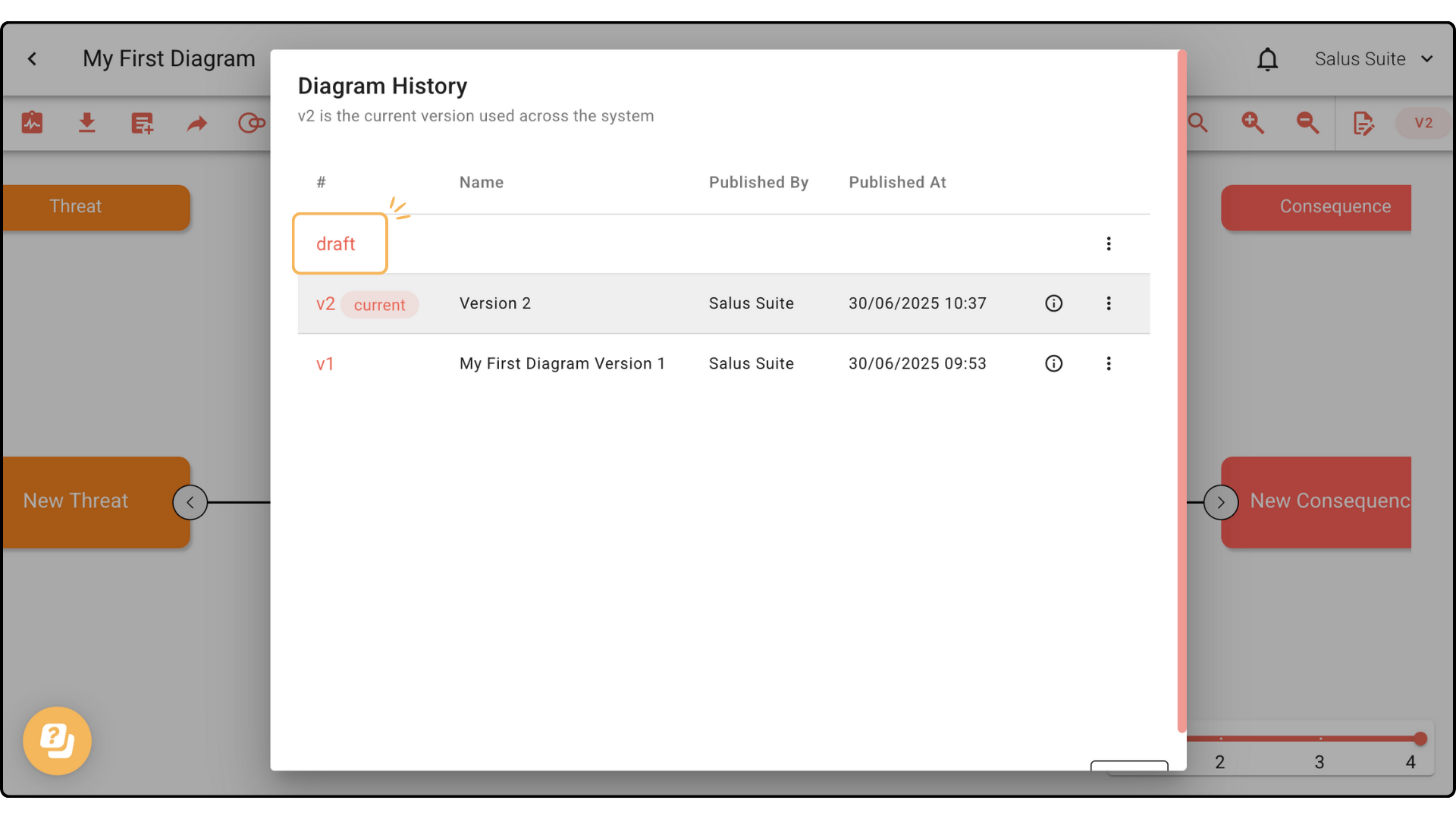
Step 1: In the toolbar, click the Draft or Version button.
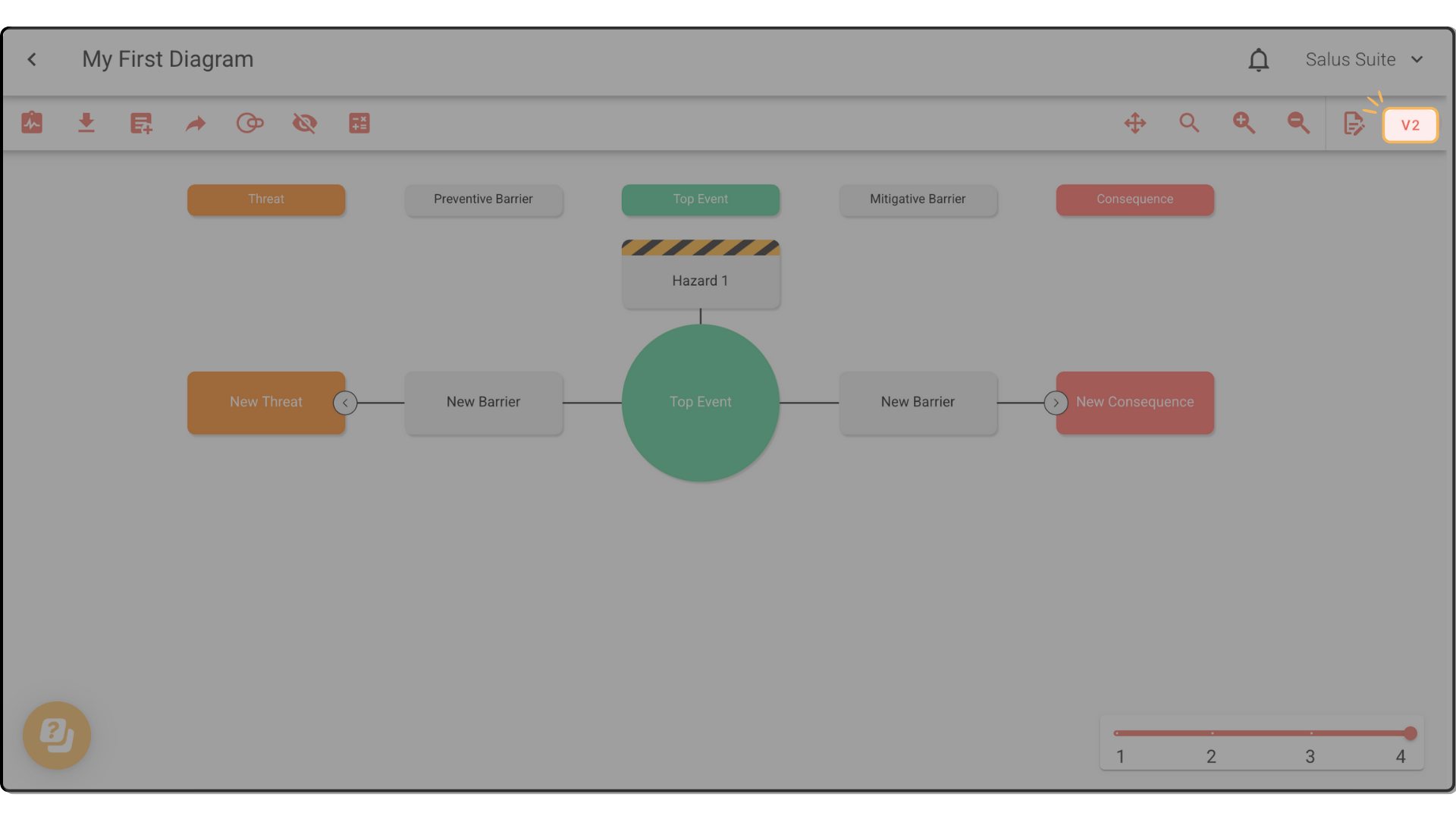
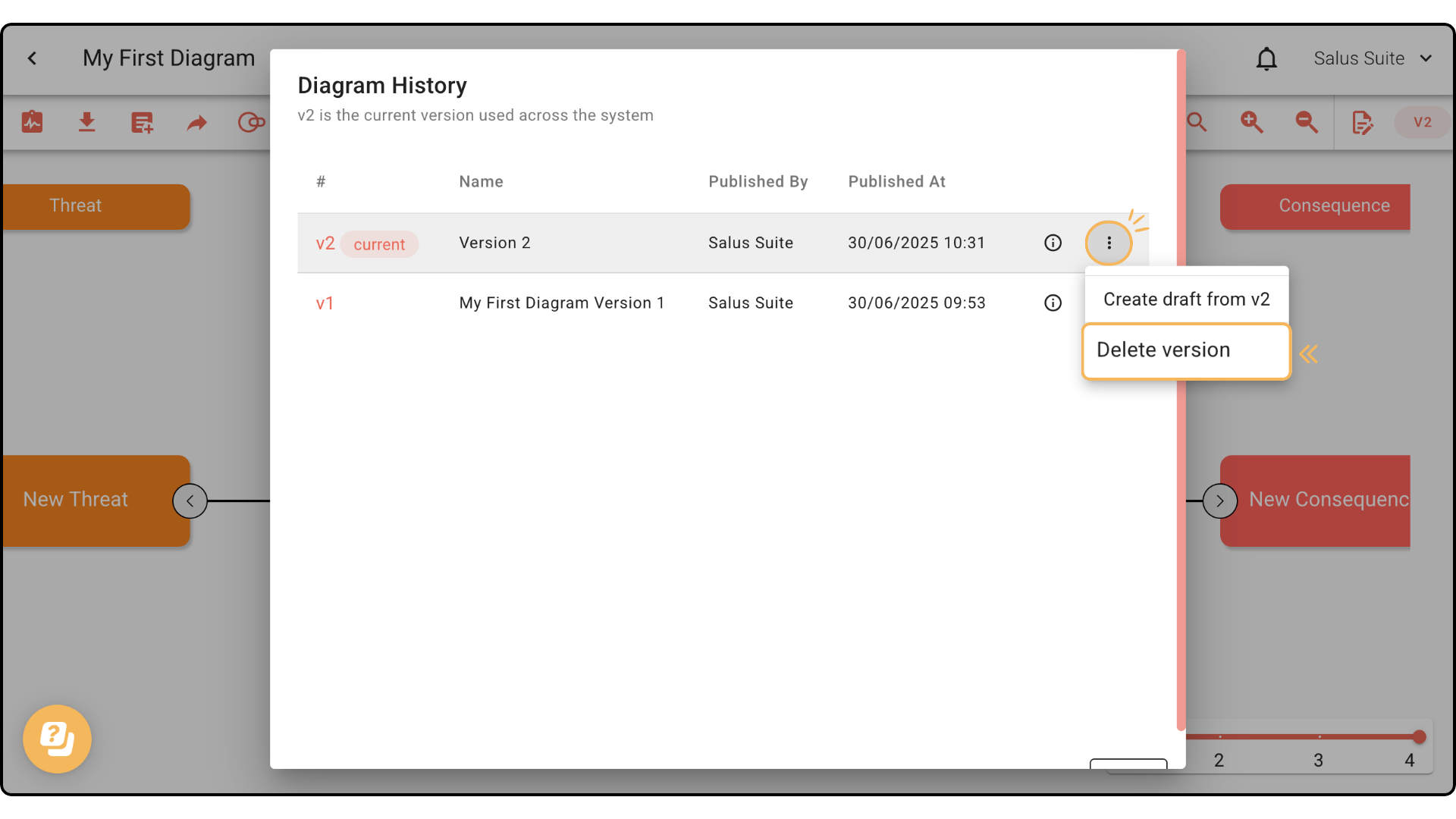
Step 2: In the Version History window, find the version, click its ellipsis menu and select DELETE VERSION. If you delete the version you’re viewing, you switch automatically to the next available version.
Create a draft from a version
Step 1: Click the Draft or Version button.
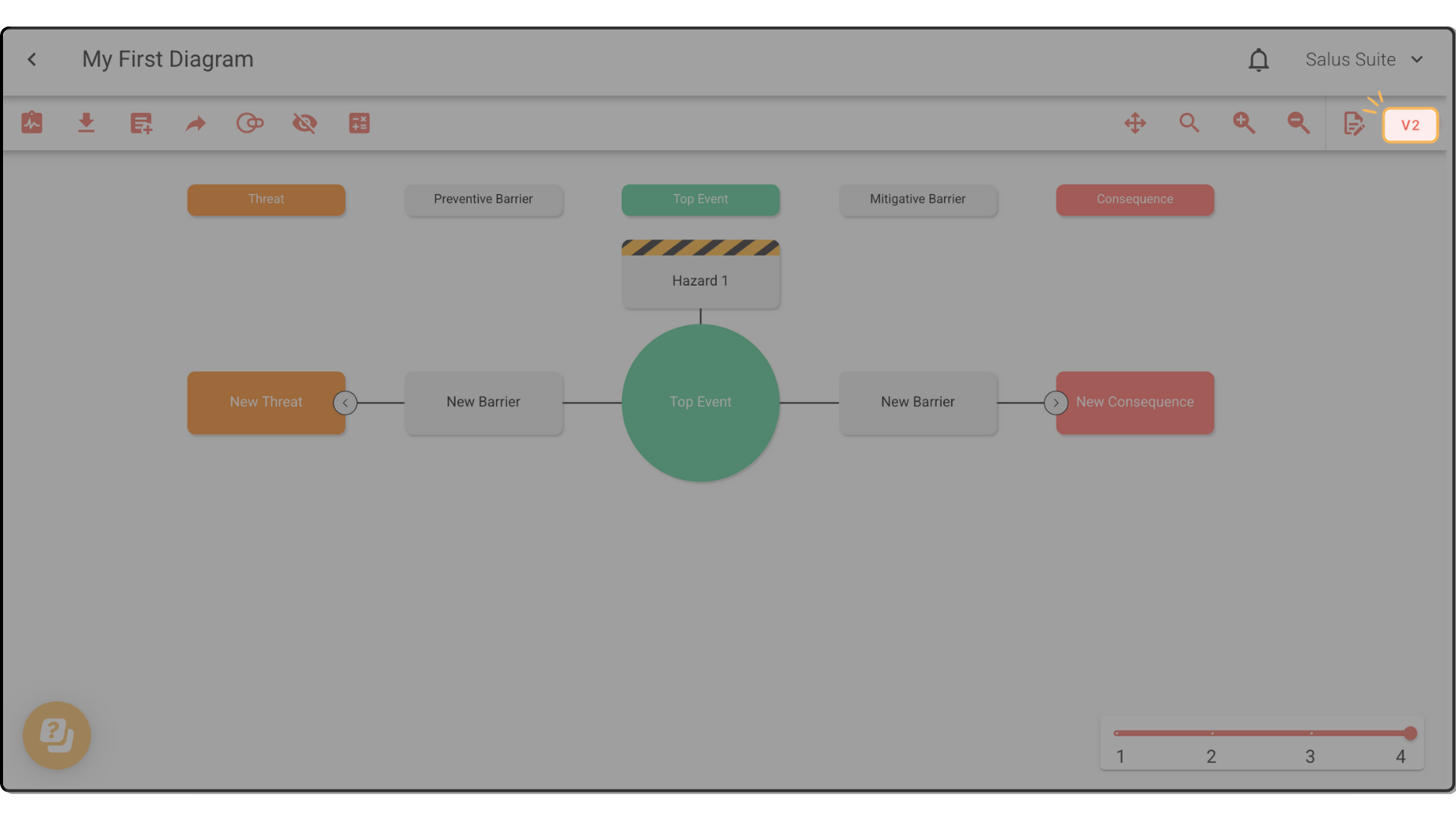
Step 2: In the Version History window, open a version’s ellipsis menu and click CREATE DRAFT FROM V#.
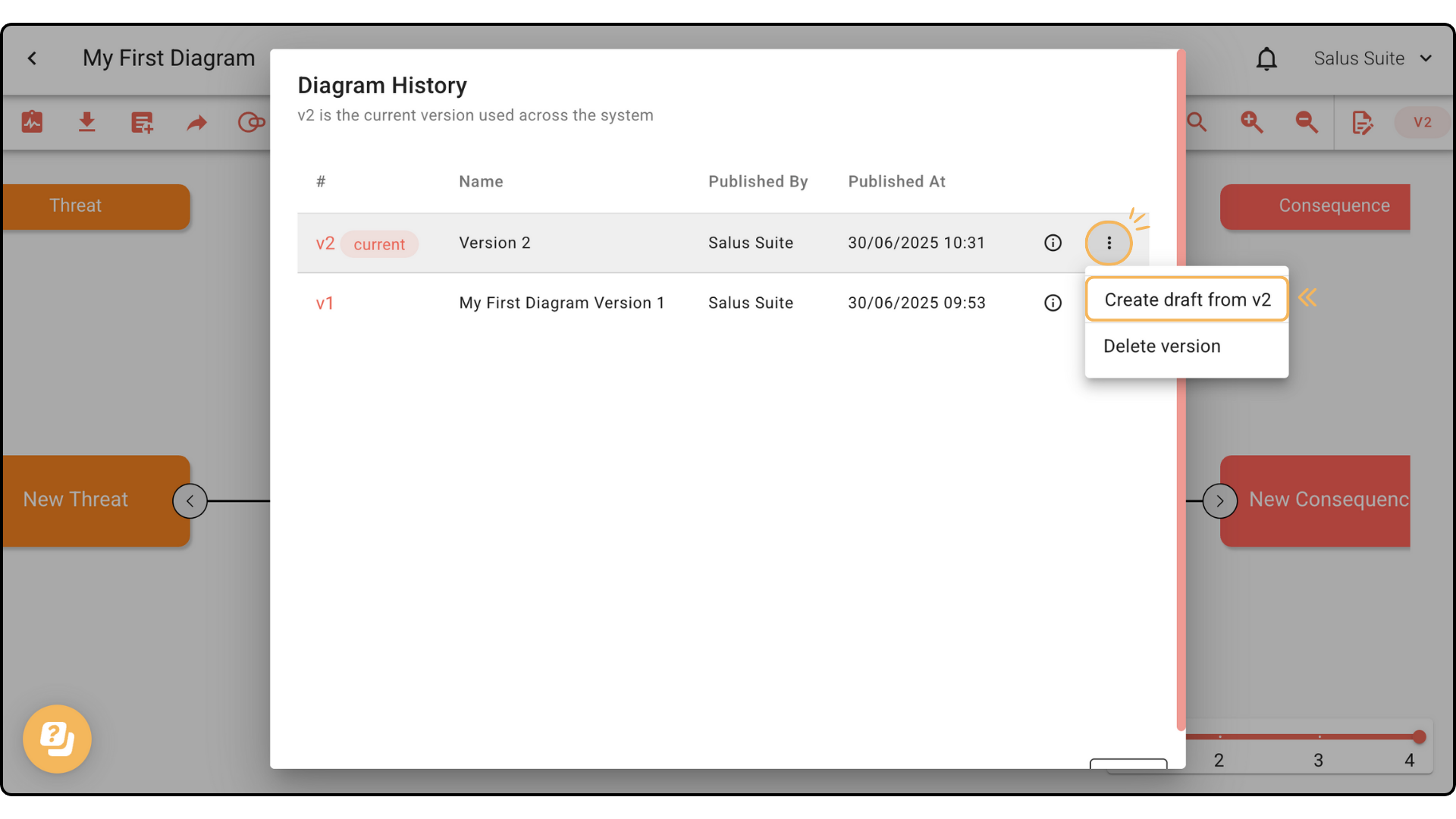
Step 3: A new draft appears in the Version History window. Click it to start editing.