Managing assignees
Add an assignee
Assignees can only be added to actions whose visibility is not set to Private. See Action visibility for details.
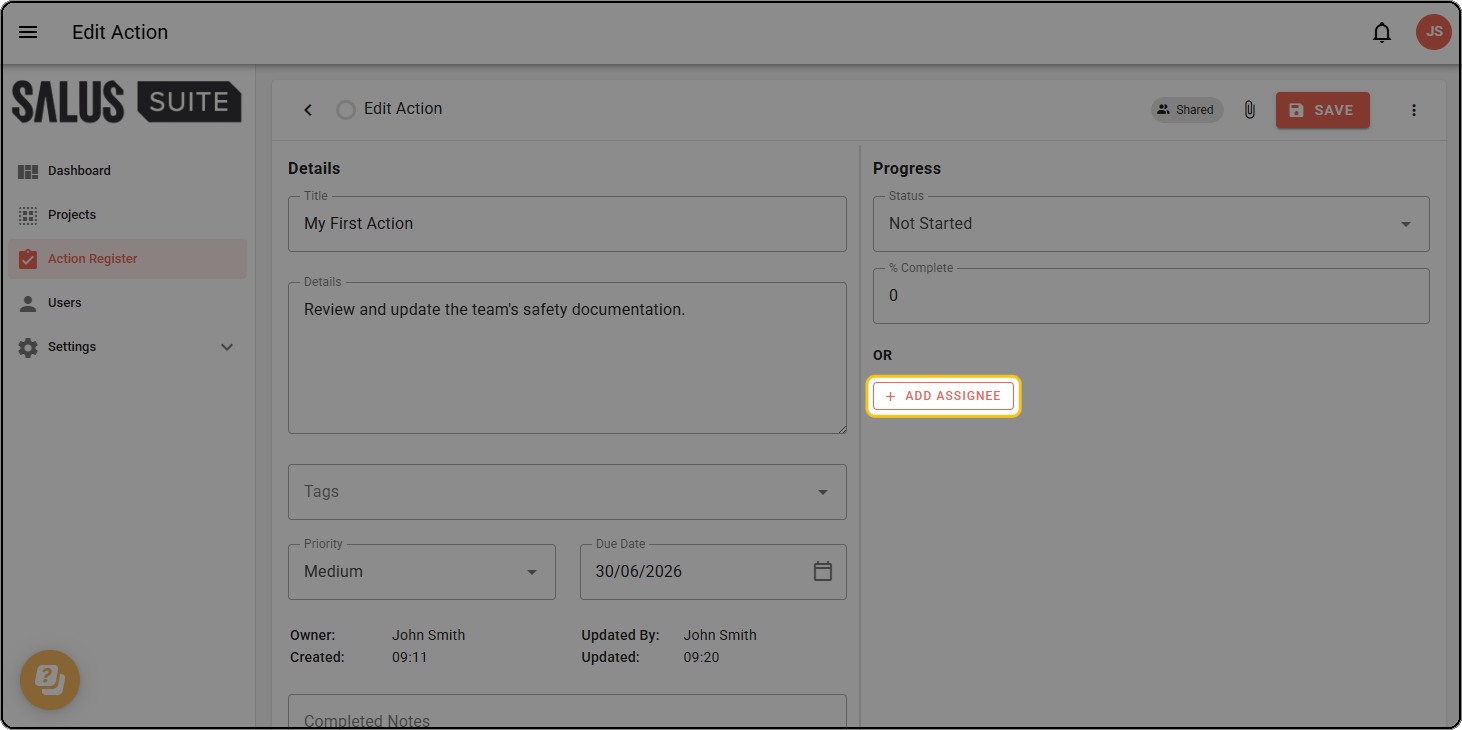
Step 1: Open an existing action or create a new one, then click + ADD ASSIGNEE.
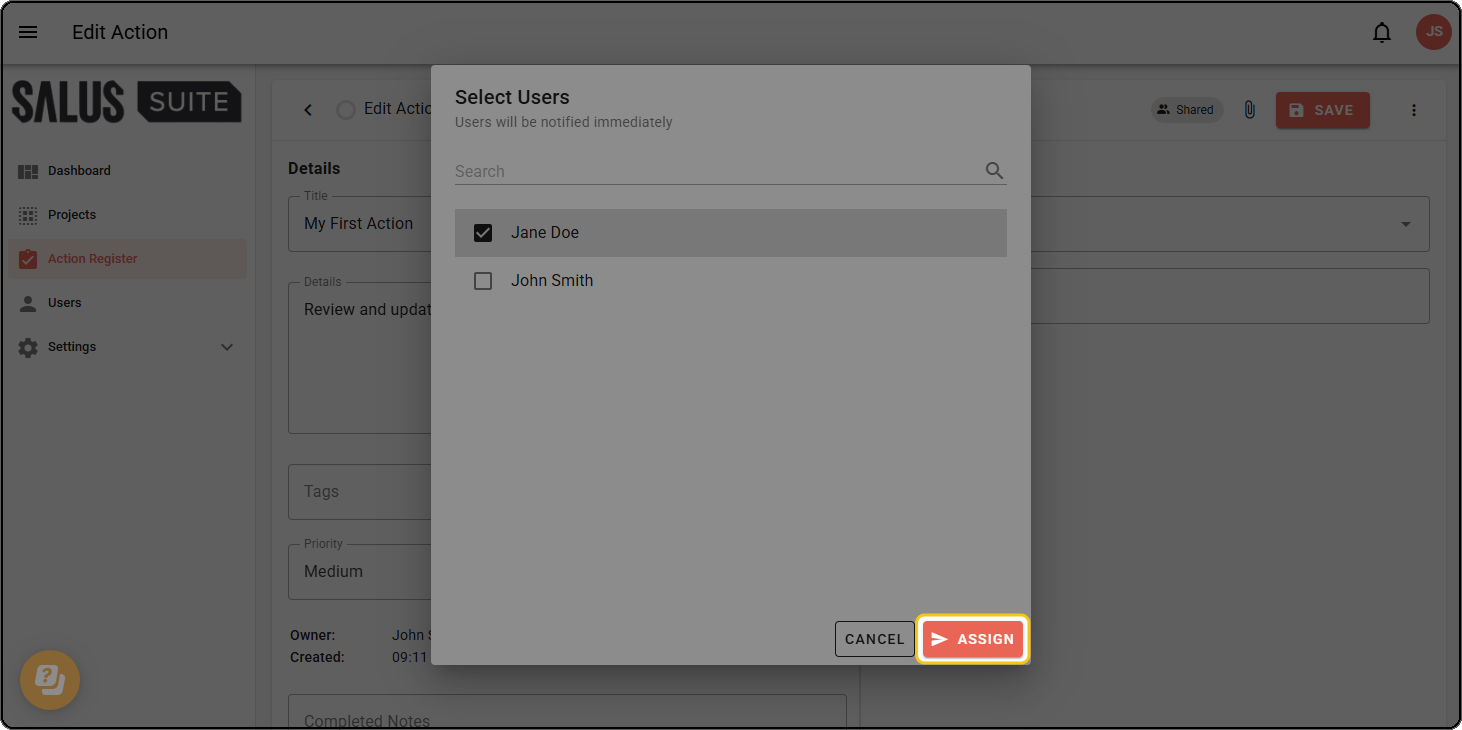
Step 2: In the pop-up, select the users you want to assign the action to, then click ASSIGN. New assignees are notified immediately.
Get assigned an action
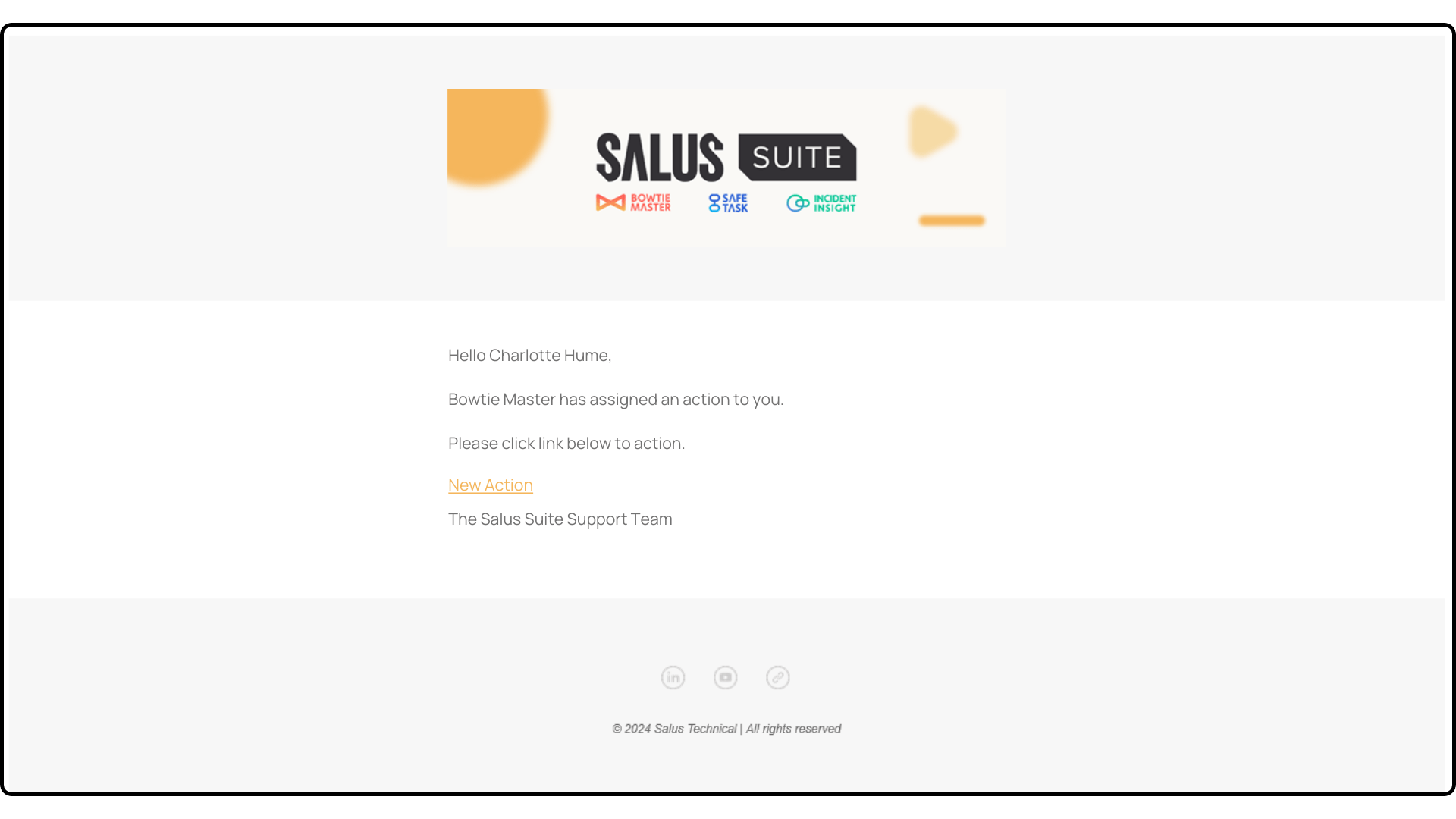
When you’re assigned an action, you receive an instant notification by email and in the Salus Suite app.
Step 1: Click the notification bell in the top navigation bar.
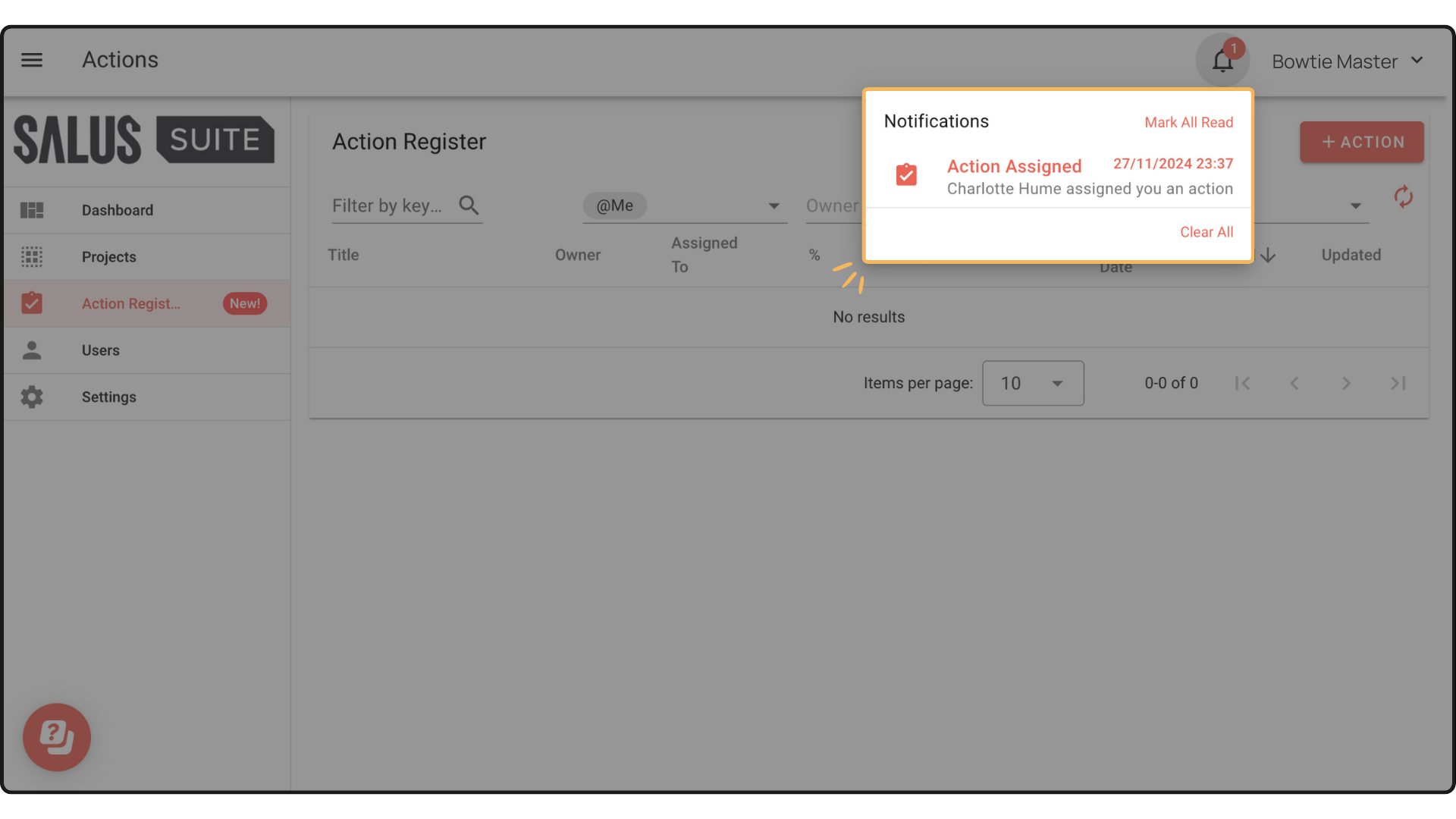
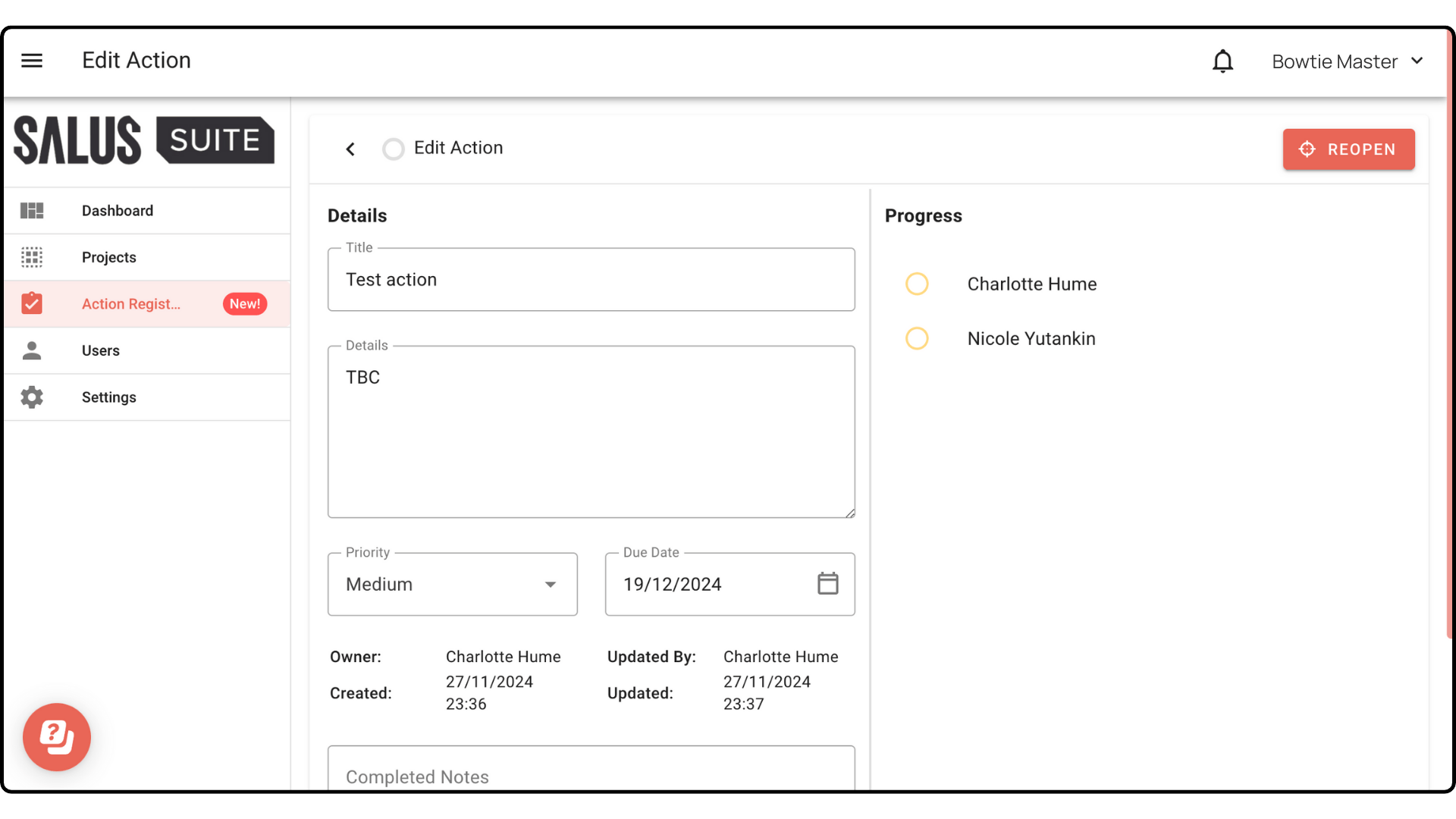
Step 2: From the notifications list, select the action you want to view.
Mark an assignment as complete
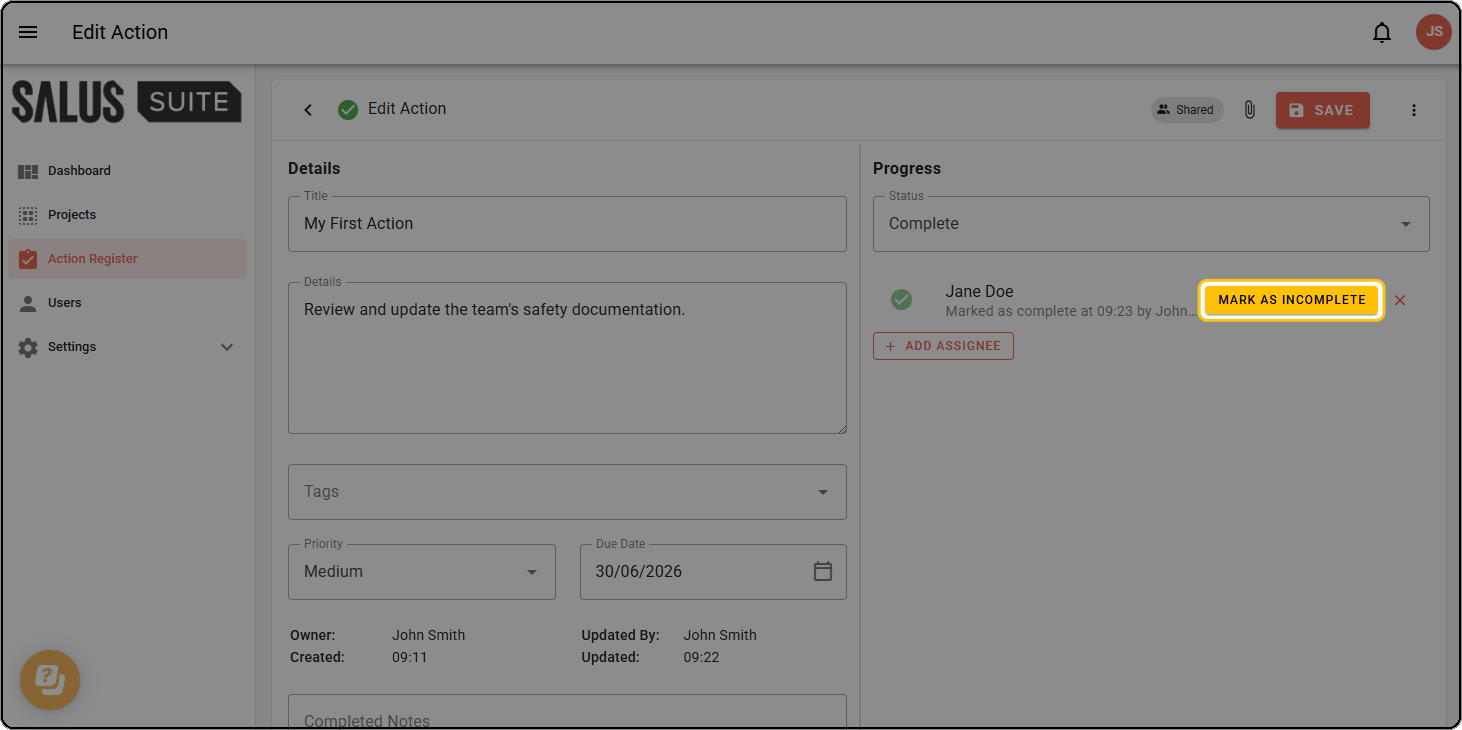
An assignment can only be marked as complete or incomplete by the assignee themselves or by an Organisation Admin. This is only possible while the action is open - once the action is closed, the options are no longer available. When an Organisation Admin completes an assignment on someone else’s behalf, the assignment shows who marked it as complete.
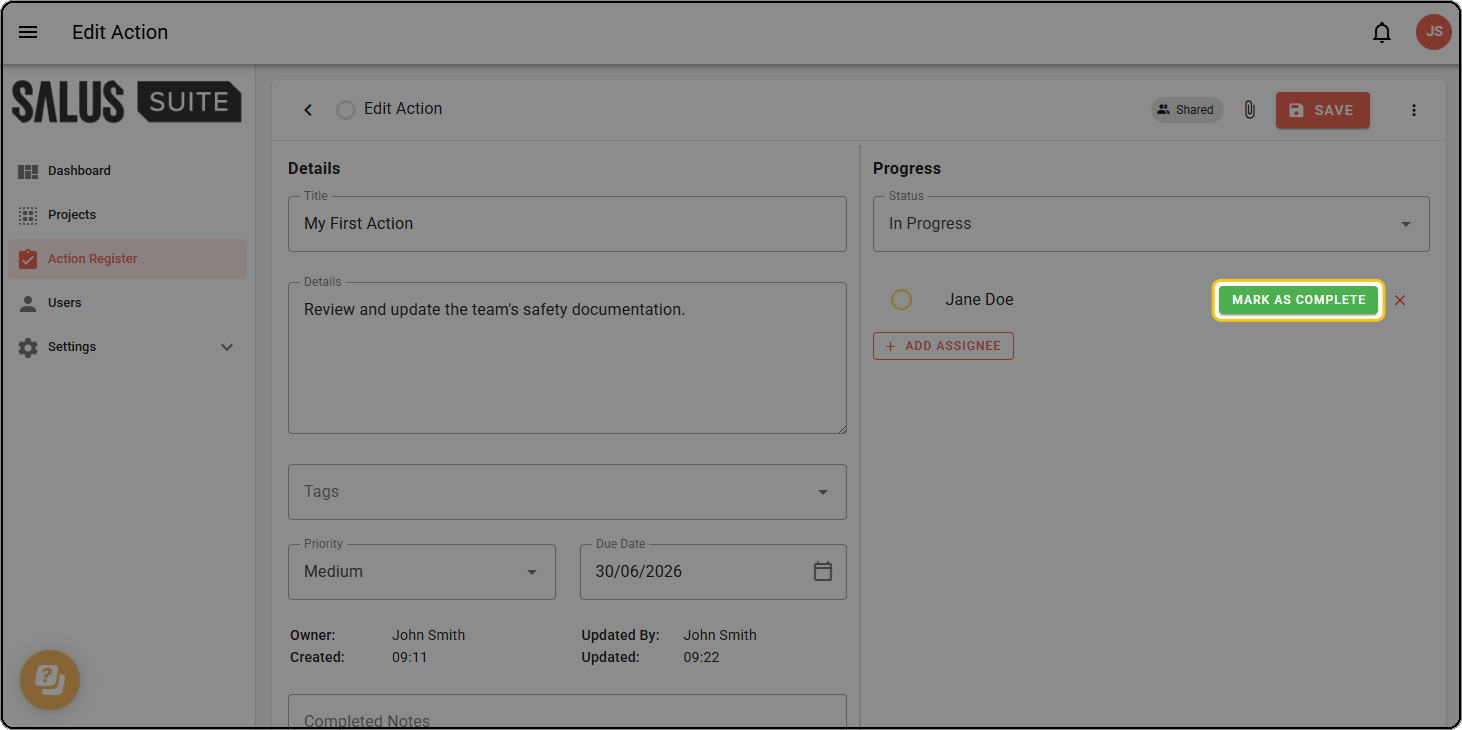
Step 1: Open the action. In the Progress section, click MARK AS COMPLETE beside the assignee.
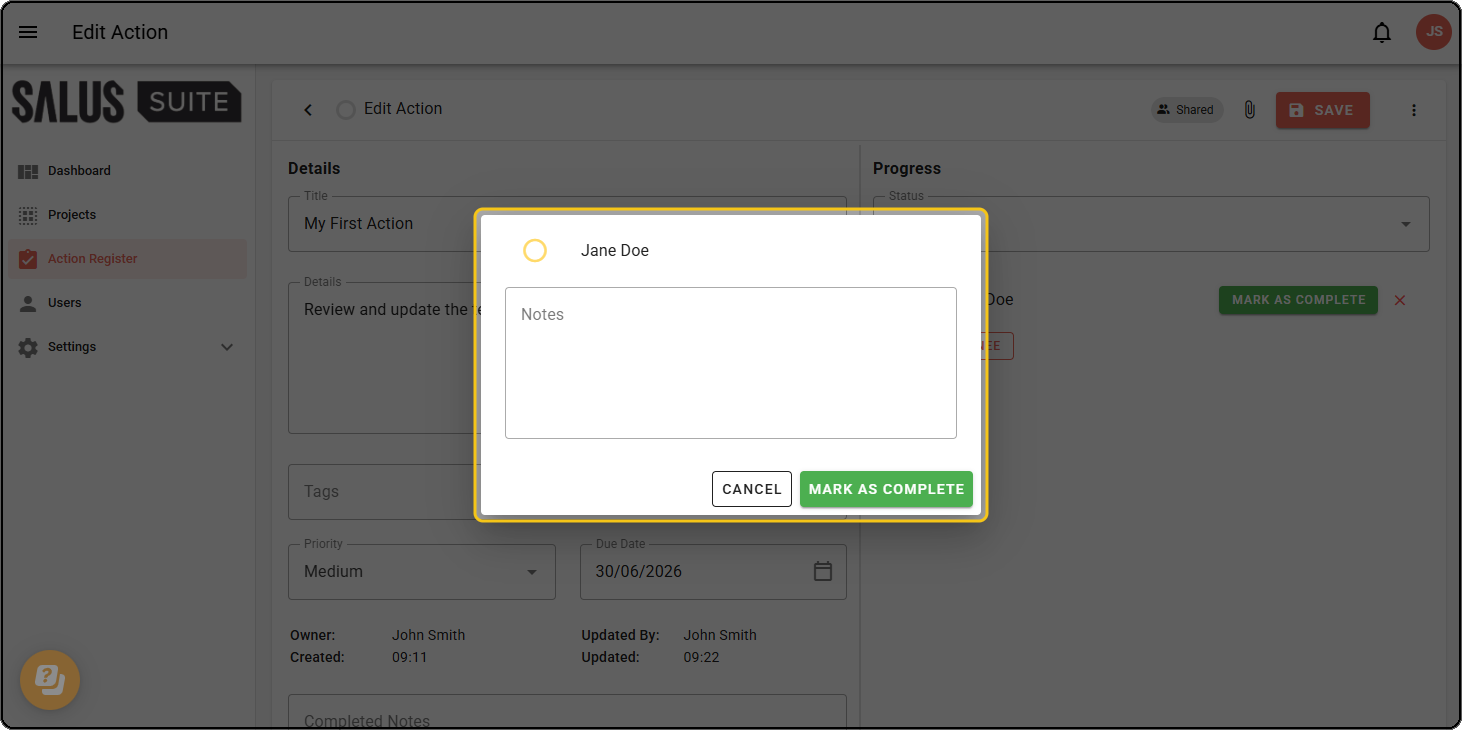
Step 2: In the pop-up, add notes if you wish, then click MARK AS COMPLETE. The assignment is marked as complete.
Revert an assignment to incomplete
To revert an assignment, click MARK AS INCOMPLETE beside the assignee.