Diagram metadata
Metadata lets you record extra information for your elements, such as barrier type, condition, owner and location.
In this tutorial, we’ll show you how to add, edit, delete and link metadata within a diagram.
Create metadata within a diagram
Metadata created within a diagram applies only to that diagram.
Step 1: In the Metadata menu, click + NEW METADATA.
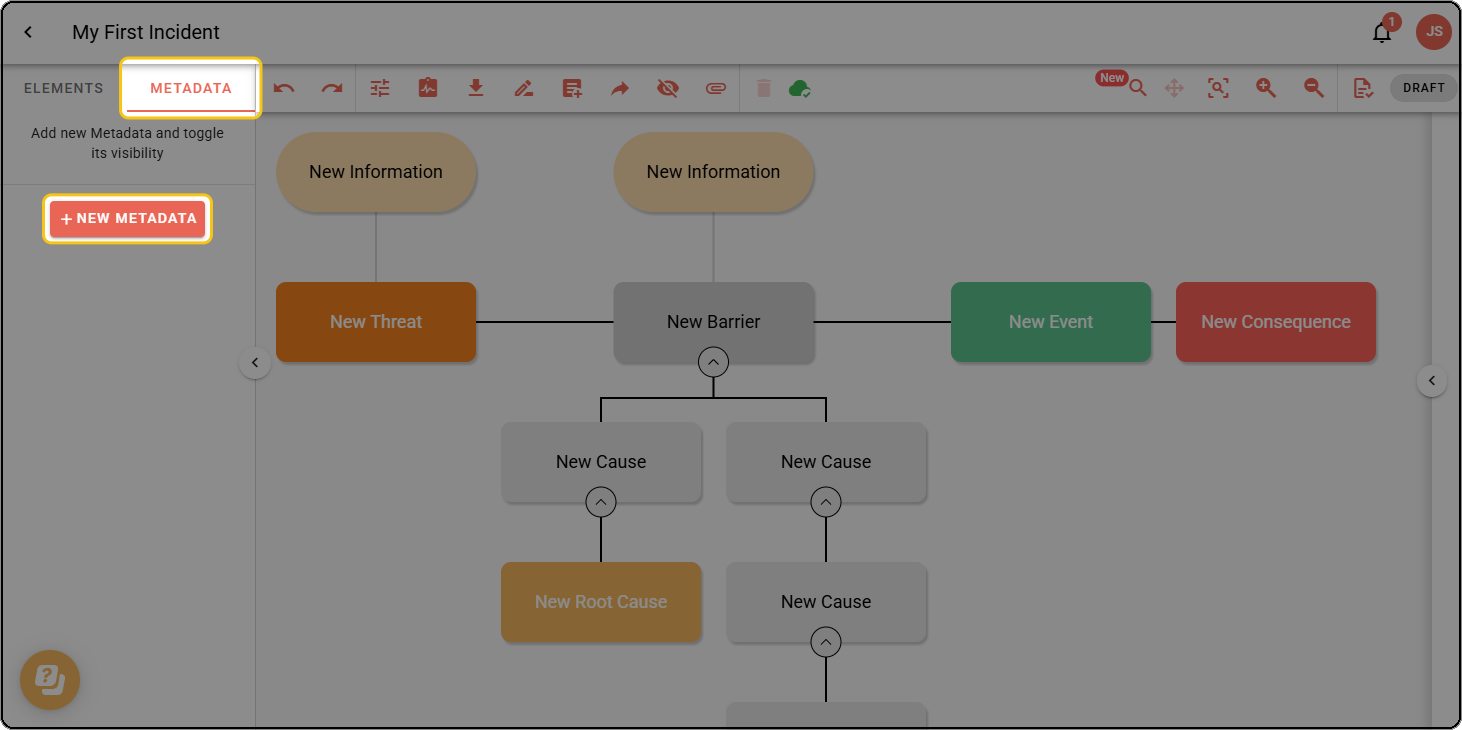
Step 2: Enter a name, choose a colour and click SAVE.
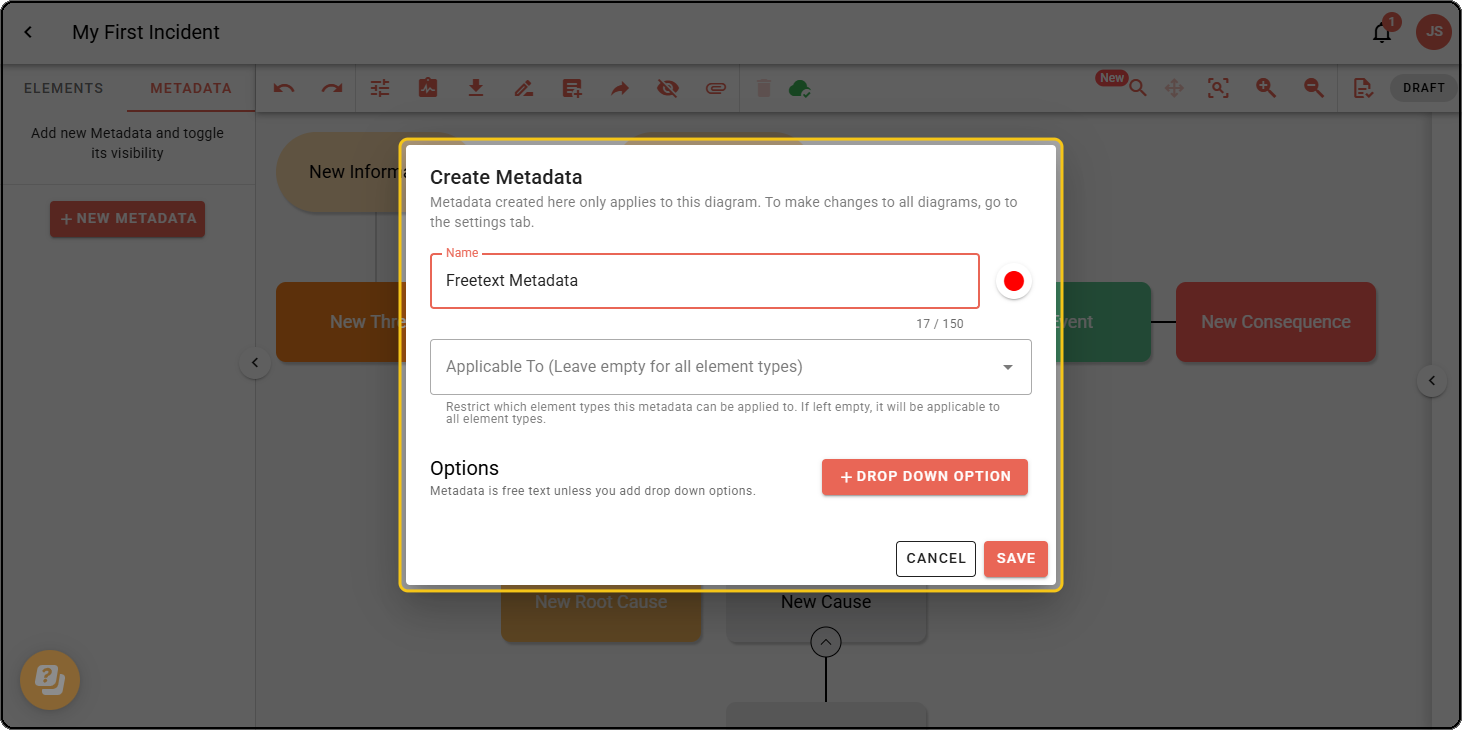
To create a dropdown list, click + DROP DOWN OPTION on the right, enter a name and choose a colour, then click SAVE.
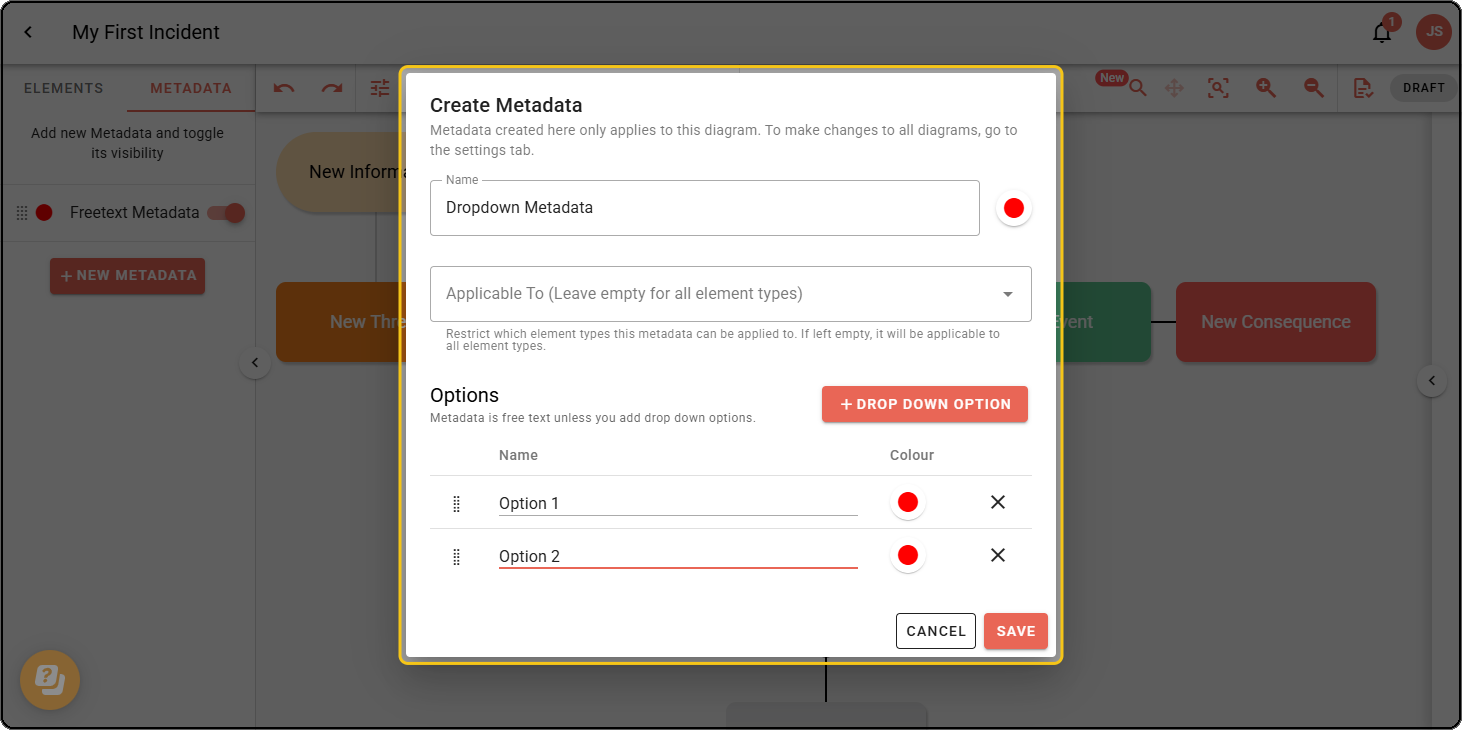
Use the Applicable To field to restrict metadata to specific element types. If left empty, the metadata can be applied to all element types.
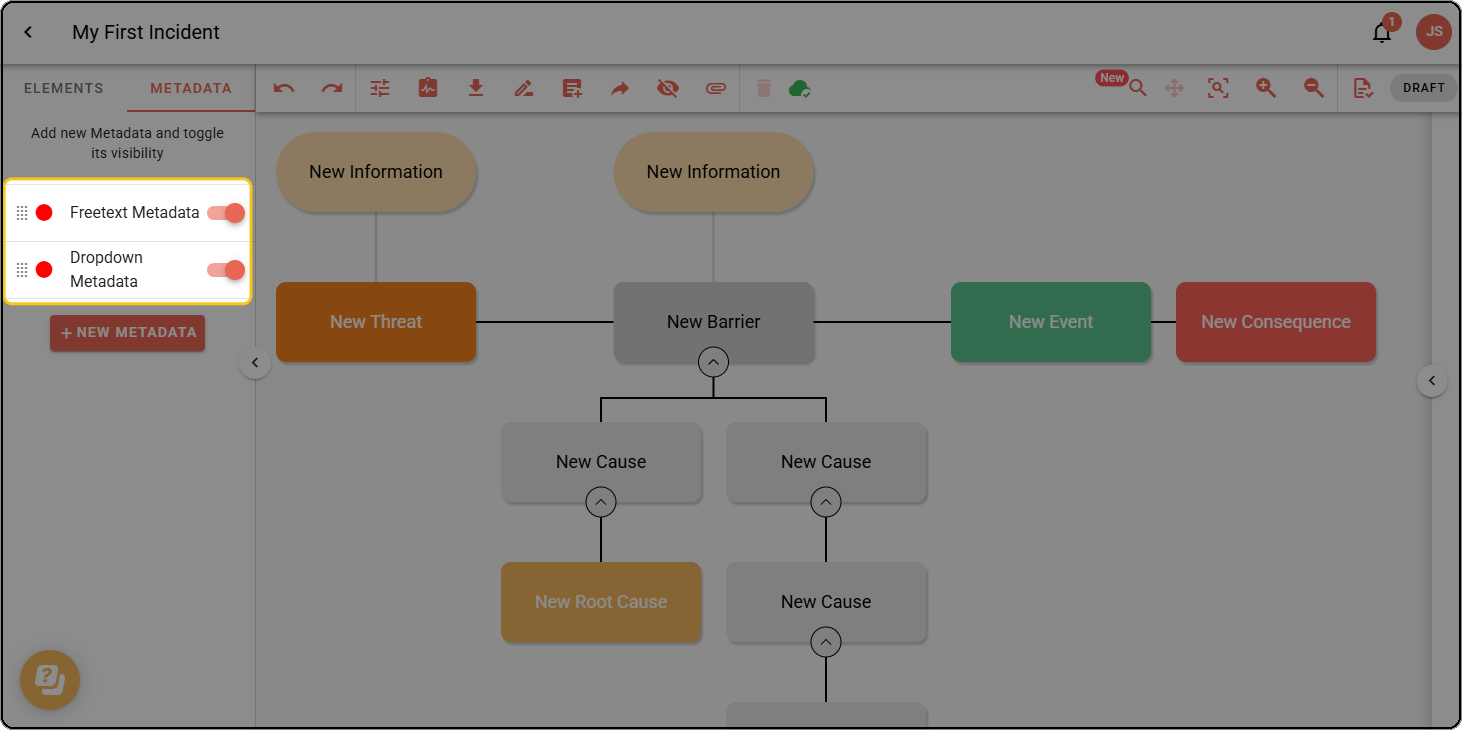
Your new metadata appears in the Metadata menu.
Add metadata to an element
Step 1: Double-click the element you want to add metadata to.
Step 2: In the Element Description Box on the right, assign the metadata.
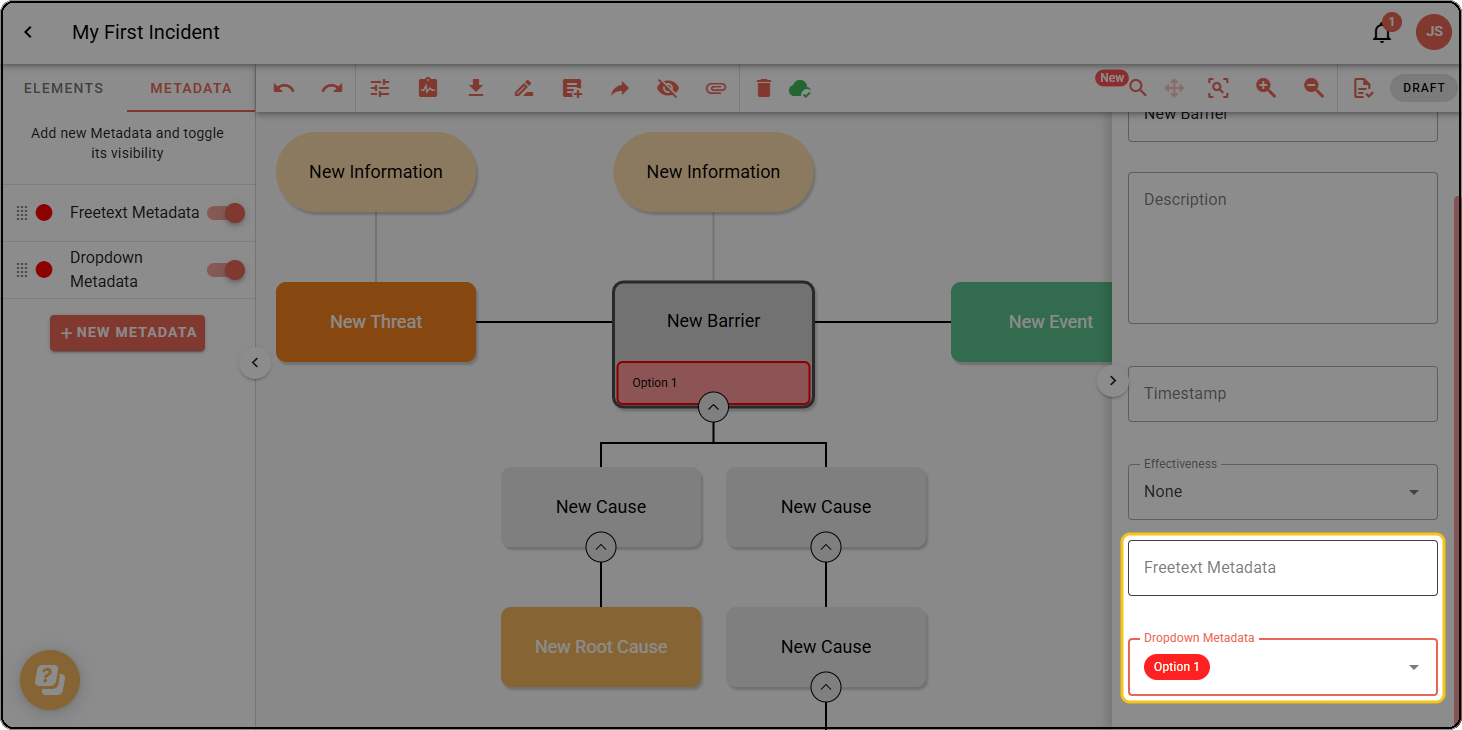
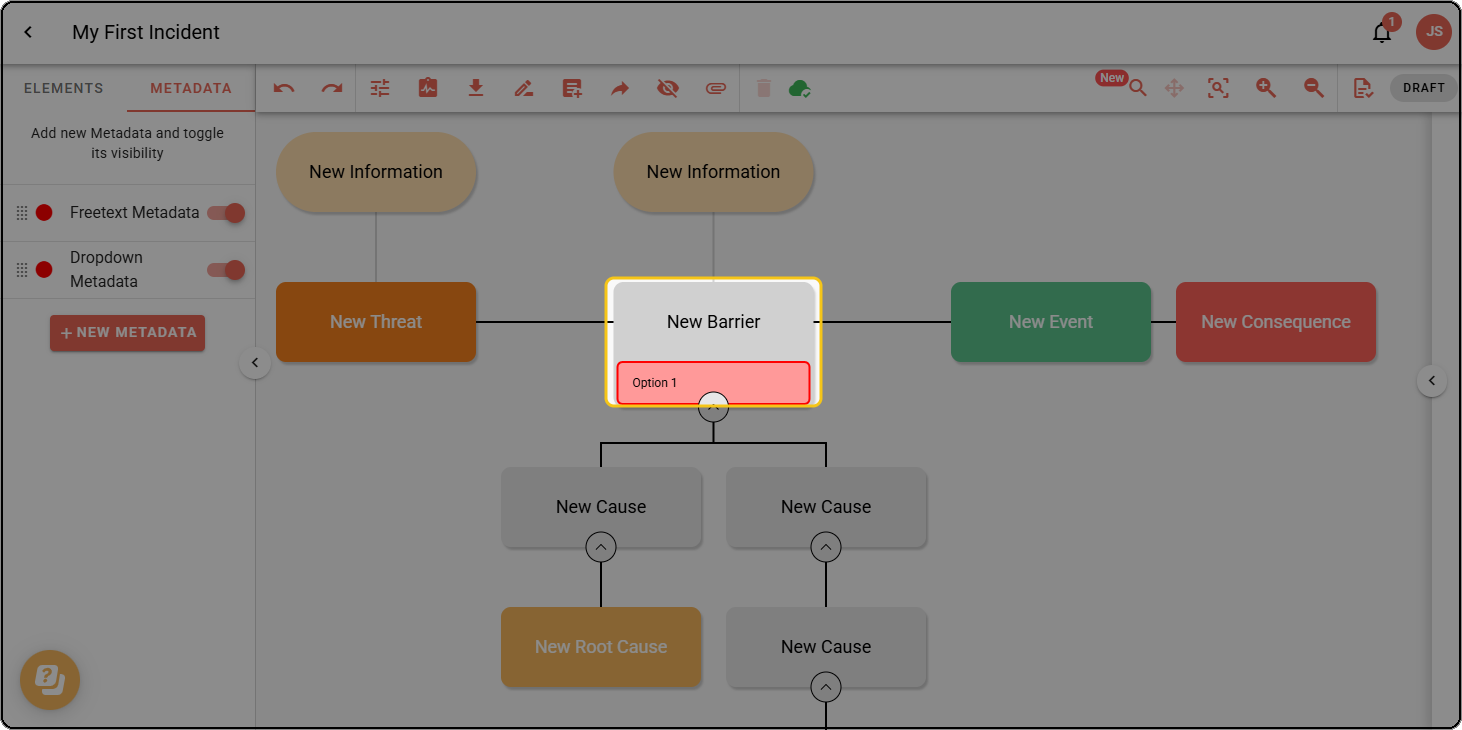
Step 3: The metadata appears in the element on the diagram.
Delete metadata
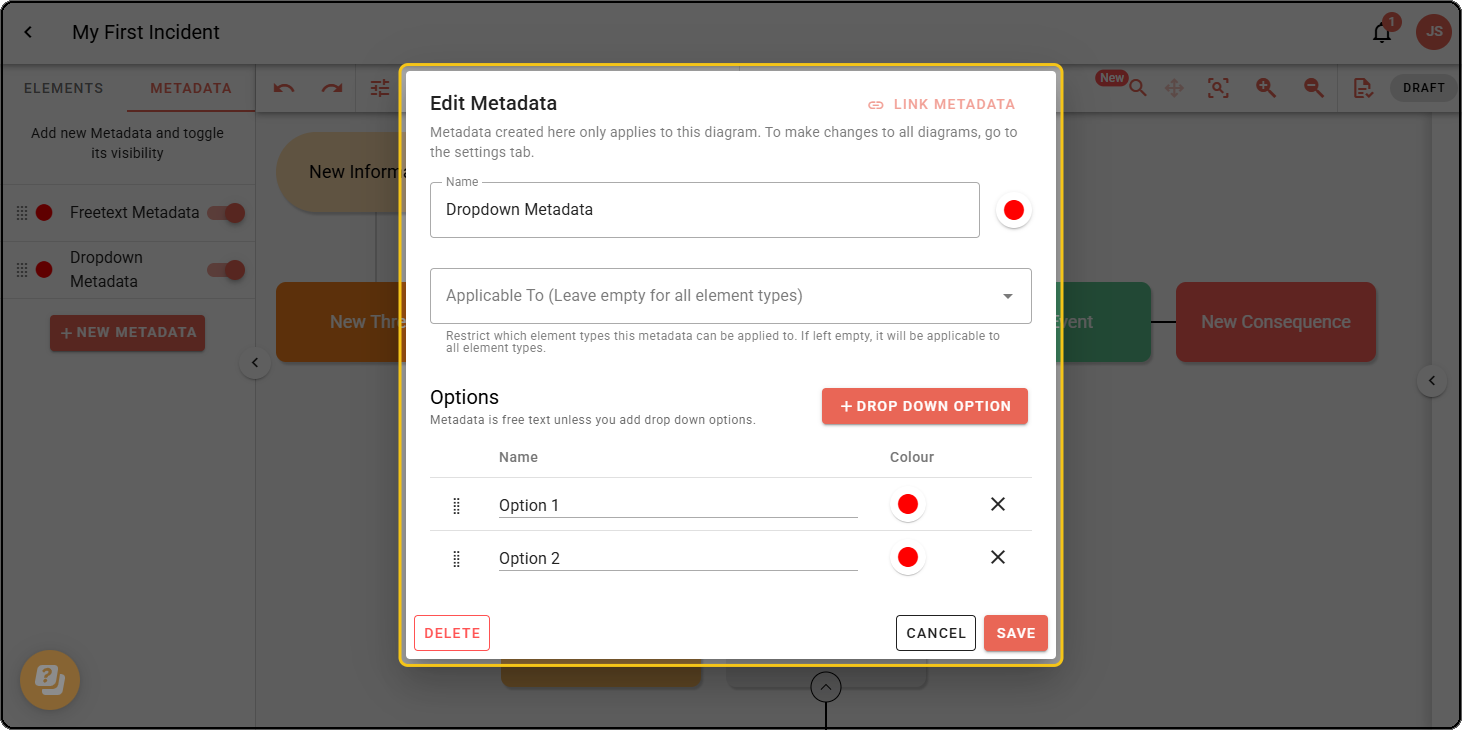
Step 1: In the Metadata menu, click the metadata you want to delete.
Step 2: In the Edit Metadata pop-up, click DELETE.
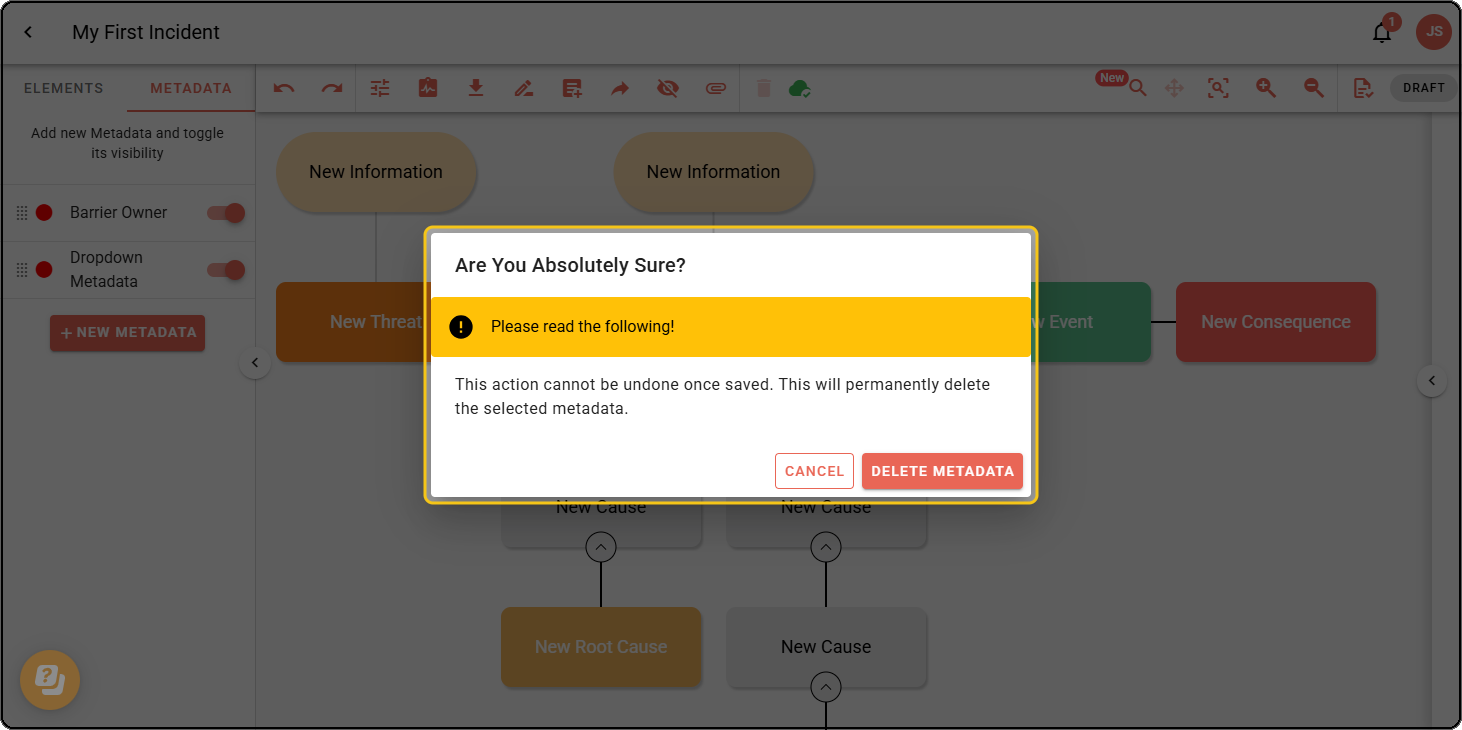
Step 3: In the warning message, click DELETE. This permanently deletes the metadata within the diagram.
Linked and unlinked metadata
Within a diagram, metadata is either linked or unlinked:
- Linked metadata (shows UNLINK METADATA) is synced with your organisation’s company metadata and can’t be edited directly within the diagram.
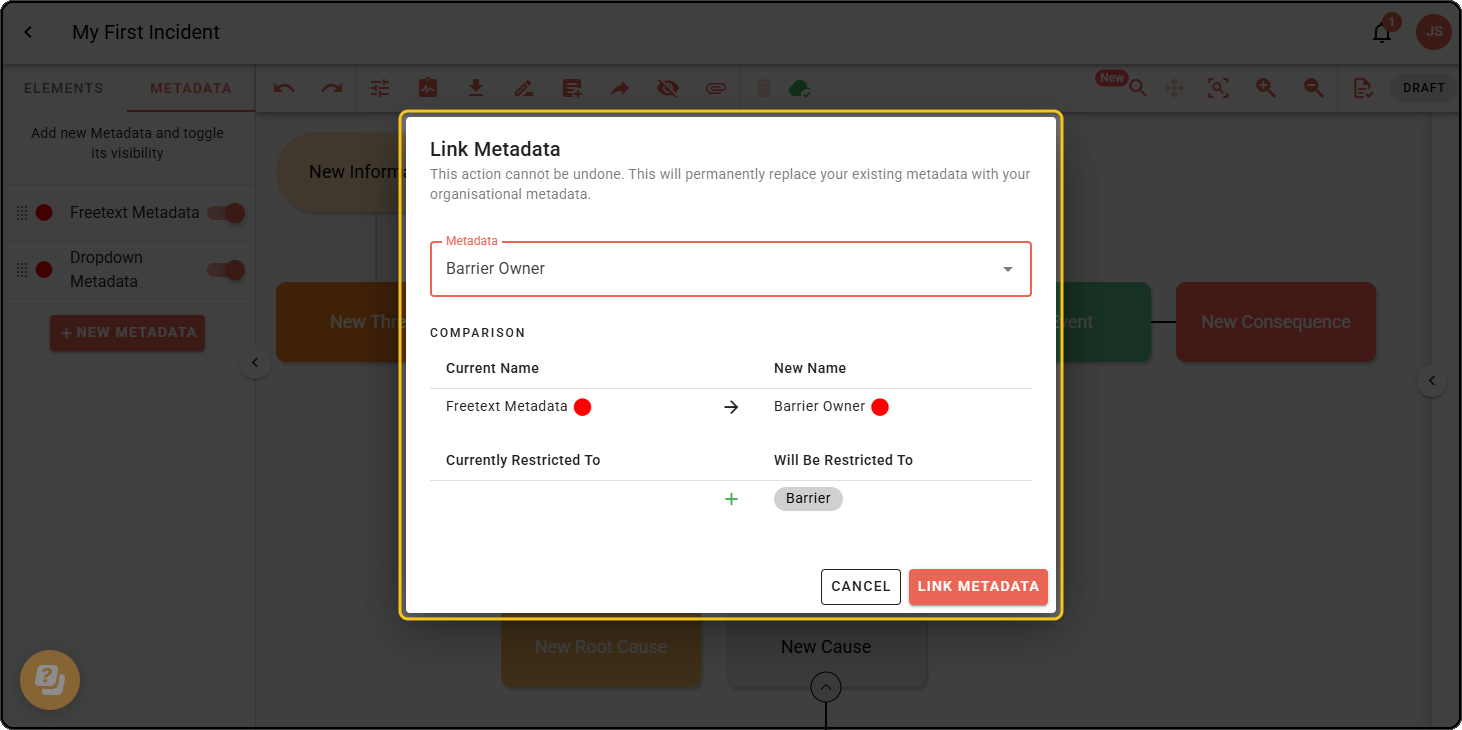
- Unlinked metadata (shows LINK METADATA) is specific to the diagram. You can edit it freely, but it isn’t synced with the company metadata.
If you find yourself creating the same metadata across diagrams, link it for consistency.
Step 1: To unlink, click the metadata, then click UNLINK.
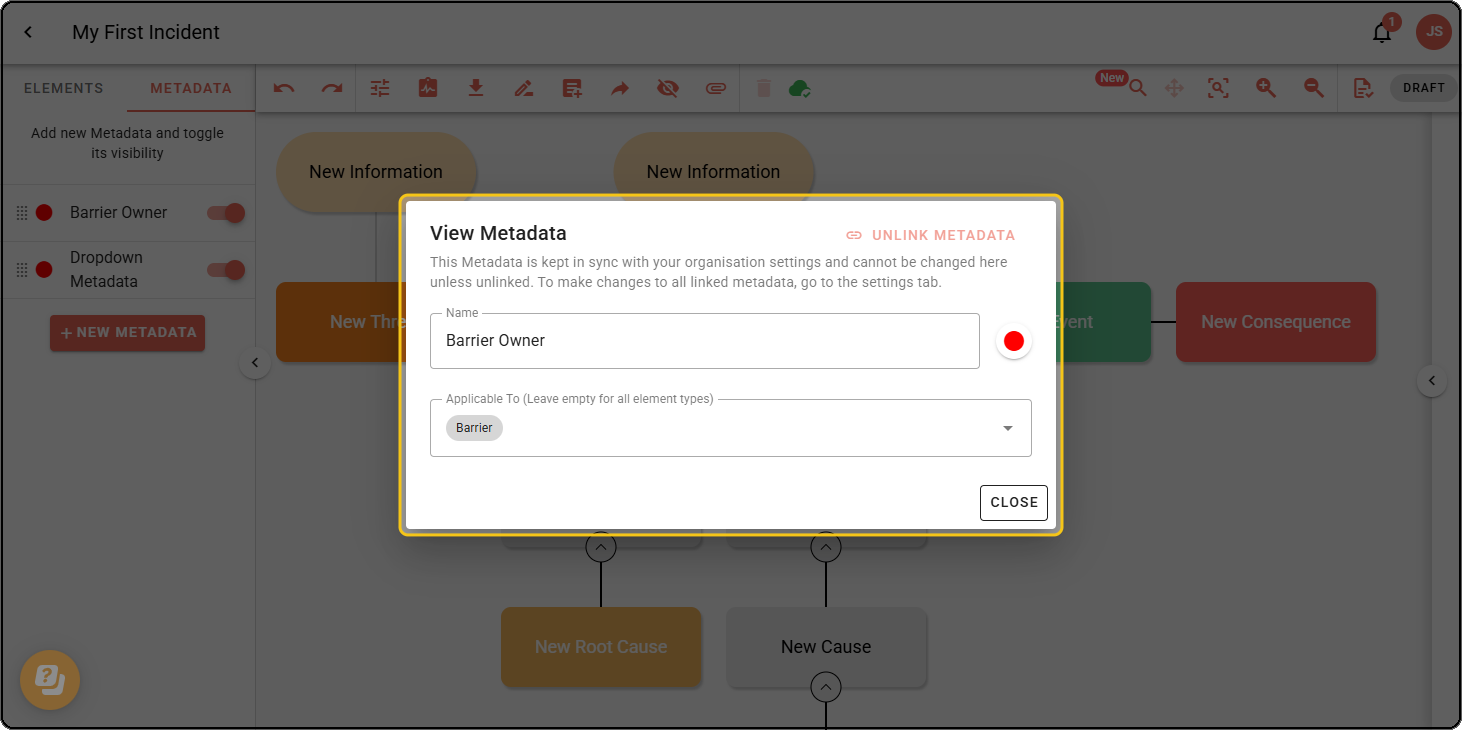
Step 2: To link, click the metadata, then click LINK METADATA.
Step 3: In the Link Metadata pop-up, choose the metadata from the dropdown, then click LINK METADATA. It’s now synced with the company metadata and can’t be edited directly.
Edit metadata
When you create a diagram, all metadata is linked by default from the company metadata.
Step 1: Click the metadata you want to edit. If it’s linked to the company metadata, click UNLINK.
Step 2: Make your changes, then click SAVE.