Diagram metadata
Metadata lets you record extra information on your elements, allowing you to classify them or add custom fields.
In this tutorial, we’ll show you how to add, edit, delete and link metadata within a diagram.
Metadata created within a diagram applies only to that diagram.
Create or edit metadata within a diagram
If you want to edit existing metadata, click it in the sidebar instead of + NEW METADATA, and follow the same steps.
Step 1: In the Metadata menu in the left-hand sidebar, click + NEW METADATA.
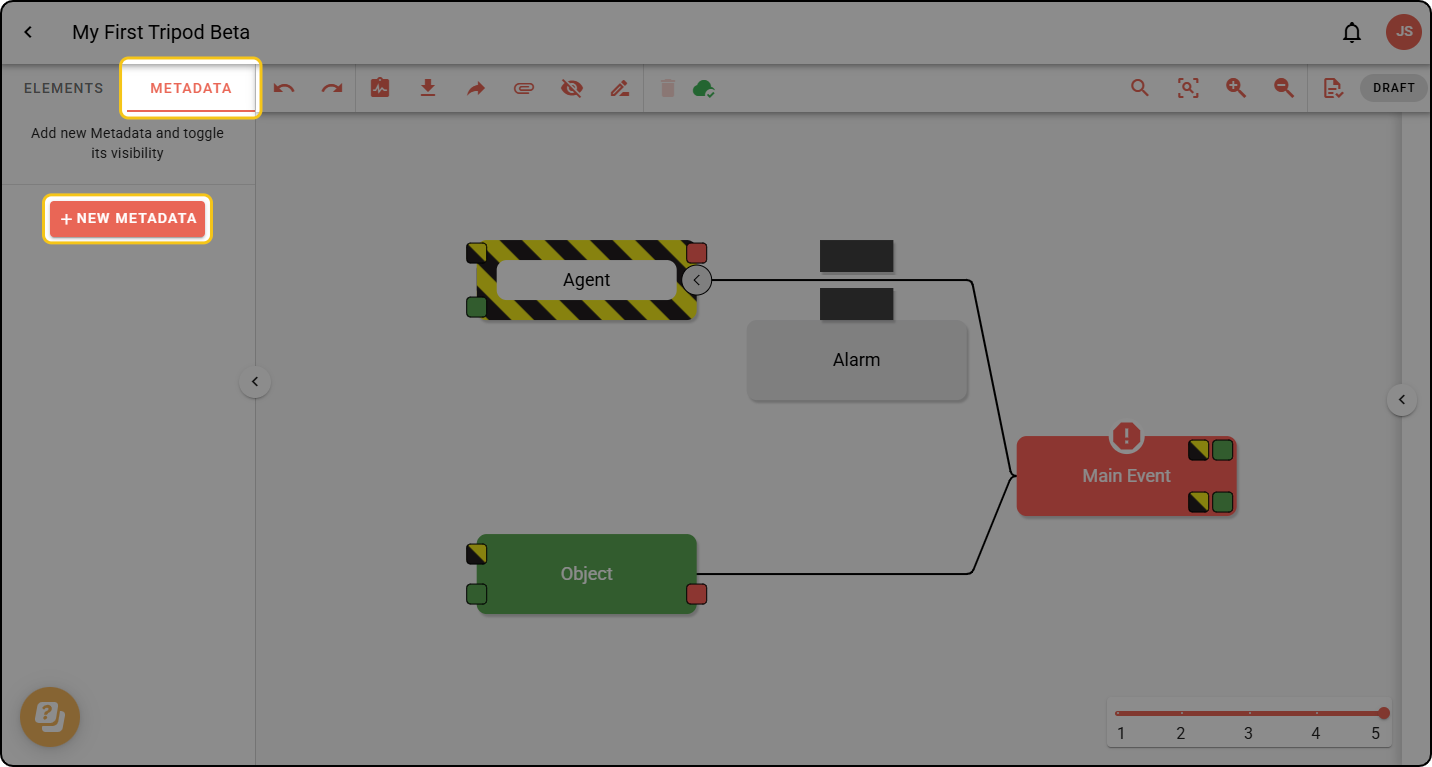
Step 2: Enter a name, choose a colour and click SAVE. The metadata will be free-text: when added to elements, it allows any text to be entered.
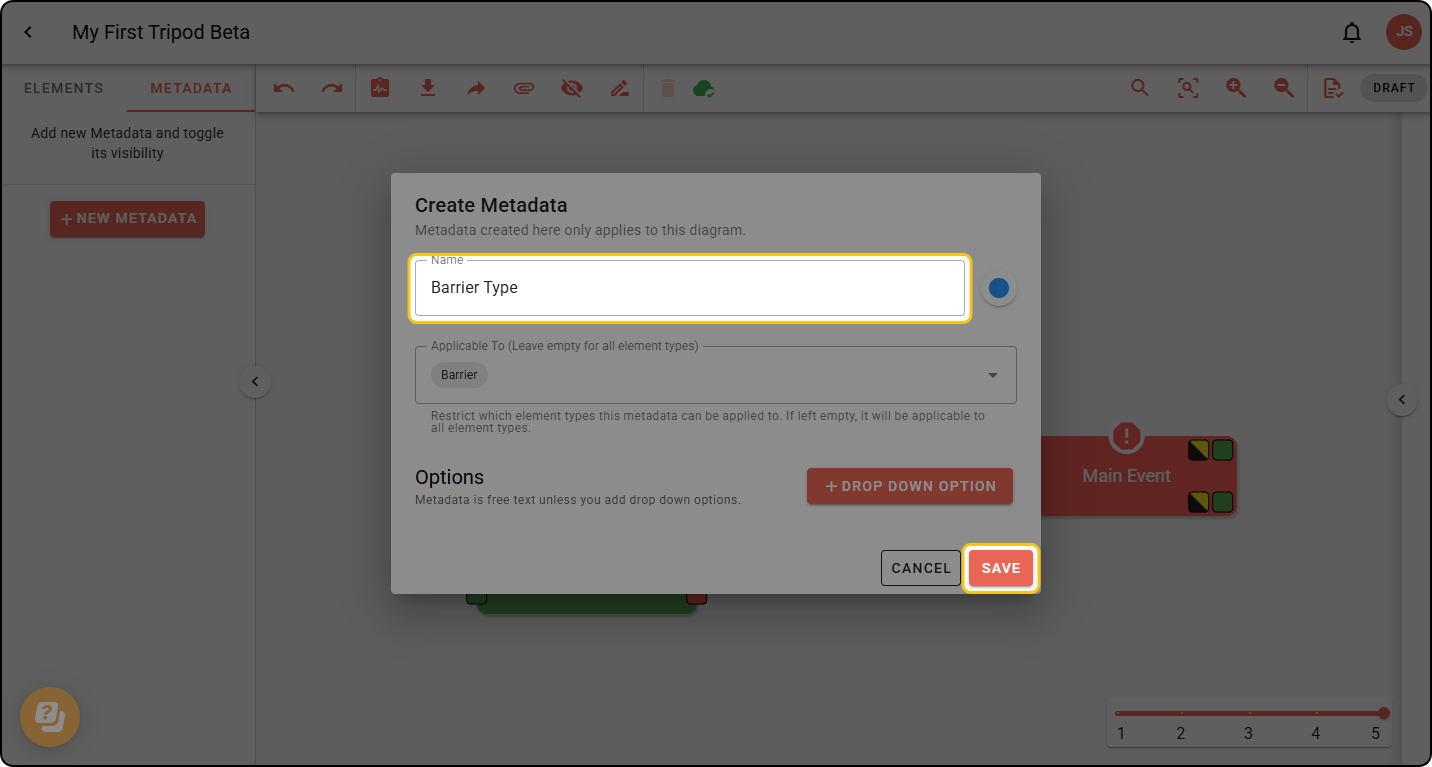
Metadata can also be created as a dropdown list if the values should be restricted. To do this, click + DROP DOWN OPTION, enter a name and choose a colour for each option, then click SAVE.
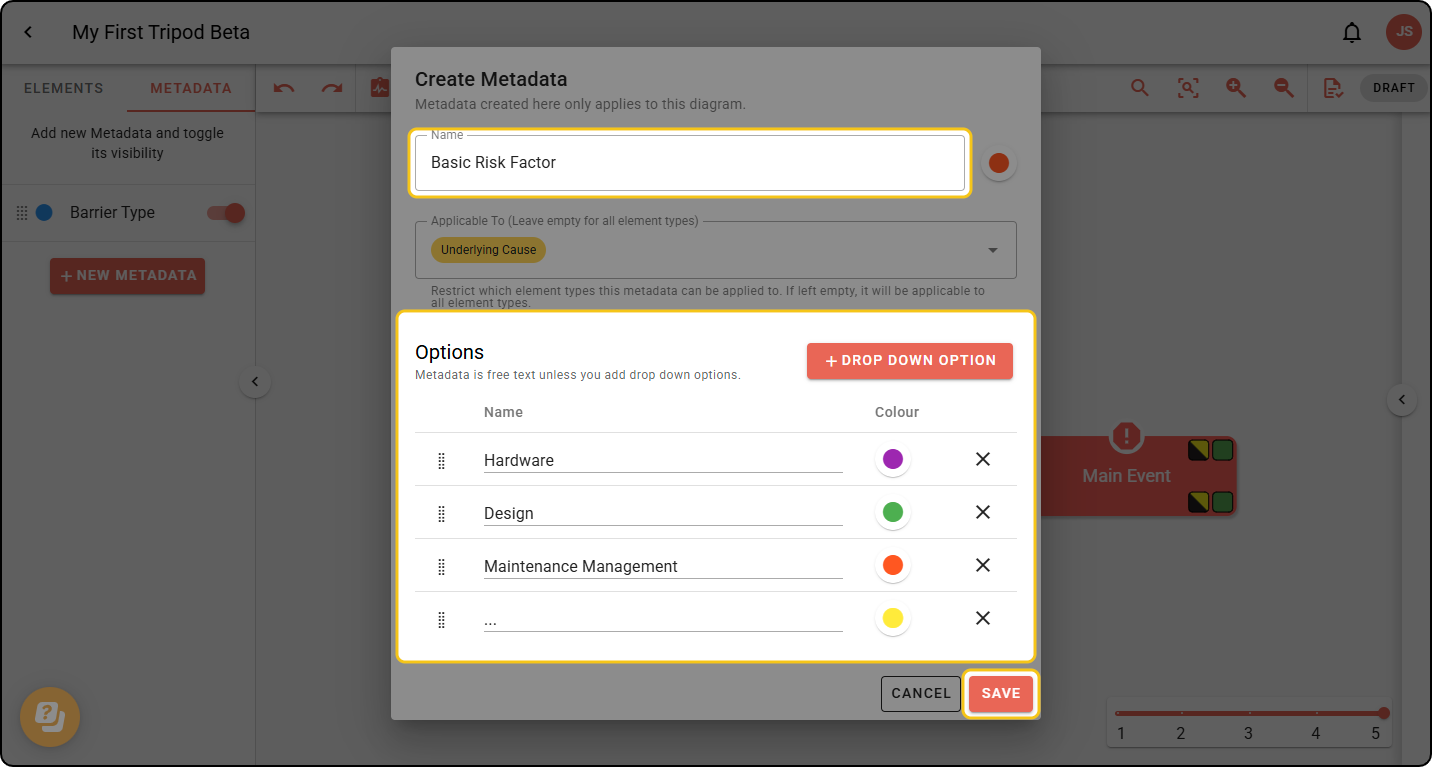
Use the Applicable To field to restrict metadata to specific element types. If left empty, the metadata can be applied to all element types.
Your new metadata appears in the Metadata menu in the left-hand sidebar.
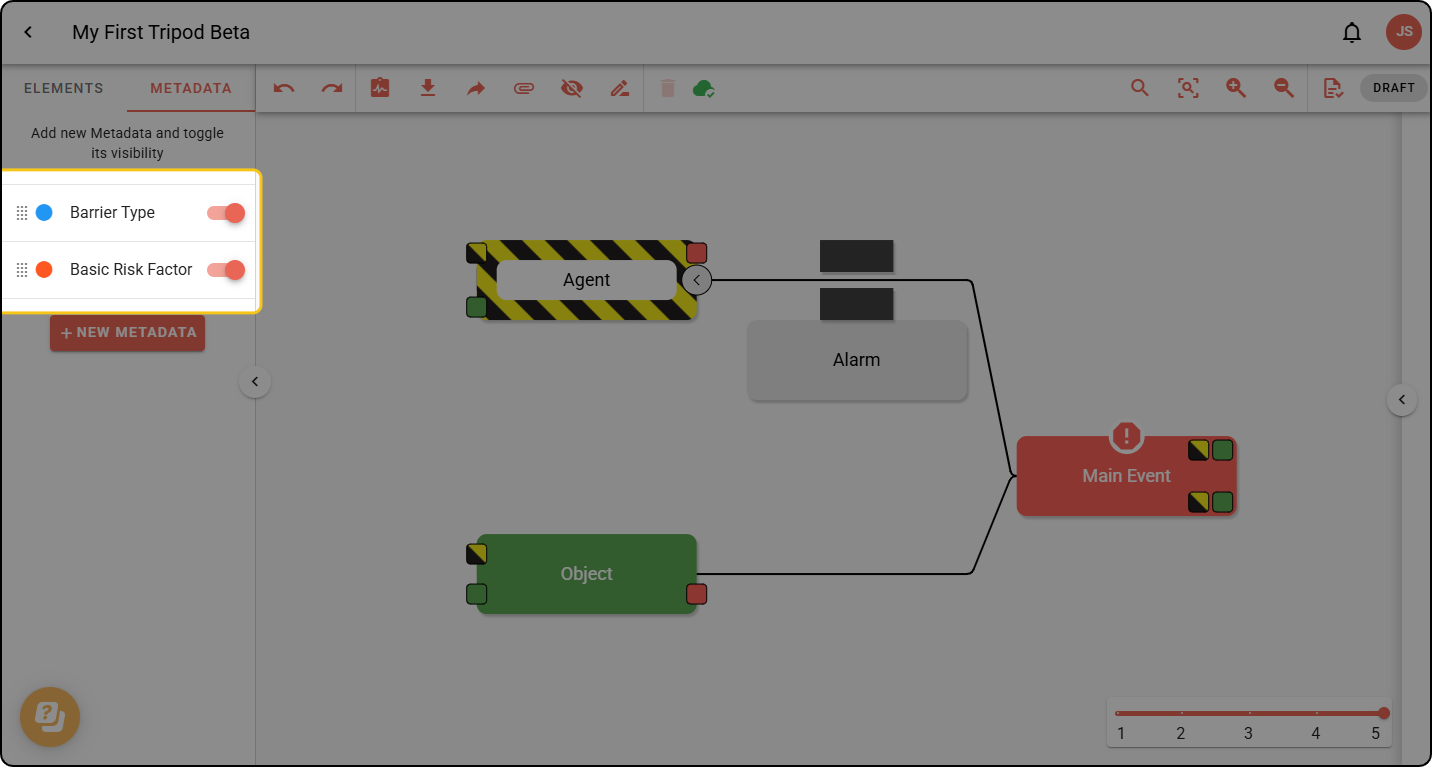
Use the toggle switch in the left-hand sidebar to show/hide metadata on the diagram once you’ve added it to your elements.
Add metadata to an element
Only metadata that was set as Applicable To the selected element can be added.
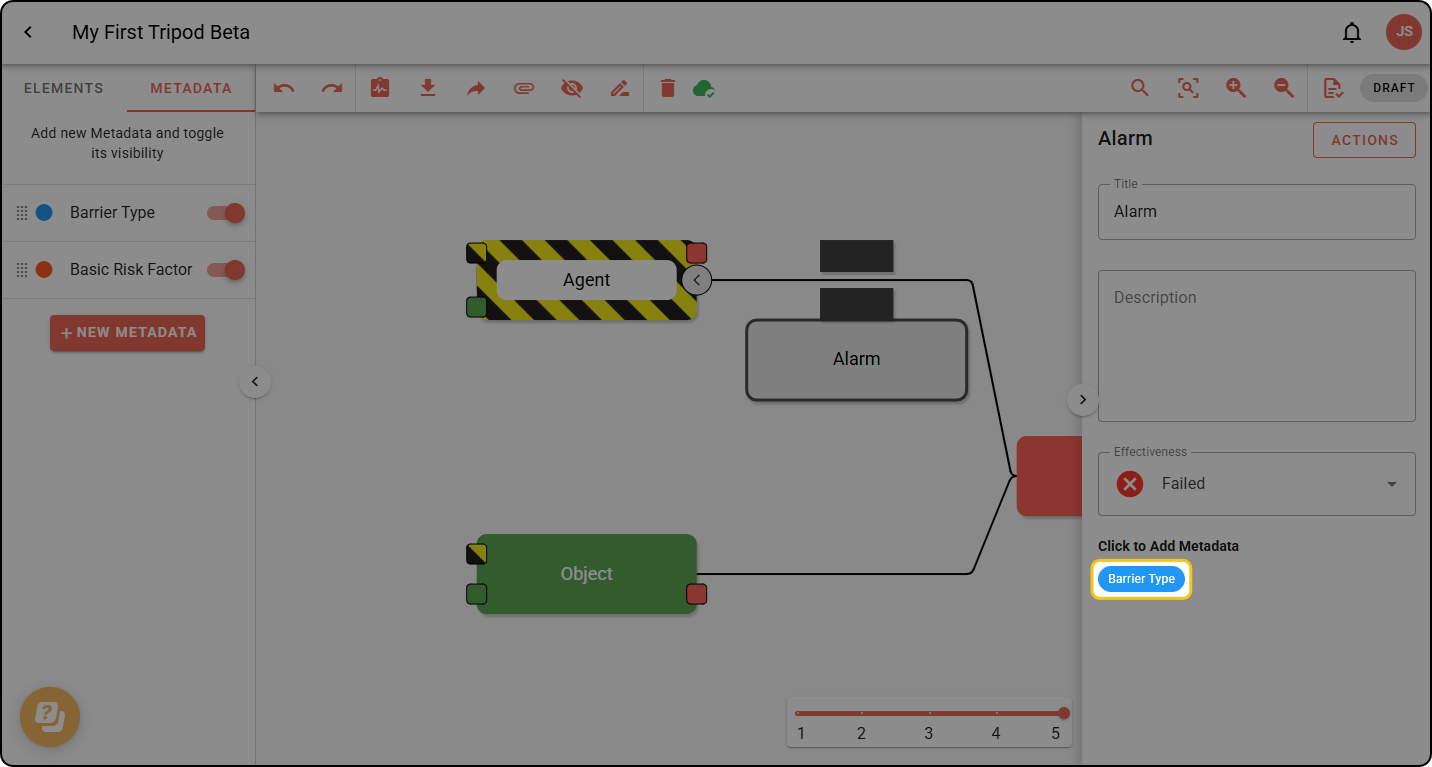
Step 1: On the diagram, double-click the element you want to add metadata to.
Step 2: In the right-hand sidebar, add the metadata you want.
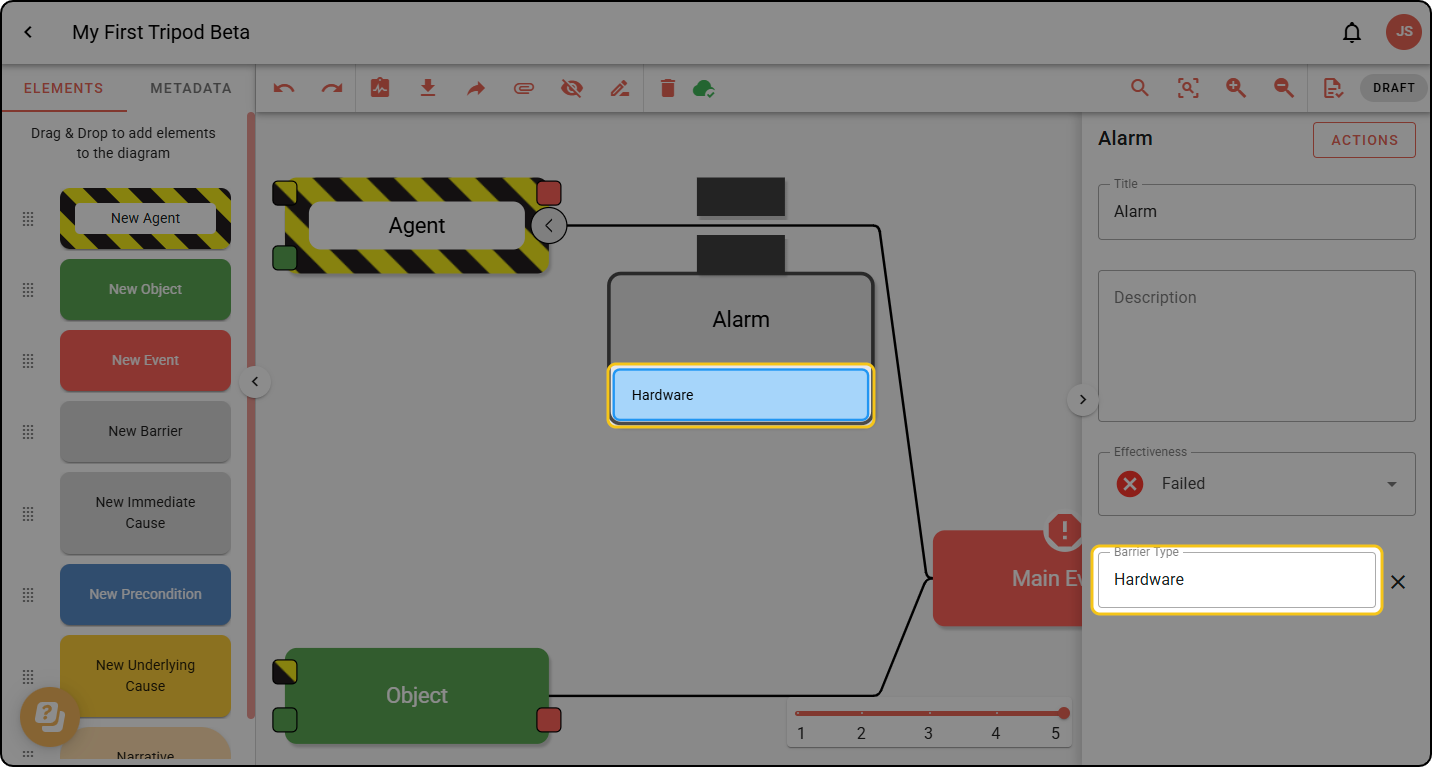
Step 3: The metadata appears in the element on the diagram.
Delete metadata
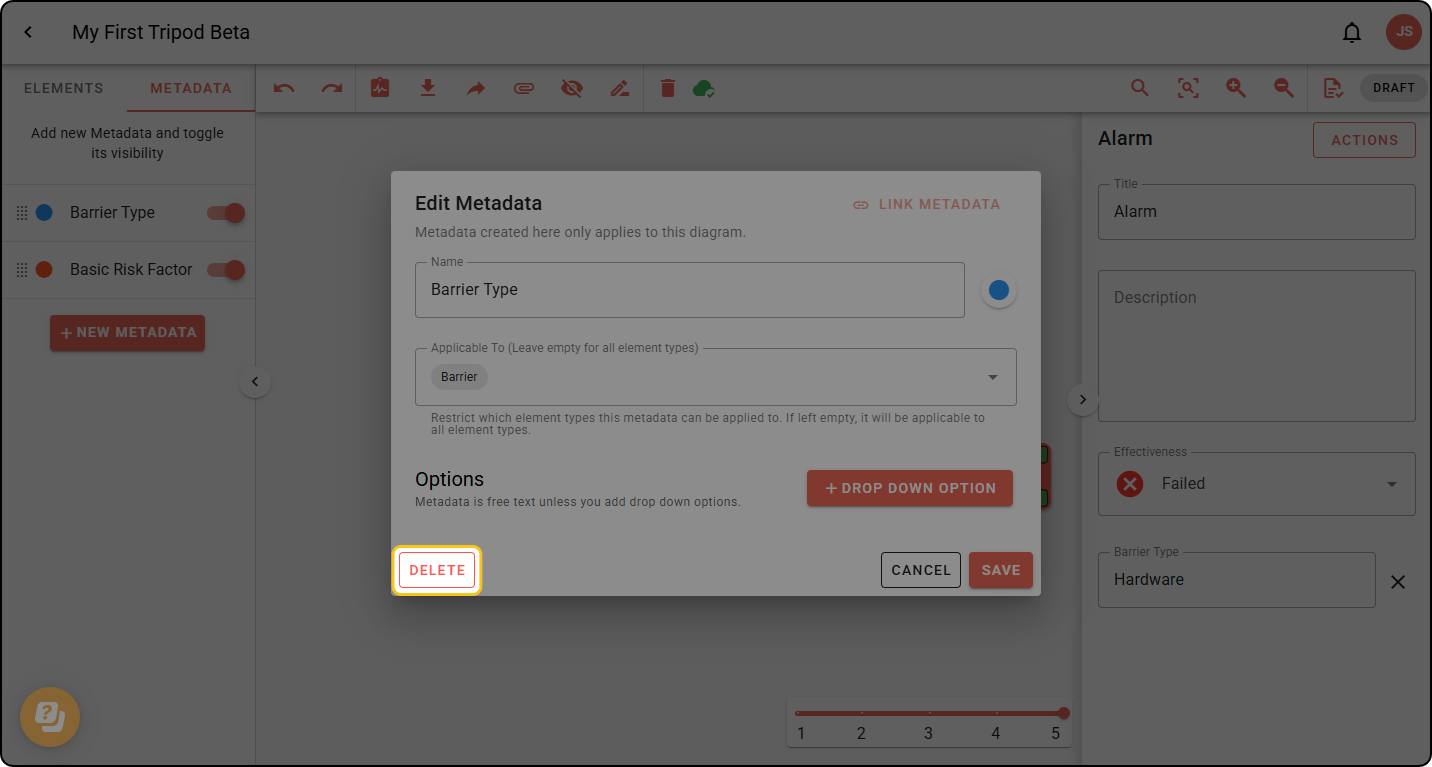
Step 1: In the Metadata menu in the left-hand sidebar, click the metadata you want to delete.
Step 2: In the Edit Metadata pop-up, click DELETE.
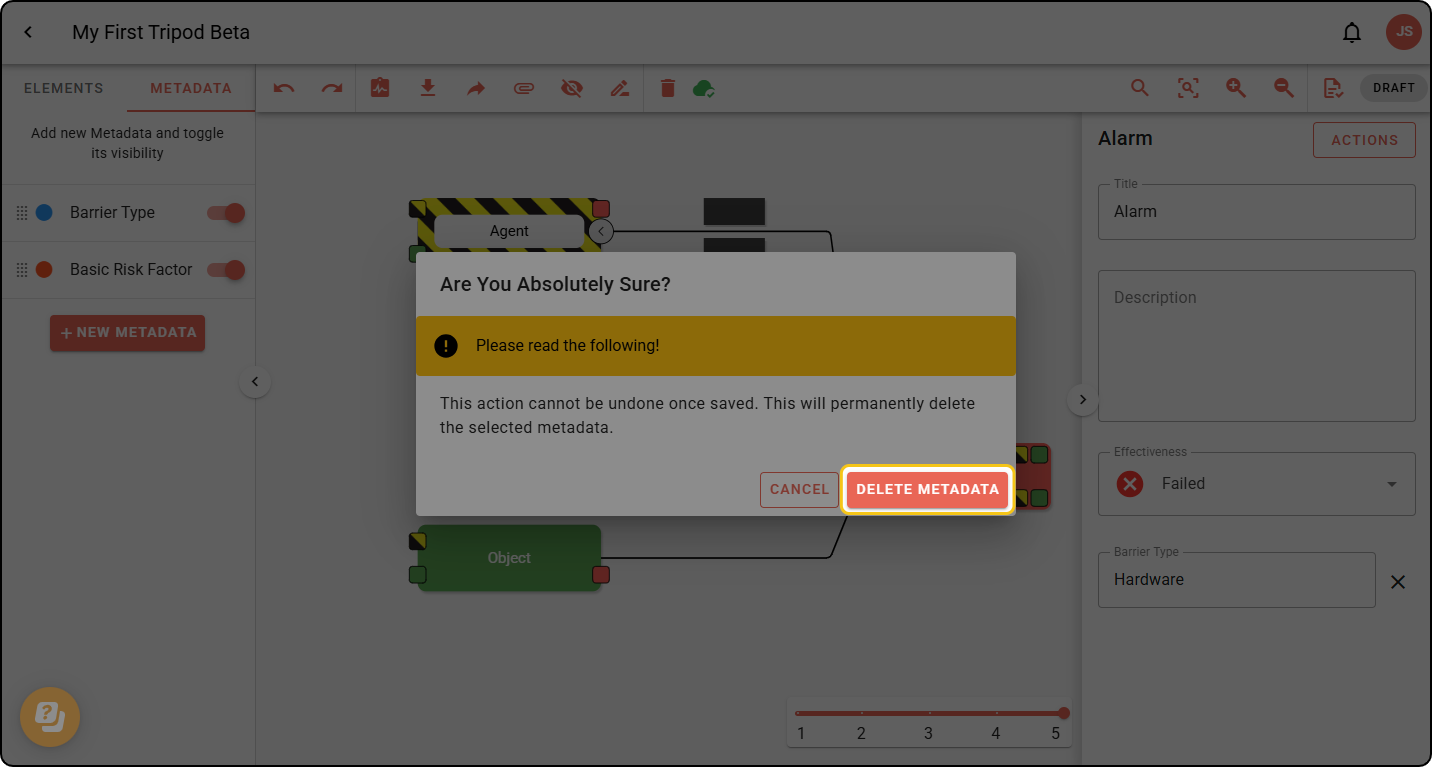
Step 3: In the warning message, click DELETE. This permanently deletes the metadata within the diagram.
Linked and unlinked metadata
Within a diagram, metadata is either linked or unlinked:
- Linked metadata is synced with your organisation’s company metadata and can’t be edited directly within the diagram. Any changes made to the metadata in your company settings will automatically be applied to diagrams using it.
- Unlinked metadata is limited to the current diagram. You can edit it freely, but it isn’t synced with the company metadata.
Only Organisation Admins can create and edit organisation-level metadata directly.
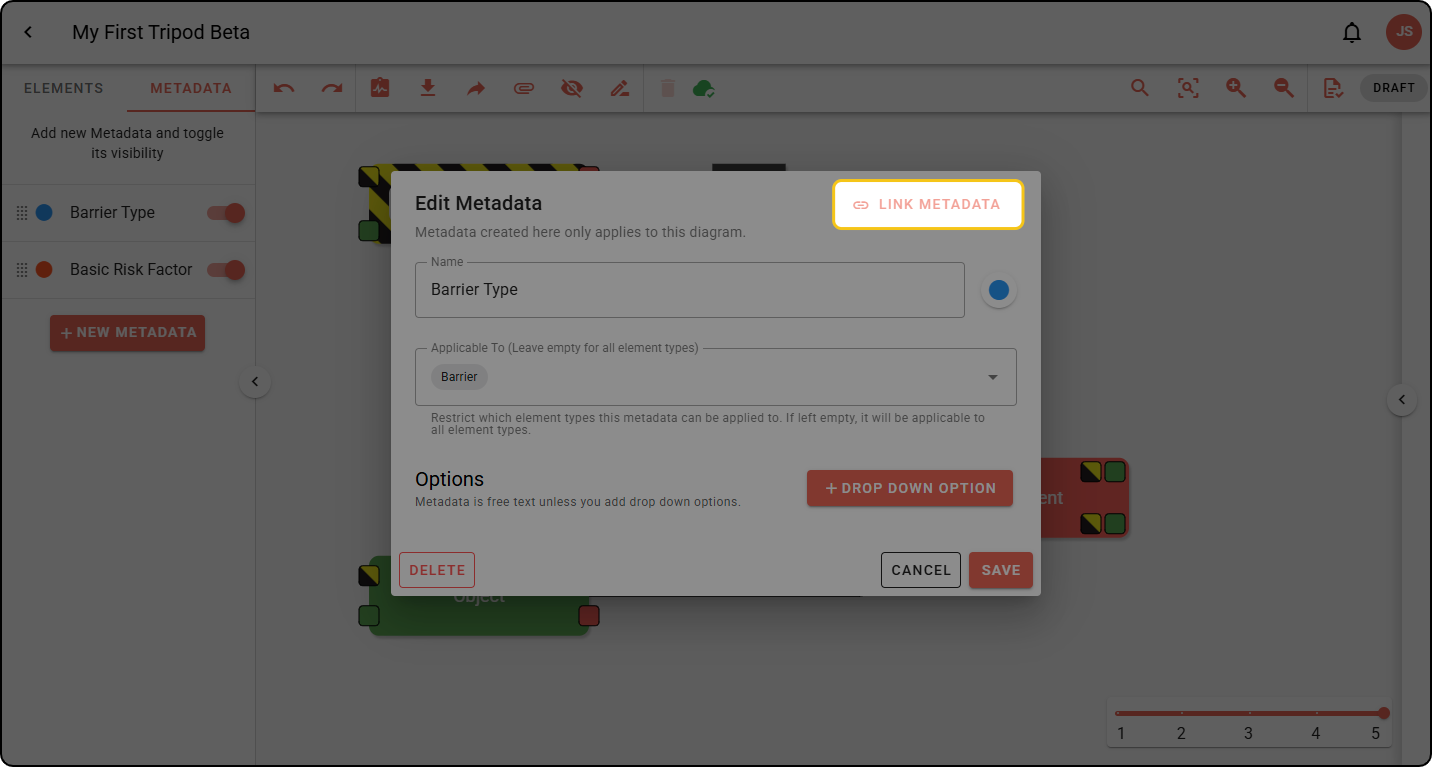
Step 1: To link, click on the metadata in the left-hand sidebar, then click LINK METADATA.
Step 2: Select the organisation metadata you’d like to replace this metadata with. Click LINK METADATA.
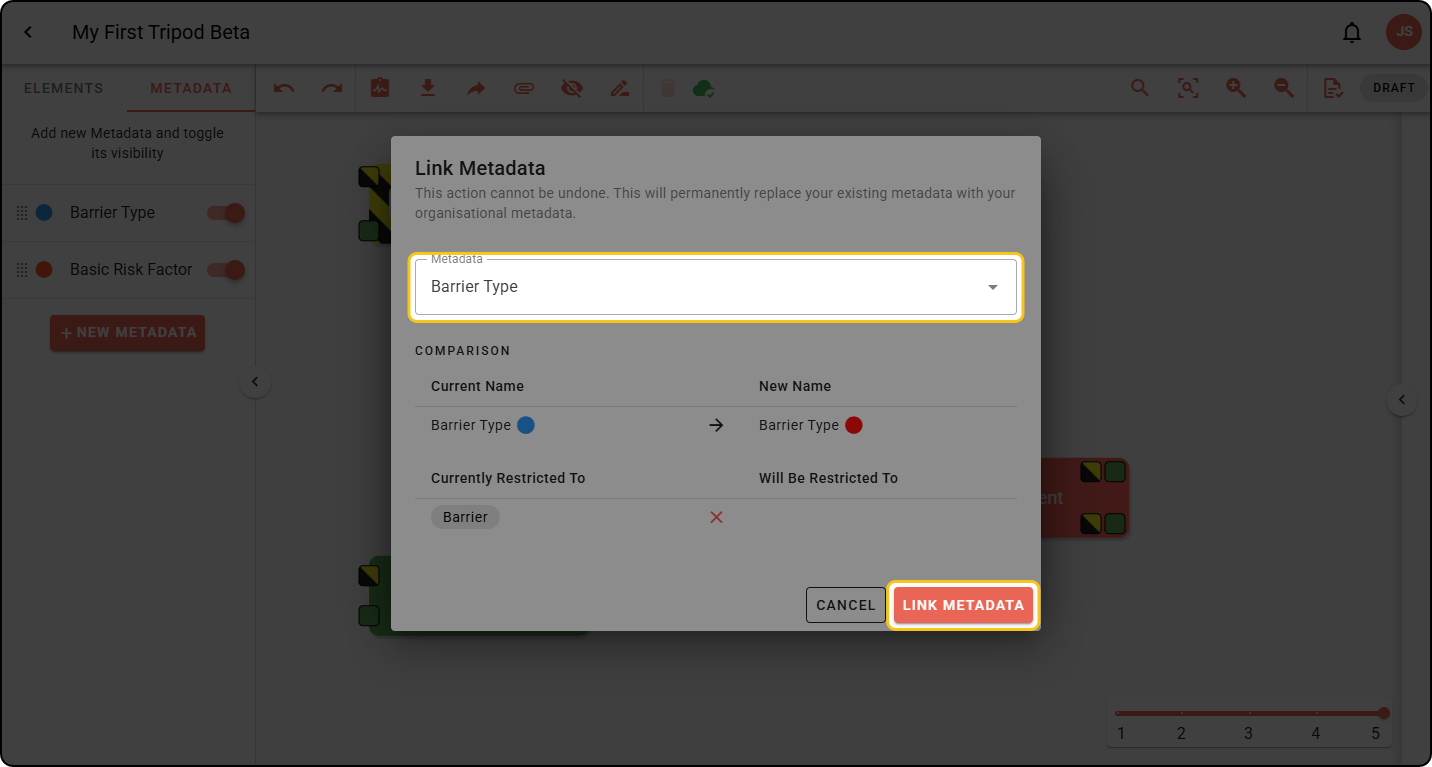
A summary of the differences between the two will be shown if they differ.
Step 1: To unlink, click the metadata, then click UNLINK. The metadata can now be edited.
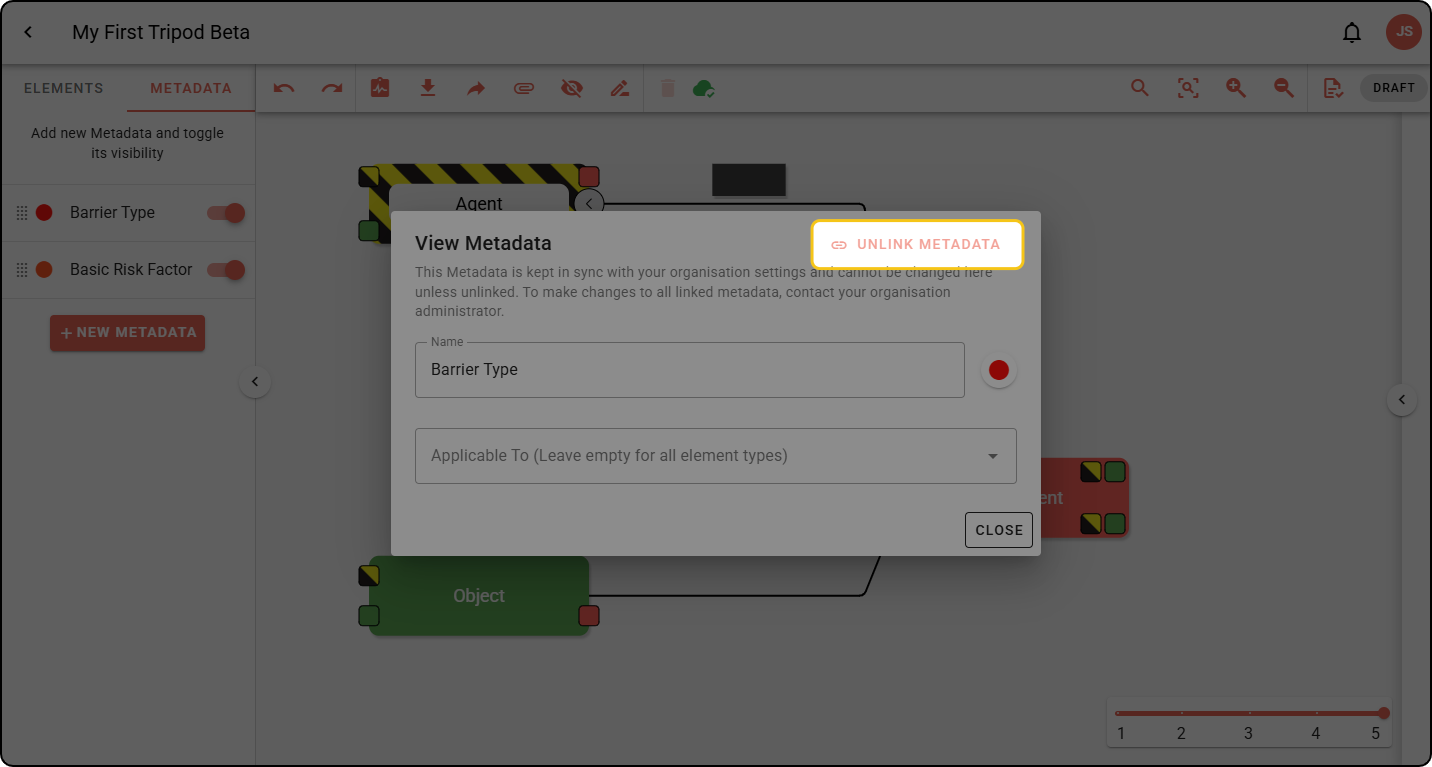
After unlinking metadata, it won’t automatically be kept up to date with subsequent changes to the organisation metadata.
When you create a new diagram, organisation metadata is created for it by default, and is linked by default.