Projects can only be managed by their owner or by Organisation Admins.
Accessing project settings
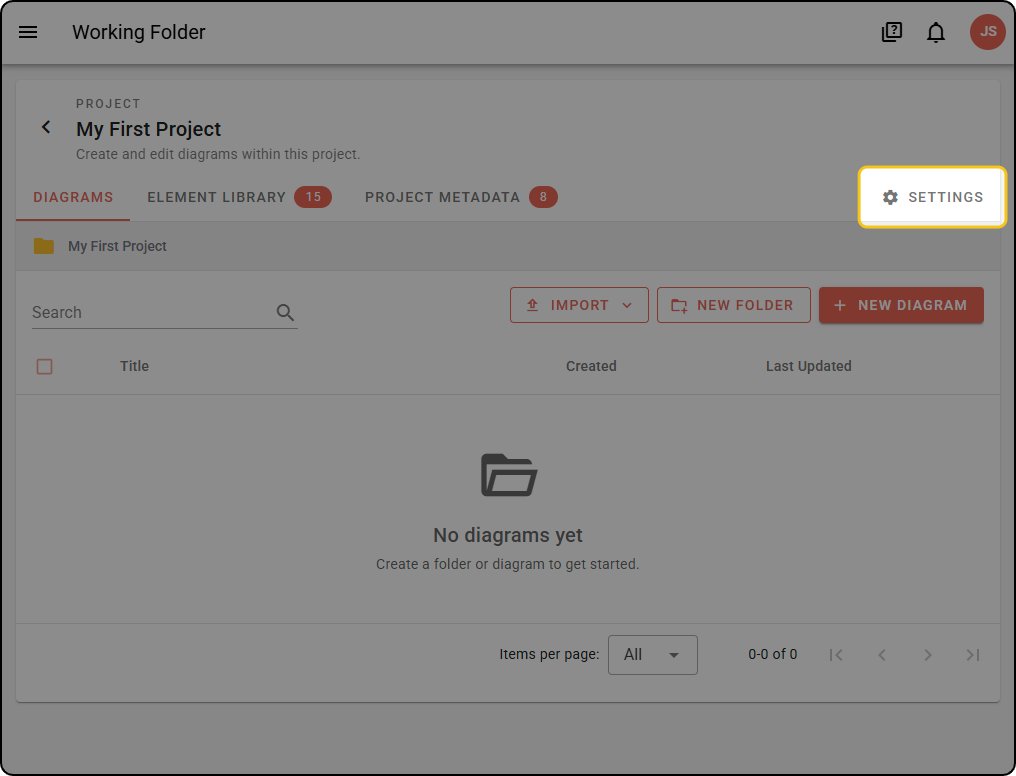
To access a project’s settings, click the Settings tab in the project.
Renaming a project
Step 1: Click RENAME and enter the new name.
Transferring ownership of a project.
Step 1: Click TRANSFER and select the new owner.
Access controls
By default a project is public - every user in your organisation can see and access it. Restricting a project limits visibility to the users and groups you specify.
Your organisation may have RESTRICTED BY DEFAULT? enabled in Project settings. When it’s on, every new project is created as restricted.
Restrict a project
Step 1: Go to the Projects menu.
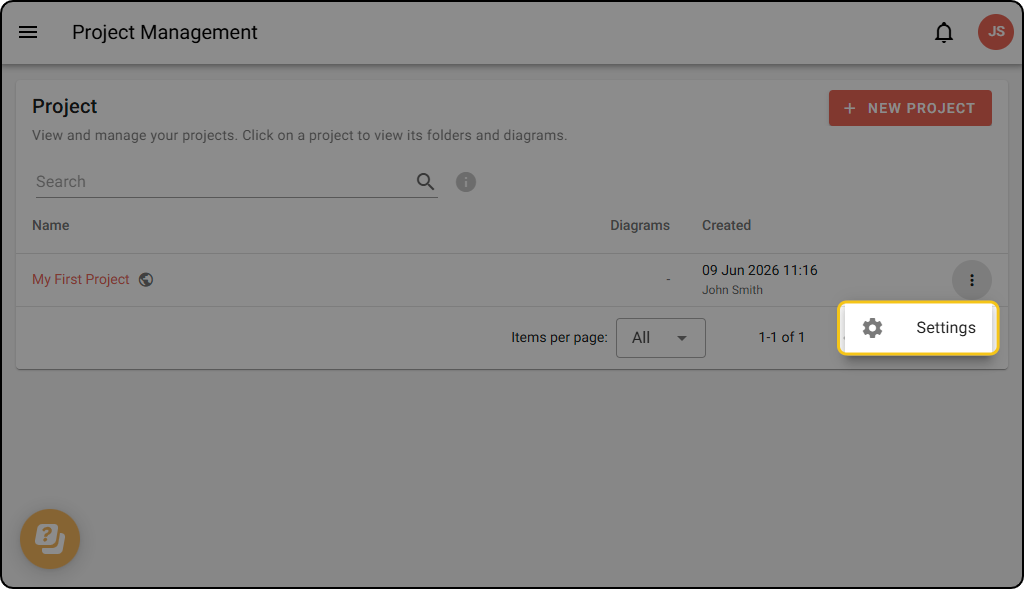
Step 2: On the project row, open the menu and click Settings.
Step 3: This will navigate to the project’s Settings screen. Click MANAGE on the Access section.

Step 4: In the dialog, tick RESTRICT ACCESS?. The dialog expands to show the access table.
Add users and groups
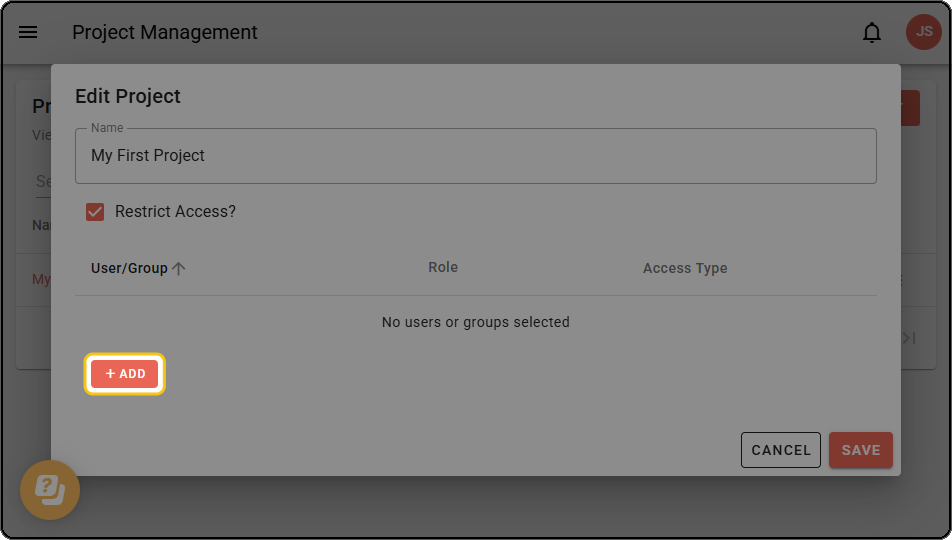
Step 1: Click + ADD at the bottom of the access table.
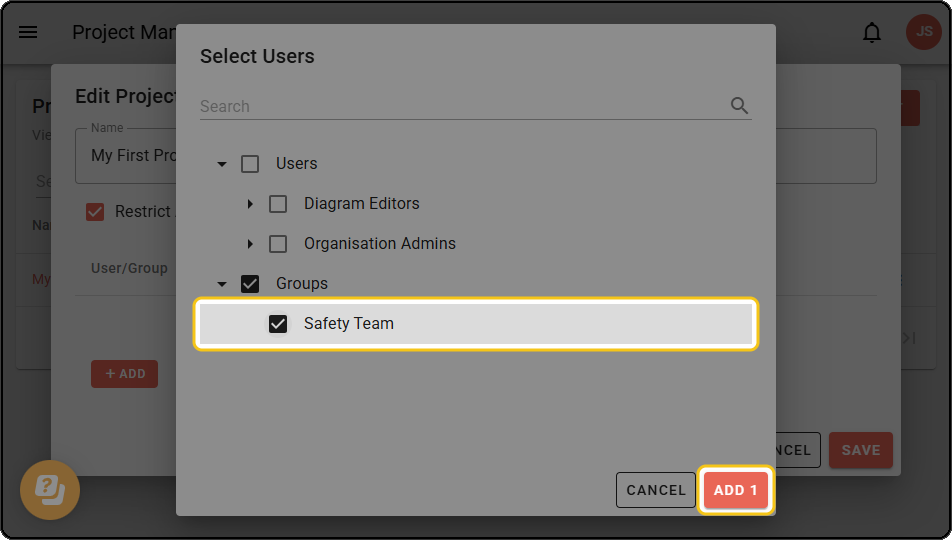
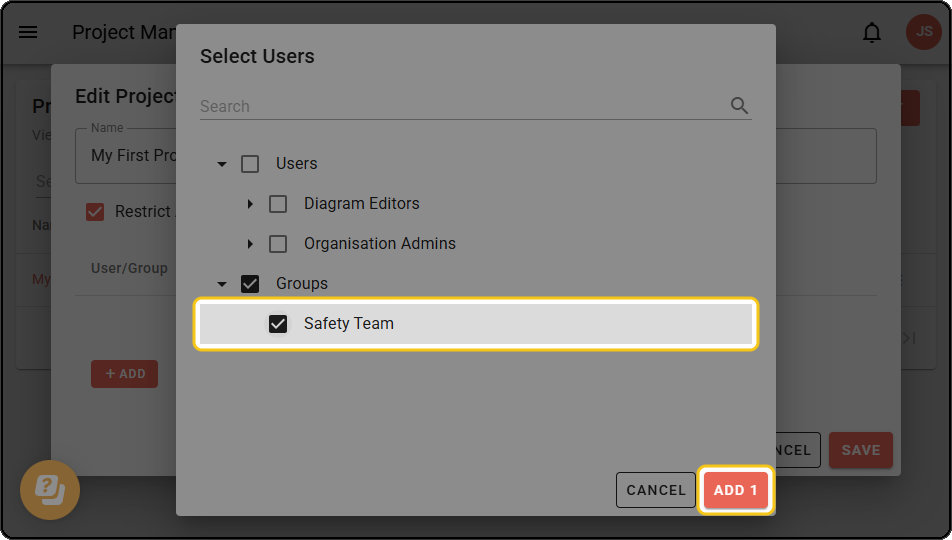
Step 2: In the Select Users dialog, select the users and groups you want to grant access to, then click ADD.
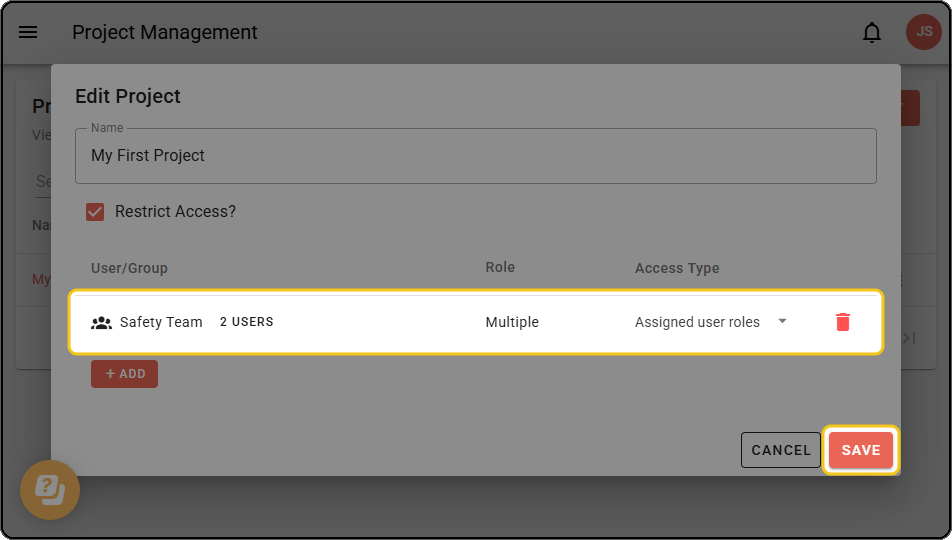
Step 3: The selected users and groups appear in the access table. Click SAVE.
New additions default to the Assigned user role access type. Each row shows:
| Column | Description |
|---|---|
| User/Group | The name of the user or group. Groups show a member count badge - click it to view the members. |
| Role | The user’s system role (for example Organisation Admin, Diagram Editor or Viewer). For groups, the roles of members. |
| Access Type | The level of access granted to this user or group within the project. |
Access types
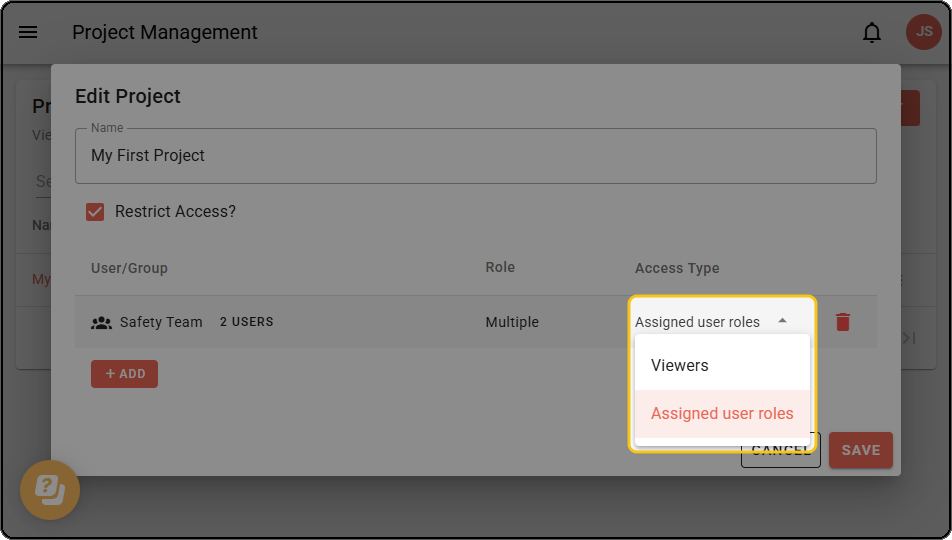
Each user or group can be assigned one of two access types:
- Viewer - can view the project and its diagrams but cannot make changes.
- Assigned user role - access is determined by the user’s system role. For example, a Diagram Editor can edit diagrams while a Viewer can only view them.
Use the dropdown in the Access Type column to change the access type for any user or group.
Priority rules
When a user appears in the access list more than once - for example both individually and as a member of a group - these rules apply:
- Individual access takes priority over group access. If a user is added both directly and through a group, their individually assigned access type is used.
- Assigned user role takes priority over Viewer within groups. If two groups with different access types share members, those members are treated as having the Assigned user role access type.
Overlap warnings
A blue information icon appears next to a user or group row when an overlap is detected:
- On a user row - the user is also a member of a group that has been added to the project. Their individual access type takes priority.
- On a group row - some members of this group also belong to another group added to the project.
These warnings are informational only and don’t prevent you from saving.
Remove access
Click the delete icon on any row to remove that user or group from the access list.
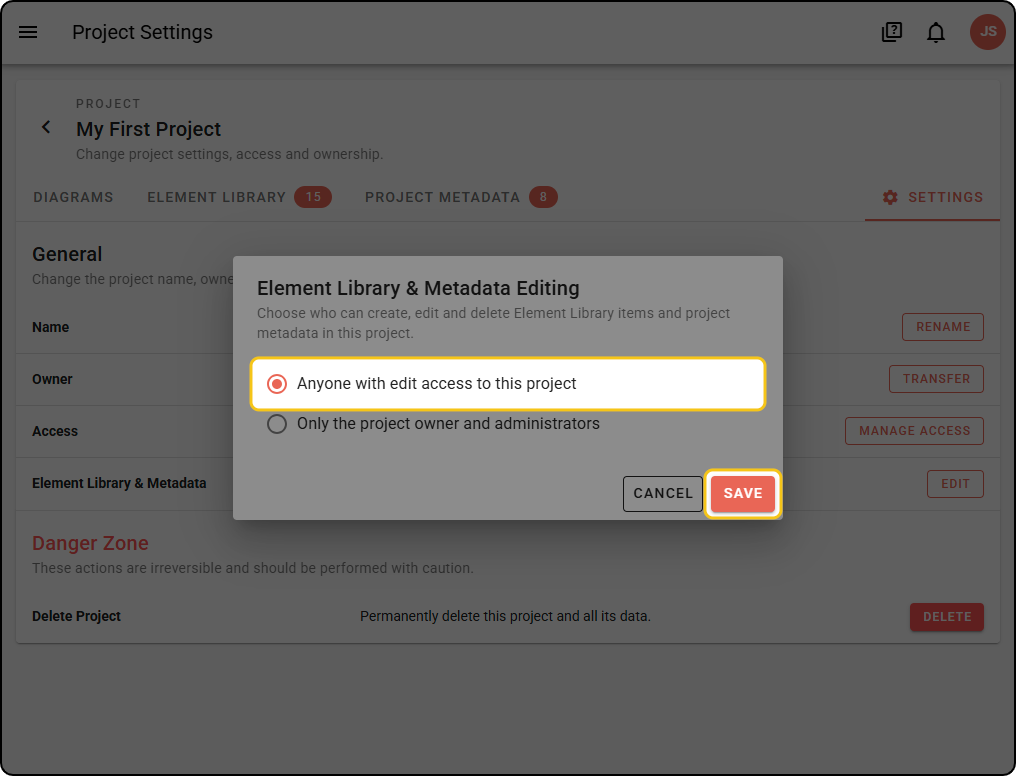
Restrict access to project-level Element Library and Metadata
A project can have project-scoped metadata - custom fields or categories that can be applied to elements in diagrams within that project. If your organisation uses the Element Library, projects can also have reusable diagram elements.
By default, a project’s Element Library and metadata are only accessible by the project’s owner or by Organisation Admins. To allow other users to do this, click EDIT and check “Anyone with edit access to this project”, then click SAVE.