Collaboration
Multiple users can edit the same Bowtie Master diagram, but only one person can edit it at a time. This protects the integrity of the diagram: if two people made changes simultaneously, their edits could conflict and overwrite one another, leaving the diagram in an inconsistent state. To prevent this, only one user holds editing control at any moment, while others can either open the diagram in read-only mode or take control.
Read only
If someone else is editing a diagram and you want to open it in read only (you can’t make changes), choose one of these options:
-
In your project folder, click the ellipsis on a diagram and click VIEW READ ONLY.
-
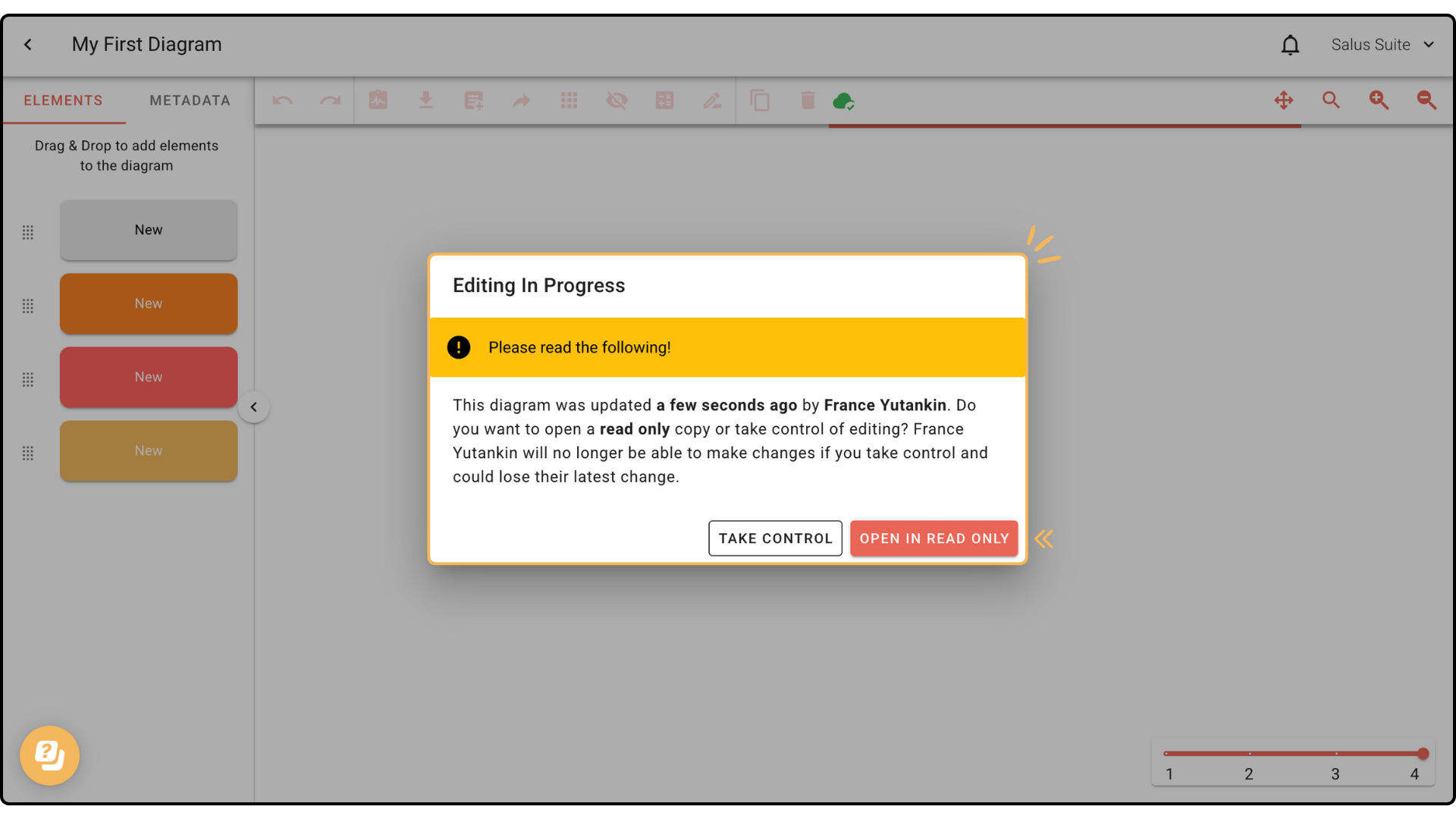
In the diagram, a pop-up appears if someone is currently editing. Click OPEN IN READ ONLY.
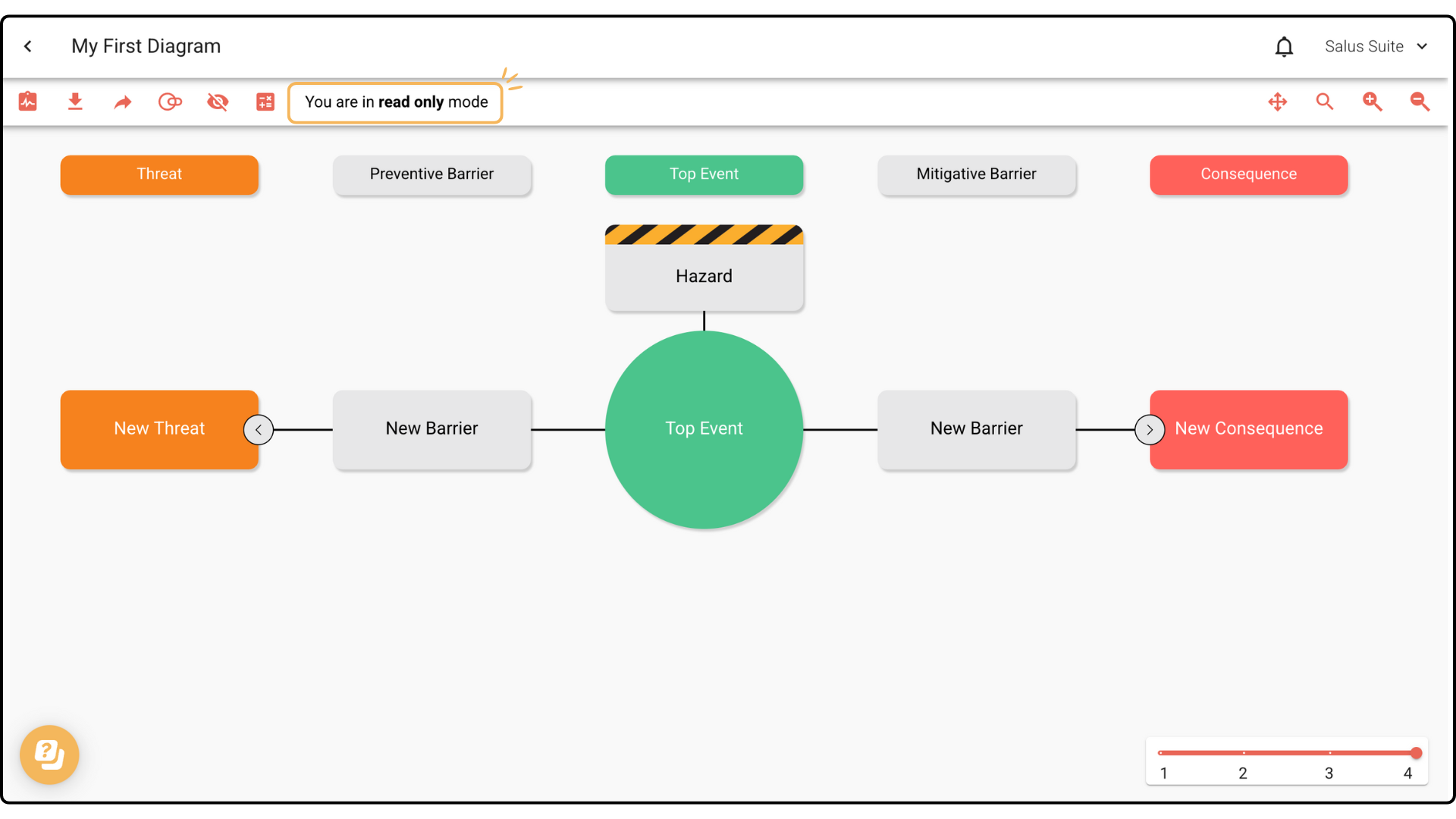
The diagram toolbar will show you that you’re in read-only mode.
Take control
If someone else is editing a diagram you’ve opened, a pop-up tells you editing is in progress.
Step 1: If you’re in read-only mode and want to take control, refresh your browser.
Step 2: When the pop-up appears, click TAKE CONTROL. You now have full editing rights.
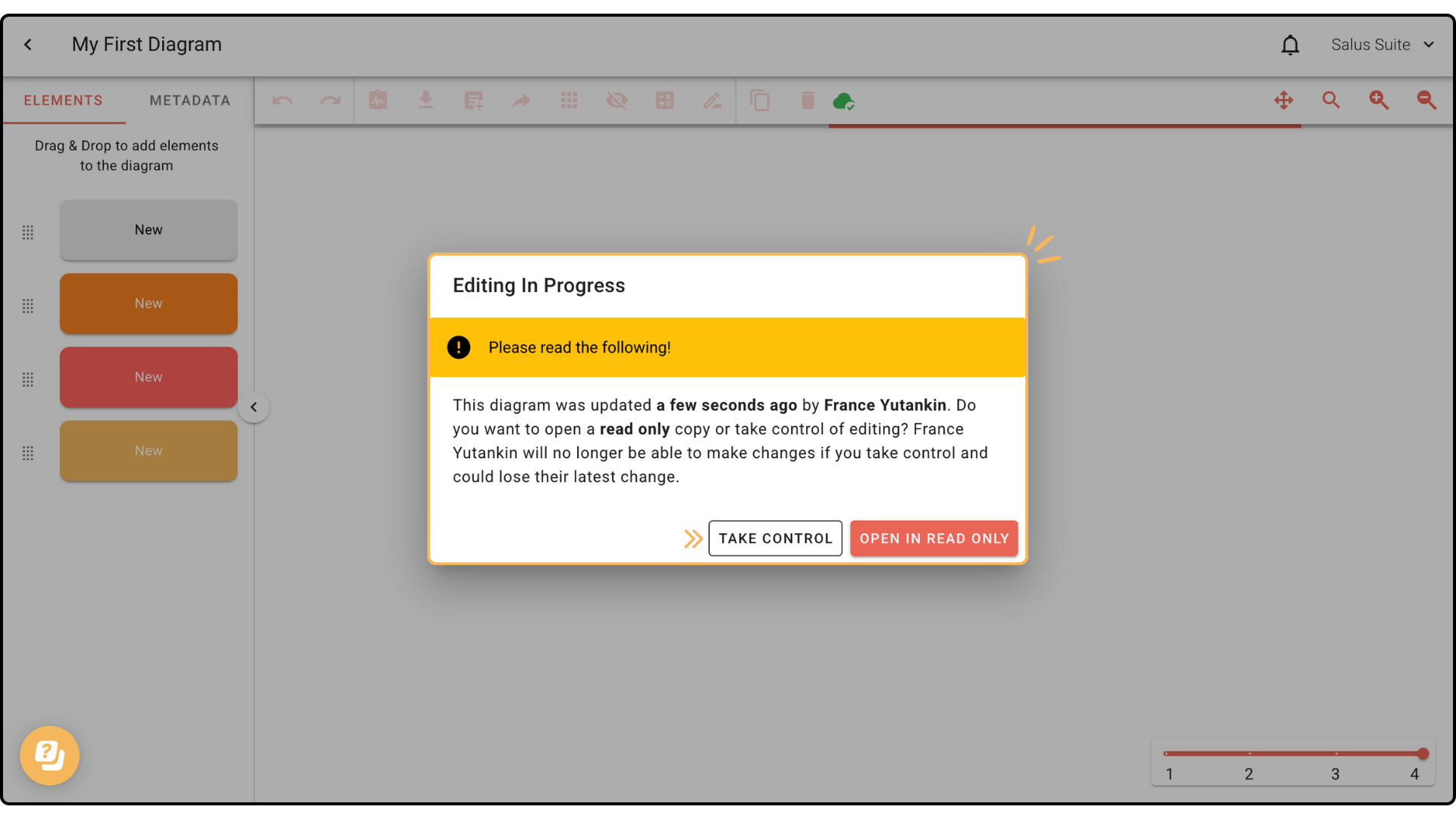
If another user (User 1) has edited the diagram within the past hour and you take control, User 1 switches into read-only mode, can no longer make changes and may lose their latest change.