Download and export your diagram
In this tutorial, we’ll show you how to download your diagram as an image or PDF, export it to Excel, export a risk register report and back up your data.
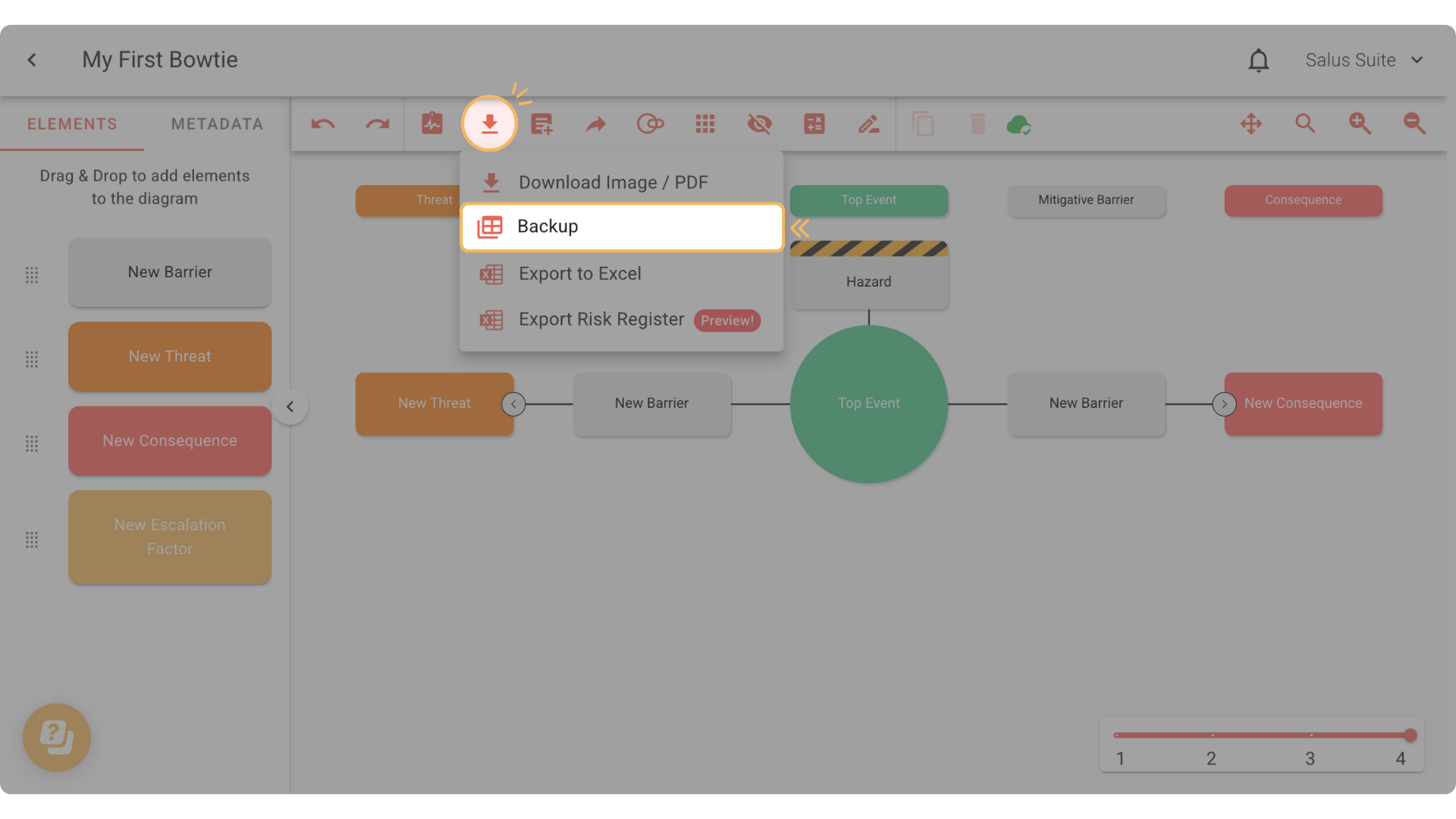
All download and export options live under the download icon in the Diagram Editor toolbar.
Download an image or PDF
Download your bowtie diagram as a PNG or PDF.
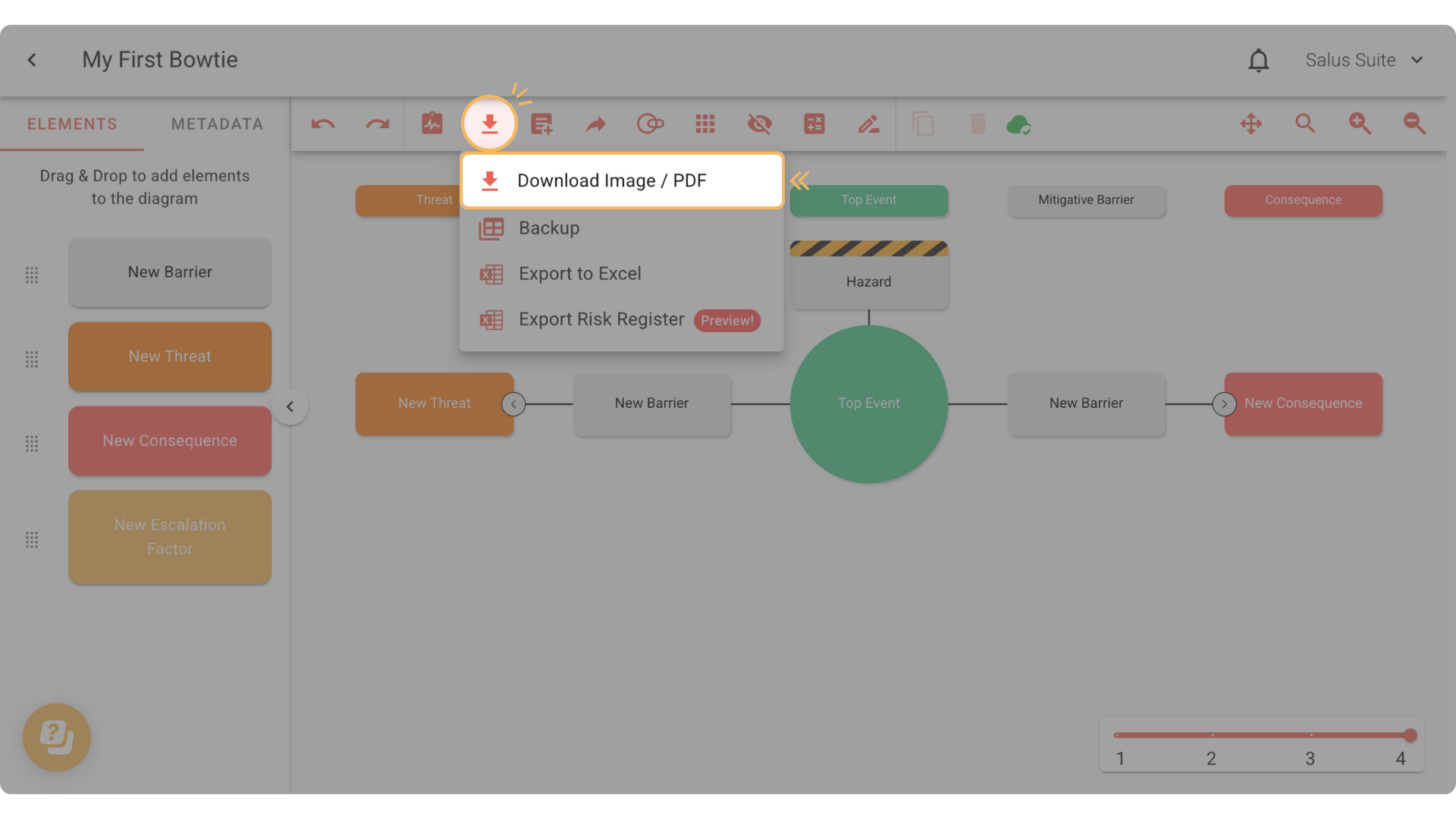
Step 1: In the toolbar, click the download icon, then DOWNLOAD IMAGE / PDF.
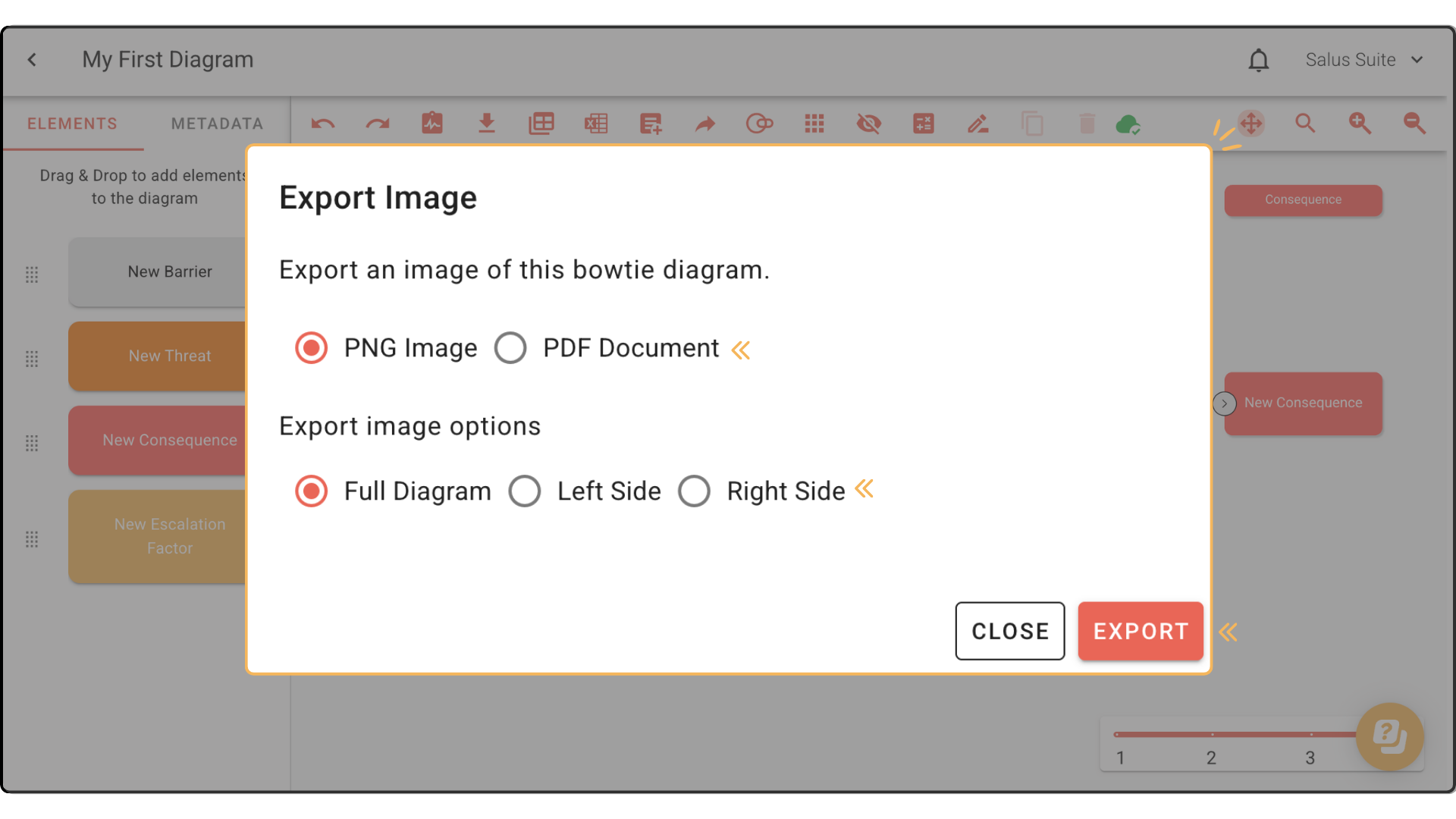
Step 2: Choose your format: PNG Image or PDF Format.
Step 3: Choose whether to export the full diagram, the left side or the right side only, then click EXPORT.
The image you see on screen is reflected in the download. For example, if you’re using analyse mode when you export, it shows in the downloaded image.
Export to Excel
Export the details that make up your bowtie diagram as an Excel report.
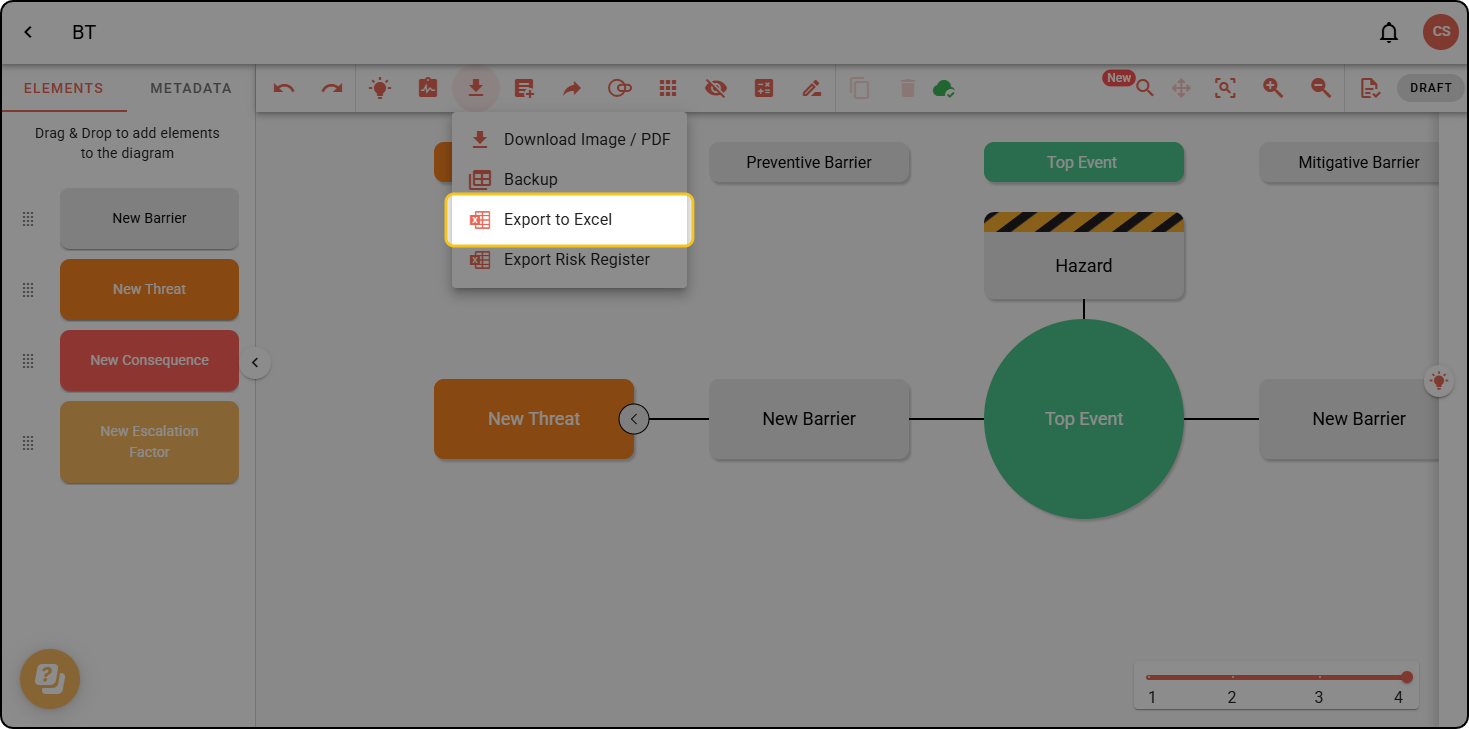
Step 1: Click the download icon in the toolbar, then EXPORT TO EXCEL. The diagram elements, terminology and metadata download as an Excel spreadsheet.
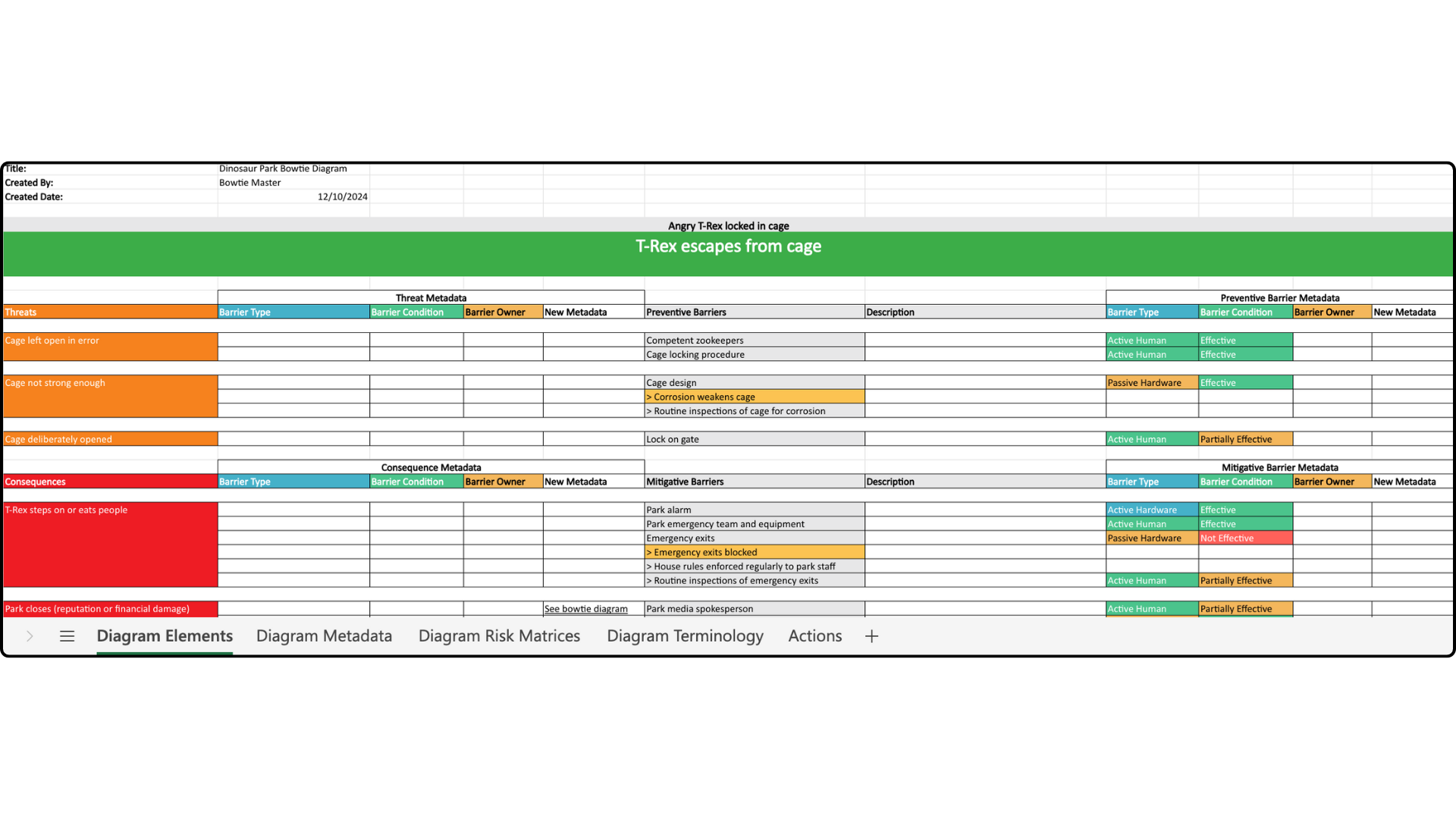
The Excel file contains several tabs. The first, Diagram Elements, holds information and metadata about threats, consequences and barriers.
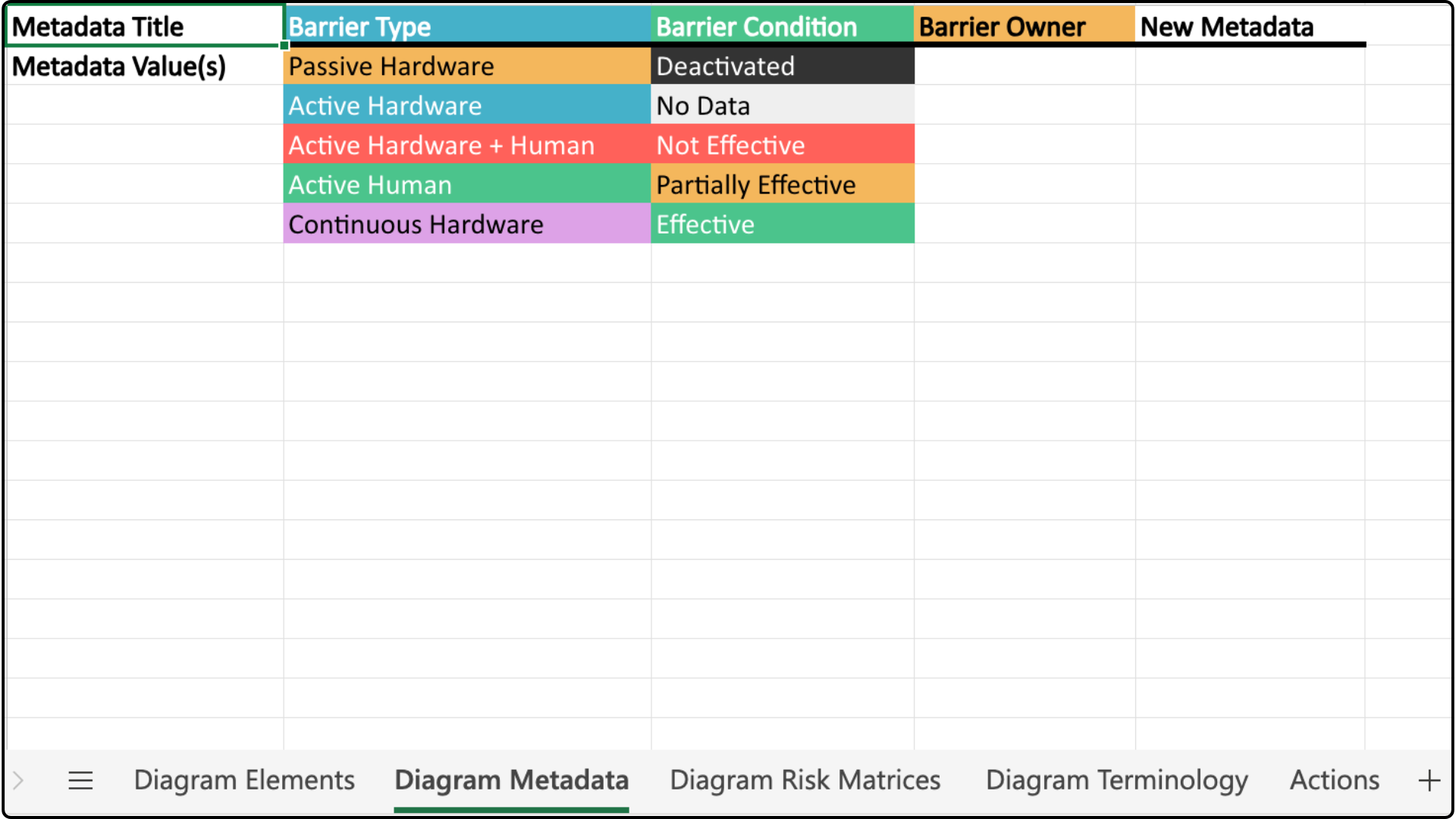
The second, Diagram Metadata, holds barrier types, conditions and owners.
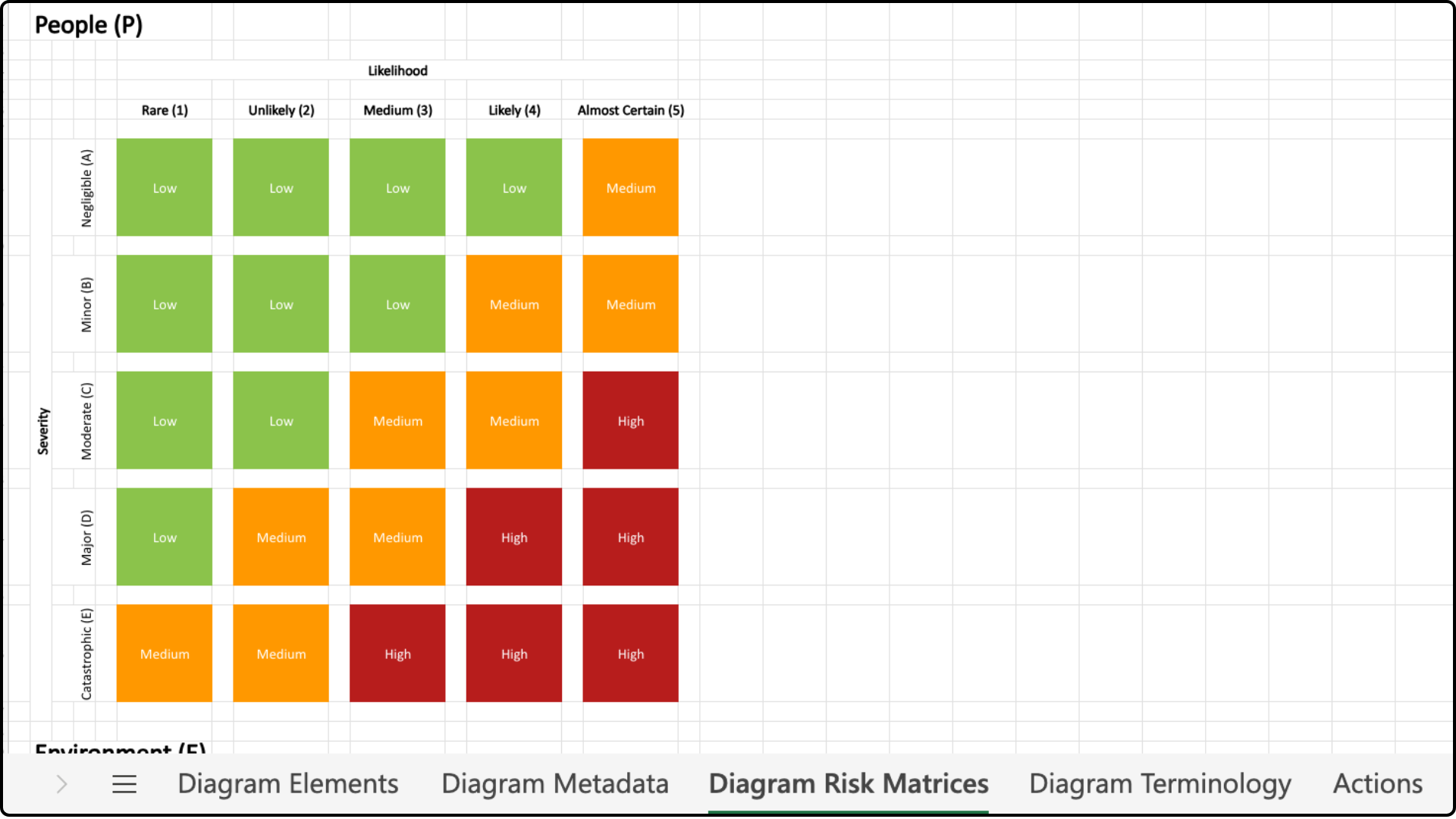
The third shows any risk matrices in your diagram.
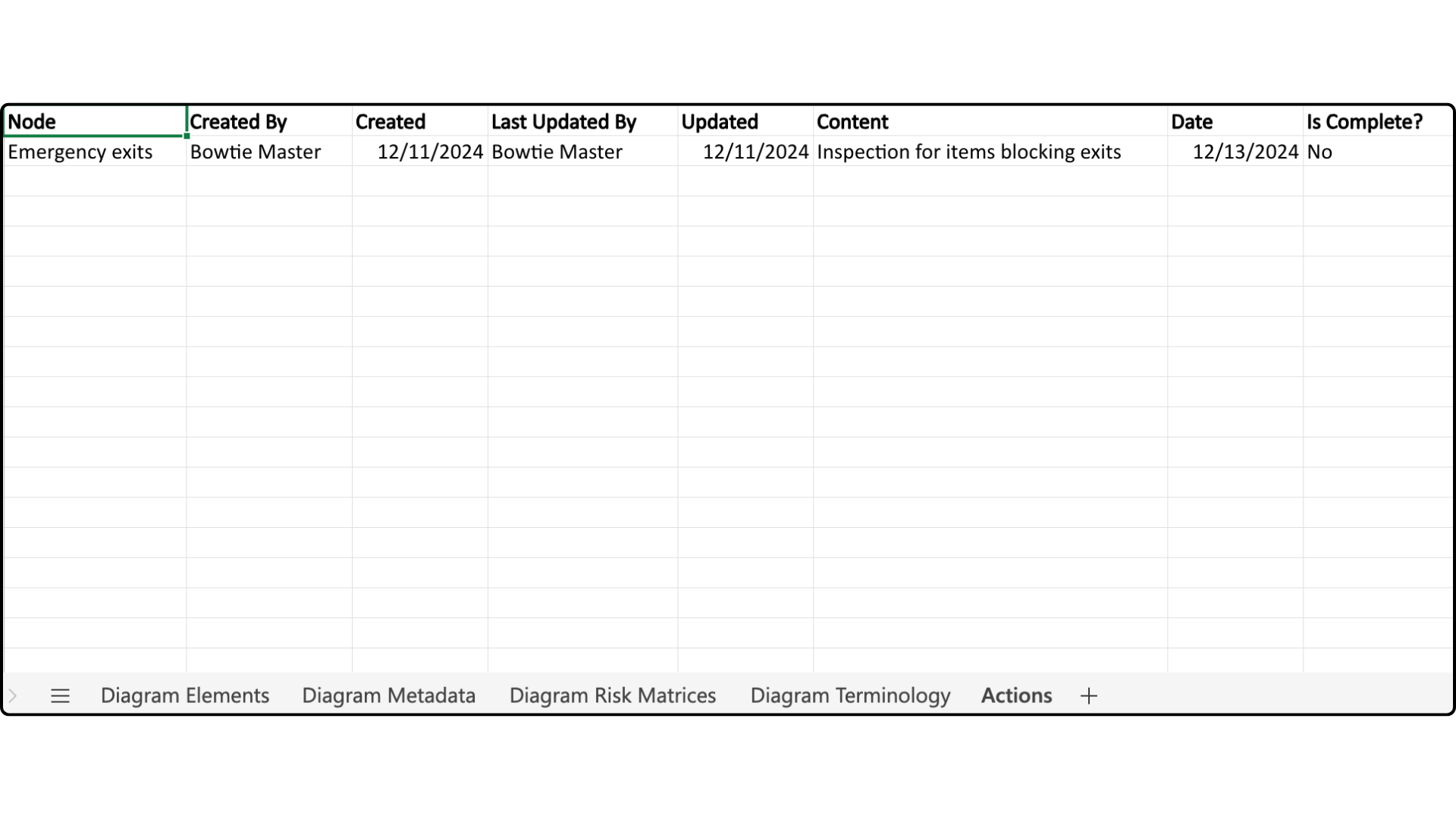
The last two, Diagram Terminology and Actions, contain the terms used in the diagram and details of any actions.

Export a risk register report
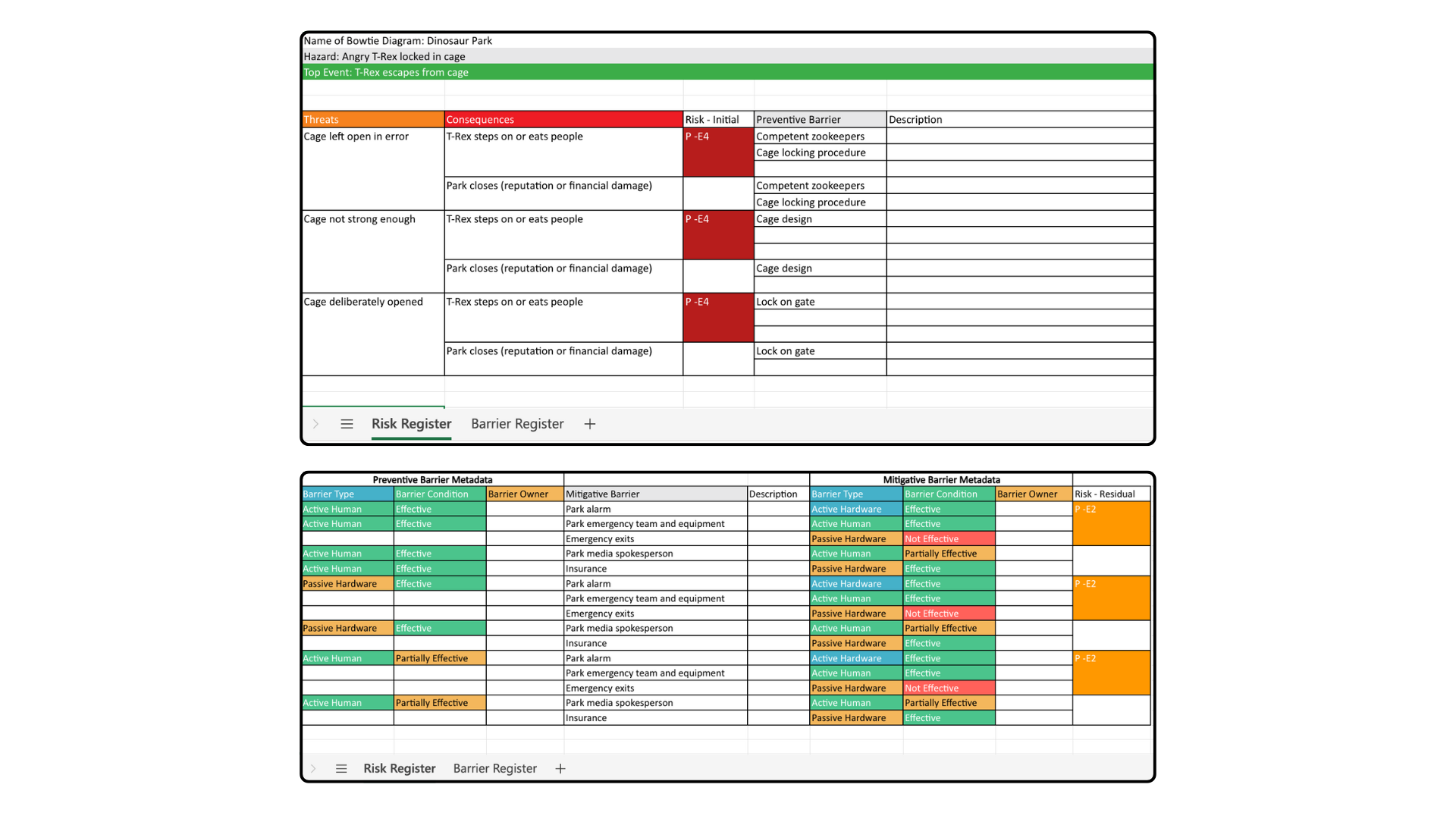
The risk register export turns your bowtie diagram into a structured Excel report, making it easier to analyse barrier information and risk attributes across diagrams. The export has two parts:
- Risk Register - captures threats and their associated consequences.
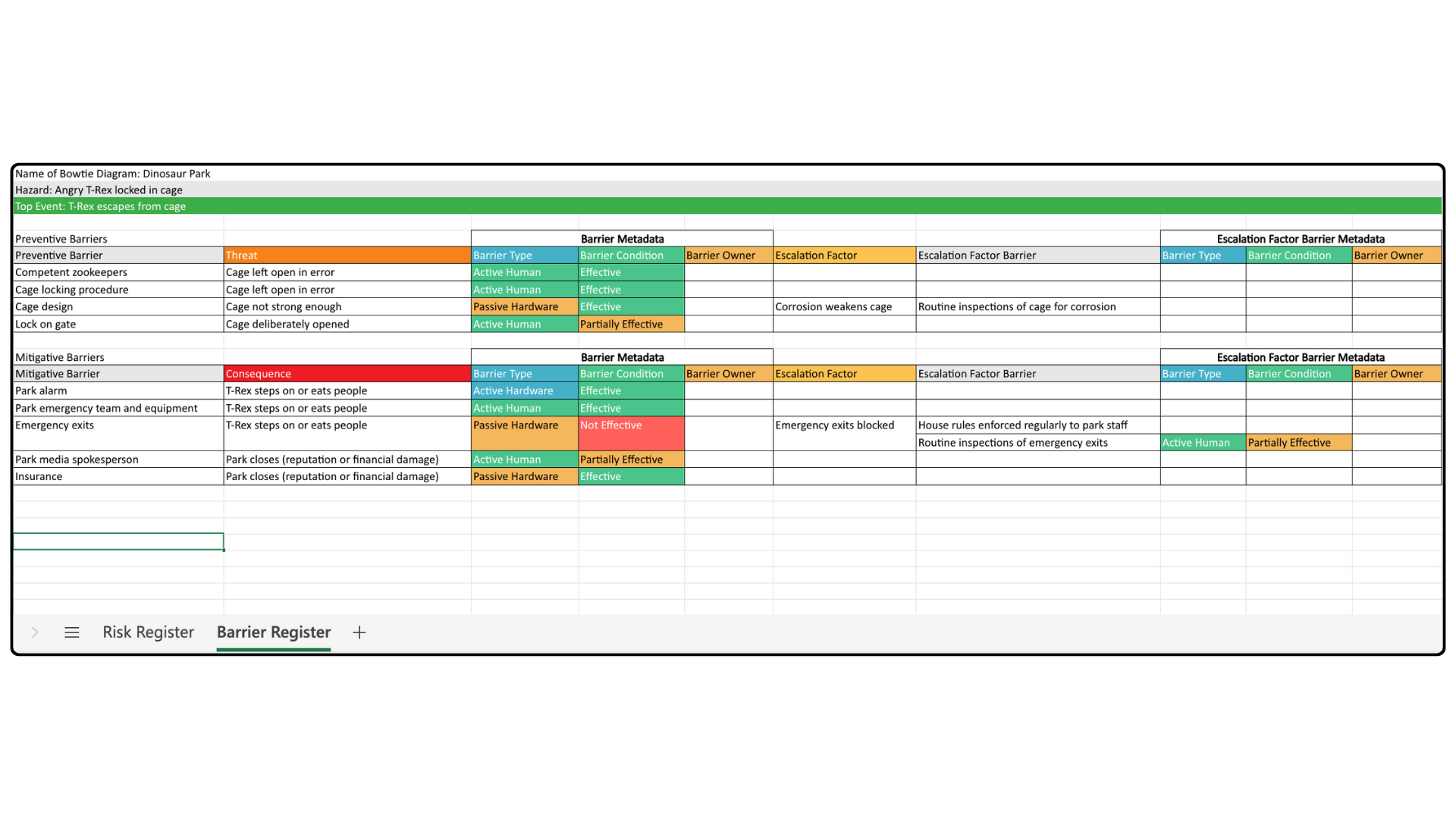
- Barrier Register - lists all barriers along with their metadata.
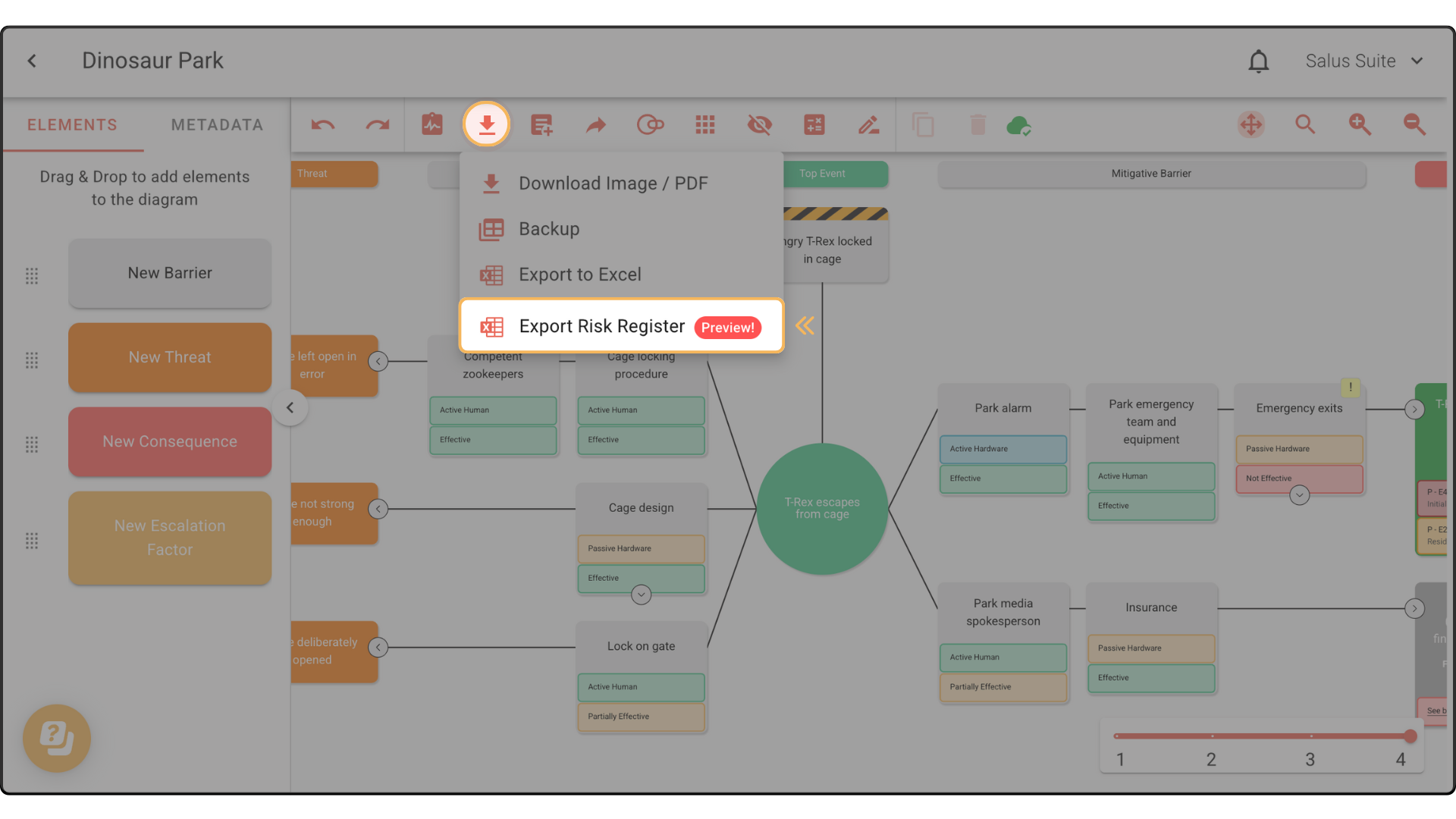
Step 1: In the toolbar, click the download icon, then EXPORT RISK REGISTER.
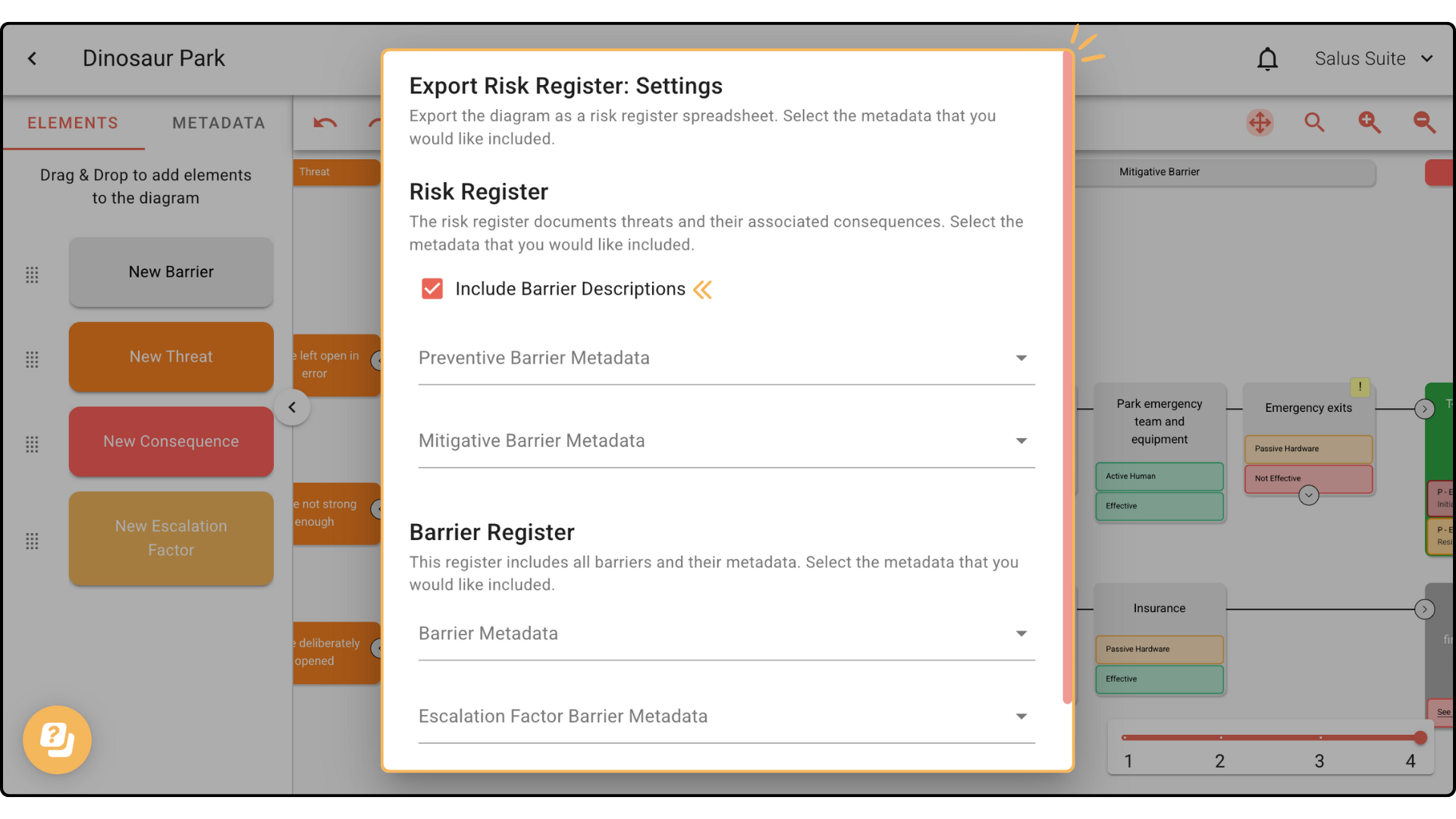
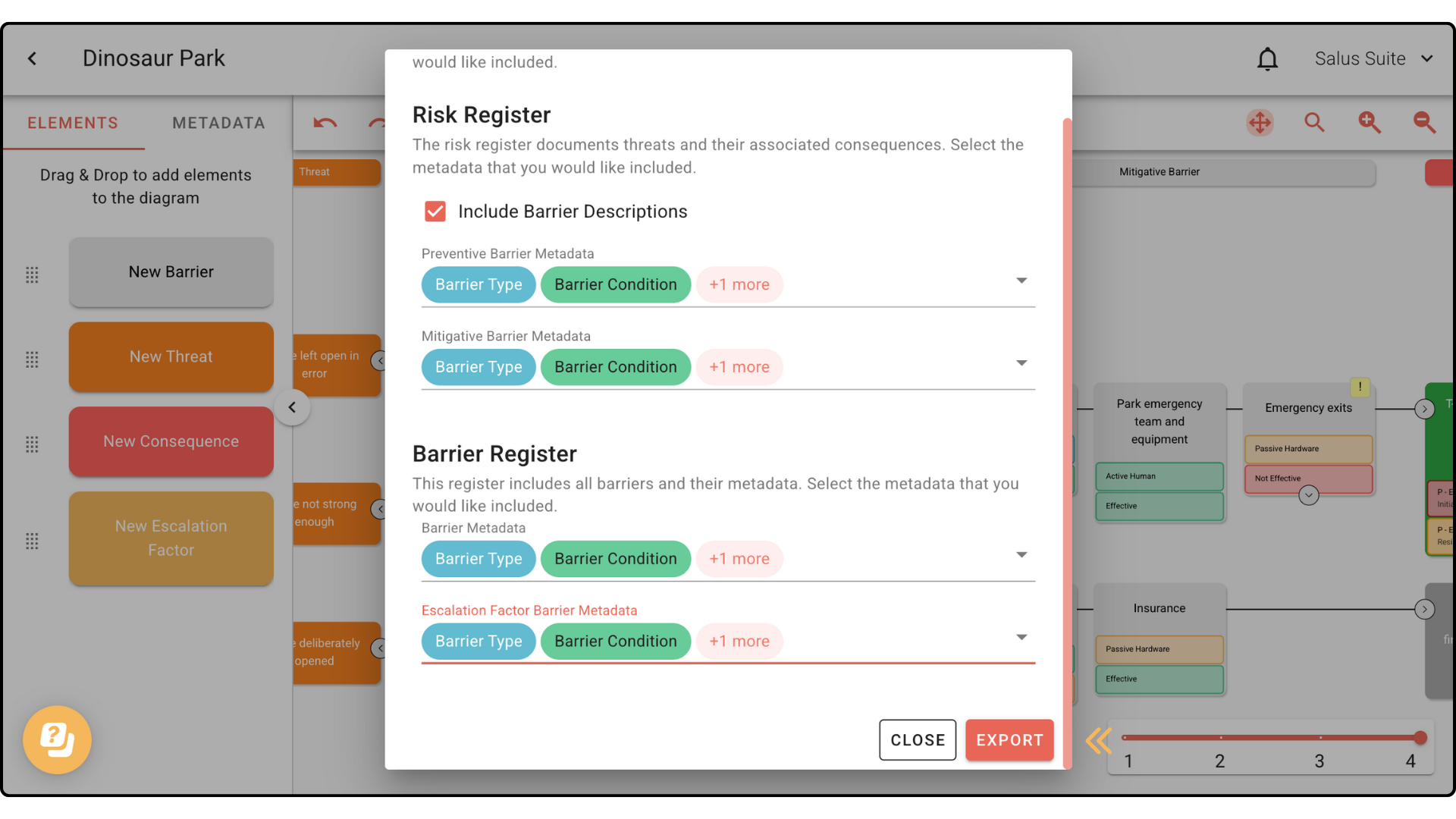
Step 2: In the Export Risk Register settings window, tick Include Barrier Descriptions to add a column of barrier descriptions to the spreadsheet.
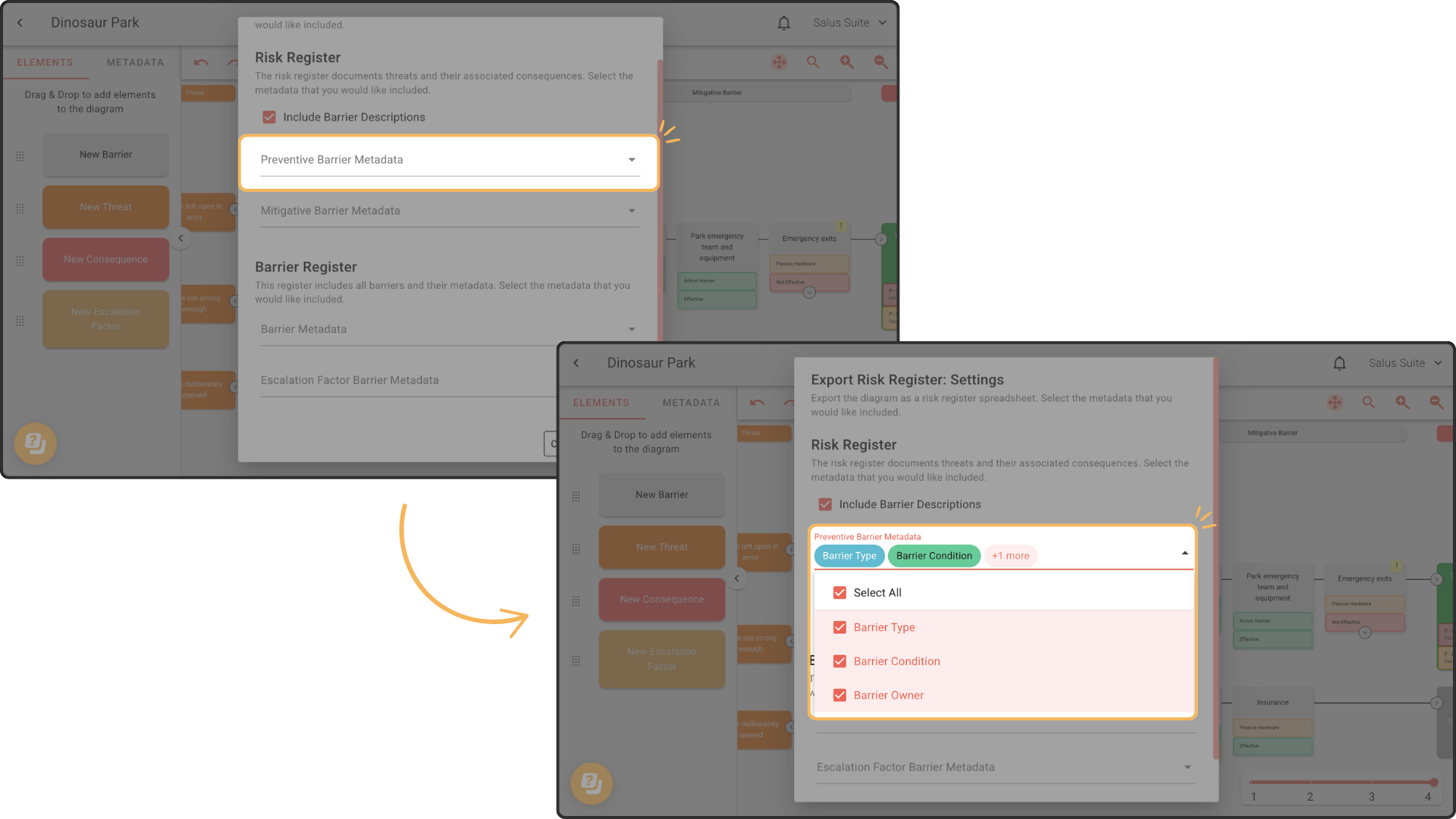
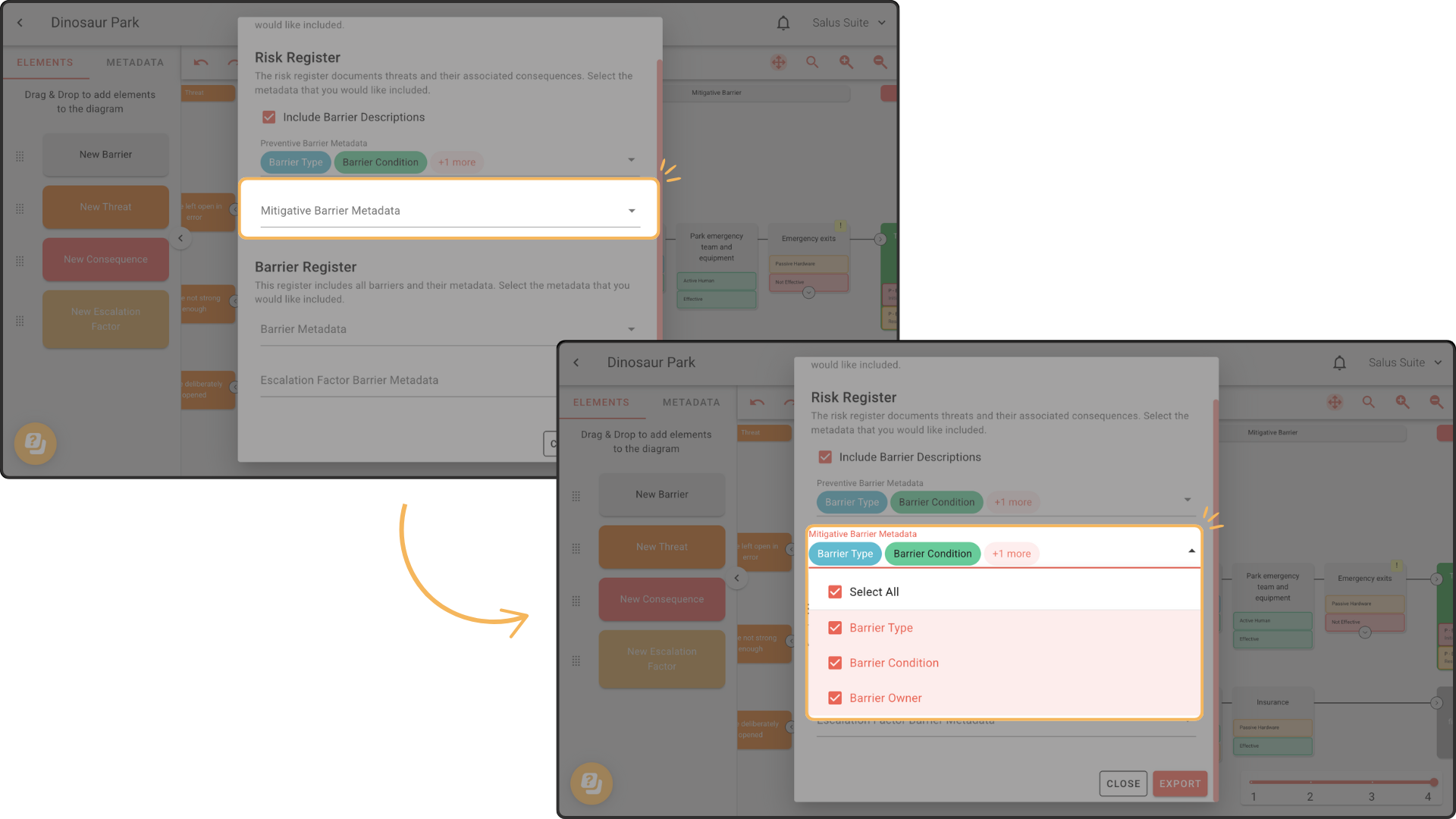
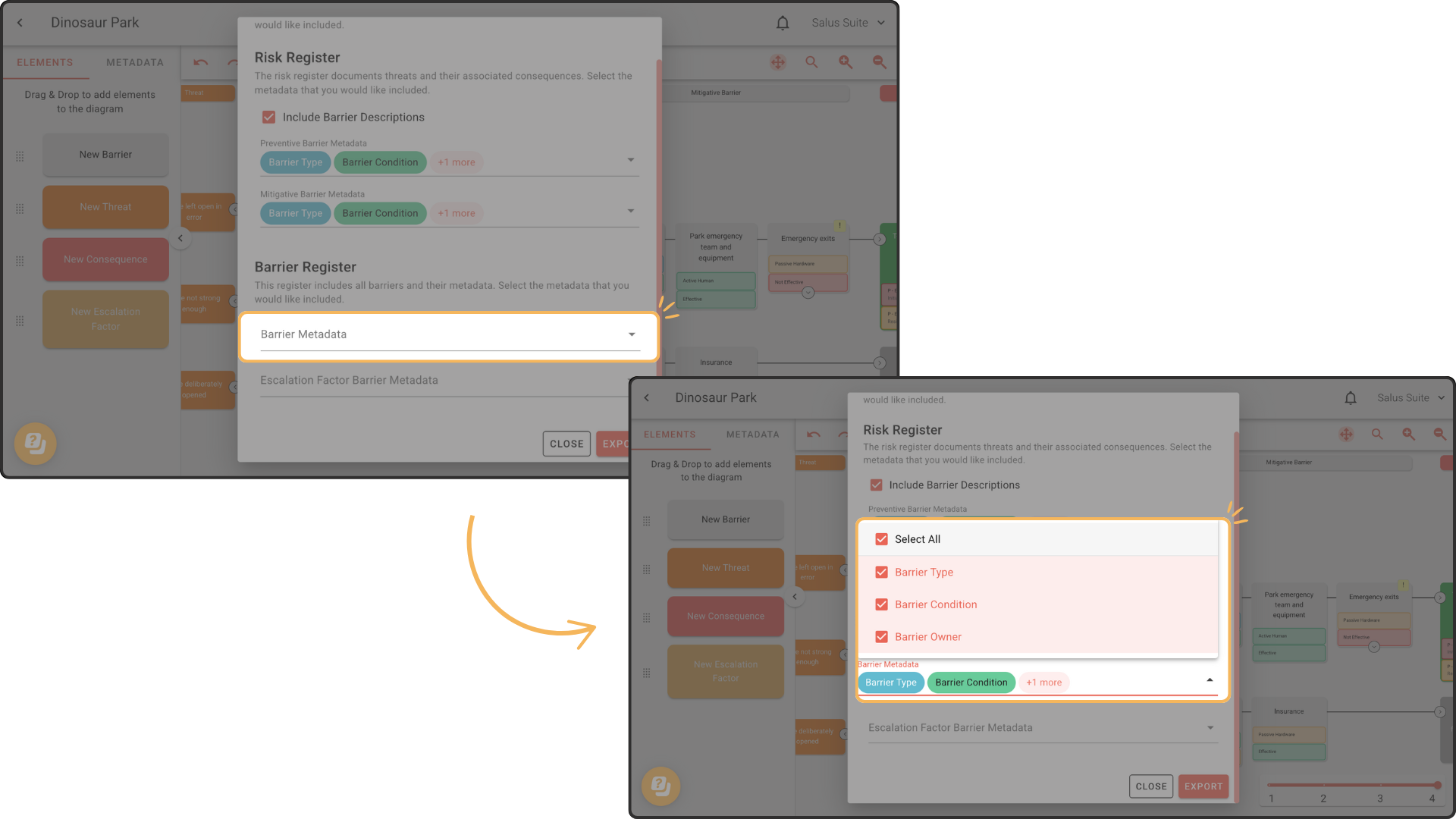
Step 3: From the dropdowns, choose the metadata to include for Preventive Barrier and Mitigative Barrier, or click SELECT ALL.
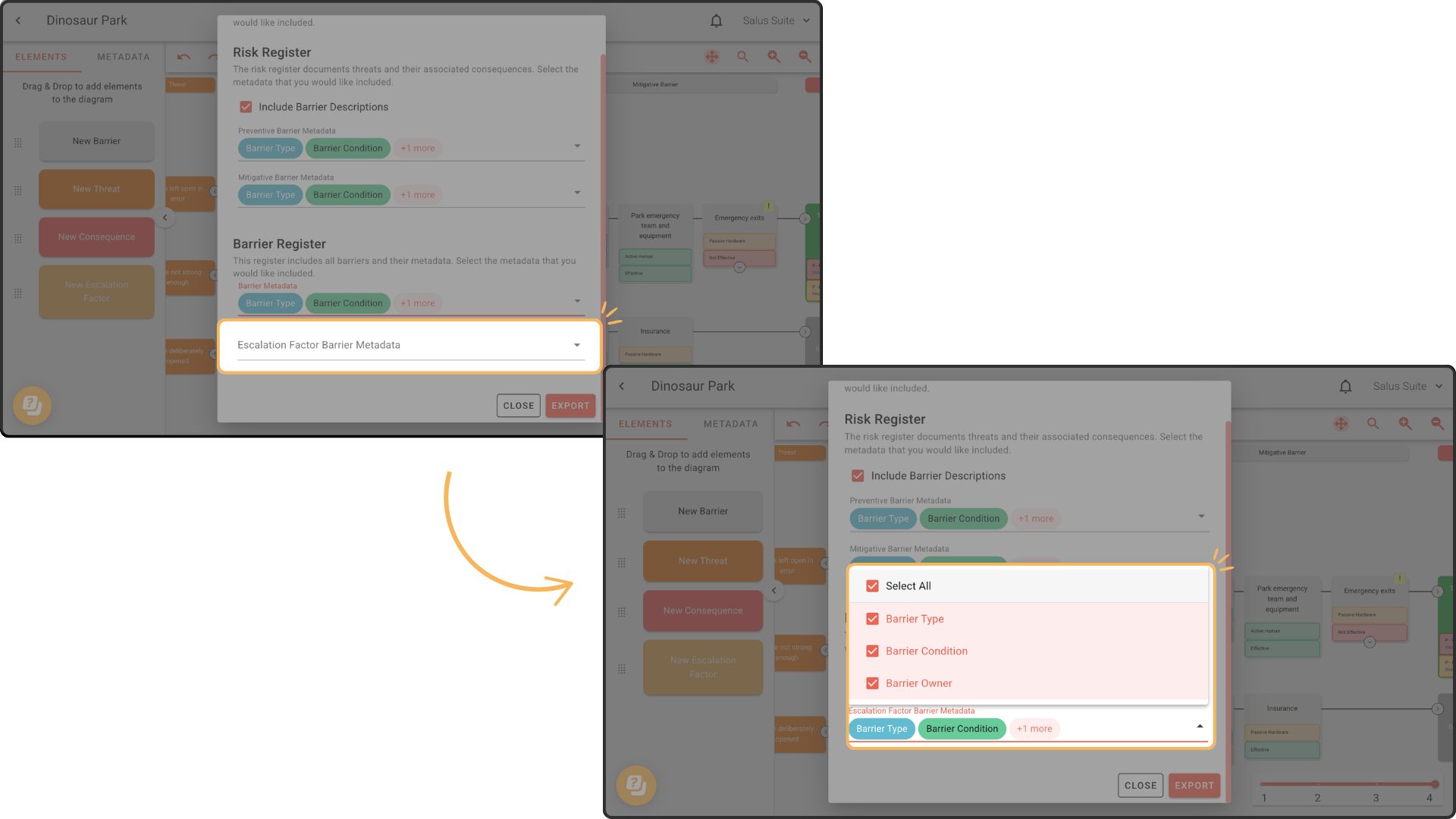
Step 4: From the dropdowns, choose the metadata to include for Barrier Metadata and Escalation Factor Barrier Metadata, or click SELECT ALL.
Step 5: Click EXPORT.
Your risk register report includes a Risk Register tab and a Barrier Register tab:
Back up your diagram
A backup contains only your raw data. It won’t look like much, but it lets you store your data outside Bowtie Master. You can re-upload the file using IMPORT in your project folder - see Import a bowtie diagram.
Step 1: Click the download icon in the toolbar, then BACKUP. The details that make up your diagram download as an Excel file.