Linking elements in bulk
In this tutorial, we’ll show you how to consolidate large numbers of elements into your Element Library.
If your organisation has duplicate elements scattered across projects and diagrams, Bulk Link replaces them in one step: search for matching elements, then choose exactly which elements and diagrams to link to the Element Library.
Bulk linking overwrites the selected elements with the library element’s content and links them to the library. This cannot be undone.
If you are bulk linking to an existing library element, there are two steps: Select and Review. If you are creating a new element from the Recommendations page, there is an extra Create step.
Bulk linking elements
Step 1: In the Element Library, open an element’s actions menu and click Bulk Link.
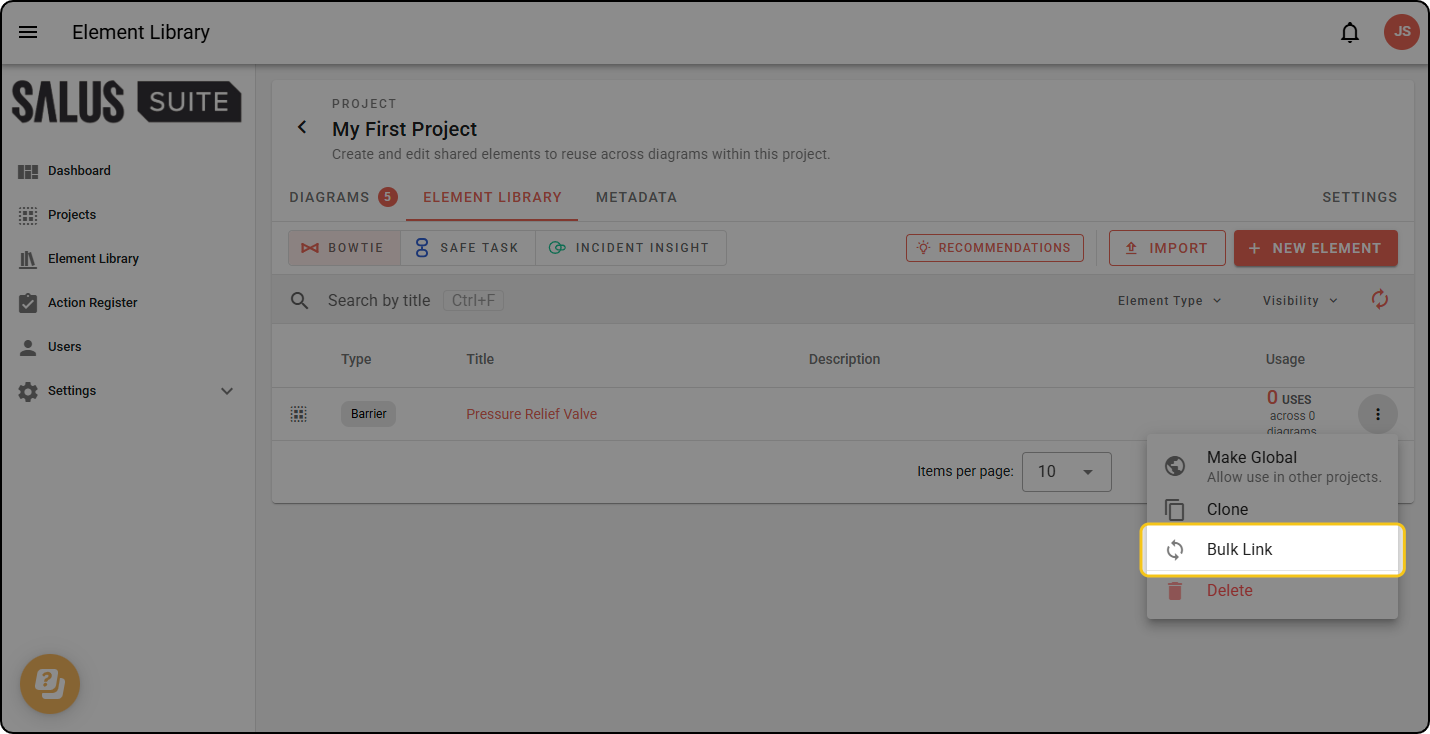
Search results include similar names, so you can combine naming variations into one element.
Search, select and review
The default search will be for the name of the library element.
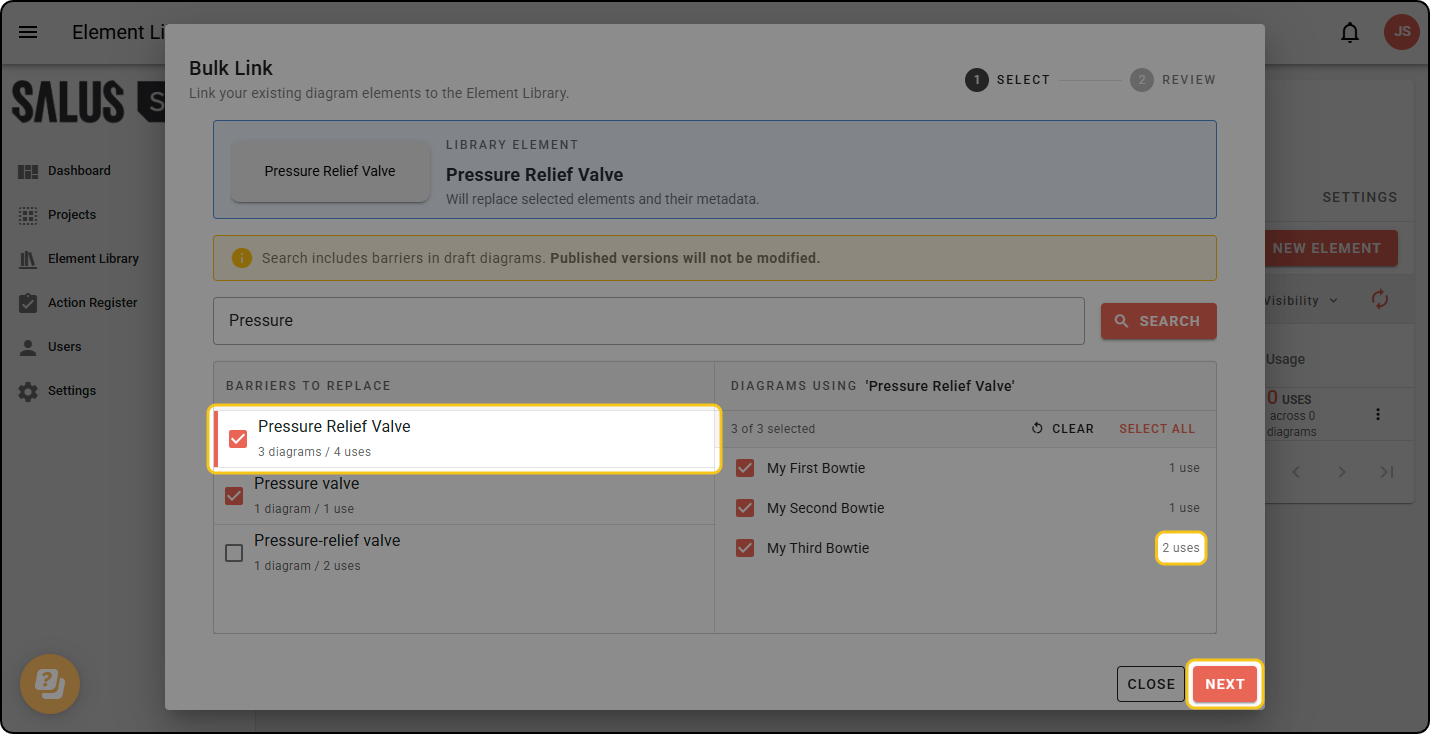
Step 2: After searching for a title, the results will list diagram elements with the same or similar titles. Click VIEW CHANGES to see which fields (such as the description or metadata), if any, will be updated to match the library element. Select the diagrams/elements you’d like to replace and click NEXT.
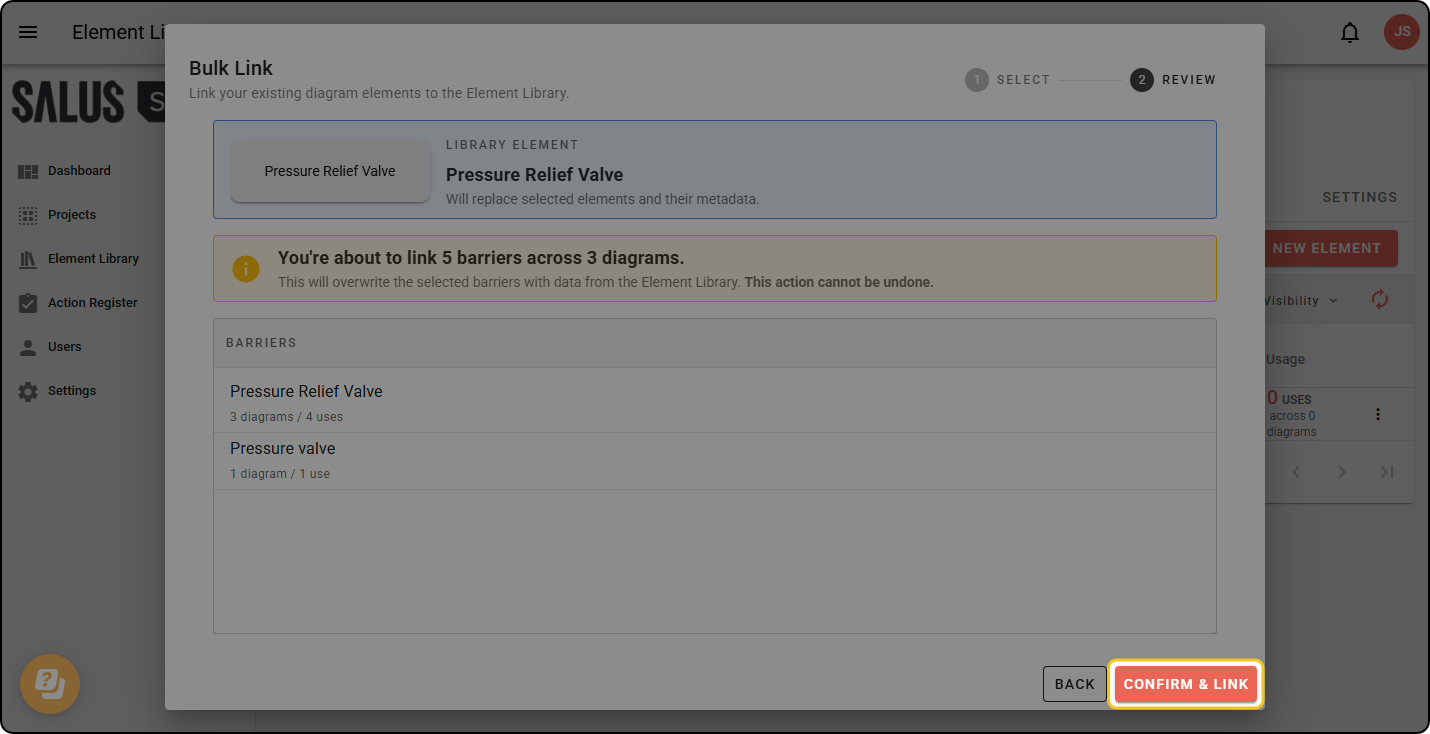
Step 3: Review your selection - a summary of every element that will be linked. Once you’re happy, click LINK.