Clone, delete and change element scope
In this tutorial, we’ll show you how to clone, delete and change the scope of elements in your Element Library.
The actions available depend on where you open the library and an element’s current scope. Clone to Project and Make Global are only available in a project’s Element Library, and Make Global is only available to Organisation Admins.
Open the actions menu
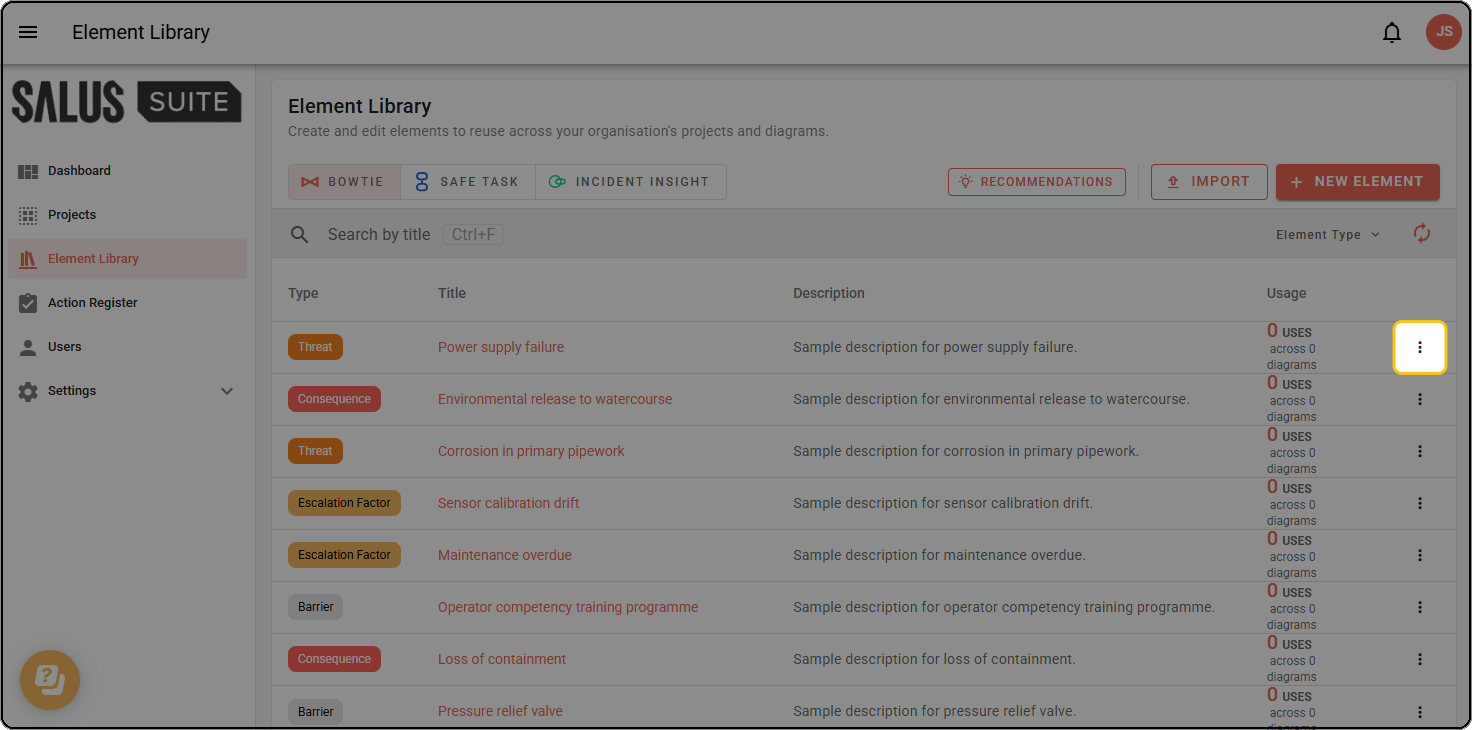
Step 1: In your Element Library, find the element you want to change and click the actions menu at the end of its row.
Clone an element
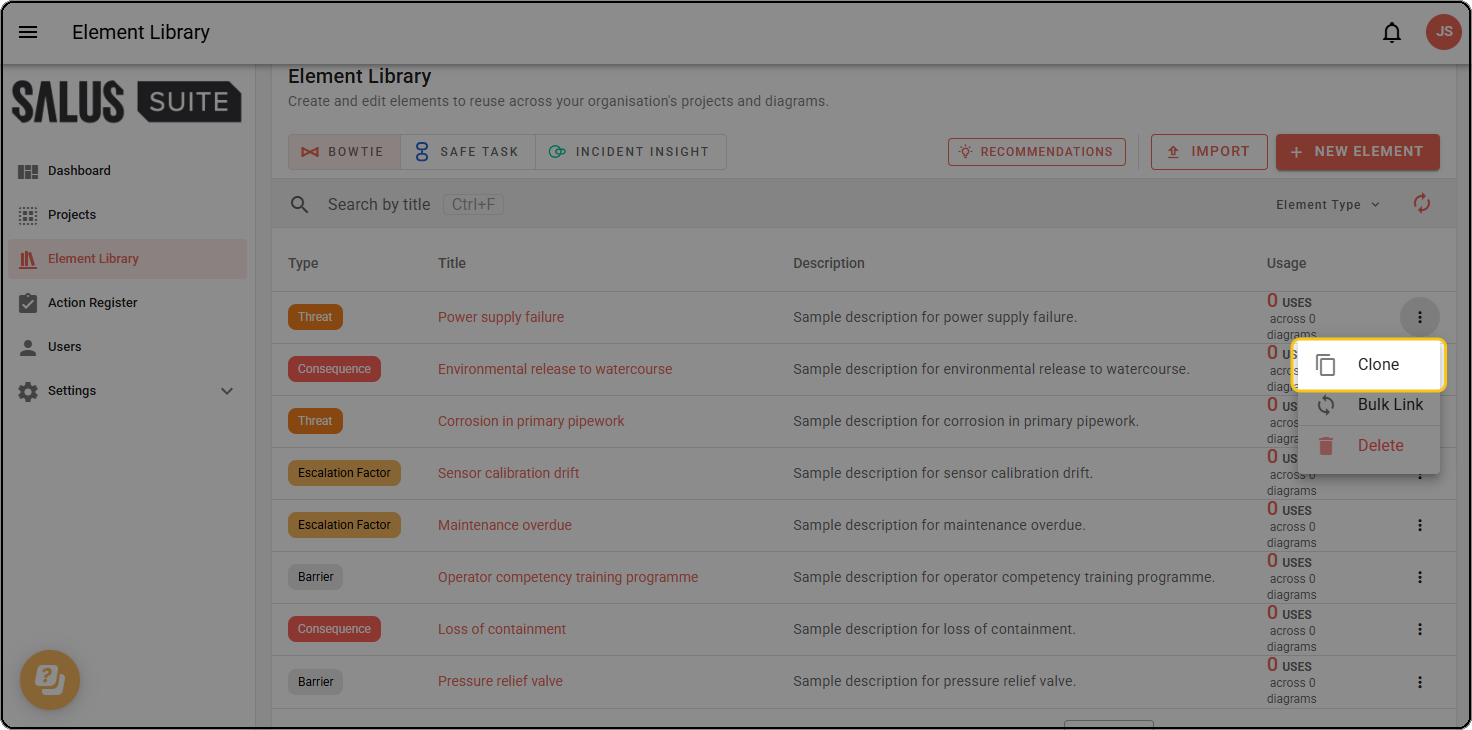
Unless cloning an organisation-level element into a project, the clone has the same scope as the original.
Step 1: Open the actions menu and click Clone.
Clone an organisation-level element to a project
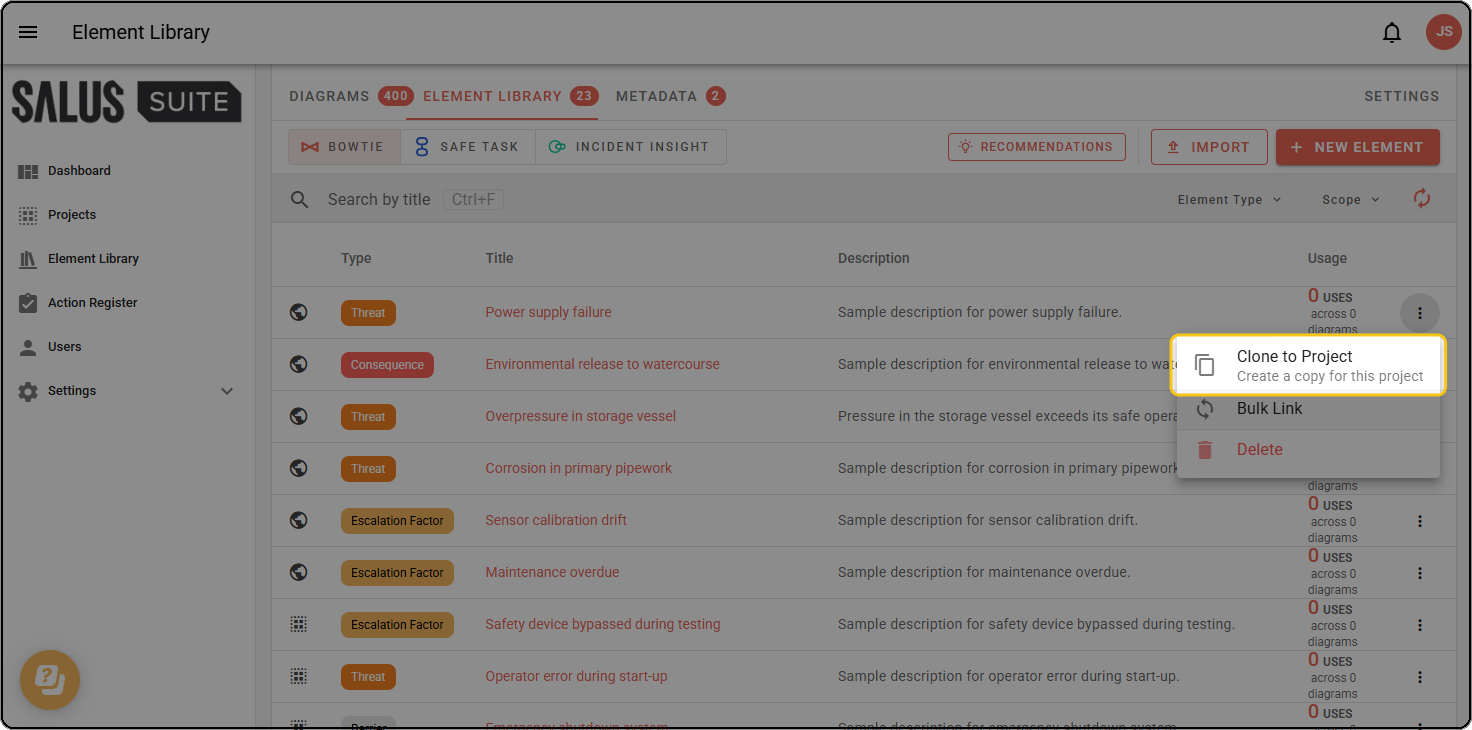
Step 1: Open a project’s Element Library and find an organisation-level element, shown with the globe icon. Open its actions menu and click Clone to Project to create a copy for that project.
Make a project-level element organisation-level
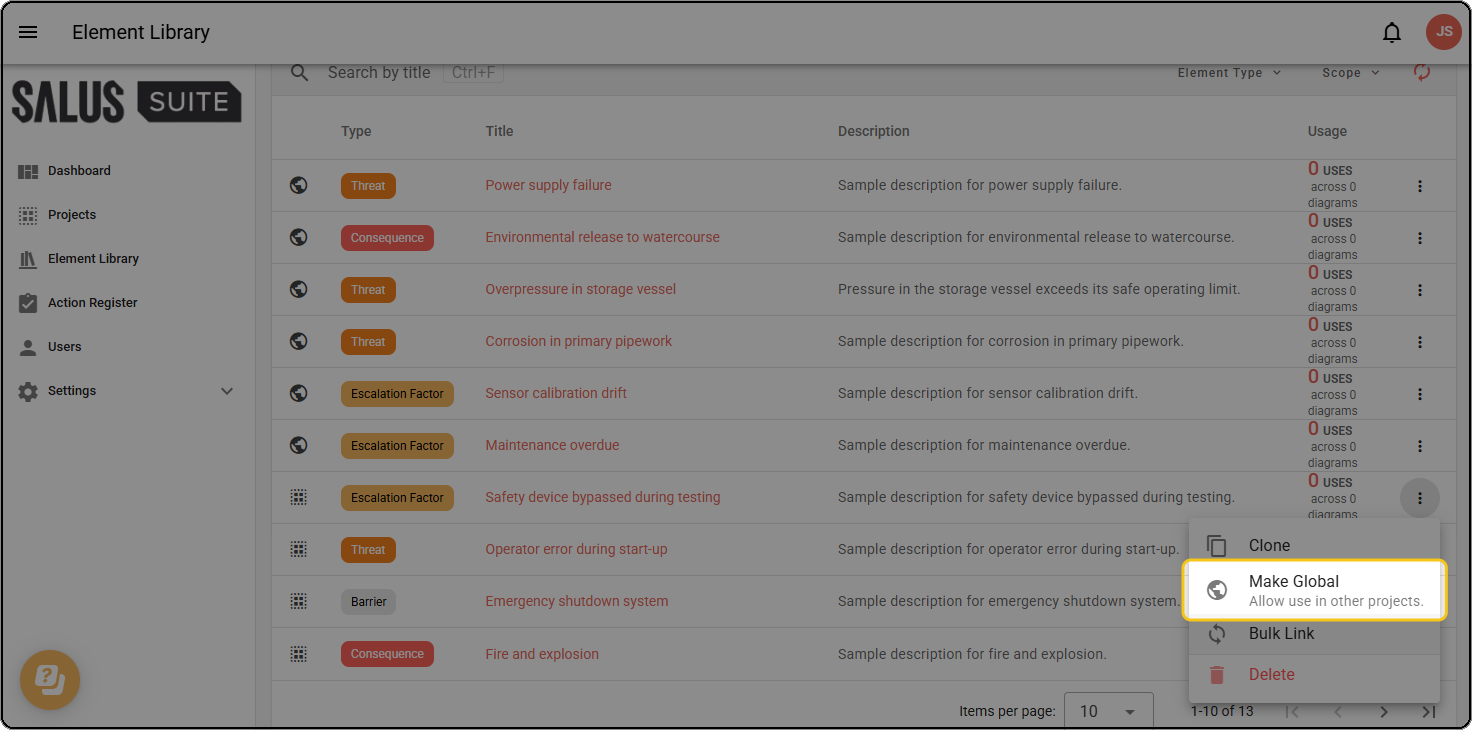
Making a project-level element organisation-level allows it to be used in other projects.
Only Organisation Admins can make a project-level element organisation-level.
Step 1: Open a project’s Element Library and find a project-level element, shown with the group icon. Open its actions menu and click Make Global.
Delete an element
Step 1: Open the actions menu and click Delete.
Step 2: Click Delete to confirm. The element is removed from the library and unlinked from any diagrams that use it.
Deleting an element will unlink its uses in diagrams. They will not be deleted.